
 Nodaro Docs
Node reference
Every node in the Nodaro editor, grouped the way the node picker groups them, with how to read a node page and what each input and output colour carries.
A node is one step of a workflow on the Nodaro canvas: it generates an image, edits a video, writes text, or posts a result. Each node has inputs on its left edge and outputs on its right edge, and you connect them so that the result of one node becomes the input of the next. This reference has a page for every node, grouped the way the node picker groups them.
Open the node picker
Press Tab on the canvas, or open the node picker in the sidebar. The picker groups nodes by what you want to do, not by the technology behind them.
- Tabs. The picker has these tabs: Common, Image, Video, Audio, Models, Assets, Automate, Publish and All.
- Families. Inside a tab, nodes are grouped in families, such as Image › Create or Video › Cut & Assemble.
- Popular. The Image, Video and Audio tabs show up to three popular nodes above the families.
- Creative Controls. The Image, Video and Audio tabs end with a collapsed Creative Controls block that holds the pickers. Its Music & Voice family appears on the Audio tab only.
- All. The All tab lists every family once, under a heading such as Image · Create.
- Search. Type to search. Matches from other tabs appear under From other tabs, labeled with the tab they belong to.
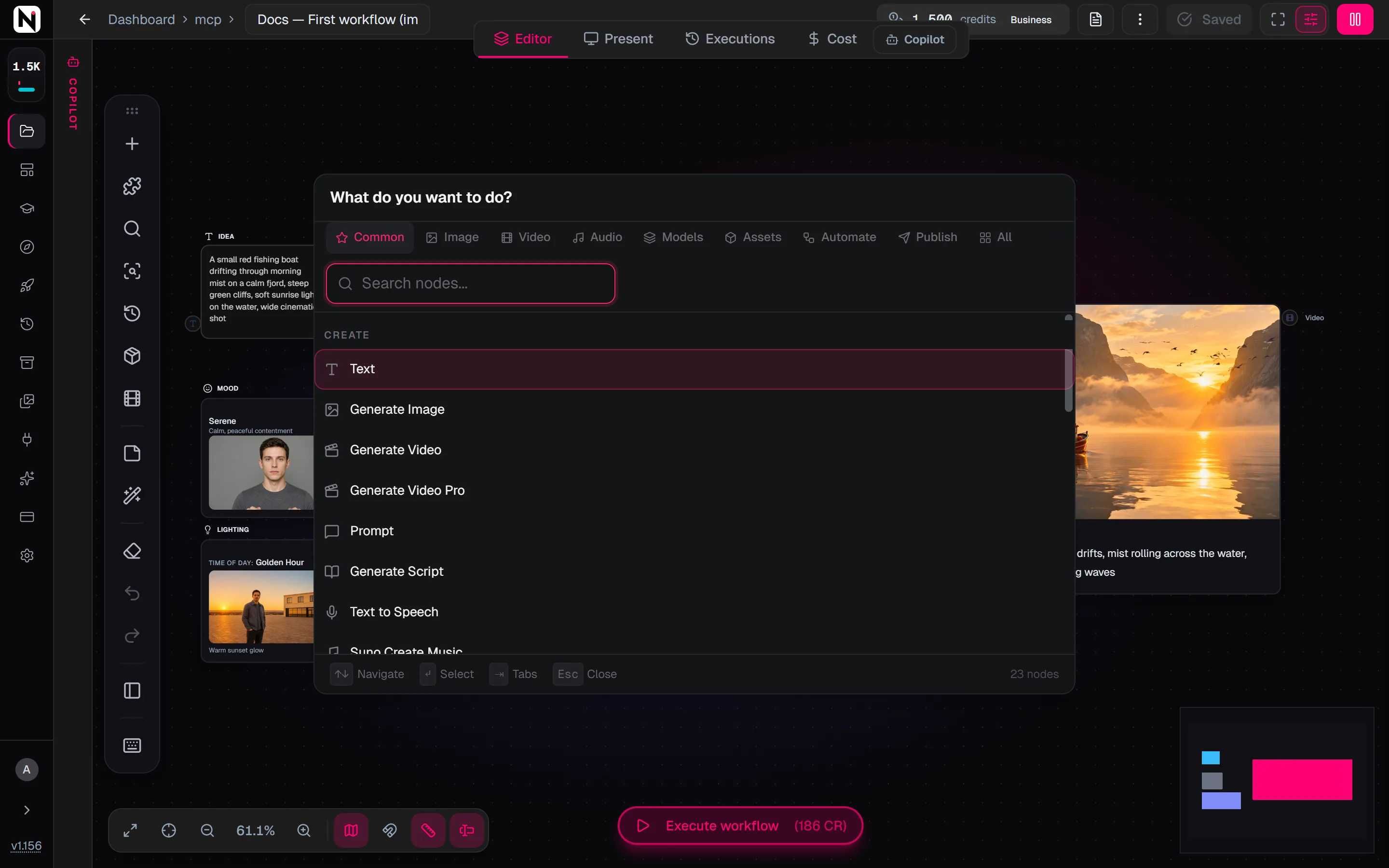
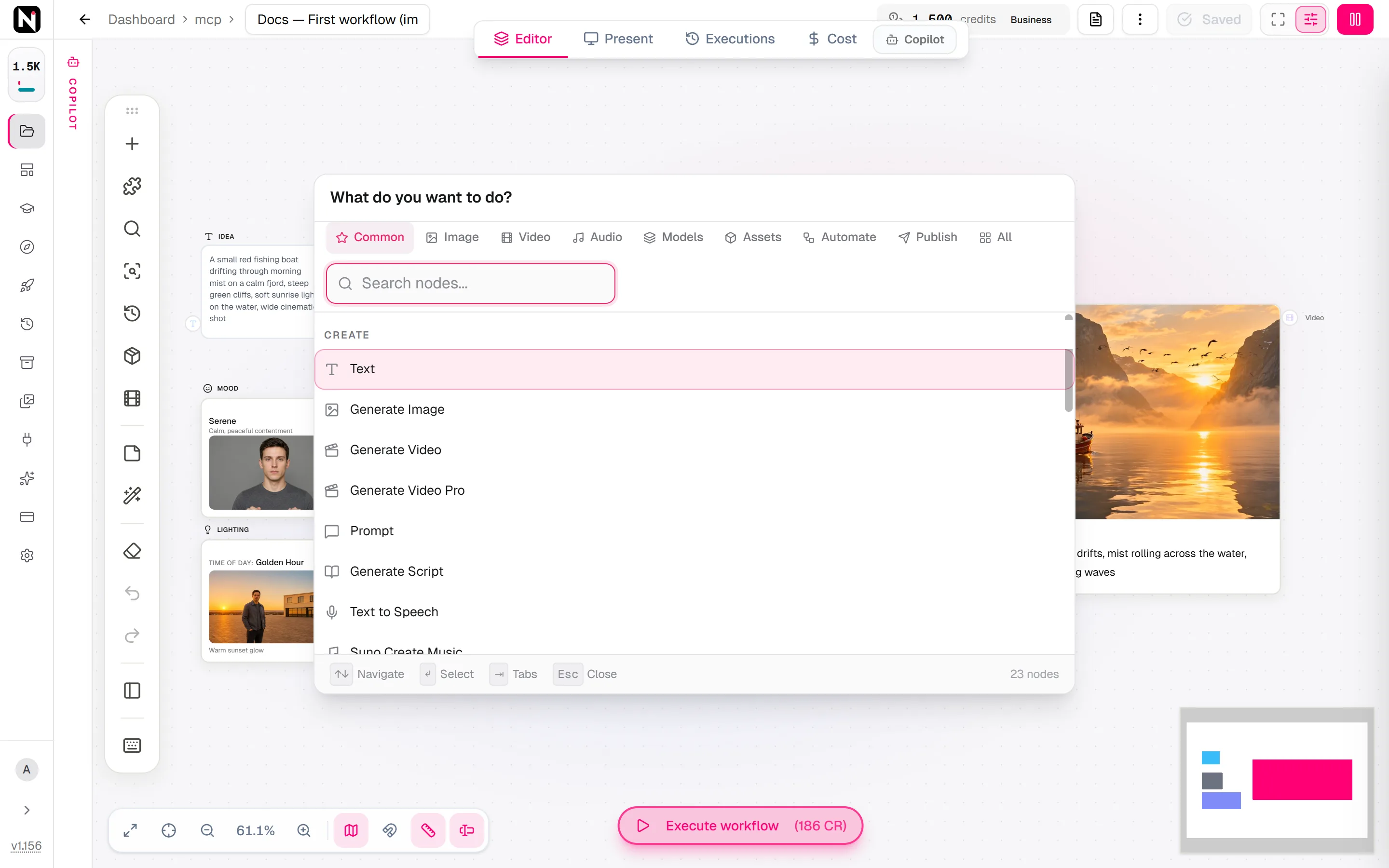
A tab shows everything that deals with its medium, not only what produces it. For example, the Text node also appears under Add Your Own on the Image, Video and Audio tabs, and the Assets tab also shows Reference Sheet and Reference Board.
A self-hosted Community install does not show the nodes that run only on Nodaro Cloud, and a family with none left is not shown at all.
The Common tab
Common is a short list of the nodes most workflows use. Every node on it also appears in its own family on another tab.
| Section | Nodes |
|---|---|
| Create | Text, Generate Image, Generate Video, Generate Video Pro, Generate Text - Any LLM, Generate Script, Text to Speech, Suno Create Music |
| Edit | Modify Image, Manual Edit, Add Captions, Voice Changer |
| Add Your Own | Upload Image, Upload Video, Upload Audio, Video URL |
| Build Once, Reuse | Character Asset, Location Asset, Object/Props Asset |
| Batch | List |
| Finish | Preview, Publish to Social, Save to Storage |
Sections of this reference
The sections of this reference follow the tabs of the node picker:
| Section | Node picker tab | What is in it |
|---|---|---|
| Image | Image | Upload, generate, edit, reference and describe images |
| Video | Video | Generate, animate, cut, caption, format and analyze video |
| Audio | Audio | Speech, voices, music, sound effects, audio editing and transcription |
| Generation Settings | Models | Nodes that hold one value, such as a model, an aspect ratio or a duration |
| Assets | Assets | Reusable characters, faces, creatures, locations and objects |
| Automate | Automate | Triggers, content sources, text, lists, logic and sub-workflows |
| Publish | Publish | Social posting, saving to storage and webhooks |
| Creative Controls | The Creative Controls block of the Image, Video and Audio tabs | Pickers for subject, camera, light, motion, effects, music and voice |
Old node types that saved workflows can still contain are listed in Legacy nodes.
How to read a node page
Every node page follows the same order:
- The first paragraph says what the node does and when to use it.
- The At a glance box shows where the node sits in the node picker, the kind of output it makes, its credit cost, how many models it can run, and its API type. The API type is the name the node has in workflow files and in the API.
- Quick start adds the node and runs it in a few steps, with a diagram of a typical workflow.
- Inputs lists each input, what it accepts and what it does.
- Settings lists every field of the settings panel, with its default.
- Models, on nodes that run AI models, lists every model the node can run, with its credit price and a link to the model's page.
- Tips and Troubleshooting close the page.
Input and output colours
Every input and output has a colour that shows the kind of data it carries, and a wire takes the colour of what flows through it. An input accepts only the kinds listed in its popover, and the editor refuses a connection that does not fit. Click an input to see what it accepts, what is connected, and which nodes you can add to it.
| Kind | Colour | Carries |
|---|---|---|
| Text | Blue | Prompts, text, captions and other strings |
| Negative | Red | A negative prompt: what the model should avoid |
| Image | Pink | A picture, such as a result, an upload or a start frame |
| End frame | Cyan | The last frame of a video to generate |
| Image references | Deep violet | Reference pictures for a video model |
| Video | Light violet | A video |
| Audio | Amber | Speech, music, sound effects and other audio |
| Audio references | Gold | Reference audio for a video model |
| Look | Indigo | The wording of a picker, for the Look and Elements inputs, and the value of a generation settings node |
| JSON | Indigo | Structured data, such as the results of a web scrape |
| Identity | Light pink | A character, the Assets inputs that take characters and other assets, and voices |
| Face | Orange | A face identity from Create Face |
| Mask | Purple | A black-and-white mask: white means change, black means keep |
| List | Teal | A list of items, for running a node once per item |
| Mixed references | Violet | Images, video, audio or text as references, for example on a text node |
| Approved | Green | A passed quality check, and the inputs of the save, webhook and publish nodes |
| Any | Slate grey | Any kind of data, on general-purpose inputs and outputs |
The asset outputs follow the kind of picture they carry: the Location output is pink like an image, and the Object/Props and Animal/Creature outputs are deep violet like image references. Some colours are close, for example image references and video. When in doubt, read the input's label, which names what it takes, such as Start Frame or References.
Every node also keeps presets: save a node's settings under a name and load them again in one click. See Presets.
Every node, by tab
Image
Edit & Retouch
- Modify ImageChange an existing image with a text instruction. Restyle it, fix one detail or repaint a masked area with more than 20 image-editing models.
- Upscale ImageEnlarge and sharpen an image without a prompt. Use Recraft Upscale for quick, low-cost results or Topaz Upscale at 1x, 2x or 4x for final files.
- Remove BackgroundRemove the background from an image in one step. The node returns a transparent PNG of the subject, ready to place on a new scene or a brand graphic.
- Generate MaskDescribe a subject in plain words, such as "the red car", and get a black-and-white mask of it to repaint only that area in an editing node.
- Paint MaskPaint a mask by hand over any image, or refine a generated one, and send it to every node that takes a mask. White is edited, black is kept. Free.
- Image CollageArrange up to 30 images into one 2K or 4K picture with a smart or grid layout. Add numbers and labels to turn a batch of shots into a storyboard.
- Image OverlayPlace up to 12 layers, such as logos, text, QR codes and shapes, on an image, pixel-exactly, with a live preview. Export for many platforms in one run.
- Extract FramePull one frame out of a video as a lossless PNG, such as the first, the last, a timestamp or an exact frame number, to chain clips or make thumbnails.
References
- Reference SheetCompose a turnaround, variation board, detail sheet or full model sheet from a Character, Object or Location, and reuse its clean panels as references.
- Reference BoardGenerate a dense reference board with a hero image, panels and a color palette in one AI pass, then refine it with an edit, a mask or a re-roll.
Understand
- Describe ImageDescribe any image in words with a vision model, briefly, in detail or in labeled sections, and send the text to prompts, captions or alt text.
- Describe to PickerAnalyze a photo with a vision model and fill the Person, Styling, Framing, Lens and Camera / Film Stock pickers you connect with valid catalog choices.
- Image CriticScore an image for realism, anatomy, prompt adherence, style or character consistency, and route it by the result to build automatic quality checks.
Video
Create
- Generate VideoMake a video clip from a prompt, a start frame or references with Seedance, VEO, Kling, Wan and more, with sound, end frames and per-model credit rules.
- Generate Video ProMake one long AI video from a prompt or a script. Generate Video Pro splits it into model-sized segments, renders them in order and stitches one clip.
- Music VideoGenerate a music video for a song made with Suno. Connect a Suno music node, run Music Video, and get visuals made for that track, for 11 credits.
- Still to VideoTurn one image and one audio track into an MP4, with an optional zoom, pan or Ken Burns motion. No AI model runs, so it costs 0 credits.
- SlideshowTurn 2 to 100 images and an optional audio track into an MP4 slideshow with motion and transitions. No AI model runs, so it costs 0 credits.
Story & Script
- Story → VideoTurn a story prompt into a finished AI film. Story → Video writes the script, casts, plans shots, animates and edits, and stops for your approval.
- SceneThe Scene node holds one scene of a Story → Video film, with its shots, camera, keyframes and clip. Review it, refine the shots and approve it.
- Content IdeasTurn one or more content recipes and your brand into 1 to 10 post ideas, each with a hook, beats and a shot list. The next node runs once per idea.
- Generate ScriptWrite a multi-scene video script with AI. Each scene gets a description, action, mood, length, camera, dialogue and a ready-to-use image prompt.
Animate & Perform
- AI AvatarMake a talking avatar video with HeyGen. Pick an avatar or animate your own image, then give it a script and a voice, or a recorded voiceover.
- Cinematic AvatarMake a short cinematic clip with 1 to 3 HeyGen avatar looks from a text prompt. No script or voice; the prompt directs the scene, action and camera.
- Lip SyncMake a portrait speak an audio track, or dub an existing video by re-syncing its lips to new speech, with Kling Avatar, OmniHuman, Seedance and more.
- Speech to VideoGenerate a video driven by a speech track with Wan 2.2. Connect speech audio, a portrait and a prompt, and get a talking video from 33 credits.
- Motion TransferMake a still character perform the moves of a reference video, such as a dance or a gesture, with Kling 2.6, Kling 3.0 or Wan Animate.
- Face SwapReplace the face in a video with the face from a reference image, for character replacement, privacy or creative remixes, for 143 credits per run.
Continue & Restyle
- Extend VideoContinue a video with new footage that follows your prompt, using Seedance 2 Extend, LTX 2.3 Pro, VEO Extend or Runway Extend, and chain runs for long shots.
- Edit Video ProReplace a chosen span of an existing video, from 4 seconds up to 2 minutes, with new Seedance footage stitched back so the rest of the clip stays the same.
- Retake VideoRegenerate a time window of an existing video with LTX 2.3 Pro. Replace only the sound, only the picture or both, and keep everything outside the window.
- Video to VideoTransform a whole video from a prompt. Restyle footage as anime or claymation, turn day into night, or edit a clip by instruction with Seedance 2.5 Edit.
- Relight & SwitchRelight a subject, swap or restyle a background, or composite new elements into a video, driven by the clip's own pixels, a mask and a reference image.
- Video DepthTurn any video into a depth video, where near is bright and far is dark, with Video Depth Anything or Depth Anything per frame, in grayscale or a colormap.
- Video MaskDescribe a subject in plain words and get a black-and-white mask video that tracks it through the clip, with SAM 3.1 or SAM 3, for clips up to 5 minutes.
Cut & Assemble
- Trim VideoCut a video by start and end time, trim seconds or frames from its edges, keep its first or last seconds, or cut at the cleanest loop point with Smart loop cut.
- Combine VideosJoin several video clips into one in the order you set, with more than 50 transitions, audio crossfades, seam trims and jump-free joins for continuous shots.
- Apply EDLRender an edit decision list into one finished video or audio file, with cuts and crossfades, and remap a transcript so captions follow the finished cut.
- Assemble Narrated VideoFit each voice take to its video clip and join the blocks into one narrated MP4. Short voices are centered, long voices slow the clip, and no voice is ever cut.
- Adjust SpeedChange a video's playback speed from 0.05x to 100x, play it in reverse, keep or shift the pitch, add smooth slow motion, or ramp the speed with segments.
- Loop VideoRepeat a short video a set number of times or until it reaches a target length, and cut it at its cleanest loop point first so that no repeat shows a jump.
- Fade In/OutFade a video in at its start and out at its end, from and to black or white, with separate durations from 0.1 to 3 seconds. The sound fades along with it.
- CompositeLayer up to four videos into one composition with per-layer position, blend mode, opacity and timing. It costs no credits; Render Video turns it into an MP4.
- Mask CompositePlace a foreground video over a background through a mask video, or pixelate or blur the masked area to hide faces. It runs on every edition without a key.
- Compose VideoDescribe the video you want, and an AI model arranges your connected images, clips and audio into a timed, multi-track composition that Render Video renders.
- Split into ChunksCut a long video or audio file into frame-exact parts between a minimum and a maximum length, and run the next node once for every part.
- Manual EditOpen clips, images and audio in the NodarCut video editor, cut and arrange them by hand, and pass the edited video on, or pause a workflow until you finish.
- Edit PlanPlan an edit from a recording's transcript. Tighten it, find short clips, mark chapters or cut a trailer, as an edit decision list that Apply EDL renders.
- Camera SwitchPut each cut of a multicam podcast or interview edit on the camera of whoever is speaking, from a transcript with speaker labels. The sound never changes.
- Speaker FramesFind where each speaker's face is, over time, on every camera of a multicam edit, and get a face-track file that Speaker View's tracked framing reads.
- Speaker ViewRender a multicam edit with its speakers on screen, side by side, stacked, in a grid or picture-in-picture, with an emphasis on whoever is talking.
Sound for Video
- Video SFXGenerate sound effects, foley and ambience that follow the action in a video, from an optional prompt. The new sound replaces the video's own audio track.
- Merge Video & AudioAdd voiceover, music or sound effects to a video. Set each track's volume and start time, and keep, lower or mute the video's own sound.
- Extract AudioPull the audio track out of a video as a standalone MP3 file, to split it into stems, clean the voice or reuse the soundtrack under another clip. No settings.
- Remove AudioStrip the audio track from a video and keep a silent clip. The picture is copied without re-encoding, so nothing is lost and the node finishes almost at once.
Titles, Graphics & Captions
- 3D TitleDescribe a title and an AI model plans an animated 3D text scene with camera moves, lighting and particles, up to 60 seconds, for intros, outros and trailers.
- Motion GraphicsDescribe a lower third, title card or kinetic typography and an AI model animates it in 2D, as editable Lottie with free color and text edits, up to 60 seconds.
- After EffectsDescribe a look and an AI model plans video effects, such as a color grade, film grain, vignette, letterbox or motion blur, and previews them before you render.
- Lottie OverlayDescribe the overlays and an AI model places and times Lottie animations, such as confetti, hearts or arrows, or your own Motion Graphics, over a video.
- Add CaptionsTranscribe a video and burn in captions, as a clean subtitle or one of five animated word-by-word styles, with fonts, outlines, position and words per line.
- Render VideoRender the plan of Motion Graphics, 3D Title, After Effects, Lottie Overlay, Compose Video or a 3D scene into an MP4, or arrange connected media without a plan.
- Video OverlayShow up to 20 images over a video, each in its own time window, as a card, corner badge, full frame or custom box, with a live preview and the audio kept.
- Generate 3D SceneDescribe a shot and get an editable, animated 3D clay scene for previz, with objects, camera moves and timing, to render as a layout reference for video models.
- Edit 3D SceneChange a 3D clay scene with a plain instruction or free direct edits, lock the objects that must stay the same, and keep every revision to compare or restore.
- 3D Render ProAuthor an animated 3D scene from a brief and render it in one run on a hosted engine, returning the MP4, the editable scene and one still image per shot.
Format & Export
- Resize VideoChange a video's aspect ratio to 16:9, 9:16, 1:1 or 4:5 by cropping, padding or stretching, for example to turn a landscape clip into a vertical Reel.
- Social Media FormatFit a video or image to the frame size of Instagram, TikTok, YouTube Shorts, X, Facebook or LinkedIn, and keep the post caption within the platform's limit.
- Upscale VideoIncrease a video's resolution with AI using Topaz or VEO, or finalize a Seedance 2.5 draft as the same take at 1080p with Seedance 2.5 HD.
- Transcode VideoRe-encode a video with H.264 or H.265, a quality (CRF) value, a lower resolution and an audio bitrate, to shrink files or make them play on any device.
- Gif to VideoConvert an animated GIF into an MP4 for free, loop short GIFs to a usable length, and use the clip as a motion reference for video models that refuse GIF files.
Analyze
- Video AnalysisBreak a video, or a link to a YouTube, TikTok, Instagram, X or Facebook post, of up to 10 minutes into scenes of 8 seconds or less, with prompt-ready visuals.
- AI AuditRe-watch a video against its Video Analysis, apply only the fixes the footage confirms, and get a report of every fix, declined change and watch item.
- Content RecipeFind out why a social post worked: the hook, format, beats, call to action, sound and pace, as a reusable recipe in structured data and readable text.
UGC Video
- UGC CreatorChoose who talks to camera in a UGC video, an AI creator drawn for your product or your own photo, and keep the creator you like for every later run.
- UGC ScriptWrite the opening line, beats and closing line of a UGC video from your product name or website and up to 8 screenshots, checked against the video rules.
- UGC ClipsSplit a UGC video script into clips, one per take, choose the creator's voice, and see what the clips and the steps after them will cost before they render.
- UGC ClipRender one clip of a UGC video per take, check two of its frames, render it once more if the check fails, and re-render only the clips you do not like.
- UGC FinishTake every clip of a UGC video at once and hand them on in order, ready to join. On a Hebrew video, lay the recorded speech back over the clips.
- UGC CardsTime the screenshot cards and captions of a UGC video to the creator's speech, check that each clip said its line, and get plain-language Notes on the run.
Audio
Add Your Own
- Upload AudioAdd your own audio to a workflow. Upload an MP3, WAV, M4A, AAC, FLAC or OGG file or paste a link, trim it before upload, and wire it to any audio node.
- Reference AudioBring audio into a workflow from a YouTube video, an uploaded file or a direct link. Reference Audio extracts the sound track and lets you preview it first.
Speech & Voiceover
- Text to SpeechTurn text into natural speech with ElevenLabs v4, v4 Turbo, v3, Turbo v2.5 or Multilingual v2. Choose a voice, add emotion with audio tags, speak 46 languages.
- Text to DialogueVoice a whole conversation in one audio file, with a voice for each line and audio tags for emotion. Runs ElevenLabs Dialogue v3 or Dialogue v4.
Voices
- Voice ChangerReplace the voice in a recording or a talking video with another voice, and keep the original emotion, pacing and timing. Speech-to-speech with ElevenLabs.
- Voice Changer ProDetect each speaker in a recording or talking video and give each one a new voice, with the original emotion and timing kept. Priced per minute of speech.
- Voice DesignCreate a new voice from a written description, with control over model, loudness, guidance and seed. Get an audio preview and a voice ID you can keep and reuse.
- Voice RemixDescribe a voice in plain words and hear it speak your preview text. The quick way to explore voice ideas, with no reference recording and no settings to tune.
- DubbingTranslate spoken audio or a whole video into another language and keep each speaker's own voice. Dub a file or a YouTube link, from 44 credits per minute.
Music
- Suno Create MusicMake full songs with Suno V6 and earlier Suno versions. Write lyrics with metatags, set the style and the vocals, or create an instrumental track.
- Generate MusicCreate original music with MiniMax Music from a reference song, voice or instrumental plus a text prompt, with optional lyrics, genre and mood.
- Suno LyricsWrite complete song lyrics from a short description with Suno. The lyrics come with section tags and a suggested title, ready for Suno Create Music.
- Suno CoverMake a cover version of a song with Suno. Change the genre, the lyrics or the vocal gender, sing it in your own voice, or turn it into an instrumental.
- Suno ExtendContinue a Suno song from the second you choose, with a new prompt and style. Add a bridge, an outro or a verse, or chain extensions into a long track.
- Suno MashupBlend two audio tracks into one mashup with Suno. Turn on custom mode to set the title, the style tags, the styles to avoid and the vocal gender.
- Suno Replace SectionRegenerate a 6 to 60 second section of a Suno song with new lyrics and style tags, such as a weak verse or chorus, and keep the rest of the track intact.
- Suno Add VocalsAdd AI-generated vocals to an instrumental track made by a Suno node. Suno writes the lyrics and the melody to fit the music, on Suno V6 by default.
- Suno Add InstrumentalAdd an AI-generated instrumental arrangement to a vocal track made by a Suno node. Suno matches the genre, tempo and key of the vocals automatically.
- Suno Upload ExtendContinue any audio with Suno, not only Suno songs. Extend an upload, a voiceover or another AI track from the second you choose, in the style you set.
- Suno Style BoostTurn a short music style, such as lo-fi chill, into richer Suno style tags, and send the result to the Style field of Suno Create Music for your song.
- Suno Convert WAVConvert a song made by a Suno node from compressed MP3 to lossless WAV, for mixing, mastering, archiving or tools that do not accept MP3 files.
Clean & Separate
- Voice ExtractorRemove background noise, music and other sounds from a recording and keep only the voice. Clean audio before transcription, lip sync, dubbing or a voice change.
- Audio SeparationSplit any audio into vocals and instrumental, or into stems such as drums, bass, guitar and piano, with the Demucs model. Works on songs from any source.
- Suno SeparateSplit any audio with Suno into vocals and instrumental, into every stem, or into one named instrument and the song without it. Works on Suno tracks and uploads.
Analyze
- Silence DetectFind the silent spans in a recording or a video and get them as time ranges, ready to cut dead air in an edit. A flat 11 credits per run, with no AI model.
- Audio SyncMeasure how far apart 2 to 6 recordings of one conversation are, from their sound, so a multicam edit lines up without typing offsets. Also reports clock drift.
Edit Audio
- Trim AudioCut a section out of an audio file by start and end time, and save it as MP3, WAV or AAC. Keep only the part of a recording or song that the next node needs.
- Combine AudioJoin audio clips end to end into one file, in the order you choose, and trim each clip first. For narration, podcasts and dialogue made in several parts.
- Mix AudioLayer several audio tracks into one file, with a volume from 0 to 200% for each, and let music dip automatically under a voiceover while it speaks.
- Adjust VolumeChange the volume of an audio track or of a video's sound, level it with Normalize, and add a fade-in and a fade-out of up to 10 seconds each.
- Audio FXPut a voice in a room, a car or a church with a reverb, or add a telephone, megaphone or echo effect. A flat 22 credits per run, plus custom delay and EQ.
- Pitch & TempoShift a voice or a song up or down in semitones, or speed it up and slow it down without changing its pitch. Works on audio and on a video's sound.
Transcribe
- TranscribeTurn the speech in audio or video into text with ElevenLabs STT or Whisper. Get word timings for captions, speaker labels, and tags for music and laughter.
- Forced AlignmentTime every word of a known transcript against its audio and get each word's start and end as data, for karaoke highlights, timed graphics and captions.
Generation Settings
Generation Settings
- ProviderThe Provider node holds one image or video model. Wired into the Settings input of Generate Image, Generate Video or Generate Video Pro, it sets their model.
- Aspect RatioThe Aspect Ratio node holds one frame shape, such as 16:9 or 9:16. Wired into the Settings input of Generate Image or a video node, it sets their ratio.
- DurationThe Duration node holds a length in seconds. It sets the Target Length of Generate Script, and the length of Generate Video and Generate Video Pro runs.
- MotionThe Motion node sets how much a clip moves. Connect it to the Settings input of Generate Video or Generate Video Pro to add a motion clause to the prompt.
- Scene CountThe Scene Count node holds a number of scenes, 5 by default, and sets how many scenes Generate Script writes through its Scene Count input.
- ToneWrite a tone once, such as cinematic, cheerful or dark and moody, and share it with the image, video and script nodes you connect it to.
- Style GuideThe Style Guide node holds your written visual direction and sets the Style Guide of Generate Script. Image and video nodes take their style elsewhere.
Assets
Characters
- Character AssetBuild a reusable character in the Character Studio, with a portrait, expressions, poses, motion clips and a voice, and keep one face in every image and video.
- Create FaceMake a reusable face identity from one clear photo, and use it to keep the same face in generated images and to swap it into video with Face Swap.
Automate
Triggers
- Schedule TriggerRun a workflow automatically every few minutes, hours, days, weeks or months, or on a cron expression, in your timezone. Turn it on with one switch.
- Webhook TriggerStart a workflow from another app, a form or your own code with an HTTP POST, and pass values such as a prompt or an image URL into the run.
- Telegram TriggerStart a workflow each time your Telegram bot receives a message, and pass the text, photo, video or audio of the message to the nodes after it.
Get Content
- Web ScrapeFetch Google Search results, the text of a web page or site, RSS or Atom feed items, or TikTok posts, and pass them on as JSON to AI and list nodes.
- Site CaptureCapture a web page at phone width and get its sections as stills in page order, a full-page image, the section map and the exact figures the page writes.
- Meta AdsSearch Meta's public Ad Library by keyword, advertiser or Facebook Page, and get each ad's copy, call to action, images and videos as JSON for AI nodes.
- Video URLPaste a YouTube, TikTok, Instagram, Facebook or X link and get the video as a file for trimming, captions, analysis and remixing. Choose part of long videos.
- Telegram Channel FeedRead the new posts of a public Telegram channel without a bot, as structured posts and as text, to rewrite, summarize or repost them on a schedule.
Text
- TextWrite a prompt or any other text once and send it to image, video, audio and AI text nodes. Insert the values of other nodes with variables.
- Combine TextJoin the text of several nodes into one text, in the order you choose, with a new line, a comma, a space or your own separator between the parts.
- Split TextCut one text into a list of items at each new line, comma or custom separator, so the next node runs once for every item, such as one image per line.
- PromptGenerate, rewrite or summarize text with Gemini, Claude, GPT, Grok, Kimi or DeepSeek. Add images, video or audio, and split the answer into items.
Lists & Batching
- ListType or paste a list of prompts, or build a table with several columns, and every connected node runs once per row. The List node itself is free.
- CollectGather the results of several nodes in one place. Collect sorts them into text, image, video and audio outputs that connect to any node, for free.
- SelectorPick one item or a subset from a list by position, range, random sample, rule or name. Selector sends the pick and the rest to two outputs, for free.
- Filter ListKeep only the list items that match your conditions, such as a field that contains a word or a date since the last run. Combine rules with AND or OR.
- Sort ListPut a list in order by the whole item or by a field such as score or created_at, comparing as text, numbers or dates, ascending or descending.
- Remove DuplicatesRemove repeated items from a list and keep the first copy of each. Compare whole items or one field, such as id or url, in scraped or merged lists.
- Merge ListsCombine several lists into one. Concatenate appends them in connection order, and Zip merges the items that share a position. Optionally drop duplicates.
- Choose BestTurn many results into one. An AI judge picks the best image or text against your criteria, or the node joins, counts, votes on or merges the results.
Logic & Data
- RouterSend a workflow down one or more named routes. Choose the route yourself, turn several on at once, or let conditions on the incoming data decide.
- Extract FieldPull one field or a nested path, such as title or authorMeta.name, out of JSON data, and send it on as text, as a list to run once per item, or as JSON.
- QA CheckScore a text from 0 to 1 with an AI model for content, quality, consistency or safety, and get an approved or rejected decision with a short reason.
Workflows
- Sub-WorkflowPut a whole workflow inside another as one node with typed inputs and outputs. Create a new one in place or reuse an existing workflow, up to 5 levels deep.
- ComponentAdd a published component, a versioned workflow from the community or your own, as one node. Set its inputs and settings, and it runs as a black box.
- Sub-Workflow InputDefine the inputs of a workflow that other workflows call as a Sub-Workflow. Each port has a name and a type, and pairs with a Sub-Workflow Output by route.
- Sub-Workflow OutputDefine what a callable workflow returns. Pair it with a Sub-Workflow Input, add typed output ports, and choose which result the caller shows as its preview.
Canvas
- GroupDrag nodes into a Group frame to organize the canvas. Color it to mark a section, and use its outputs to pass the members' results on by type.
- Teleport SendBroadcast a value on a lettered channel, and every Teleport Receive tuned to that channel gets it, with no connection line drawn across the canvas.
- Teleport ReceiveReceive the value that a Teleport Send broadcasts on the same channel, anywhere on the canvas and without a connection line. Switch channels at any time.
- PreviewPreview shows the results of connected nodes, text, images, video and audio, in one place. Today every node shows its own result, so most workflows skip it.
- Sticky NotePut a note anywhere on the canvas to label a section, explain a step or leave instructions. Sticky notes have no inputs or outputs and never affect a run.
Publish
Platforms
- Instagram PostPublish an image, a Reel, a Story or a carousel to your Instagram Business or Creator account from a workflow, with a caption of up to 2,200 characters.
- TikTok PostPublish a video from your workflow to a connected TikTok account with a caption. Use vertical 1080 × 1920 video of up to 10 minutes for the best result.
- YouTube UploadUpload a video or a Short to your YouTube channel from a workflow, with a title, a description, tags and a privacy setting that starts as Private.
- Facebook PostPublish text, an image, a video or a Story to your connected Facebook account from a workflow, with a caption of up to 63,206 characters.
- X PostPost text of up to 280 characters to your connected X account, with an optional image or video attached, as the last step of a Nodaro workflow.
- LinkedIn PostPublish a text post, an image or a video of up to 10 minutes to your connected LinkedIn account, with up to 3,000 characters of text, from a workflow.
- Telegram PostSend a message, a photo or a video to a Telegram chat, channel or group through your connected bot. The node picks the kind of message from what you connect.
Export
- Save to StorageSave an image, a video or an audio result to your Nodaro storage so it stays in your asset library. The node is free, and files count toward your quota.
- Webhook OutputSend workflow results to any URL as an HTTP POST with a JSON body, with named values and an optional stored credential whose secret stays on the server.
Creative Controls
Subject
- PersonDescribe a person for AI images and video with 575 options in 33 settings, from age and body to face geometry, hair and eyes. The picker writes the prompt.
- AnimalPick one of 126 animals, from pets and wildlife to dinosaurs and dragons, and Nodaro adds the animal and a short description of its look to your prompt.
- VehiclePick one of 107 vehicles, from classic cars and trains to aircraft, ships and spaceships, and Nodaro adds the vehicle and a short description to your prompt.
- WeaponPick one of 85 weapons, from katanas and longbows to muskets, blasters and magic staffs, and Nodaro adds the weapon and a short description to your prompt.
Wardrobe & Pose
- StylingStyle a person for AI images and video with 274 options in 17 settings, from makeup, hair and jewelry to outfits, shoes and fabric. Nodaro writes the prompt.
- PosePick one of 81 poses, from standing and seated postures to running, leaping and hand gestures, and Nodaro adds tested wording for the pose to your prompt.
Scene
- SettingPick one of 66 settings, from a coffee shop or a rooftop to a desert or an alien planet, and Nodaro adds a tested description of the place to your prompt.
- Era / PeriodPick one of 28 eras, from Ancient Egypt and Victorian to 1980s Neon and Cyberpunk Future, and Nodaro adds its fashion, places and film look to your prompt.
- FurniturePick one of 78 furniture pieces, from sofas and four-poster beds to chandeliers and bathtubs, and Nodaro adds the piece and a short description to your prompt.
- Held PropPick up to 2 of 60 props for a subject to hold, such as a smartphone, a coffee cup, a book or a bouquet, and Nodaro adds how the prop is held to your prompt.
- MaterialPick up to 2 of 67 materials, from silk and leather to gold, marble and glass, and Nodaro adds how each surface looks and takes light to your prompt.
- BackdropPick one of 40 studio backdrops, from white seamless paper and gradients to brick walls, velvet drapes and chroma green, and Nodaro adds it to your prompt.
- Loop SubjectPick one of 31 loop subjects, such as a neon tunnel, a starfield or falling snow, and build a seamless looping video for streams, screens and ambient visuals.
Camera
- FramingSet the shot size, angle, coverage, composition and vantage of AI images and video from 66 options, and Nodaro writes the framing into your prompt.
- LensPick one of 18 lenses, from a 14mm ultra-wide and an 85mm portrait lens to fisheye, anamorphic and vintage primes, and Nodaro adds its look to your prompt.
- Camera / Film StockPick one of 31 cameras and film stocks, from 35mm film and Arri Alexa to VHS, Polaroid and daguerreotype, and Nodaro adds that medium's look to your prompt.
- Exposure SettingsSet the aperture, shutter speed and ISO of an AI image or video from 20 options, for a soft background, frozen action, light trails or film grain.
Light & Look
- LightingSet how an AI image or video is lit. Combine the time of day, lighting style, direction, lighting ratio and color temperature from 72 tested options.
- Color / LookPick one of 41 color grades, such as Teal & Orange, Kodak Portra or Bleach Bypass, and Nodaro adds that grade to the prompt of your image and video nodes.
- MoodPick up to two of 51 moods, such as calm, tense or joyful, and Nodaro adds tested wording for the emotion to the prompt of the image or video nodes you connect.
- AtmosphereAdd weather and particles to an AI image or video. Pick up to 2 of 40 conditions, such as Fog, Light Rain, Snow, Smoke or God Rays, from one picker.
- StyleSet the visual style of an AI image or video, such as Cinematic, Anime, Oil Painting or Pixel Art. Pick one of 49 styles and Nodaro adds it to the prompt.
- Photo GenreMake an AI image read as a specific kind of photo, such as a fashion editorial, a street photo, a mirror selfie or a movie poster. Pick one of 46 genres.
- Photographer / Artist StyleGround an AI image or video in the signature of a photographer, cinematographer or illustrator. Pick up to 2 of 63 creators, such as Roger Deakins.
- Render QualityPush an AI image toward a CG render look, such as Ray Tracing, Unreal Engine 5 or Octane Render, or add a quality term. Pick one of 24 render presets.
- Aesthetic / MicrotrendTune an AI image or video to an online aesthetic, such as Y2K, Cottagecore, Dark Academia or Balletcore. Pick up to 2 of 42 named aesthetics.
Motion & Time
- Camera MotionTell an AI video model how the camera moves. Pick one of 66 camera motions, such as Dolly In, Orbit Left or Crane Up, and Nodaro adds tested wording.
- TemporalControl time in an AI video clip. Combine speed, freeze, direction and shutter, such as Slow Motion, Bullet Time or Reverse, from 18 tested options.
- Character MotionDirect what a character does in an AI video clip. Chain up to 3 of more than 1,000 moves, such as walk in, wave or hug, and name who performs them.
Effects
- Action FXAdd an event to an AI scene, such as an explosion, a lightning strike, an earthquake or a magic portal. Pick up to 2 of 72 tested action effects.
- Character FXTransform a character or give it a power in an AI video: werewolf, fire breathing, wings, glowing eyes and more. Pick up to 2 of 55 character effects.
- Composition EffectsGive an AI image or video a bold frame effect, such as Bursting Through Frame, Pixel Disintegration or Double Exposure. Pick one of 18 composition effects.
- Post-Process EffectsAdd finishing effects to an AI image or video, such as Fine Film Grain, Soft Vignette, Halation Glow or Light Leak. Pick up to 2 of 18 post-process effects.
- TransitionMake an AI video model perform a transition inside one clip, such as a Whip Pan, a Match Cut or a Liquid Morph. Choose from more than 80 transitions.
Music & Voice
- Music GenreSet the genre of AI music: up to 3 of 29 genres for a fusion, or one genre with a subgenre, plus an era. Works with Suno, Generate Music and Text to Audio.
- Music MoodDescribe how AI music should feel: one energy level, up to 3 emotions and up to 3 vibes, such as Driving, Triumphant and Cinematic. Works with Suno and more.
- InstrumentationChoose the sound of AI music: up to 5 of 112 instruments, a production style, the vocals and a singing style. Works with Suno, Generate Music and Text to Audio.
- Voice CharacterDescribe who a designed voice is: age, gender, up to 3 languages, one of 45 accents and a timbre. Nodaro adds it to the voice description of Voice Design.
- Voice DeliveryDescribe how a designed voice speaks: its pace, its emotion and a voice-acting style, such as Documentary Narrator. Nodaro adds it to Voice Design.
- Suno VoiceCreate a custom voice persona from a short recording of your own voice, then use it as the singer on Suno Create Music, Suno Cover and Suno Extend.
Frequently asked questions
What is a node in Nodaro?
A node is one step of a workflow on the canvas, such as generating an image, trimming a video or posting to Instagram. You connect nodes so that the output of one becomes the input of the next.
How do I add a node?
Press Tab on the canvas, or open the node picker in the sidebar, and choose a node from its tab and family. You can also search the picker by name.
Why can I not connect two nodes?
Each input accepts only certain kinds of data, shown by its colour and its label. The editor refuses a connection that does not fit, for example a video into an image input. Click the input to see what it accepts.
Why are some nodes missing from my node picker?
Some nodes run only on Nodaro Cloud. A self-hosted Community install does not show those nodes, and a family with none left is not shown at all.
What happens to old node types in saved workflows?
They are replaced with their current nodes when the workflow opens, with their settings and connections. See Legacy nodes for each old type and what it becomes.
Related
Tour of the editor
Nodes and connections
Generate Image
Legacy nodes
AI models in Nodaro
Last updated on