
 Nodaro Docs
Social Media Format
Fit a video or image to the frame size of Instagram, TikTok, YouTube Shorts, X, Facebook or LinkedIn, and keep the post caption within the platform's limit.
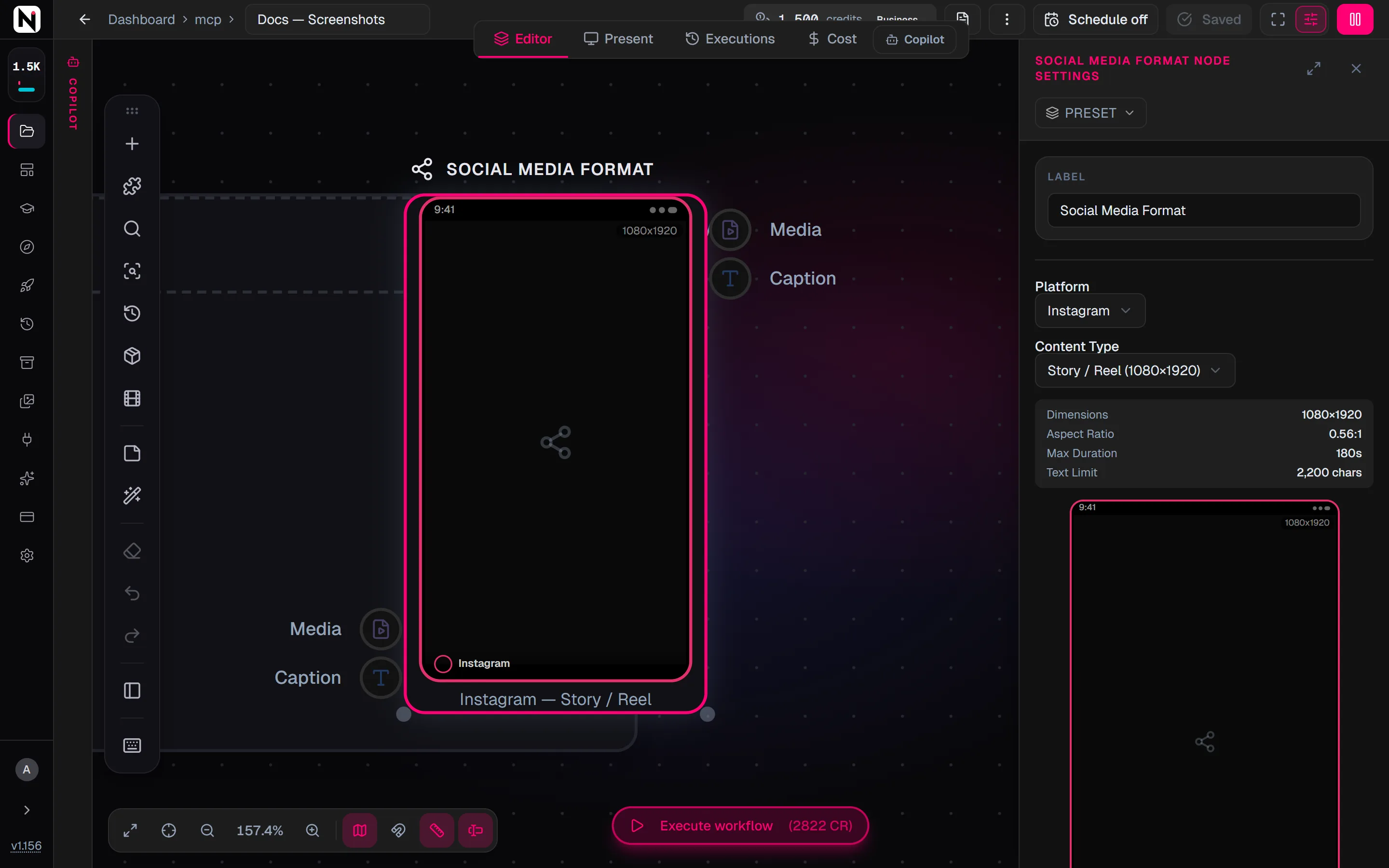
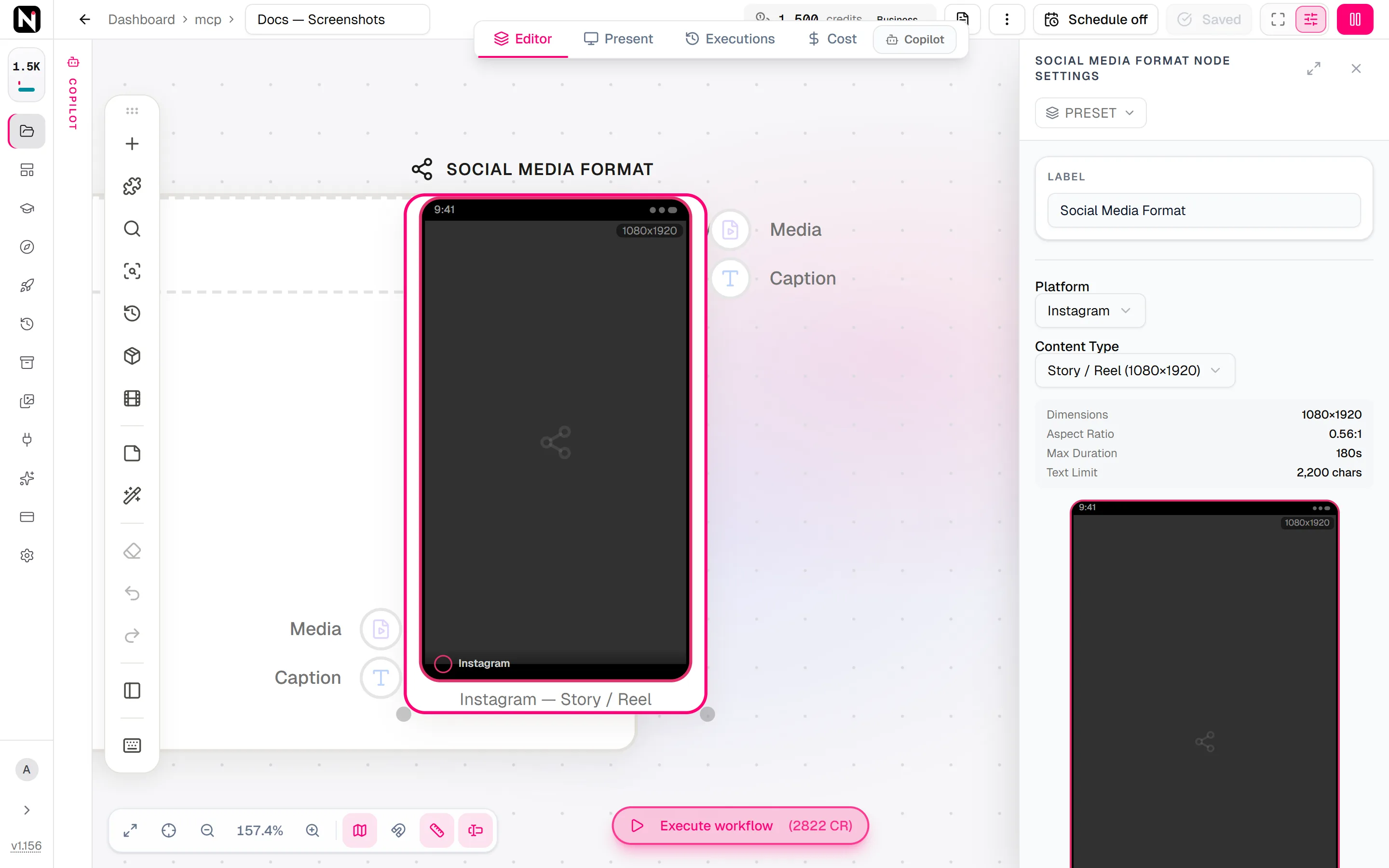
The Social Media Format node prepares a video or an image for one social media platform. You choose the platform and the format, such as an Instagram Reel or a YouTube Short, and the node resizes the media to that exact frame. The node also holds the post caption, with a counter for the platform's character limit and a live preview of the post.
When to use it
- You publish the same video to several platforms and each needs its own frame size.
- You want to see how a post will look on the platform before you publish it.
- You want the caption checked against the platform's limit before a publishing node posts it.
Quick start
Add the node
Press Tab on the canvas and choose Video › Format & Export › Social Media Format.
Connect the media
Drag from the output of a video or image node to the Media input.
Choose the platform and the format
Open the settings panel. Choose a Platform, then a Content Type. The panel shows the frame size, the aspect ratio, the maximum duration and the text limit of that format.
Write the caption
Type the post text under Caption / Post Text, or connect a text node to the Caption input.
Run it
Click Run on the node. Connect the Media and Caption outputs to a publishing node, such as Instagram Post.
Inputs
| Input | Accepts | What it does |
|---|---|---|
| Media | Video and image nodes | The video or image to format. Required. |
| Caption | Text nodes | The post text. It fills Caption / Post Text. Optional. |
The node has two outputs. Media is the formatted video or image. Caption is the post text.
Settings
| Setting | What it does |
|---|---|
| Platform | The platform to format for. A new node starts on Instagram. |
| Content Type | The format on that platform, with its frame size, for example Story / Reel (1080×1920). |
| Resize Method | How the media fills the frame: Crop (fill, cut edges), Pad (fit, add bars) or Stretch (distort). The default is Pad. |
| Pad Color | The color of the bars that Pad adds. The default is black (#000000). Shown only with Pad. |
| Caption / Post Text | The post text. The counter above the field shows the text length against the platform's limit. |
Platform formats
| Platform | Content Type | Frame | Max duration | Text limit |
|---|---|---|---|---|
| Feed Square | 1080×1080 | 60 s | 2,200 characters | |
| Feed Portrait | 1080×1350 | 60 s | 2,200 characters | |
| Feed Landscape | 1080×566 | 60 s | 2,200 characters | |
| Story / Reel | 1080×1920 | 180 s | 2,200 characters | |
| TikTok | Video | 1080×1920 | 600 s | 4,000 characters |
| X (Twitter) | Image Landscape | 1200×675 | Image | 280 characters |
| X (Twitter) | Image Square | 1080×1080 | Image | 280 characters |
| X (Twitter) | Video | 1920×1080 | 140 s | 280 characters |
| YouTube | Short | 1080×1920 | 180 s | 5,000 characters |
| Feed Portrait | 1080×1350 | Image | 63,206 characters | |
| Reel | 1080×1920 | 90 s | 63,206 characters | |
| Image Landscape | 1200×627 | Image | 3,000 characters | |
| Image Square | 1080×1080 | Image | 3,000 characters | |
| Video | 1920×1080 | 600 s | 3,000 characters |
Credits
Social Media Format costs 20 credits per run.
Tips
- Choose the platform first. The size, duration and text limit in the panel update as soon as you change Platform or Content Type.
- Crop for a full frame. Pad keeps the whole picture but adds bars. Crop fills the frame and usually looks cleaner on a phone.
- Check the length. Keep a video within the Max Duration the panel shows. Use Trim Video to shorten it.
- Only need a new shape? Resize Video changes the aspect ratio without the platform presets and the caption.
- Publish automatically. Connect the outputs to TikTok Post, YouTube Upload or another publishing node. See Publishing to social media.
Frequently asked questions
Related
Resize Video
Instagram Post
TikTok Post
YouTube Upload
Publish to social media
Last updated on
Resize Video
Change a video's aspect ratio to 16:9, 9:16, 1:1 or 4:5 by cropping, padding or stretching, for example to turn a landscape clip into a vertical Reel.
Upscale Video
Increase a video's resolution with AI, using Topaz at 1x, 2x or 4x for any clip, or VEO 1080p and VEO 4K for a video made by a VEO model in the same workflow.