
 Nodaro Docs
Generate Image
Create an image from a text prompt with one of Nodaro's image models, keep characters consistent with references, and edit results in place with a mask.
The Generate Image node turns a text prompt into an image. It is the main text-to-image node in Nodaro. You write what you want to see and choose one of the image models. The node returns a picture you can send to any other node, for example to animate it with Generate Video.
When to use it
- You need a still image from a description: a storyboard frame, a product shot, a thumbnail, a character portrait.
- You want the first frame of a video. Wire the result into the start frame of Generate Video.
- You want the same character, location or product in many images. Wire the asset nodes into the Assets input.
- You want to change one part of a result. Paint a mask and run the node again, without adding another node.
Quick start
Add the node
Press Tab on the canvas, or open the node picker in the sidebar, and choose Image › Create › Generate Image.
Write the prompt
Type the prompt in the node, or wire a Text node or a Generate Script node into the Prompt input.
Choose the model and the frame
Open the settings panel. Choose a model under Provider, then an Aspect Ratio, such as 16:9 for video or 9:16 for vertical social posts.
Run it
Click Run on the node. The result appears on the node, and every earlier result stays in its result strip.
Example: a prompt and two pickers
This run wires three nodes into Generate Image: a Text node with the prompt, a Mood picker set to Serene, and a Lighting picker set to Golden Hour with the Back / Rim direction. The model is GPT Image 2 at 1K in 16:9.
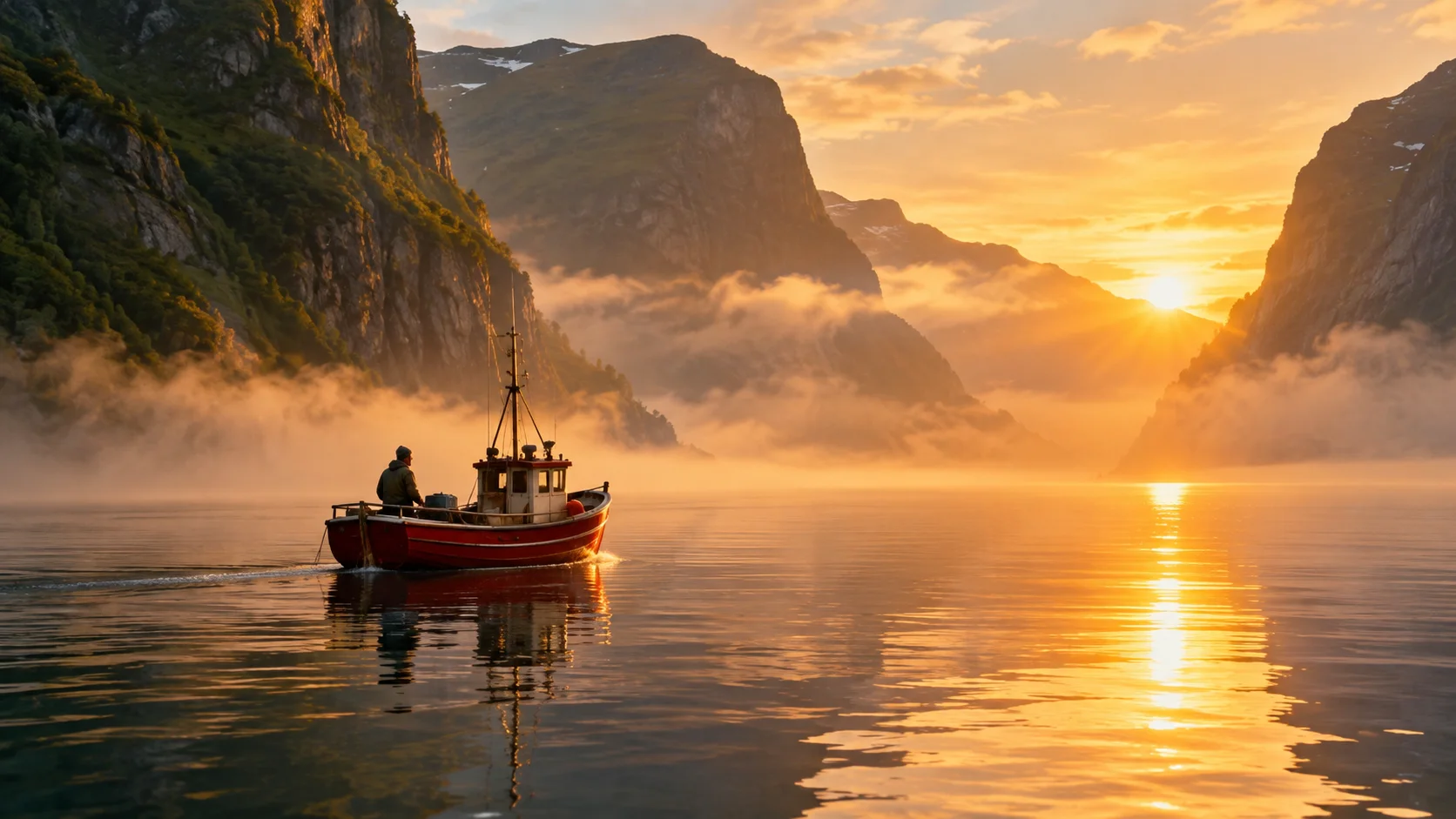
The model received the typed prompt first, then the words of each picker in Full mode:
Mood describes a face and a posture, so it suits pictures of people more than landscapes. For the feel of a place, such as mist or rain, use Atmosphere instead. The same image became the start frame of the clips in Generate Video.
Inputs
Generate Image has six inputs on its left edge. Each input accepts only the kinds of nodes listed, and the editor rejects a connection that does not fit. Click an input to see what is connected to it, jump to a connected node, disconnect it, or add a new compatible node.
| Input | Accepts | What it does |
|---|---|---|
| Prompt | Text nodes, such as Text, Prompt, Generate Script, Combine Text and Describe Image | The description of the image. |
| Negative | Text nodes | What the model should avoid. One negative text can feed many image nodes. |
| References | Image nodes, such as Upload Image, Generate Image and Modify Image | Reference pictures for the model. The order matters: most models read the first reference as the most important. |
| Assets | Character, Location, Object and Create Face nodes | Locked identities. Their approved pictures and descriptions are sent with the prompt, and you can mention them with @ in the prompt. |
| Elements | Subject pickers, such as Person, Pose, Animal, Vehicle, Styling, Held Prop and Material | Each picker adds its choice to the end of the prompt. |
| Look | Camera and look pickers, such as Style, Lens, Lighting, Framing, Color / Look and Mood | Each picker adds its choice to the end of the prompt. |
The output, image, is the URL of the generated picture. It can feed any number of nodes at once.
Settings
| Setting | What it does |
|---|---|
| Provider | The image model. The default is Nano Banana Pro. |
| Prompt | The text of the prompt, when nothing is wired into the Prompt input. Each model has its own length limit, from 1,000 characters on Z-Image and Seedream 5 Lite to 20,000 on the Nano Banana and GPT Image families. The editor counts down to your model's limit, and a longer prompt is shortened to fit rather than refused. |
| Style | One of 16 styles, such as Photorealistic, Cinematic, Anime, Watercolor or Pixel Art, or Custom for your own words. The style text is added to the prompt when the node runs. |
| Negative Prompt | What to avoid. Some models receive it as a real negative prompt; for the others, Nodaro adds it to the prompt as an "Avoid:" line. |
| Aspect Ratio | The shape of the image. The choices depend on the model. |
| Resolution | 1K, 2K or 4K, on models that support it, such as Nano Banana Pro, Nano Banana 2, Flux, GPT Image 2 and GPT Image 2.5. |
| Quality | A quality tier on models that have one, such as GPT Image and Seedream. |
| Seed | A fixed number that makes a run repeatable, on models that support it. |
| Strength | How far a refine may move away from the current image, on models that support image-to-image refining. |
| Guidance Scale | How strictly the model follows the prompt, on models that support it. |
| Pre & post text | Text that is always added before and after the prompt. It is hidden from people who use your workflow as an app. See Prompt pre and post text. |
Models
Generate Image can run every image model below. Click a model for its settings, credit prices and prompt tips.
| Model | Maker | Modes | Credits | Details |
|---|---|---|---|---|
| Nano Banana 2 | Text to image, Image to image | from 20 | Newer Nano Banana with native resolution control (1K/2K/4K) and Google Search context. | |
| Nano Banana 2 Lite | Text to image, Image to image | 10 | Lightweight Nano Banana 2 (Gemini 3.1 Flash-Lite) — fast, low-cost 1K generation and editing. | |
| Nano Banana Pro | Text to image, Image to image | from 45 | Top-tier Nano Banana — best for text rendering, diagrams, and complex compositions. | |
| Imagen 4 | Text to image | 20 | Google's Imagen 4 — strong photographic quality and prompt fidelity. | |
| Imagen 4 Fast | Text to image | 10 | Cheaper / quicker Imagen 4 tier. | |
| Imagen 4 Ultra | Text to image | 30 | Premium Imagen 4 — highest fidelity, slower / more credits. | |
| Flux 2 Pro | Black Forest Labs | Text to image | from 13 | Flux 2 Pro text-to-image. Strong realism, fast. Resolution lever to 2K. |
| Flux 2 Flex | Black Forest Labs | Text to image | from 35 | Flux 2 Flex — premium fidelity, more flexible composition. Pricier than Pro. |
| Flux Kontext Pro | Black Forest Labs | Text to image, Image editing | 13 | Context-aware editing and style transfer. Strong at preserving subject identity through edits. |
| Flux Kontext Max | Black Forest Labs | Text to image, Image editing | 25 | Premium Kontext — highest fidelity context-aware edits. |
| Flux 2 Klein (Open) | Black Forest Labs | Text to image | from 3 | Open Flux 2 9B from BFL — fast. |
| Flux 2 Pro (Safety Tolerance) | Black Forest Labs | Text to image, Image to image | from 12 | Accepts up to 4 reference images. |
| Flux 2 Max (Safety Tolerance) | Black Forest Labs | Text to image, Image to image | from 18 | BFL Flux 2 Max — even larger sibling of Pro, safety_tolerance=5, up to 8 reference images. Variable pricing by MP and ref count. |
| GPT Image 2 | OpenAI | Text to image | from 15 | Next-gen GPT Image — broader aspect ratios, resolution-based pricing (1K/2K/4K). |
| GPT Image 2.5 Flare | OpenAI | Text to image | from 15 | Fast everyday GPT Image 2.5 - higher quality than GPT Image 2 at about half the latency. The default of the pair: social and creator content, campaign variants, thumbnails, rapid iteration, high-volume work. |
| GPT Image 2.5 Sunburst | OpenAI | Text to image | from 15 | Precision GPT Image 2.5 - trades generation time for tighter control and detail fidelity. Pick it for brand-sensitive and production work: packaging, diagrams, ecommerce retouching, polished campaign creative. |
| Ideogram V3 | Ideogram | Text to image | 18 | Strong typography and stylized illustration. Speed/quality tiered (TURBO/BALANCED/QUALITY). |
| Seedream 5 Lite | Bytedance | Text to image | from 14 | Newer Seedream 5 Lite — instruction-based generation, visual reasoning. |
| Seedream 5 Pro | Bytedance | Text to image | from 18 | Flagship Seedream 5 Pro — strongest instruction following and visual reasoning. Basic = 1K, high = 2K. |
| Qwen | Alibaba | Text to image | 10 | Cheap, fast, decent quality. Native negative-prompt support. |
| Wan 2.7 | Alibaba | Text to image | from 20 | Wan 2.7 text-to-image — 1K/2K/4K, up to 9 optional style/character reference images. |
| Wan 2.7 Pro | Alibaba | Text to image | from 60 | Wan 2.7 Pro text-to-image — higher quality, 1K/2K/4K, no image input. |
| Z-Image | Tongyi-MAI | Text to image | 2 | Cheapest model in catalog. Fast, stylized output. Limited aspect ratios. |
| Grok Imagine | xAI | Text to image, Text to video | 10 | Expressive, high-contrast output. Supports both image and video. |
| Grok Imagine 2 | xAI | Text to image | 10 | Grok Imagine Image 2.0 — expressive, high-contrast t2i. Generations chain into grok-2-segment (free named region masks) and grok-2-edit (region-targeted edits). |
Which model to choose
- Nano Banana Pro — the default. Strong detail, complex compositions and readable text in the image.
- GPT Image 2.5 Flare — fast and high quality. Use it to iterate and for high-volume work such as social posts and ad variants.
- GPT Image 2.5 Sunburst — slower and more precise. Use it for the final render of brand-sensitive work: packaging, diagrams, product retouching.
- Nano Banana 2 Lite and Z-Image — the cheapest. Use them for drafts and storyboards.
- Seedream 5 Pro — strong instruction following at a low price.
If you are unsure, draft on GPT Image 2.5 Flare and finish on GPT Image 2.5 Sunburst. For a comparison of every model, read Choosing a model.
Use variables in the prompt
You can put the value of another node in the prompt by writing its label in curly braces. {Mood} becomes whatever the Mood picker is set to, and {Maya} becomes the text of a node labeled Maya.
- A default value.
{person || man}uses the connected Person picker when there is one, and the word "man" when there is not. - Highlighting. In the prompt editor, a variable is cyan when a matching node exists and amber when nothing provides it yet. Amber is only a warning: a variable with a default still works.
- A missing node stops the run. If a variable names a node that does not exist anywhere in the workflow, the run is refused before any credits are spent, so a typo never produces a wrong image.
Read more in Prompt variables.
Edit a result in place
Once the node has a result, you can change it without adding another node.
Change one area with a mask
- Open the settings panel and scroll to the Inpainting Mask painter. Click Edit Mask.
- Paint over the area to change. White means "change this", black means "keep this".
- Write a prompt that describes the change, and run the node again.
Only the painted area is regenerated. Everything outside the mask stays pixel-identical, on every model.
Refine the whole image
Click Refine from this result to use the current result as the starting point for a new run over the whole frame. Use it for changes such as "warmer colors" or "more cinematic". On models that support it, Strength controls how far the new image moves away from the current one.
Edit regions with Grok Imagine 2
With the Grok Imagine 2 model, the settings panel adds Refine Regions:
- Click Detect regions. This is free. The node finds named regions, such as sky or person, and outlines each one on the result when you point at it.
- Tick the regions to change, write what should change, and click Apply. Leave every region unticked to edit the whole image.
- The edit appears as a new version in the result strip, and you can detect and edit its regions again.
A masked edit, a refine and a region edit each cost the same as a new generation on that model. Detecting regions is free.
Keep a character consistent
Wire a Character Asset node into the Assets input, or mention the character in the prompt with @ and its number, for example @maya:1 walks through the market. Nodaro sends the character's approved pictures and description with the prompt, on every model that accepts references.
You can also name an Upload Image node and mention it: a node labeled "Town" becomes @town:1, and @town:1:background says what to take from it. Read Reference roles for every role you can use, and Consistent characters for the full method.
Trained characters
On Nodaro Cloud, when a single character with a trained model is connected and mentioned, Generate Image uses that trained model for the run, for 20 credits per image. With more than one character, the node uses the chosen model with reference images instead. See Character training.
When a model blocks the prompt
A model's safety filter sometimes blocks a harmless prompt.
- Your credits come back. A blocked generation is always refunded.
- Some models retry once. GPT Image 2, GPT Image 2.5 Flare and GPT Image 2.5 Sunburst are retried once automatically, at no extra cost.
- A one-click alternative. When the model has a recommended fallback, the node shows the block in amber with a button such as Try on Nano Banana Pro. Nodaro never switches models on its own.
- Copyright and likeness blocks are final. A match against protected characters or a real person's face is not retried.
Tips
- Draft cheap, finish sharp. Iterate at
1Kon a draft model, then switch the model or the resolution for the final image. - Put the look in pickers, not in the prompt. Pickers such as Lighting and Lens add tested wording, and you can change them without rewriting the prompt.
- Choose a model for text. For a sign, a label or a poster with words, use Nano Banana Pro or GPT Image 2.
From the API
Every setting above is also available to code and to AI assistants. POST /v1/generate-image accepts a direction object of picker ids — for example { "shotSize": "wide-shot", "timeOfDay": "golden-hour" } — and Nodaro writes the matching wording into the prompt. See Run a single node and the MCP tools.
Frequently asked questions
Related
Modify Image
Generate Video
Consistent characters
Choosing a model
Image models
Last updated on
Upload Image
Bring your own picture into a workflow. Upload a file or paste a link, crop it on the way in, and send it to every node that takes an image.
Modify Image
Change an existing image with a text instruction. Restyle it, fix one detail or repaint a masked area with more than 20 image-editing models.