
 Nodaro Docs
Video Analysis
Break a video or YouTube link of up to 10 minutes into scenes of 8 seconds or less, with prompt-ready visuals, camera, audio and castable people and places.
Available on Nodaro Cloud
The Video Analysis node breaks a video into a scene-by-scene description that an AI model can recreate. It cuts the video into scenes of 8 seconds or less, one generation each, and describes every scene's picture, framing, camera and sound. Recurring people, objects and places become reusable entity slots, so you can recast the video with your own characters, objects and locations.
On a self-hosted install, the node shows a NODARO mark and runs through your Nodaro Cloud connection, billed to the connected account. Without a connection, the node shows a Connect nodaro.ai button and does not run.
When to use it
- You want to turn a reference video into a shot-by-shot plan to recreate it with AI.
- You want to extract the cast of a video, to shoot it again with your own characters, objects and locations.
- You want a prompt-ready description of each scene to feed image and video nodes.
- You want each scene's sound layers, the dialogue plus descriptions of the music and sound effects, for a matching soundtrack.
Quick start
Add the node
Press Tab on the canvas and choose Video › Analyze › Video Analysis.
Give it a video
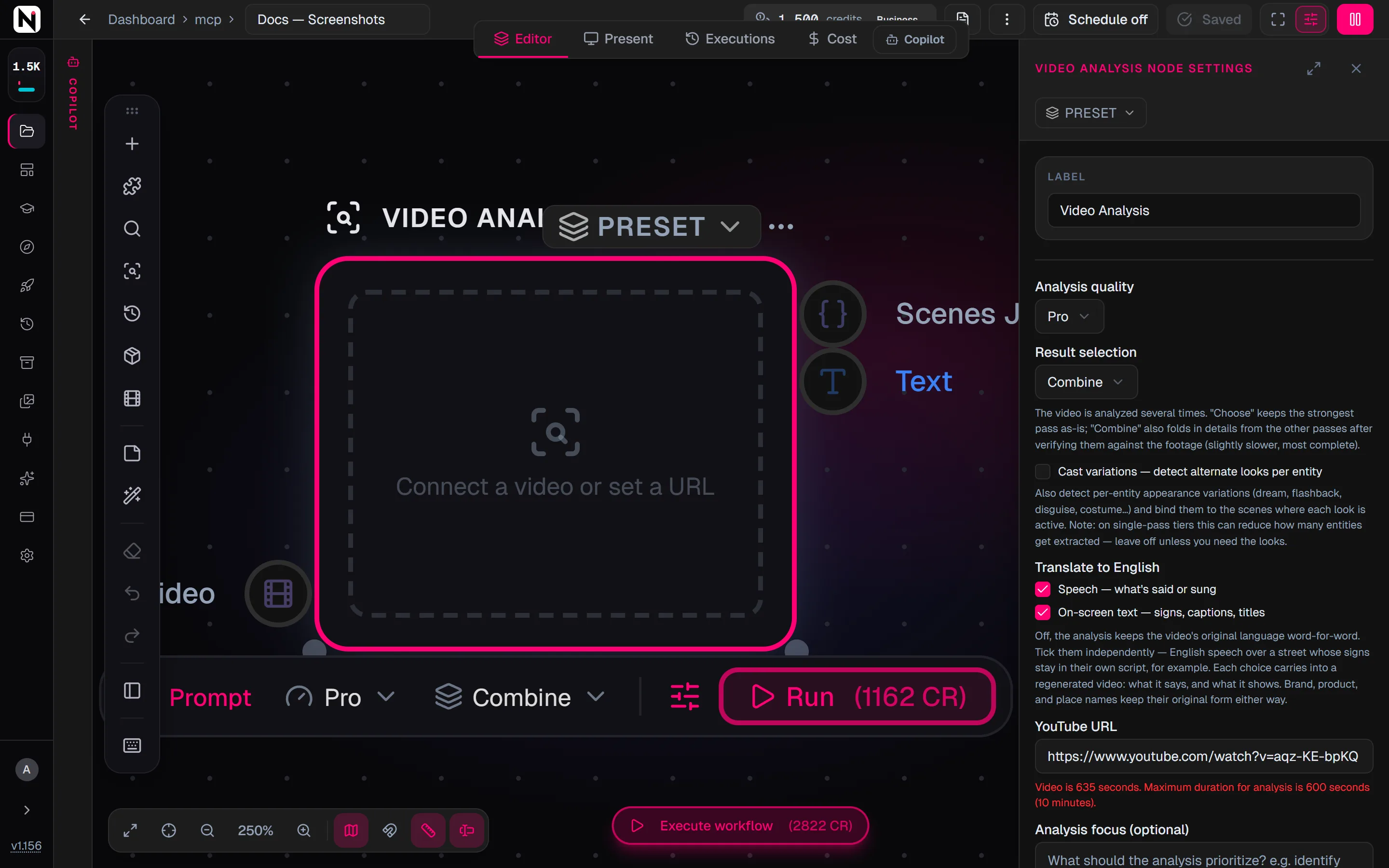
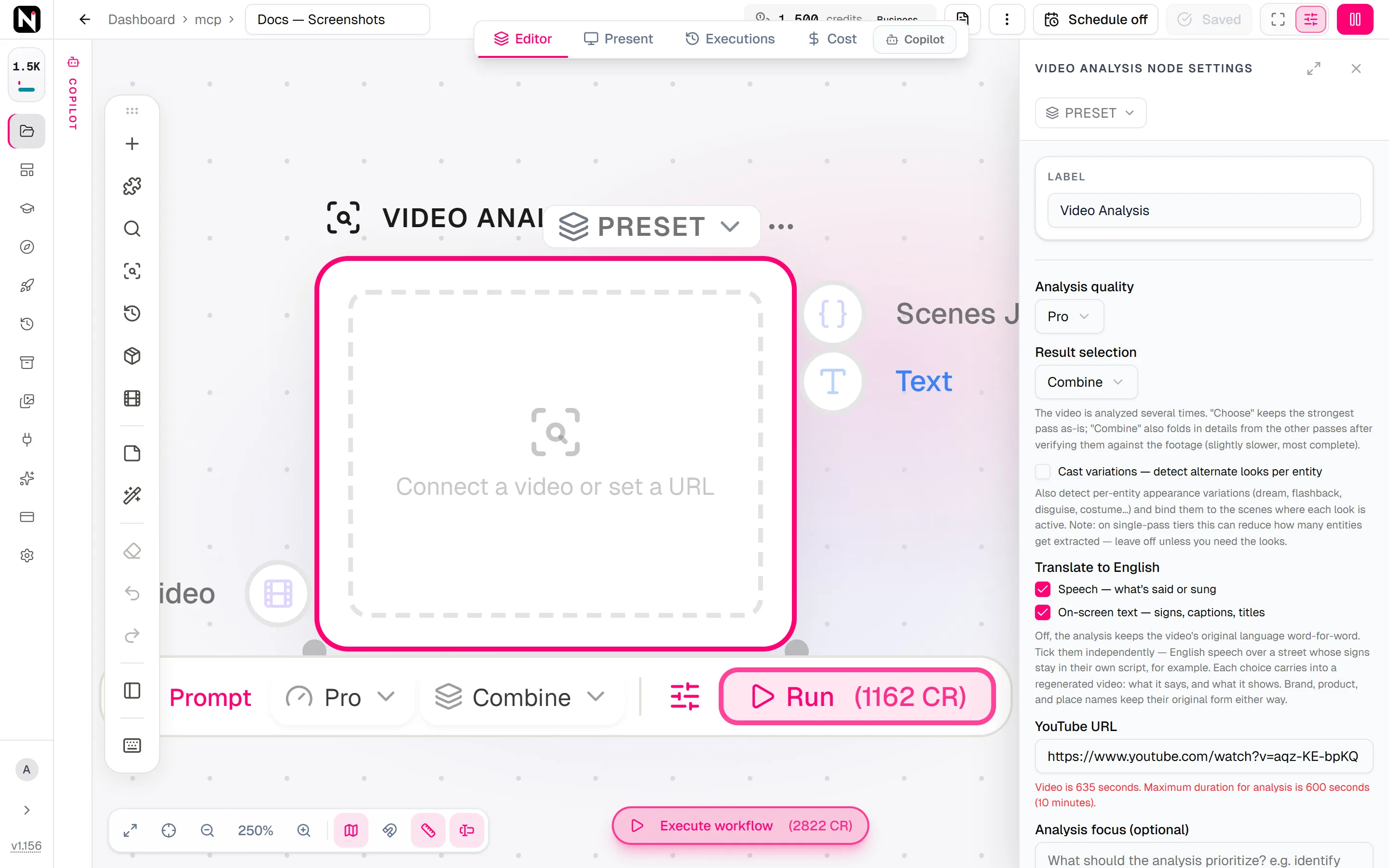
Connect a video node, such as Upload Video, to the Video input, or paste a link under YouTube URL in the settings panel. For a link, the panel shows the video's length, which sets the price.
Choose the quality
Choose an Analysis quality. Pro is the default. Optionally, write what matters most under Analysis focus (optional).
Run it and use the result
Click Run. Wire the Text output into a prompt, for example of Generate Video Pro, or the Scenes JSON output into a node that reads structured data.
Inputs
| Input | Accepts | What it does |
|---|---|---|
| Video | Video nodes, such as Upload Video, Video URL and Generate Video | The video to analyze. Optional when YouTube URL is set. A connected video always wins over the link. |
Outputs
| Output | What it carries |
|---|---|
| Scenes JSON | The full analysis as structured data: meta, look, slots and scenes. See What the analysis contains. |
| Text | The same analysis as plain text. Wire it into any prompt or text input without copying and pasting. |
Settings
| Setting | What it does |
|---|---|
| Analysis quality | Smart, Pro (the default), Fast, Mixed or Mixed (consistent). See Which quality to choose. |
| Result selection | Choose (the default) or Combine. The video is analyzed several times. Choose keeps the strongest pass as it is. Combine also adds details from the other passes after checking them against the footage. It is slightly slower and the most complete. Smart ignores this setting. |
| Cast variations — detect alternate looks per entity | Off by default. Also detects the different looks of each person or thing and the scenes where each look appears. See Appearance looks. |
| Translate to English | Two checkboxes, both off by default: Speech — what's said or sung and On-screen text — signs, captions, titles. See Output language. |
| YouTube URL | A youtube.com or youtu.be link to analyze when no video is connected. |
| Analysis focus (optional) | Up to 2,000 characters on what the analysis should pay attention to, for example "product shots and on-screen text". |
| Pre & post text | Text added before and after the analysis focus at run time. See Prompt pre and post text. |
Analysis focus steers attention, never the format. It does not change the structure of the result, the scene length or the list of fields. Leave it empty for a general breakdown.
Which quality to choose
You choose a quality tier, not a model. Nodaro chooses the analysis model behind each tier, so a tier can improve over time without any change to your workflow.
| Analysis quality | What it does | Use it when |
|---|---|---|
| Fast | An economy analysis | You can trade some detail for price and speed. |
| Pro (the default) | A higher-fidelity analysis of scenes and entities | Most breakdowns. |
| Mixed | Several analysis passes combined for maximum completeness | Completeness matters most. |
| Mixed (consistent) | The same plan, tuned for the most consistent result from run to run | You run the same kind of video often and want steady output. |
| Smart | The highest accuracy: a detailed main pass blended with several economy passes, and always refined | The shot list will drive a regeneration. |
Every tier analyzes each part of the video several times and keeps or merges the best result: three passes on Fast and Pro, and six on the two Mixed tiers. Smart and both Mixed tiers also finish with a continuity review. It corrects claims that contradict each other across scenes. It also raises a continuity watch warning when a lasting state seems to be dropped, for example an object handcuffed to a character that disappears from later scenes. Every correction and watch is listed in the result's warnings.
What the analysis contains
The result has four parts. Downstream nodes and your own code read the same structure.
meta — facts about the file
| Field | What it holds |
|---|---|
durationSec | The measured duration, in seconds |
width, height | The frame size, in pixels |
aspectRatio | The aspect ratio, snapped to 16:9, 9:16, 1:1, 4:3, 3:4 or 21:9 when within 3%, otherwise the reduced width-to-height ratio |
title | The source title when known, such as the YouTube title |
language | The main spoken language. It always describes the footage, whatever the translation settings. |
look — the photography of the whole clip
Properties that belong to the whole piece rather than one shot, stated once so that every regenerated shot shares them. Every field is optional, and the whole part is left out when the analysis cannot read it.
| Field | What it holds |
|---|---|
style | The medium, such as "live-action photoreal", "2D anime", "stop-motion claymation" or "3D render" |
styleId | The matching entry of the Style picker, when the medium fits one |
grade | The color grade and palette |
format | The camera or film format and stock, such as "16mm film grain" |
lens | The lens character, such as "wide-angle, shallow depth of field throughout" |
lighting | The overall lighting style. A scene that differs describes its own lighting. |
genre | The kind of piece, such as "cinematic trailer" or "talking-head vlog" |
influence | The visual influence the piece clearly evokes, like the Photographer / Artist Style picker. It is left out unless the style is clearly recognizable. |
slots — the castable people, objects and places
Each recurring entity is extracted once, so that you can replace it with your own.
| Field | What it holds |
|---|---|
slotId | A stable id, used in a scene's visual text as a slot token, for example {slot:hero} |
label | A readable name |
source | The kind of asset to cast it from: a character, an object, a location or a creature |
role | Its role in the video, such as "narrator" or "hero product" |
description | A complete visual description, used when no asset is cast |
refImageUrl | A frame from the video where the entity is clearly visible, picked automatically |
variations | The entity's other looks, when Cast variations is on |
scenes — one entry per shot
| Field | What it holds |
|---|---|
sceneNumber | The scene's number, from 1, across the whole video |
startSec, endSec | Where the scene starts and ends, in seconds |
label | A short scene label |
shotType | The framing size: Wide, Medium, Medium Close-Up, Close-Up, Extreme Close-Up, or Two-Shot, Insert or Aerial |
angle | Where the camera sits. Absent means eye level. See the values below. |
camera | The camera movement in free text, such as "slow push-in". Empty for a locked-off shot. |
speed | slow-motion, ramp-in, ramp-out, timelapse, freeze or reverse. Absent means normal speed. |
effects | Effects on the picture: blur, pixelate, glitch, grain, vignette, flash, distortion or double-exposure. Absent means a clean image. |
onScreenText | Text burned into the picture, such as titles and captions, word for word in its original script |
visual | The visual description with slot tokens, for recasting |
visualResolved | The same description with every slot written out. Render from this field. |
audio | The sound layers of the scene. See below. |
slotRefs | The slots that appear in the scene |
slotVariations | Which look each slot wears in this scene, when Cast variations is on |
oversized | Present when the scene is longer than 8 seconds because it could not be cut shorter. It is still one generation. |
Each scene also notes a visible transition into the next shot, when there is one.
Camera angles. angle is one of eye-level, low, high, overhead, worms-eye, dutch, over-the-shoulder, pov, profile or from-behind. The three camera fields are independent: shotType says how much of the subject is in frame, angle where the camera sits, and camera what the camera does. An over-the-shoulder medium shot is shotType Medium with angle over-the-shoulder.
Read visualResolved, not visual. visual keeps the slot tokens so that you can recast the scene later. visualResolved is the complete, prompt-ready text that every downstream node should use.
Audio layers
A scene's audio is a list of the sounds that play at the same time. A music bed under a line of dialogue over a splash is three layers. An empty list means real silence.
| Field | What it holds |
|---|---|
mode | speech, music or sfx |
content | For speech, the exact words. For music and sound effects, a description ready for generation. |
voice | For speech, what the voice sounds like, such as "male, warm, conversational" |
speakerSlot | For speech, the slot of the on-screen speaker, when the analysis can tell |
- Each line appears once. Reading the speech layers in scene order gives the soundtrack with nothing said twice. A line that crosses a cut is split at the cut, and a line over a montage belongs to the shot where it starts.
- Soundtrack songs are music. A song that nobody on screen performs is part of the music layer, with its vocals described there. Only words spoken or sung inside the story are speech.
- The speaker is optional.
speakerSlotis left out when the analysis is not sure, when the speaker is an unseen narrator, and when the speaker is a one-off person with no slot.
Appearance looks
With Cast variations — detect alternate looks per entity on, the analysis separates the different looks of the same subject instead of averaging them into one description. A plain change of clothes between scenes counts as much as a dream, a flashback, a disguise, a transformation or an era.
- Up to 4 looks per slot. Each look has an id, such as
dream,flashback,disguise,costume,transformation,eraoralt-1. It also has a short label, a full description of the subject in that look, and a frame that shows it. - Scenes say which look is active. A scene without a look for a slot uses the slot's default look.
- Two ways of finding looks. One pass watches the footage for changes of clothes, hair and makeup. A second pass reads the finished analysis for looks the footage does not show, such as "twenty years later". Neither pass renames a slot or changes a scene's text.
- Nothing disappears silently. When a subject has more looks than the limit, the extra looks are folded into the default look, and the result records the fold.
Generate Video Pro keeps each look consistent within its own scenes.
Output language
With both Translate to English checkboxes off, the analysis keeps the video's original language. Speech is quoted word for word, and on-screen text stays in its original script. That is what you want to recreate a video as it is.
The two checkboxes change different things, so you can tick them independently:
| Checkbox | What it translates |
|---|---|
| Speech — what's said or sung | The spoken and sung words |
| On-screen text — signs, captions, titles | The text visible in the picture |
For example, you can have English narration over a street whose signs stay in Chinese. With either box ticked, the scene descriptions, camera notes, slot descriptions and voice notes are written in English too.
- Names stay as they are. Brand, product, person and place names are never translated.
- The language field does not change.
languagealways names the language spoken in the footage. - This changes the recreation. The scene descriptions are the prompts for regeneration, so a translated sign is rendered in English in the new shot.
- The original words are not kept. The translation replaces them. Run again with the boxes off if you need the original.
Music videos. By default, song lyrics that nobody on screen performs stay inside the music layer. For a music video, where the song is the piece, set musicVideo: true in the API request, or music_video in the MCP tool. Every sung lyric then comes back word for word as speech, scene by scene. This option is available through the API and MCP only.
Long videos and limits
- Maximum length: 10 minutes (600 seconds) for any source. The limit is checked when you run the node, and again after the video is downloaded.
- Windows: a video up to 180 seconds is analyzed in one pass. A longer video is analyzed in overlapping windows of about 150 seconds, with 5 seconds of overlap, then merged into one continuous, renumbered result.
- YouTube: only
youtube.comandyoutu.belinks are accepted. Live streams are refused; analyze the recording once the stream has ended.
Credits
The price depends on the Analysis quality and on the length of the video. The length falls into the smallest step that fits it: up to 60, 180, 360 or 600 seconds.
| Analysis quality | Up to 60 s | Up to 180 s | Up to 360 s | Up to 600 s |
|---|---|---|---|---|
| Fast | 181 | 186 | 516 | 849 |
| Pro | 217 | 233 | 642 | 1,059 |
| Mixed and Mixed (consistent) | 270 | 292 | 731 | 1,181 |
| Smart | 414 | 504 | 1,270 | 2,081 |
- A 3-second margin. After download, the node measures the video again and allows 3 seconds of tolerance. A video of exactly 1, 3, 6 or 10 minutes therefore stays in its own step.
- Unknown length. If the length cannot be read when you run the node, the price of the 600-second step is reserved. In practice, a source whose length cannot be read is refused first.
- Why the tiers differ. Longer videos need more windows, and each tier analyzes every window several times. Those repeated passes are the main reason Mixed and Smart cost more.
Tips
- Start with Pro. Drop to Fast for a cheaper pass when you can trade some detail.
- Use Analysis focus. Point the analysis at what matters for your recreation: product shots, on-screen text or one character.
- Check the analysis before you spend. Wire the result into AI Audit, which re-watches the video and corrects only what the footage confirms, before you generate every scene.
- Render from
visualResolved. UsevisualandslotRefsonly if you build your own recasting step.
From the API
The same analysis is available to code and to AI assistants. The full result is also stored in the job's output. The source is videoUrl or youtubeUrl, and the settings map to llmModel (the quality tier), selectionMode, variations, translateSpeechToEnglish, translateOnScreenTextToEnglish and analysisFocus. See Run a single node and the MCP tools.
Frequently asked questions
Related
Generate Video Pro
AI Audit
Video URL
Upload Video
Video Analysis (Pro)
Last updated on
Gif to Video
Convert an animated GIF into an MP4 for free, loop short GIFs to a usable length, and use the clip as a motion reference for video models that refuse GIF files.
AI Audit
Re-watch a video against its Video Analysis, apply only the fixes the footage confirms, and get a report of every fix, declined change and watch item.