
 Nodaro Docs
Schedule Trigger
Run a workflow automatically every few minutes, hours, days, weeks or months, or on a cron expression, in your timezone. Turn it on with one switch.
The Schedule Trigger node runs a workflow automatically on a schedule, such as every 20 minutes, every day at 9:00 or on weekdays at 18:30. A schedule is a list of rules read in the timezone you choose, and the workflow runs whenever any rule matches. The trigger is free, and it runs only while its switch is on.
When to use it
- Publish generated content every day, such as a daily image, a news summary or a quote video.
- Check a source on a schedule, with Web Scrape or Telegram Channel Feed.
- Prepare a weekly or monthly report without opening the editor.
- Run the same workflow on a schedule and on demand, together with a Webhook Trigger.
Quick start
Add the node
Press Tab on the canvas and choose Automate › Triggers › Schedule Trigger. A new Schedule Trigger runs every day at 9:00 UTC, and it starts paused.
Set the schedule
Open the settings panel. Click a preset, such as Weekdays 9am, or edit the rule under Trigger rules. Choose your Timezone. When it runs shows the next runs before you save.
Decide what it runs
To run only one part of the workflow, connect the trigger to the first node of that part. A trigger that is connected to nothing runs the whole workflow.
Turn it on
Turn on the switch at the top of the settings panel, or click the schedule button in the top bar of the editor. The node shows Active, and the schedule runs from the next matching minute.
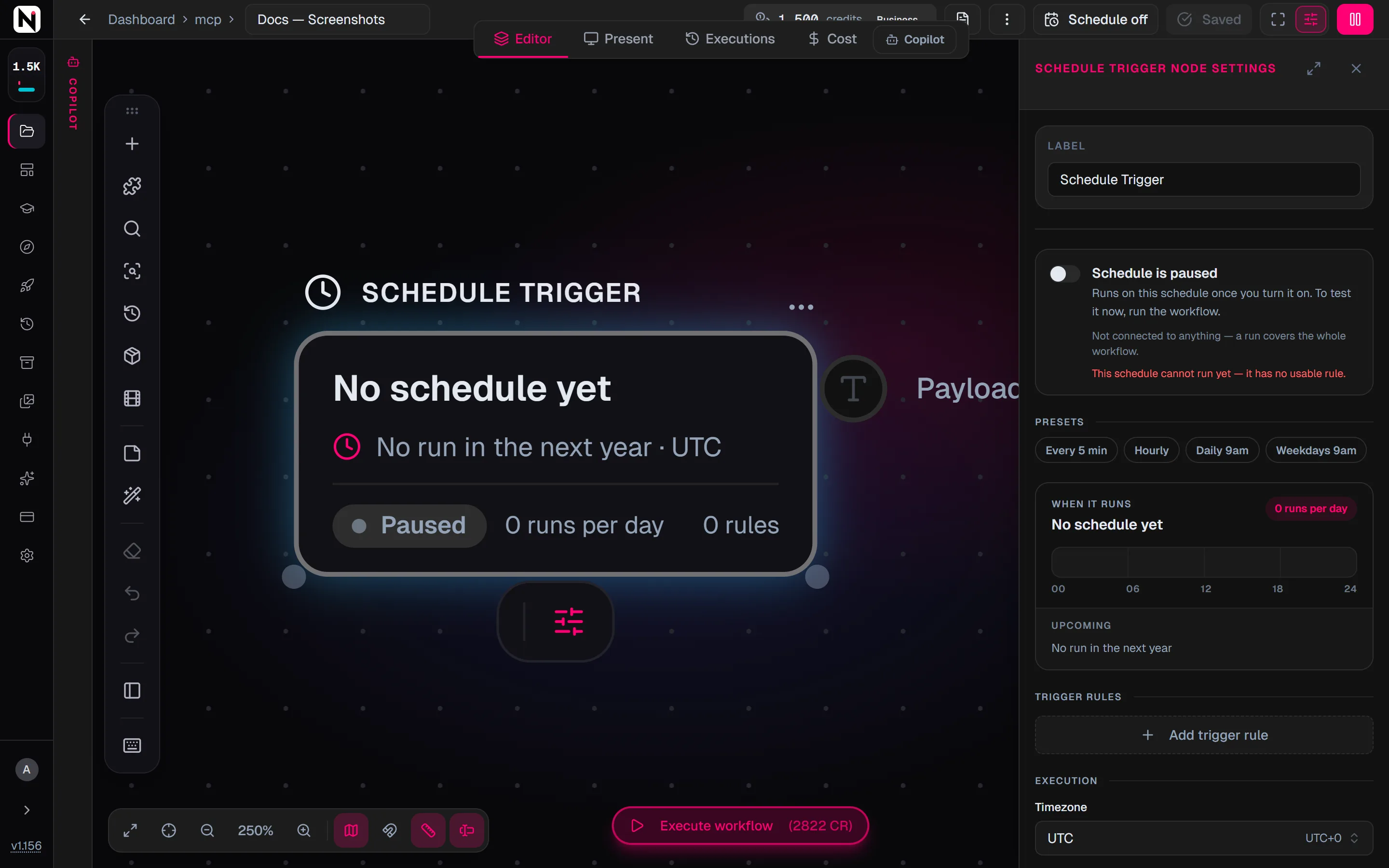
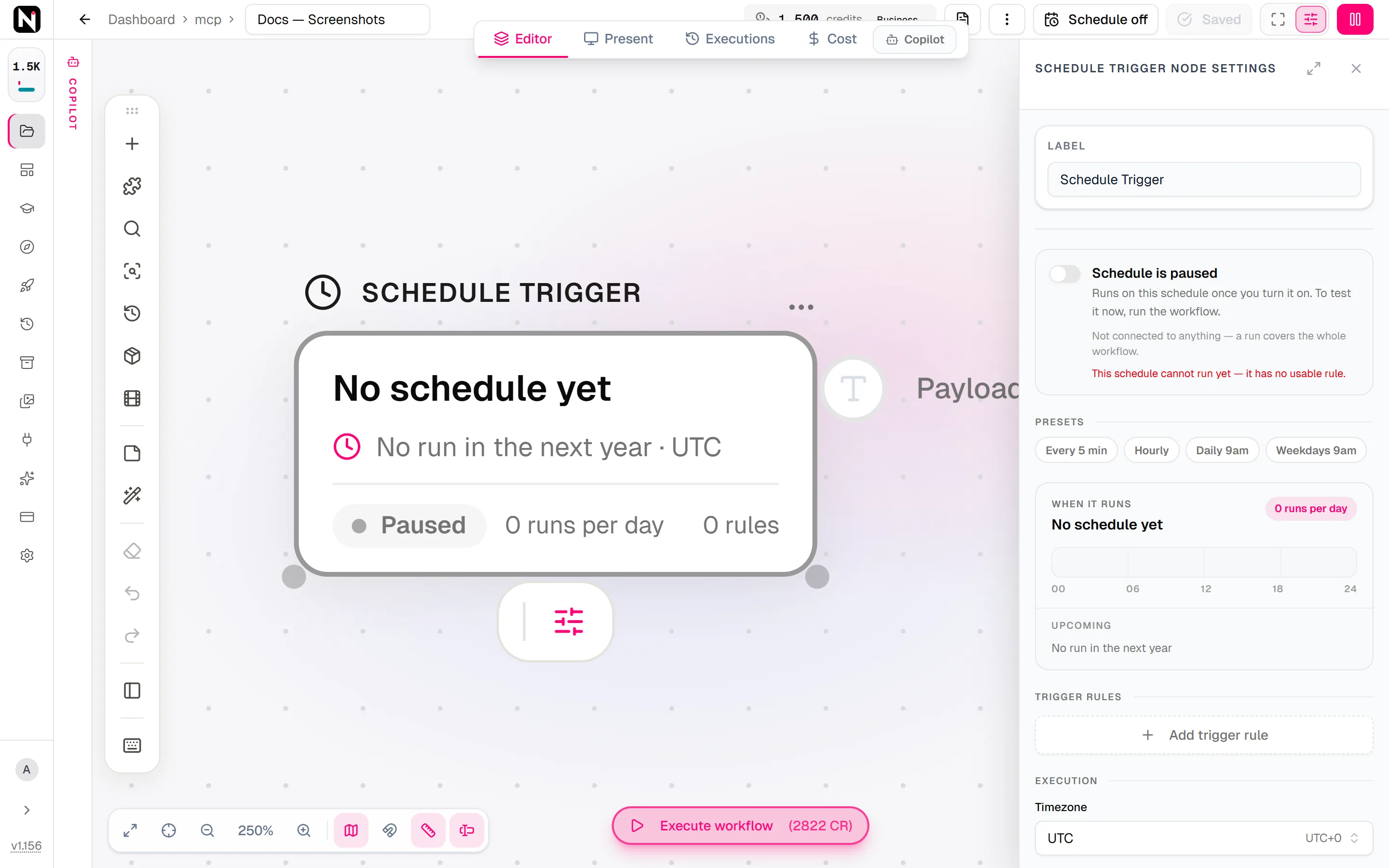
Turn the schedule on
A schedule runs only while its switch is on. Placing the node and saving the workflow registers the schedule but does not start it. Until you turn it on, the node shows Paused.
- In the settings panel, use the switch at the top. It reads Schedule is on or Schedule is paused.
- In the top bar of the editor, the schedule button appears when the workflow has a Schedule Trigger. It reads Schedule on, Schedule off, or for example 1/2 schedules on. A click turns every schedule of the workflow on, or off when all are on, and saves the workflow.
Turning the switch off pauses the schedule in the same way. An imported workflow or a template always starts with its schedules paused. A schedule written through the API, the SDK or MCP is on only when the node's active field is true.
To try the branch now without turning the schedule on, click Run from here at the bottom of the settings panel. A trigger that is connected to nothing has no branch to run from, so run the whole workflow instead.
Settings
| Setting | What it does |
|---|---|
| Presets | Every 5 min, Hourly, Daily 9am and Weekdays 9am. A click writes the matching rule. A preset is highlighted when the schedule is exactly that rule. |
| Trigger rules | One or more rules. The workflow runs whenever any rule matches. Add trigger rule adds one, and Remove rule removes one. The last rule cannot be removed. |
| Timezone | The clock the rules are read in. Search the list of every timezone, with yours offered first. When it is not set, the rules use UTC. |
| Max Executions | Stops the schedule after this many runs. Leave it empty for unlimited runs. |
Rules
Each rule has a Trigger interval and the fields that go with it.
| Trigger interval | Fields | Runs |
|---|---|---|
| Minutes | Every 1 to 59 minutes | At minute 0, N, 2N and so on of every hour |
| Hours | Every 1 to 23 hours, Trigger at minute | At hour 0, N, 2N and so on of every day, at that minute |
| Days | Every 1 to 31 days, Trigger at hour, Trigger at minute | Every Nth calendar day at that time |
| Weeks | Every 1 to 52 weeks, Trigger on weekdays, hour and minute | On those weekdays, every Nth week. Weeks start on Monday. |
| Months | Every 1 to 12 months, Trigger at day of month from 1 to 31, hour and minute | On that day every Nth month, or on the last day of a shorter month |
| Custom (cron) | A 5-field Cron expression | Whenever the expression matches |
- Fixed phase. "Every Nth day, week or month" counts from a fixed point in the calendar. Saving the workflow again never shifts the days on which it runs.
- Cron format. The fields are minute, hour, day of month, month and day of week. Every field must match, including day of month and day of week together, where some cron tools accept either one. Both
0and7mean Sunday.
When it runs
Before you save, When it runs in the settings panel shows what the rules mean:
- The schedule in words, and the number of runs per day.
- Today's runs on a 24-hour bar.
- The next three runs, with how far away they are.
The node shows the same summary, the next run, and whether the schedule is Active or Paused. The preview uses the same calculation as the server, so it shows what will happen.
How a scheduled run works
- Once per minute. Nodaro checks the schedules every minute and starts a run when a rule matches that minute. The same minute never runs twice, even after a restart or when the clocks go back. A minute that the clocks skip forward is skipped that day.
- One run at a time. If the previous run of the workflow is still going, that minute is skipped.
- Max Executions. After that many runs the schedule stops. It stays registered, so raise or clear the limit to continue.
- Output. The output, Payload, carries the time of the run.
What a scheduled run executes
A trigger that is connected to nodes runs only its branch: the nodes after the trigger, and every node that they need as input. Nodes outside the branch are left alone. A trigger that is connected to nothing runs the whole workflow. This lets one workflow hold several triggers, each starting its own branch.
A node counts as connected through a drawn connection, by being inside a Group that the trigger feeds, or through a field mapping. The settings panel says which case applies: "Connected — a run covers only the branch after this trigger" or "Not connected to anything — a run covers the whole workflow". Triggers limit only the runs that they start. A manual run from the editor, a run from the API and a run of a published app are never limited to a trigger's branch.
Troubleshooting
- The node shows Paused. The switch is off. Turn it on in the settings panel or with the schedule button in the top bar.
- The node shows Won't run. A rule cannot run, such as a cron rule with no expression or a weekly rule with no weekday. Or the timezone is not one that the server knows. Fix it and save again.
- The runs come at the wrong hour. Check Timezone. When it is empty, the rules use UTC.
- A run was skipped. The previous run of the workflow was still going at that minute.
- An older schedule stopped running. A schedule saved before rules existed opens with its schedule written as rules, and it starts paused. Turn it on. Its runs now follow the clock, so "every 5 minutes" means :00, :05, :10 and so on.
From the API
GET /v1/workflows/<id>/triggers lists the triggers of a workflow. A schedule's configuration uses the same rules as the node, with kind, every, hour, minute, weekdays (0 is Sunday, 6 is Saturday), dayOfMonth and cron, plus an optional timezone and maxExecutions. Use the node's switch to pause a schedule: a pause sent with PATCH /v1/workflow-triggers/<id> lasts only until the next save of the workflow. A schedule created directly through the API belongs to no node, and when a workflow has two Schedule Triggers such a schedule runs the whole workflow. See Webhooks.
Frequently asked questions
Related
Webhook Trigger
Telegram Trigger
Automations
Running workflows
Web Scrape
Last updated on
Automate nodes
The Automate nodes start workflows on their own, bring in web content, write text with AI, run nodes once per item, route runs and keep large canvases tidy.
Webhook Trigger
Start a workflow from another app, a form or your own code with an HTTP POST, and pass values such as a prompt or an image URL into the run.