
 Nodaro Docs
Held Prop
Pick up to 2 of 60 props for a subject to hold, such as a smartphone, a coffee cup, a book or a bouquet, and Nodaro adds how the prop is held to your prompt.
The Held Prop picker puts an object in the subject's hands. You choose up to 2 props from its catalog, such as a smartphone, a coffee cup, a book, a guitar or a bouquet. Nodaro adds how the subject holds each prop to the prompt of every node you connect it to. The picker never calls a model, so it costs no credits.
When to use it
- Add context to a portrait: a briefcase reads as professional, a bouquet as romantic.
- Put a product in someone's hand for commercial photography.
- Direct the props of a storyboard.
How to use it
Add the picker
Open the node picker and choose Creative Controls › Scene › Held Prop.
Choose a prop
Select the node and choose a prop in the settings panel. Each tile shows a photo of the prop, and the node card shows the same photo. The photos come with the app, so they appear on Nodaro Cloud and on self-hosted installs.
Connect it
Drag from the picker's output to the Elements input of a Generate Image or Generate Video node. You can also connect it to a Text or Prompt node to include the wording in a longer text.
Run the image or video node
The prop's wording is added to the end of the prompt when the connected node runs.
Settings
| Setting | What it does |
|---|---|
| Held Prop (pick up to 2) | The prop or props to add. The default is Smartphone. |
| Custom text (before) | Your own words, added before the prop's wording. |
| Custom text (after) | Your own words, added after the prop's wording. |
| Prompt hint | Full describes how the prop is held in detail. Compact adds only the short phrase. See Creative Controls. |
To see the exact words the picker will add, switch the node to the Prompt or Both display mode. The settings panel shows the same text under Will inject into prompt.
Hold two props
To add a second prop, click the small + on the selected tile, then click a second tile. The tiles are numbered in the order you chose them. Click a number to go back to that one prop.
Each prop adds its own wording. For example, Book and Coffee Cup add this text in Compact mode:
holding an open hardback book, cradling a ceramic coffee cupWhat it adds to the prompt
Each prop describes the object and the hand that holds it. For Smartphone it adds this text in Full mode:
holding a modern smartphone in one hand, screen lightly catching the ambient light, fingers wrapped naturally around the deviceIn Compact mode, it adds only holding a smartphone.
Every held prop
The catalog has 9 groups: Devices / Phones, Drinks, Smoking, Reading / Writing, Bags / Accessories, Floral / Nature, Instruments / Performance, Companions and Occupational. Search it or filter it by group. The words under each name are the term the picker adds in Compact mode.
Devices / Phones · 9 options
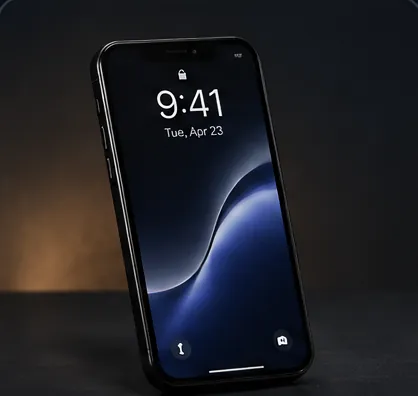 Smartphoneholding a smartphone
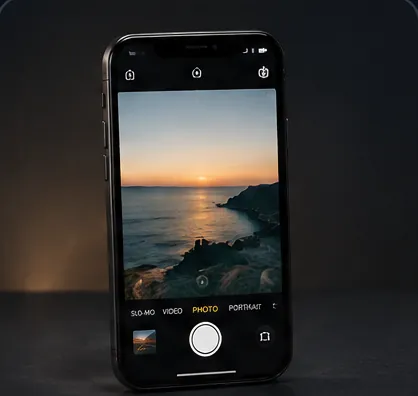 Phone Raisedholding a smartphone raised at arm's length
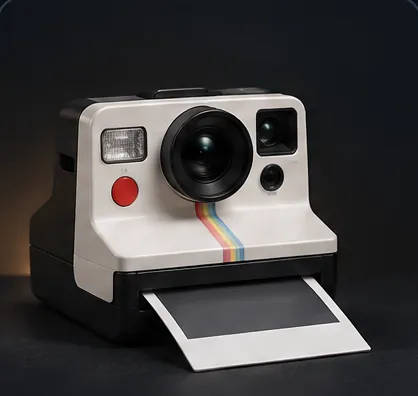 Polaroid Cameracradling a vintage polaroid instant camera
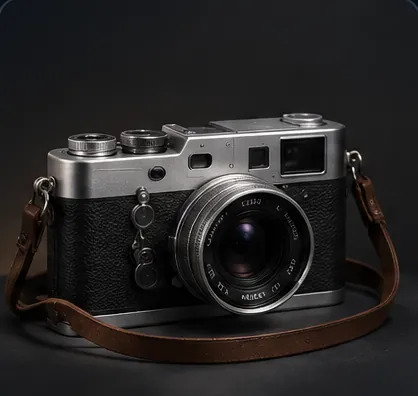 Vintage Cameraholding a vintage 35mm film camera
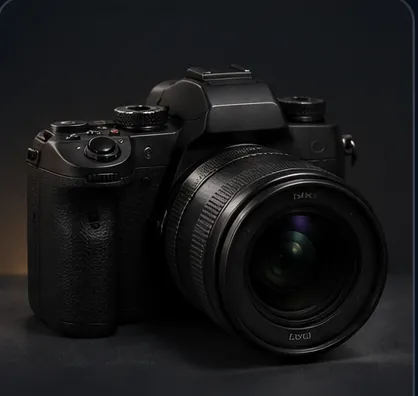 DSLR Cameraholding a dslr camera to the eye
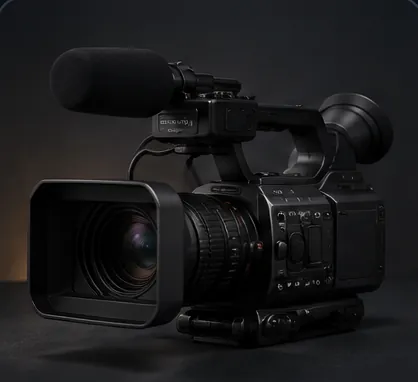 Video Camerashouldering a video camera
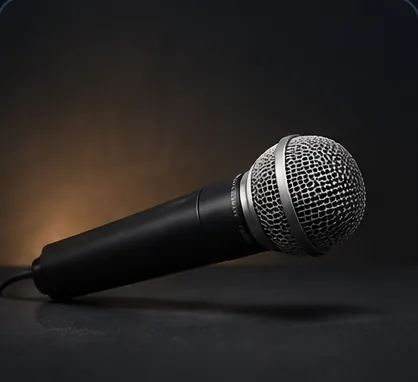 Microphonegripping a handheld microphone
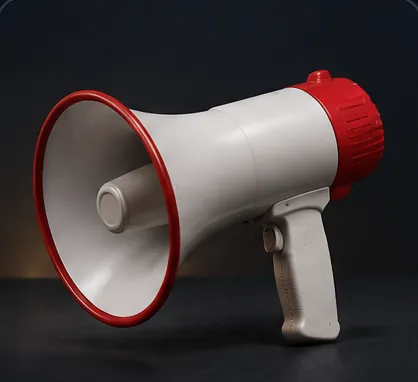 Megaphoneholding a raised megaphone
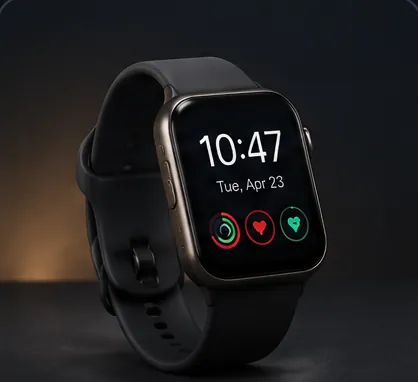 Smartwatchraising a wrist to check a smartwatch
Drinks · 8 options
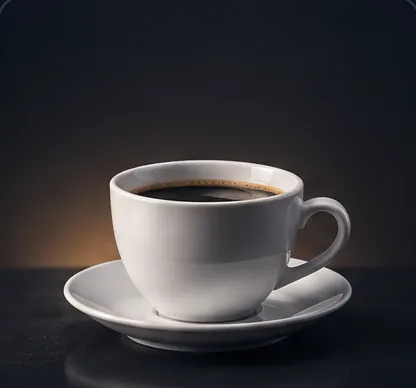 Coffee Cupcradling a ceramic coffee cup
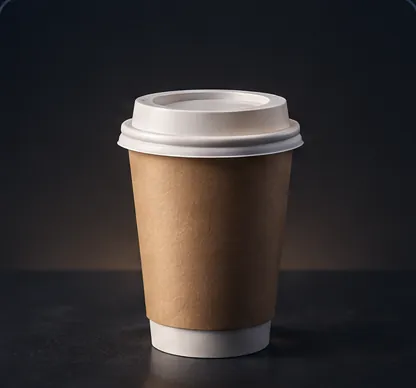 Takeaway Coffeeholding a paper takeaway coffee cup
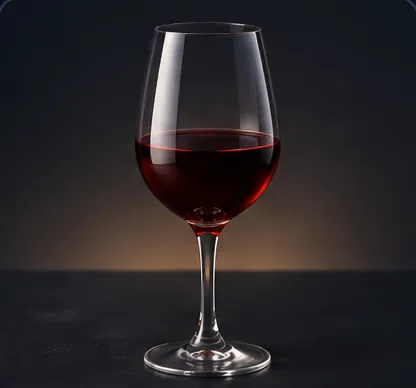 Wine Glassholding a stemmed glass of red wine
 Champagne Fluteholding a champagne flute by the stem
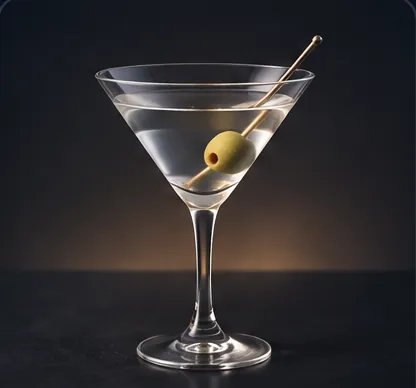 Martini Glassholding a classic martini glass
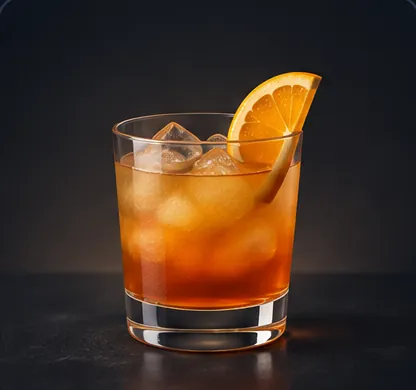 Cocktail Glassholding a rocks glass with an amber cocktail
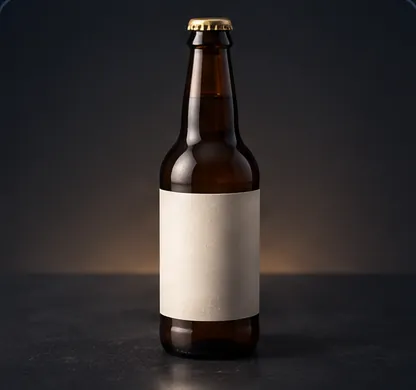 Beer Bottleholding a brown glass beer bottle
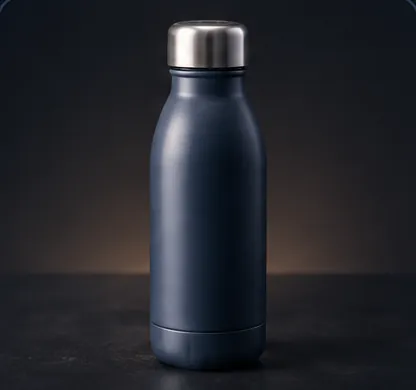 Water Bottleholding a reusable water bottle
Smoking · 5 options
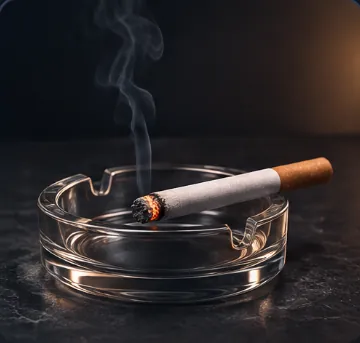 Cigaretteholding a lit cigarette
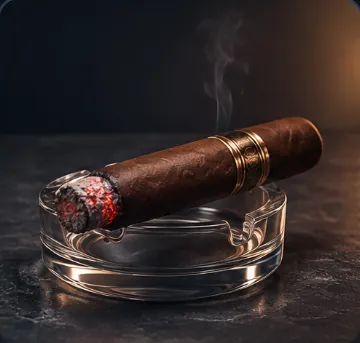 Cigarholding a lit cigar
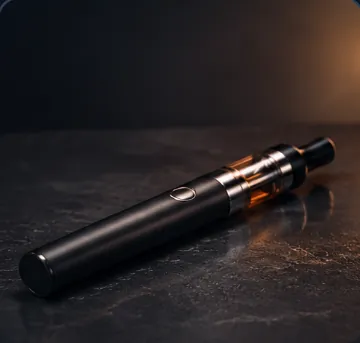 Vape Penholding a slim vape pen
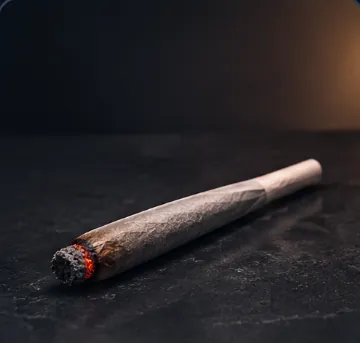 Jointholding a hand-rolled joint
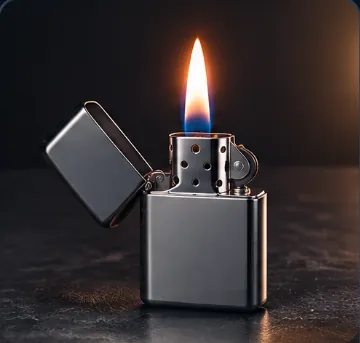 Lighterholding a lit chrome lighter
Reading / Writing · 8 options
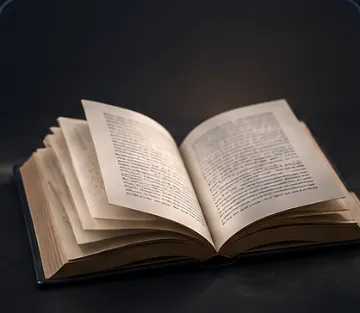 Bookholding an open hardback book
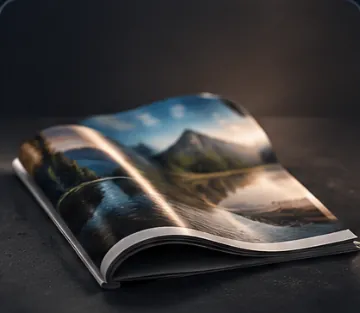 Magazineholding a folded glossy magazine
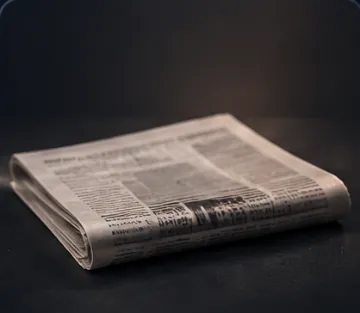 Newspaperholding a folded broadsheet newspaper
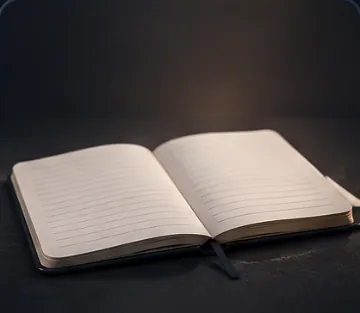 Notebookholding an open lined notebook
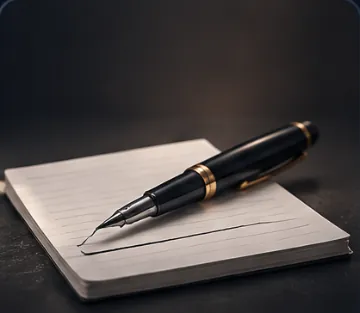 Penholding a pen poised mid-write
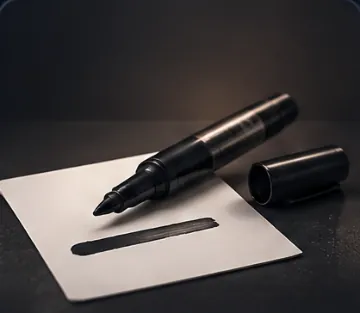 Markerholding a thick permanent marker
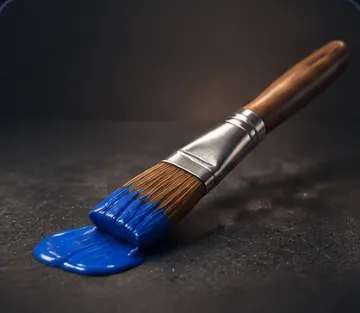 Paintbrushholding a loaded paintbrush
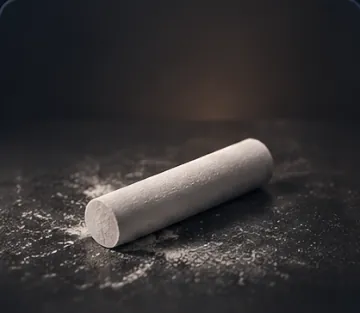 Chalkholding a stick of white chalk
Bags / Accessories · 7 options
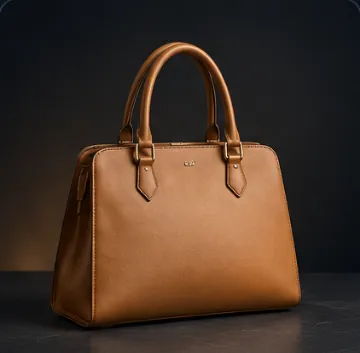 Handbagcarrying a structured designer handbag
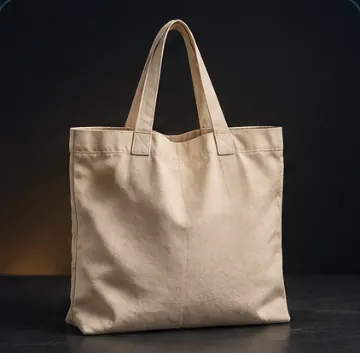 Tote Bagcarrying a canvas tote bag over one shoulder
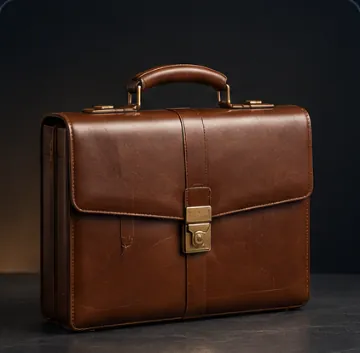 Briefcasecarrying a hard-shell briefcase
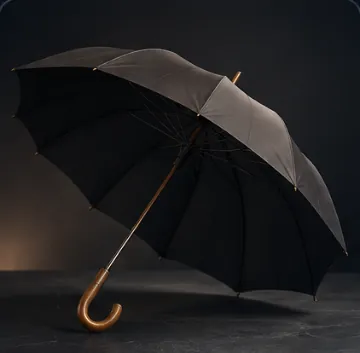 Umbrellaholding an open black umbrella overhead
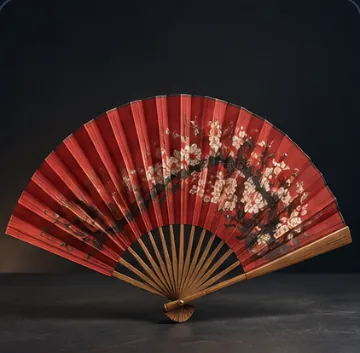 Folding Fanholding an open hand-painted folding fan
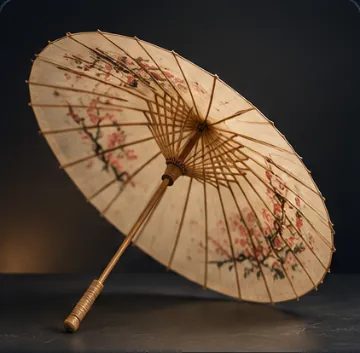 Parasolholding an open decorative parasol
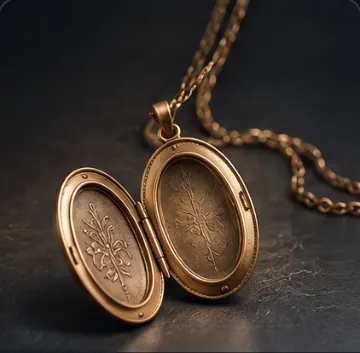 Locketholding an open vintage locket
Floral / Nature · 5 options
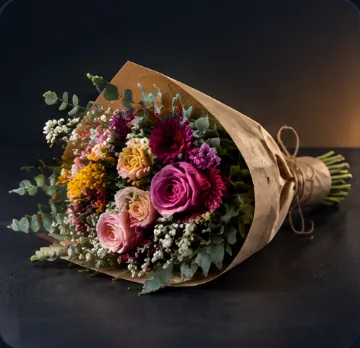 Bouquetcradling a bouquet of fresh flowers
 Single Roseholding a long-stem red rose
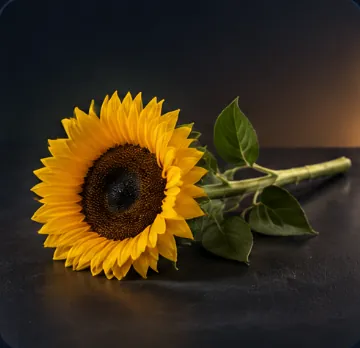 Sunflowerholding a tall sunflower by the stem
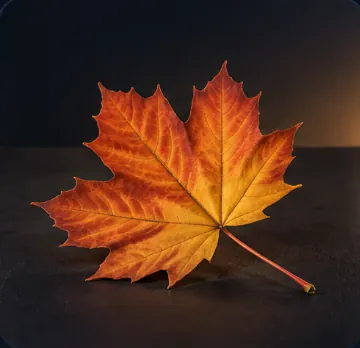 Leafholding a large green leaf
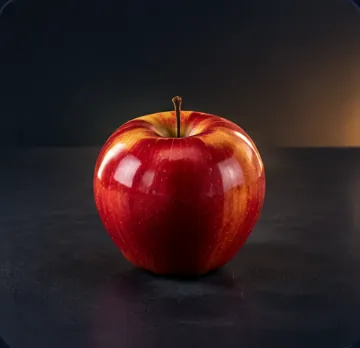 Appleholding a fresh apple in one palm
Instruments / Performance · 5 options
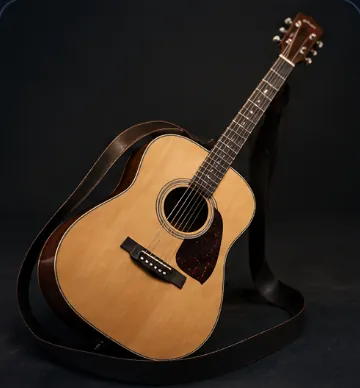 Guitarholding a guitar slung across the body
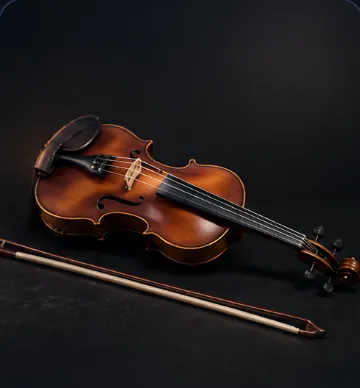 Violinholding a violin under the chin
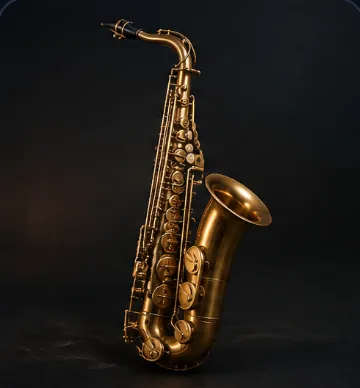 Saxophoneholding a saxophone raised to the lips
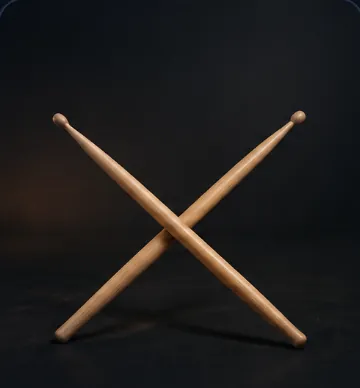 Drumsticksholding a pair of wooden drumsticks
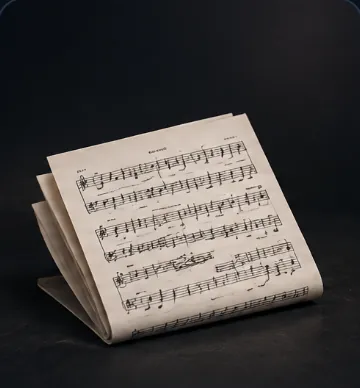 Sheet Musicholding folded sheet music
Companions · 3 options
 Small Dogcradling a small dog in both arms
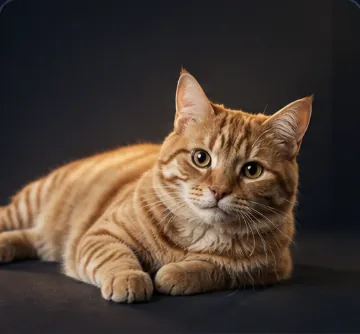 Catcradling a cat
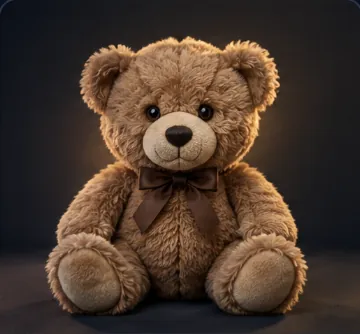 Plush Toyhugging a soft plush toy
Occupational · 10 options
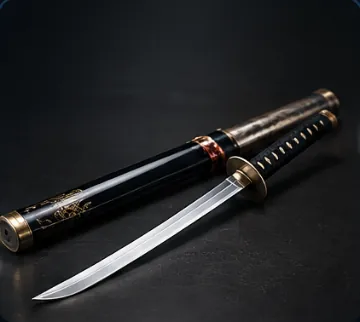 Katanaholding a katana across the body
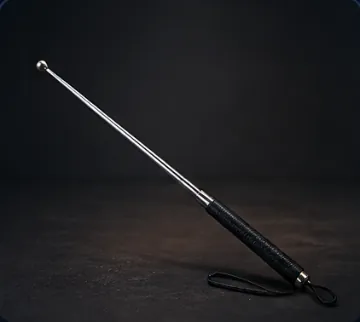 Pointer Stickholding a telescoping pointer stick
 Gavelgripping a wooden gavel mid-strike
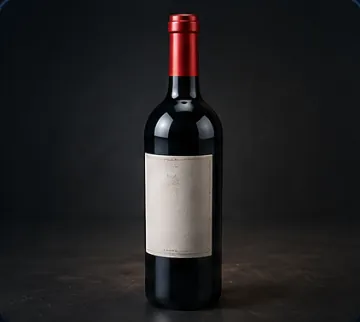 Wine Bottleholding a wine bottle by the neck
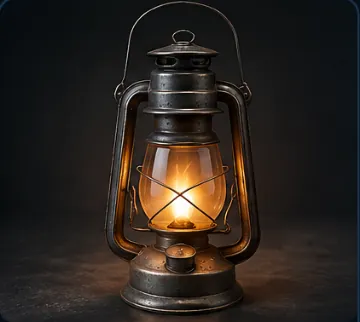 Lanterncarrying a vintage handheld lantern
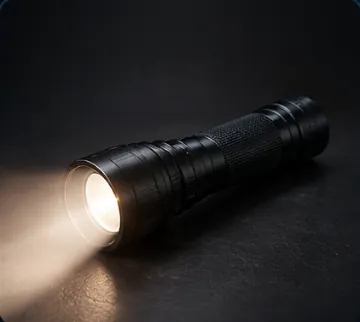 Flashlightholding a flashlight raised forward
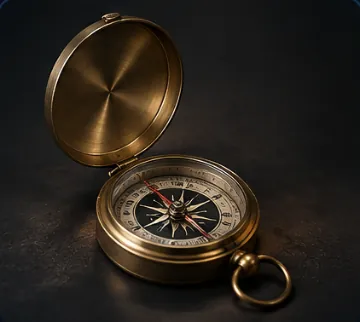 Compassholding an open brass nautical compass
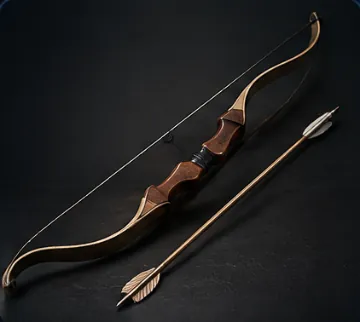 Bow and Arrowdrawing an archery bow with a nocked arrow
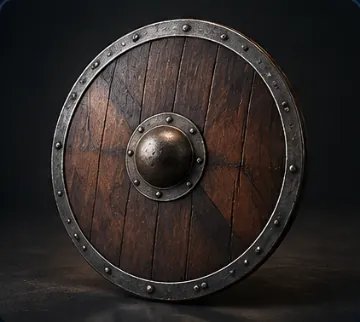 Shieldholding a raised medieval shield
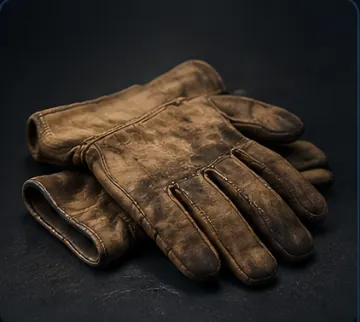 Work Glovesholding a pair of leather work gloves
Tips
- Match the pose to the prop. Pair the picker with Pose, for example Reading with a book or Talking on Phone with a smartphone.
- Show how tightly it is held. Use Custom text (before), for example
clutched tightly, or Custom text (after), for examplewith knuckles white. - Use Weapon for weapons. The Weapon picker has 85 weapons with descriptions of their form. The Occupational group here has a few, such as Katana and Bow and Arrow, but it describes how they are held, for example
holding a katana across the body. - Use a separate object for the scene. Held Prop describes what the subject holds. For an object elsewhere in the scene, use Furniture or an Object/Props Asset.
Frequently asked questions
Related
Creative controls
Pose
Weapon
Person
Generate Image
Last updated on
Furniture
Pick one of 78 furniture pieces, from sofas and four-poster beds to chandeliers and bathtubs, and Nodaro adds the piece and a short description to your prompt.
Material
Pick up to 2 of 67 materials, from silk and leather to gold, marble and glass, and Nodaro adds how each surface looks and takes light to your prompt.