
 Nodaro Docs
Atmosphere
Add weather and particles to an AI image or video. Pick up to 2 of 40 conditions, such as Fog, Light Rain, Snow, Smoke or God Rays, from one picker.
The Atmosphere picker sets the state of the air in a scene: its weather, the particles in it, and the way light scatters through it. You choose up to two conditions from its catalog, such as Fog, Light Rain, Snow, Smoke or God Rays. Nodaro adds tested wording for them to the prompt of every node you connect it to. The picker never calls a model, so it costs no credits.
When to use it
- Add depth and mood with Fog, Mist or God Rays.
- Set the weather of an outdoor scene: Light Rain, Heavy Rain, Storm, Snow or Blizzard.
- Fill the air with particles: Dust, Sparks / Embers, Falling Petals, Fireflies or Confetti.
- Stack two conditions for a richer scene, for example Heavy Rain with Rain on Glass.
How to use it
Add the picker
Open the node picker and choose Creative Controls › Light & Look › Atmosphere.
Choose up to two conditions
Click the node and choose a condition from the grid. Choose a second one to combine them.
Connect it
Drag from the picker's output to the Look input of a Generate Image or Generate Video node. You can also connect it to a Text or Prompt node to use the wording in a longer text.
Run the image or video node
The atmosphere's wording is added to the end of the prompt when the connected node runs.
Settings
| Setting | What it does |
|---|---|
| Atmosphere | The conditions to add. Pick up to 2. The default is Clear. |
| Custom text (before) | Your own words, added before the atmosphere's wording, for example just before dawn. |
| Custom text (after) | Your own words, added after the atmosphere's wording, for example with dust suspended in the light. |
| Prompt hint | Full (default) adds a longer description of each condition. Compact adds only the short terms. See Full or Compact. |
To see the exact words the picker will add, switch the node to the Prompt or Both display mode. The settings panel shows the same text under Will inject into prompt.
Every atmosphere
Search by name. The words under each name are the term the picker adds in Compact mode.
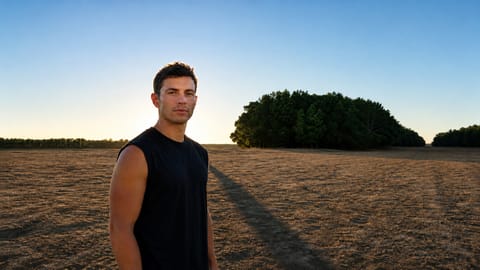 Clearclear atmosphere
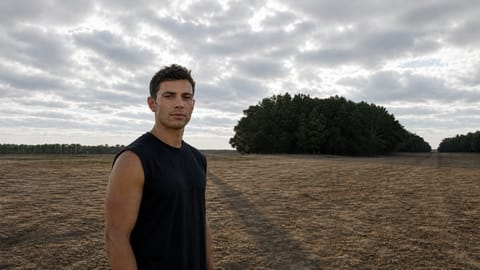 Cloudycloudy sky
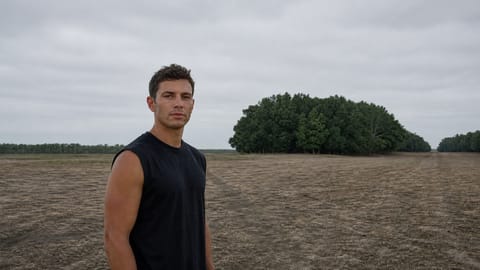 Overcastovercast sky
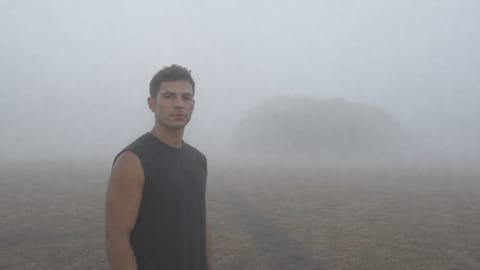 Fogdense fog
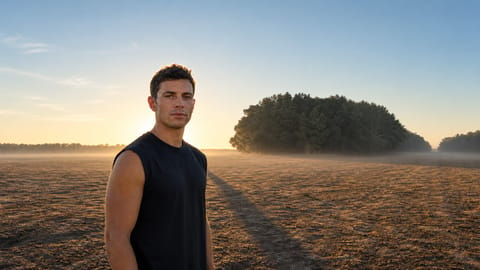 Mistlight mist
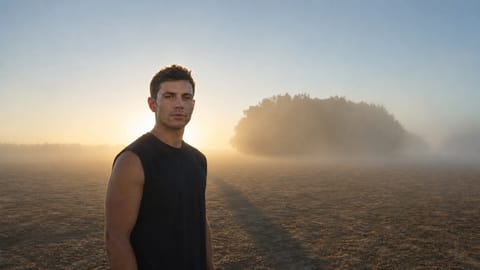 Fog / Mistsoft fog and mist
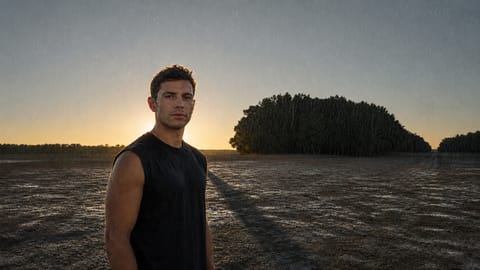 Light Rain
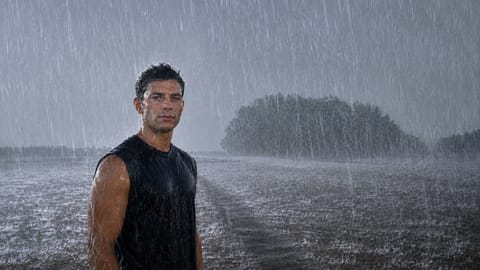 Heavy Rain
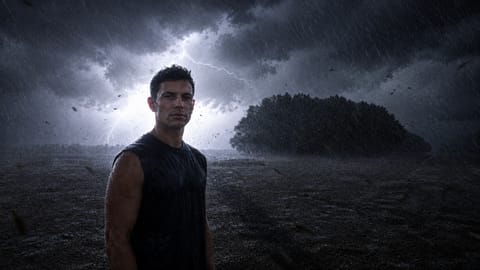 Stormthunderstorm
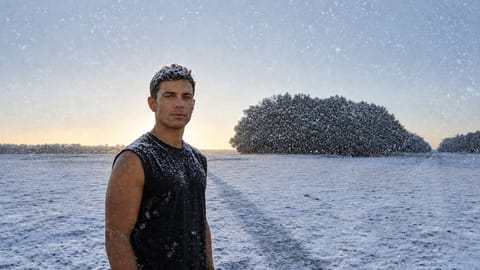 Snowfalling snow
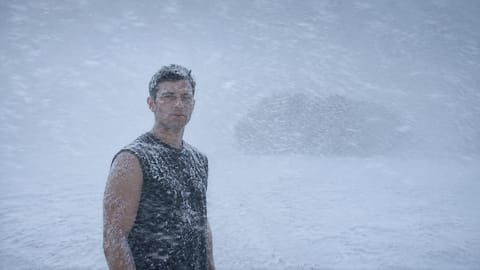 Blizzard
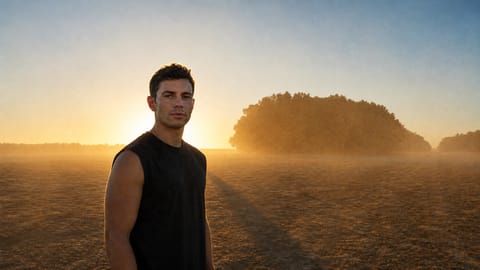 Dustairborne dust
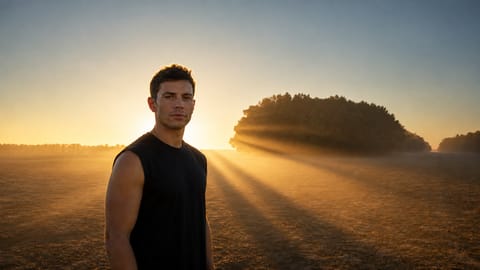 God Rays
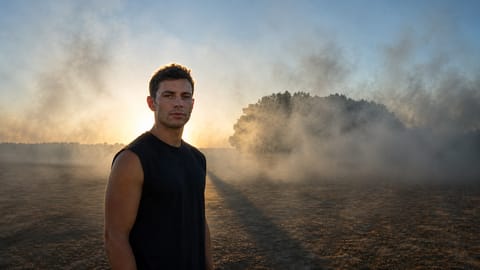 Smokedrifting smoke
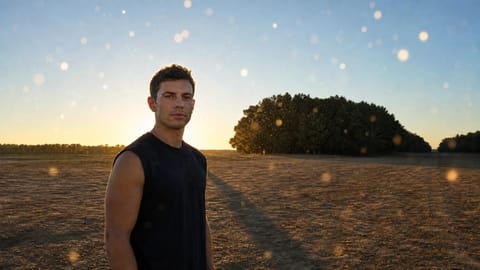 Bokeh Particles
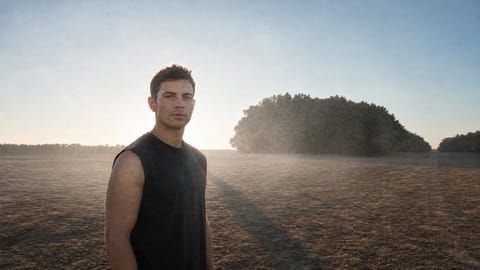 Chalk Dust
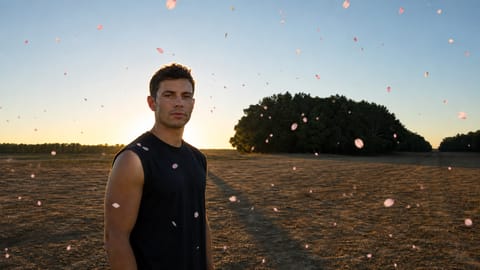 Falling Petals
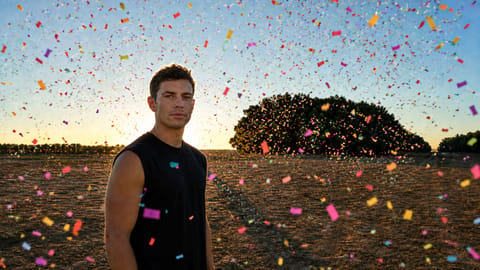 Confetti
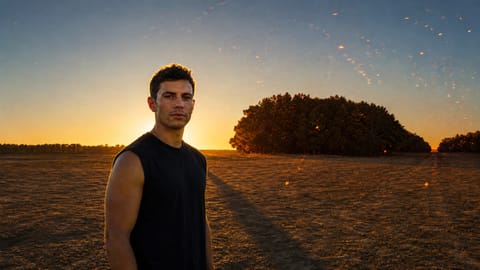 Sparks / Emberssparks and embers
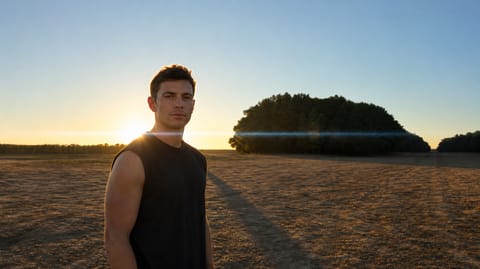 Lens Flareanamorphic lens flare
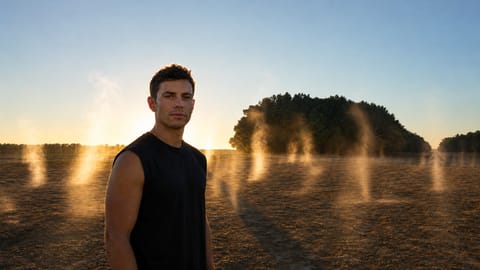
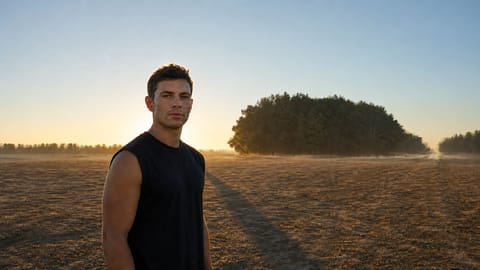 Heat Haze
 Steamrising steam
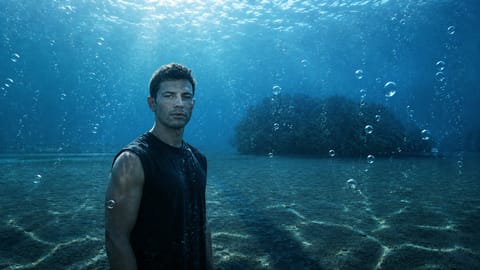 Underwater Bubbles
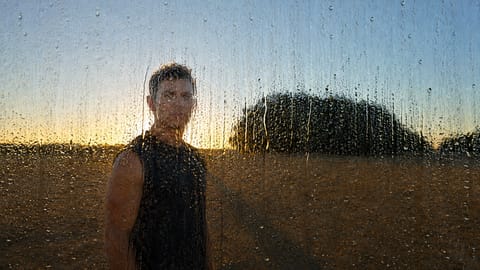 Rain on Glass
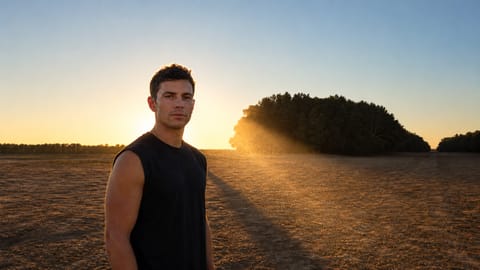
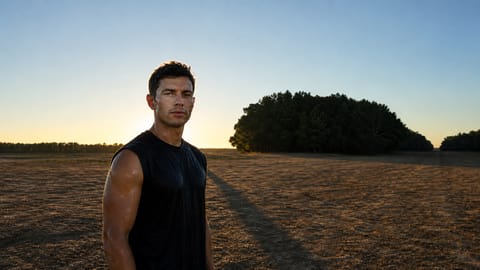
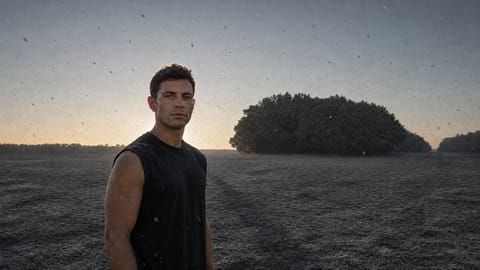
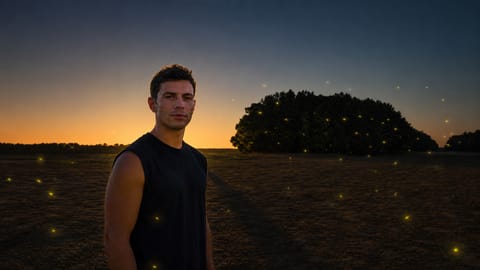
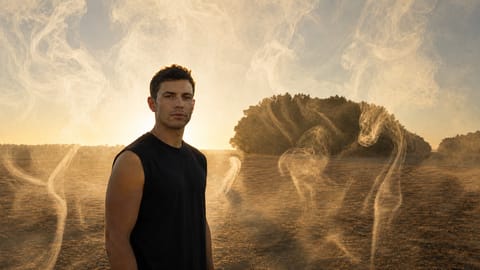
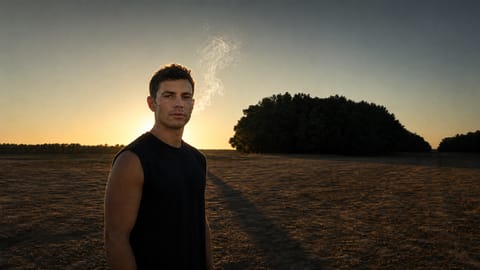
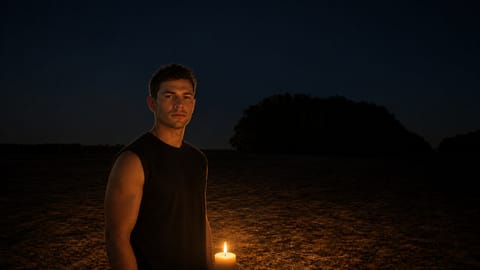
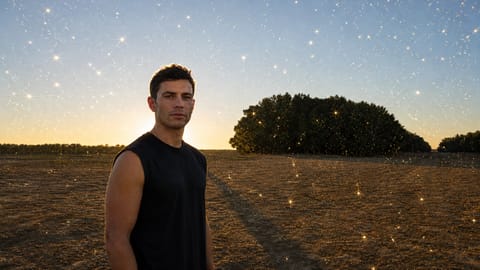
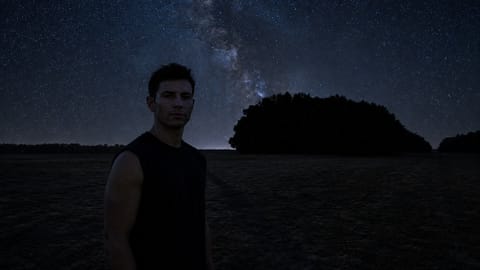
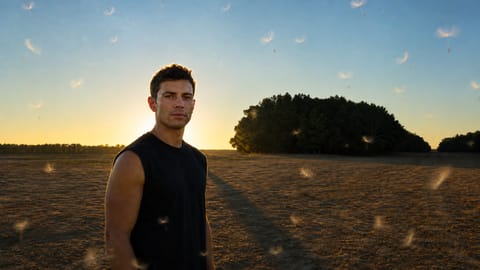
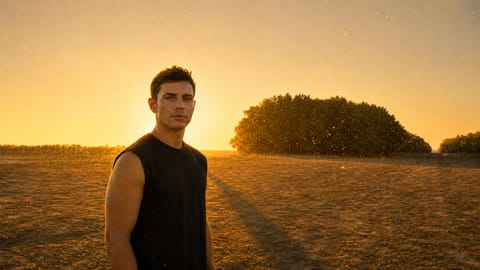
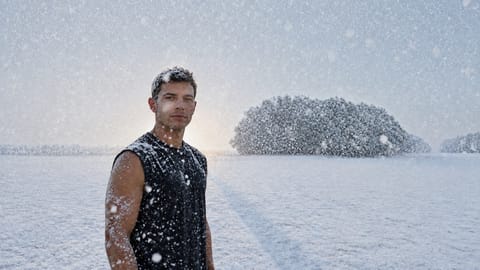
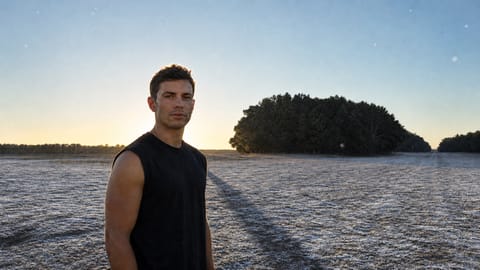
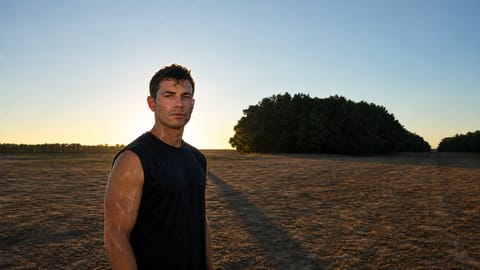
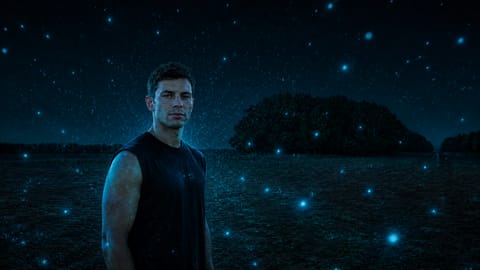
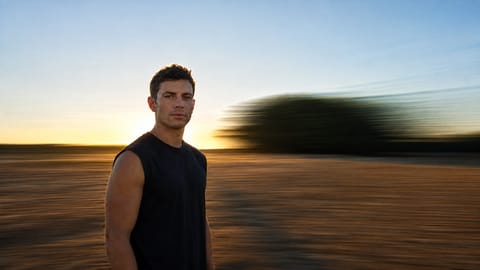
On Nodaro Cloud, each tile shows the same base image with that condition. A switch beside the picker's heading changes the tiles to drawn illustrations. Self-hosted installs show the illustrations only.
Tips
- Backlight the air. Fog or Smoke with a Back / Rim direction in Lighting turns the subject into a silhouette.
- Add depth. Fog, Mist and God Rays add depth and mood to a scene.
- Build the whole scene. Use Setting for the place, Atmosphere for the weather and Lighting for the light.
- Match the color. A warm or cool grade from Color / Look reinforces the mood, for example a Cool grade with Snow.
Frequently asked questions
Related
Creative Controls
Lighting
Setting
Color / Look
Generate Video
Last updated on
Mood
Pick up to two of 51 moods, such as calm, tense or joyful, and Nodaro adds tested wording for the emotion to the prompt of the image or video nodes you connect.
Style
Set the visual style of an AI image or video, such as Cinematic, Anime, Oil Painting or Pixel Art. Pick one of 49 styles and Nodaro adds it to the prompt.