
 Nodaro Docs
Camera Motion
Tell an AI video model how the camera moves. Pick one of 66 camera motions, such as Dolly In, Orbit Left or Crane Up, and Nodaro adds tested wording.
The Camera Motion picker sets how the camera moves in a video. You choose a move from its catalog: Static, Dolly In, Orbit Left, Crane Up, Whip Pan, Drone Follow and more. Nodaro adds tested wording for that move to the prompt of every video node you connect it to. The picker never calls a model, so it costs no credits.
When to use it
- Give an AI clip a deliberate camera move instead of letting the model choose one.
- Keep one camera language across the scenes of a storyboard, or alternate moves from scene to scene for variety.
- Match the move to the story: a push in for a reveal, a pull out for an ending, a pan across a landscape.
- Hold the camera still with Static, so that the subject's own movement carries the shot.
How to use it
Add the picker
Open the node picker and choose Creative Controls › Motion & Time › Camera Motion.
Choose a move
Click the node and choose a move from the grid. Point at a tile to play its preview clip. A new node starts with Static.
Connect it
Drag from the picker's output to the Look input of a Generate Video node. Camera Motion also works with the Look input of Generate Video Pro and Retake Video.
Run the video node
The move's wording is added to the prompt when the video node runs.
Settings
| Setting | What it does |
|---|---|
| Camera Motion | The move to add. The default is Static. Auto adds nothing and lets the model choose. |
| Custom text (before) | Your own words, added before the move's wording, for example starts handheld. |
| Custom text (after) | Your own words, added after the move's wording, for example settles to a lock-off. |
| Prompt hint | Full (default) adds the tested description of the move. Compact adds only the short professional term, such as locked-off static camera. See Full or Compact. |
To see the exact words the picker will add, switch the node to the Prompt or Both display mode. The settings panel shows the same text under Will inject into prompt.
Start and end the move on a look
Camera Motion has two inputs on its left edge: Start state and End state. Each one accepts any picker, such as Framing, Lighting or Tone. Nodaro folds their wording into the camera move: the move is described as beginning with the start-state look and ending with the end-state look.
- Connect several pickers to one input. All of them are joined into the same clause, for example a Framing and a Lighting picker on Start state.
- One level of detail. When Camera Motion is set to Compact, the pickers on its inputs switch to Compact too. A picker that has its own Prompt hint set keeps its own mode.
- Check the result. The preview under Will inject into prompt includes the start and end clauses.
On Retake Video, a connected Camera Motion also sets the model's own camera-motion option when the move has a match there, in addition to the prompt wording.
Every camera motion
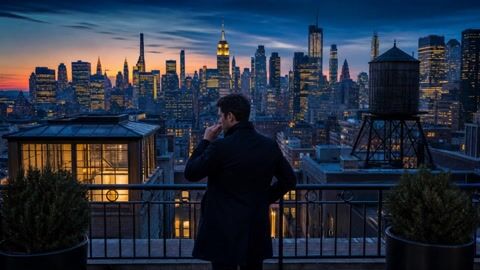
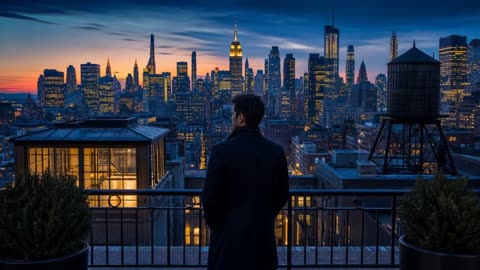
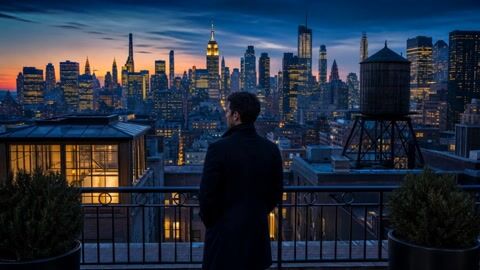
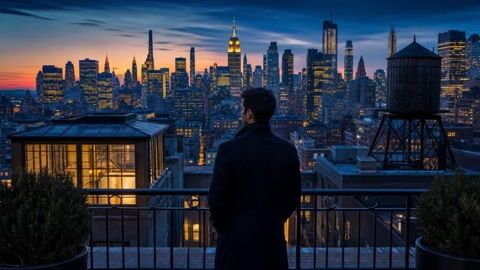
Filter by type of move or search by name. Point at a tile to play the move's preview clip. The words under each name are the term the picker adds in Compact mode.
Basic · 7 options
- Auto
- Staticlocked-off static camera
- Handheldhandheld camera
- Steadicamsmooth steadicam shot
- Handheld Vloghandheld vlog-style camera
- Gentle Driftslow gentle camera drift
- Parallaxlateral parallax camera move
Pan · 4 options
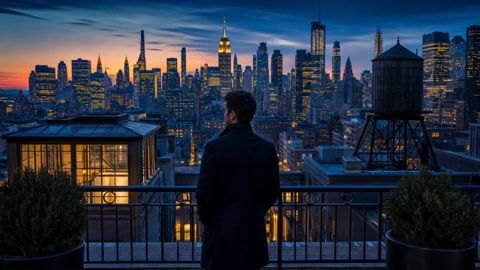
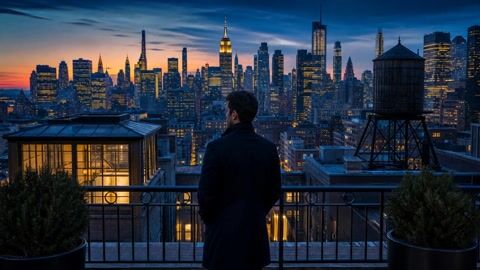
- Pan Left
- Pan Right
- Whip Pan Left
- Whip Pan Right
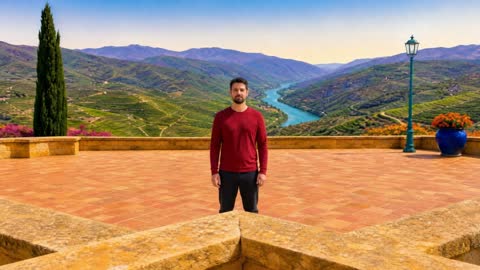
Tilt · 2 options
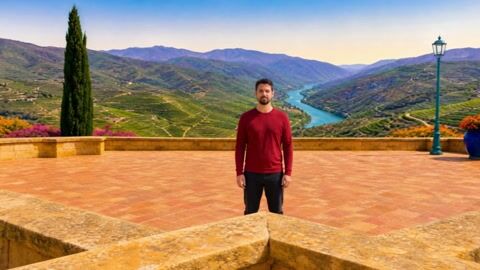
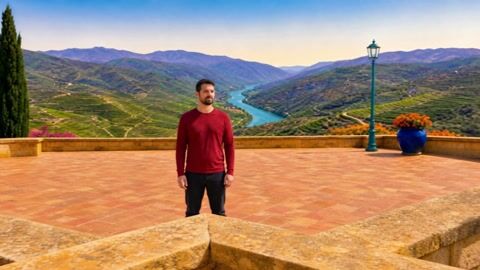
- Tilt Up
- Tilt Down
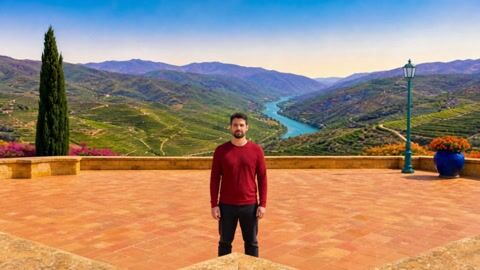
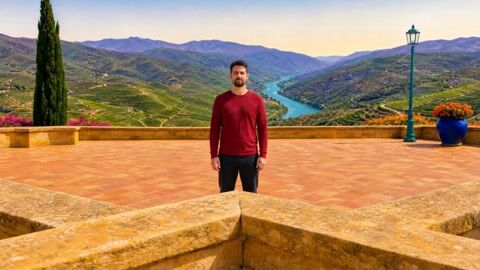
Zoom · 5 options
- Zoom In
- Zoom Out
- Crash Zoom In
- Crash Zoom Out
- Match Cut Zoom

Dolly · 9 options
- Dolly In
- Dolly Out
- Dolly Zoom
- Push Infast push-in
- Pull Outfast pull-out
- Breathing Camera
- Push-Pull / Swingpush-pull swing
- Creep-Inslow creeping push-in
- Creep-Outslow creeping pull-out
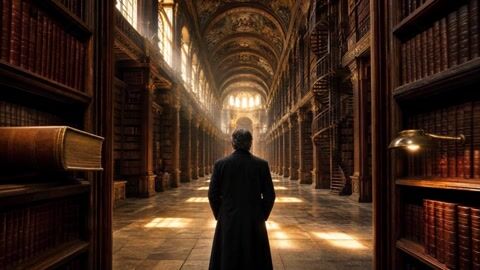
Truck · 2 options
- Truck Left
- Truck Right
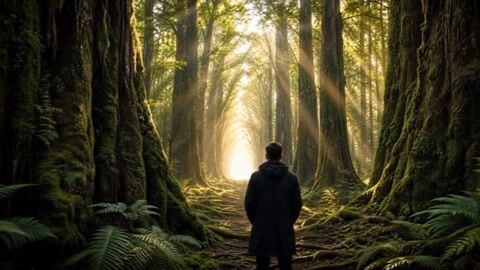
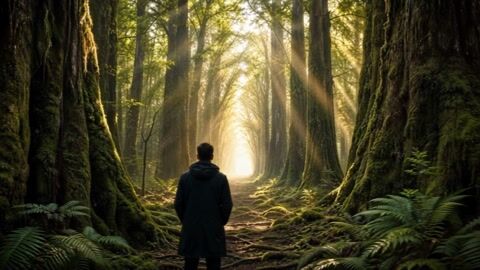
Pedestal · 2 options
- Pedestal Up
- Pedestal Down
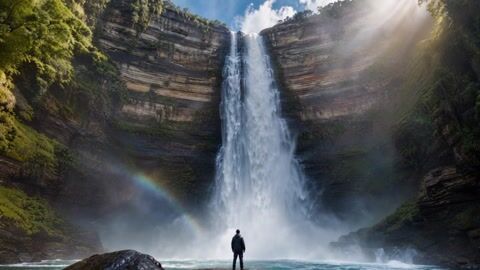
Roll · 4 options
- Roll Left
- Roll Right
- Dutch Angle
- Full 360 Spinfull 360 degree camera roll
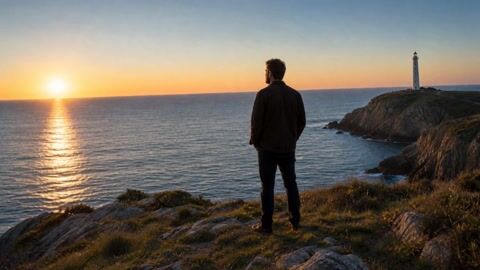
Orbit & Arc · 5 options
- Orbit Left
- Orbit Right
- Arc Left
- Arc Right
- Full 360 Orbitfull orbit, one complete circle around the subject
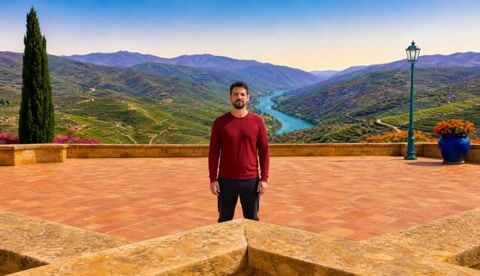
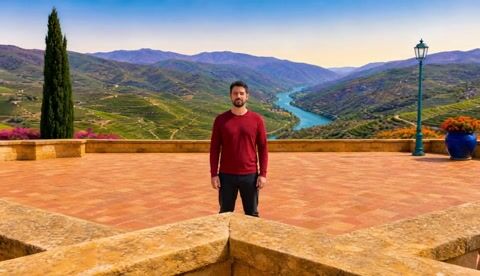
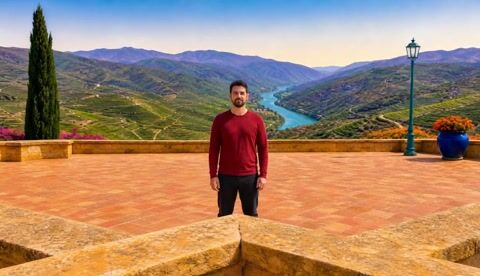
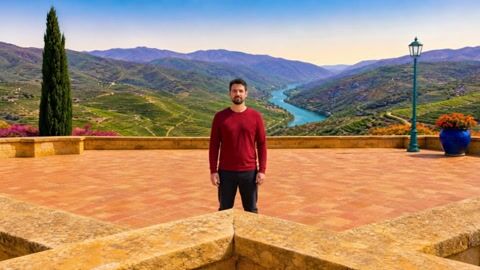
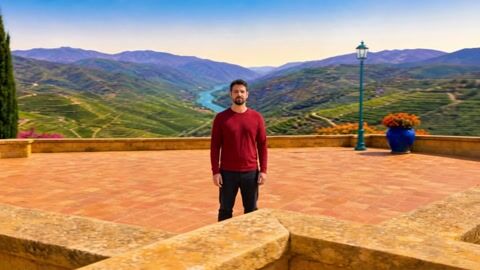
Crane & Boom · 4 options
- Crane Up
- Crane Down
- Boom Up
- Boom Down
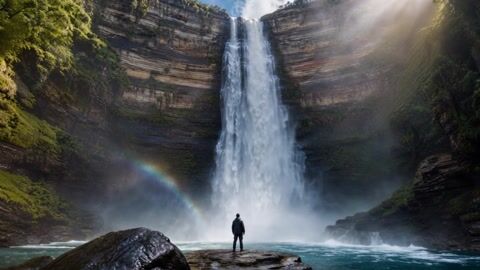
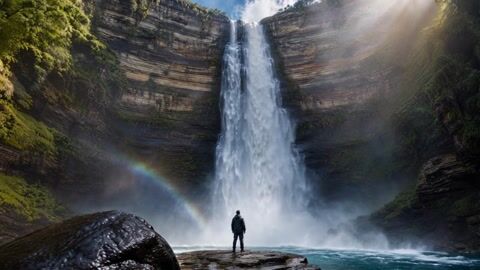
Tracking · 9 options
- Tracking Shot
- Followfollow shot from behind
- Leadleading tracking shot
- Drone Followaerial drone follow shot
- Dolly Trackparallel dolly tracking shot
- Gimbal Walksmooth gimbal walking shot
- Ronin Glideslow gliding gimbal move
- Serpentine Trackserpentine tracking shot
- POV Walkfirst person walking pov








Angles & Rigs · 14 options
- POVfirst person pov shot
- Over The Shoulderover-the-shoulder shot
- Bird's Eyebird's eye view
- Worm's Eyeworm's eye view
- Aerialhigh altitude aerial drone shot
- Helicoptersweeping helicopter aerial shot
- Fly Overlow aerial fly-over pass
- Flythroughflythrough shot
- Revealrising reveal shot
- Snorricambody-mounted snorricam shot
- Rack Focus
- Velocity Editrapid speed-ramped camera move
- Screen Tapabrupt snap-cut transition
- Phone Flipfast flip-cut transition
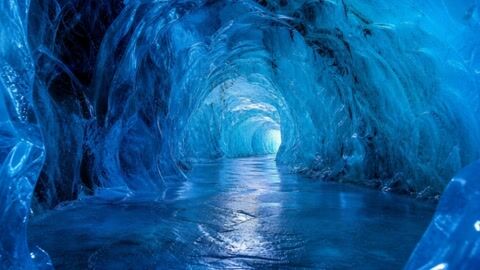
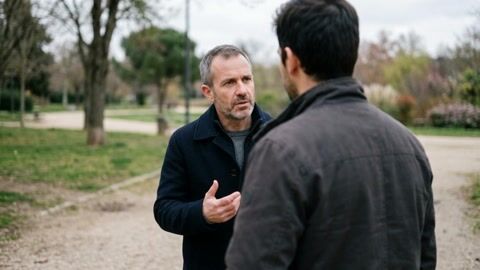
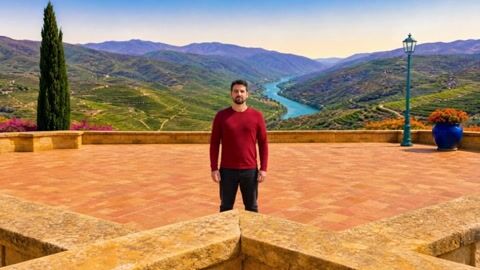
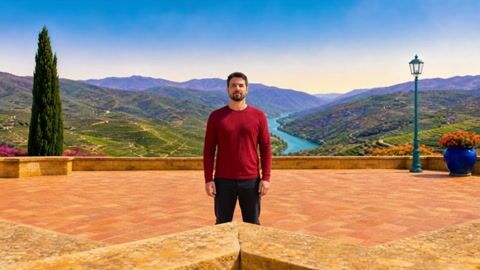


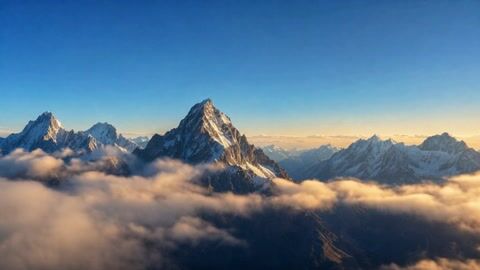
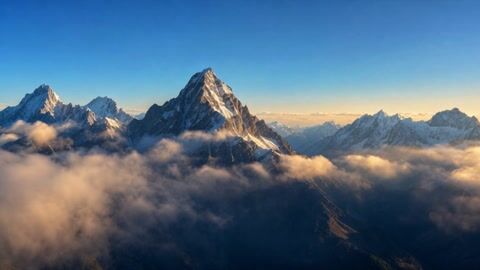
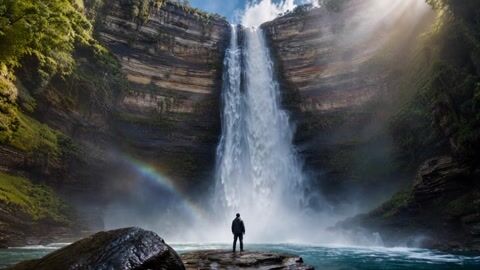

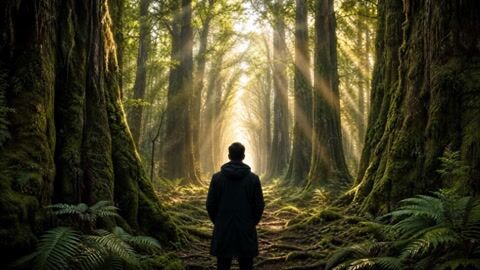
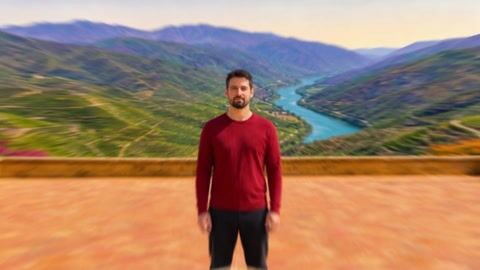
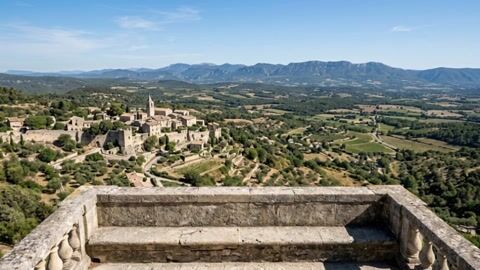
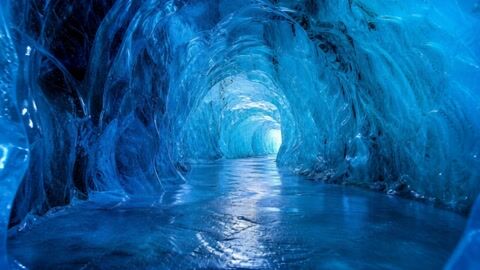
In the editor, the preview clip loops over its still on the picker, the canvas node and a published app's input card. With reduced motion turned on in your operating system, only the still shows. On Nodaro Cloud you can switch the tiles to drawn illustrations with the switch beside the picker's heading. Self-hosted installs show the illustrations only.
How these motions were tested
The wording behind this picker comes from our research study Camera Motion Lab. It tested and tuned 64 of these motions on 147 AI videos. Three findings matter when you use the picker:
- The move is described as geometry. Each motion says what the camera physically does, what stays constant, how near and far elements shift, and where the shot ends. That is why the Full wording is longer than the name of the move.
- The start frame is part of the instruction. In image-to-video, the first frame already tells the model where the camera is. A move can fail because the image invites a different move, even when the wording is right.
- Clip duration shapes the move. The same move travels further in a longer clip. If a move finishes and then starts to reverse, try a shorter clip before you change anything else.
Tips
- Start with Static. When the subject's own movement is interesting enough, a locked-off camera keeps the attention on it.
- Check the start frame when a move keeps failing. If the same failure repeats, first look at what the start frame invites the model to do. For example, a point-of-view move needs a start frame with no person in it.
- Separate the camera from the subject. Camera Motion says how the camera moves. Character Motion says what the subject does.
- Combine it with a transition. To move the camera during a transition, connect Camera Motion to the Start state or End state input of Transition.
- Test important moves. The move is written into the prompt, and each video model follows it in its own way. Test an important move on the model you plan to use.
Frequently asked questions
Related
Camera Motion Lab: how 147 videos taught us to move a camera
Generate Video
Framing
Transition
Character Motion
Last updated on
Aesthetic / Microtrend
Tune an AI image or video to an online aesthetic, such as Y2K, Cottagecore, Dark Academia or Balletcore. Pick up to 2 of 42 named aesthetics.
Temporal
Control time in an AI video clip. Combine speed, freeze, direction and shutter, such as Slow Motion, Bullet Time or Reverse, from 18 tested options.