
 Nodaro Docs
Text to Speech
Turn text into natural speech with ElevenLabs v3, Turbo v2.5 or Multilingual v2. Choose a voice, add emotion with audio tags, and speak up to 46 languages.
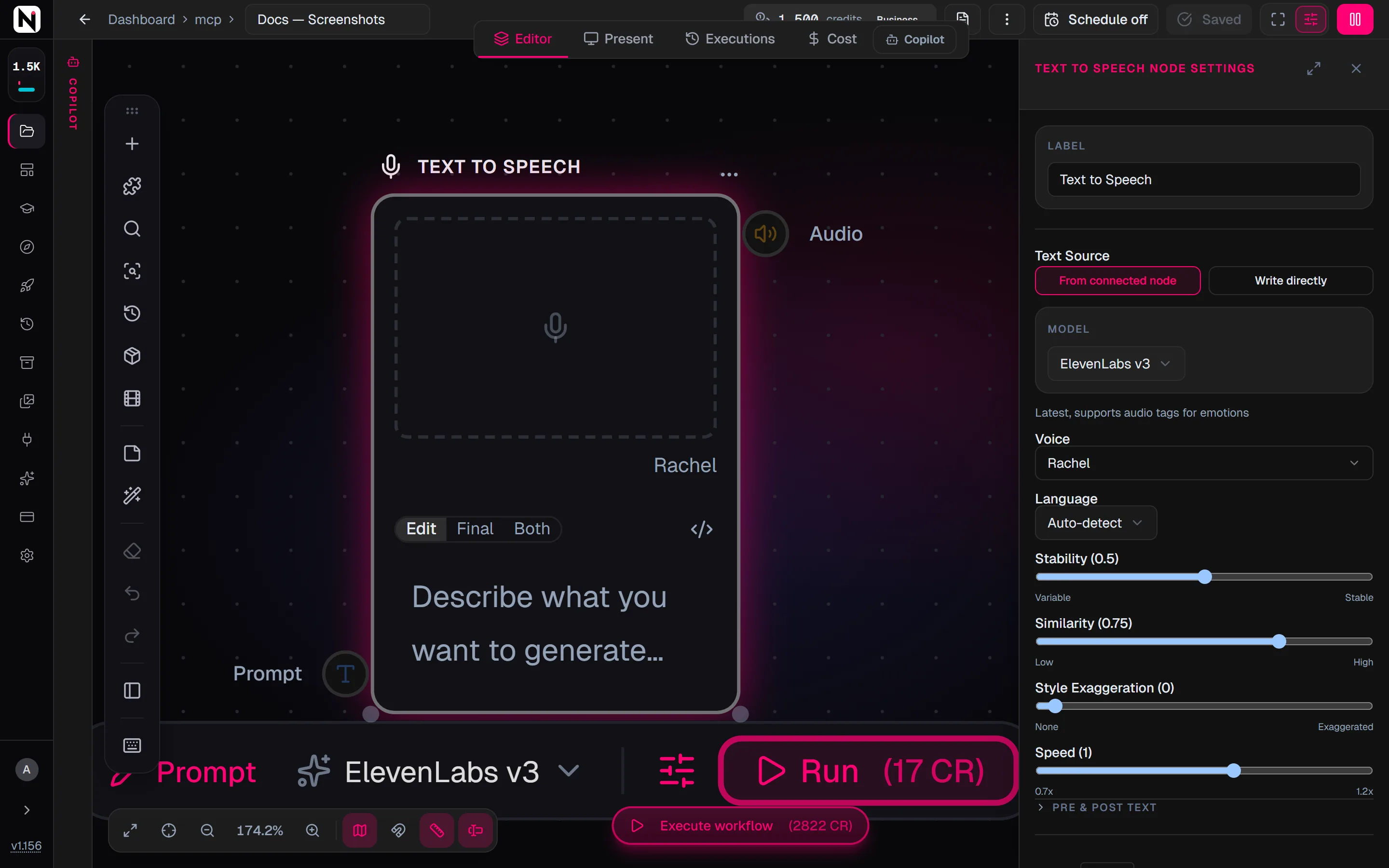
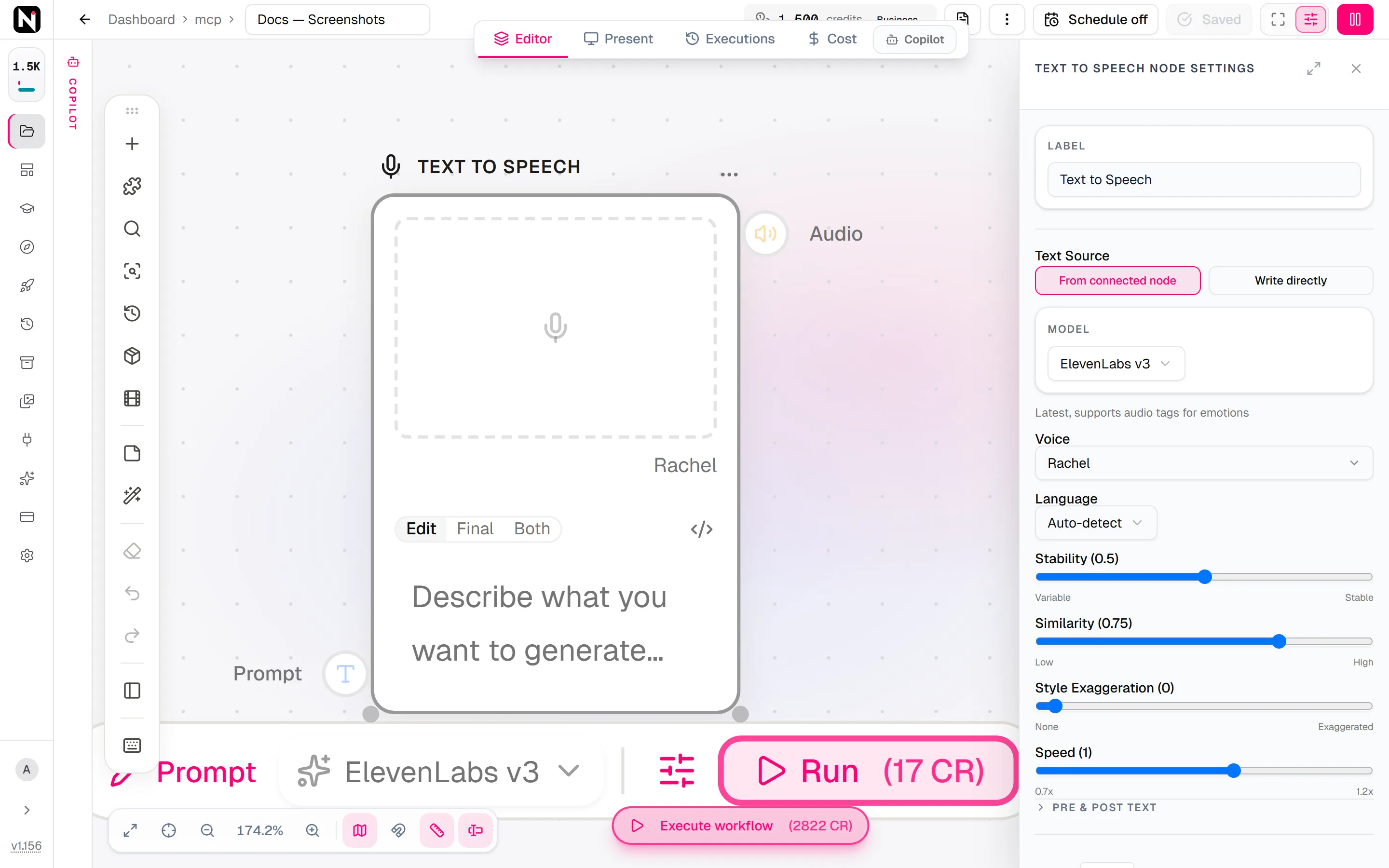
The Text to Speech node turns text into spoken audio with ElevenLabs voice models. You write or connect the text and choose a voice and a model. The node returns an audio file that you can put under a video, lip-sync to a face or mix with music. The default model, ElevenLabs v3, speaks 46 languages and understands audio tags such as [laughs] and [whispers].
When to use it
- You need a voiceover or narration for a video, an explainer or an ad.
- You want a character to speak a line, for example before Lip Sync animates a portrait.
- You want podcast-style audio from a written script.
- You want the same script in several languages.
- You want expressive delivery with emotions, reactions and pauses, written straight into the text.
For a conversation between several voices in one file, use Text to Dialogue instead.
Quick start
Add the node
Press Tab on the canvas and choose Audio › Speech & Voiceover › Text to Speech.
Give it the text
Wire a Text, Prompt or Generate Script node into the Prompt input. To type the text in the node instead, open the settings panel and set Text Source to Write directly.
Choose the voice and the model
Under Voice, open the voice browser, listen to a few previews and choose one. Under Model, keep ElevenLabs v3 unless you need a longer text or a lower price.
Run it
Click Run on the node. The speech appears on the node with a player, and every earlier result stays in its result strip.
Inputs
| Input | Accepts | What it does |
|---|---|---|
| Prompt | Text nodes, such as Text, Prompt, Generate Script and Combine Text | The text to speak, when Text Source is From connected node. |
The output, Audio, is the URL of the spoken audio. It can feed any number of nodes at once.
Settings
| Setting | What it does |
|---|---|
| Text Source | From connected node (the default) speaks the text wired into Prompt. Write directly speaks the text you type in Text. |
| Text | The text to speak, when Text Source is Write directly. Type [ or / to insert an audio tag. You can insert the value of another node by writing its label in curly braces, such as {Script}. |
| Model | ElevenLabs v3 (the default), ElevenLabs Turbo v2.5 or ElevenLabs Multilingual v2. |
| Voice | The voice that speaks. Opens the voice browser. The default is Rachel. |
| Language | Auto-detect (the default), or one language from the model's list. |
| Stability | From 0 to 1. Lower values sound more expressive and varied; higher values sound more uniform. |
| Similarity | From 0 to 1. How closely the result matches the voice's timbre. Turbo v2.5 and Multilingual v2 only. |
| Style Exaggeration | From 0 to 1. Strengthens the style of the original voice. Turbo v2.5 and Multilingual v2 only. |
| Speed | From 0.7x to 1.2x. Turbo v2.5 and Multilingual v2 only. |
| Pre & post text | Text that is always added before and after the text to speak. It is hidden from people who use your workflow as an app. See Prompt pre and post text. |
Voice settings follow the voice's preview. When you leave the sliders alone, the node uses the voice's own stored settings, the same settings its preview was made with. The result then sounds like the preview you heard. When you move a slider, only that value changes, and the voice keeps its other stored settings.
Models
Text to Speech can run the three ElevenLabs speech models below. Click a model for its credit price.
| Model | Maker | Modes | Credits | Details |
|---|---|---|---|---|
| ElevenLabs v3 | ElevenLabs | Text to speech | 30 | Latest ElevenLabs TTS — supports [audio tags] for emotion / pacing. Direct API. |
| ElevenLabs Turbo v2.5 | ElevenLabs | Text to speech | 15 | Fast, cheap ElevenLabs TTS via the direct ElevenLabs API. Good for narration. |
| ElevenLabs Multilingual v2 | ElevenLabs | Text to speech | 30 | Multi-language ElevenLabs TTS via the direct ElevenLabs API. |
| Model | Languages | Audio tags | Characters per run |
|---|---|---|---|
| ElevenLabs v3 (default) | 46 | Yes | 5,000 |
| ElevenLabs Turbo v2.5 | 32 | No, removed before speaking | 40,000 |
| ElevenLabs Multilingual v2 | 29 | No, removed before speaking | 10,000 |
Which model to choose
- ElevenLabs v3 — the default. Choose it for expressive speech, audio tags and the widest language support.
- ElevenLabs Turbo v2.5 — cheaper and faster. Choose it for plain narration and for long texts, up to 40,000 characters per run.
- ElevenLabs Multilingual v2 — natural delivery in 29 languages, with up to 10,000 characters per run.
For every audio model in Nodaro, read Choosing a model.
Choose a voice
The voice browser has three tabs:
- Premade — ElevenLabs' standard voices.
- My Voices — custom voices you already own. To create a new voice from a description, use Voice Design.
- Voice Library — the shared ElevenLabs library, with search and filters for accent, age, language, use case and tone.
Every voice has a preview you can play before you choose it.
Creators verify each Voice Library voice for specific models. Suppose the node runs Turbo v2.5 or Multilingual v2, and you choose a library voice that is not verified for that model. The node then switches Model to one the voice is verified for. ElevenLabs v3 renders every voice, so a v3 node is never switched.
Add emotion with audio tags
ElevenLabs v3 reads audio tags: short instructions in square brackets, placed in the text where the effect should happen. For example: I can't believe it [laughs] that's amazing.
| Kind | Examples |
|---|---|
| Emotions | [excited], [sad], [angry] |
| Reactions | [laughs], [sighs], [gasps] |
| Delivery | [whispers], [shouting] |
| Pacing | [pause], [long pause] |
| Tone | [cheerfully], [deadpan] |
| Sound effects | [applause], [thunder] |
The v2 models remove audio tags before they speak, and the remaining text can read awkwardly. To add a pause on a v2 model, use a break tag instead, such as <break time="1.0s" />.
Hear the difference
Both takes below use ElevenLabs v3 and the premade voice Rachel. The first reads the text with two audio tags; the second reads the same words without them.
Languages
Auto-detect works well for most text. For text that is not in English, choosing the language explicitly can improve pronunciation.
- Multilingual v2 (29 languages): English, Japanese, Chinese, German, Hindi, French, Korean, Portuguese, Italian, Spanish, Indonesian, Dutch, Turkish, Filipino, Polish, Swedish, Bulgarian, Romanian, Arabic, Czech, Greek, Finnish, Croatian, Malay, Slovak, Danish, Tamil, Ukrainian and Russian.
- Turbo v2.5 (32 languages): every Multilingual v2 language, plus Hungarian, Norwegian and Vietnamese.
- v3 (46 languages): every Turbo v2.5 language, plus Hebrew, Thai, Bengali, Urdu, Persian, Serbian, Lithuanian, Latvian, Estonian, Georgian, Icelandic, Catalan, Afrikaans and Swahili.
Credits
The price depends on the model, and ElevenLabs Turbo v2.5 is the cheapest. The table in Models shows each price, and each model's page gives the details.
Tips
- Keep Stability near 0.5. It balances expression and consistency. Move it toward 1 for narration that must sound even.
- Place tags where the effect happens. A tag in the middle of a sentence changes the delivery at that point.
- Split long scripts on v3. Past 5,000 characters, split the script across several nodes, or switch to Turbo v2.5.
- Place the voice in the scene. A dry voice over a video can sound as if it was recorded somewhere else. Wire it through Audio FX with a reverb such as Room.
- Level several clips. Wire clips through Adjust Volume with Normalize so that they play at the same loudness.
Troubleshooting
The run fails with a voice error. The voice no longer exists, for example because it was removed from the Voice Library. Choose another voice and run the node again.
The end of the text is missing. The text is longer than the model's limit, and the extra text was cut. Split the text, or switch to ElevenLabs Turbo v2.5.
Words in brackets are missing or the text reads oddly. You used audio tags with a v2 model, which removes them. Switch Model to ElevenLabs v3, or remove the tags.
From the API
POST /v1/text-to-speech runs the same node from code. When a request leaves out provider, Nodaro chooses by length. Text within 5,000 characters runs on ElevenLabs v3, and longer text runs on Turbo v2.5, so a long text is never cut to v3's limit. A provider you set is always used as is. Through the MCP tool generate_speech, an unknown voice id falls back to Rachel so that the assistant still gets audio. See Voice and media and the MCP tools.
Frequently asked questions
Related
Text to Dialogue
Voice Design
Lip Sync
Audio FX
ElevenLabs v3
Last updated on
Reference Audio
Bring audio into a workflow from a YouTube video, an uploaded file or a direct link. Reference Audio extracts the sound track and lets you preview it first.
Text to Dialogue
Voice a whole conversation in one audio file. Give each line its own voice, add audio tags for emotion, or fill the lines from a script. ElevenLabs Dialogue v3.