
 Nodaro Docs
Add Captions
Transcribe a video and burn in captions, as a clean subtitle or one of five animated word-by-word styles, with fonts, outlines, position and words per line.
The Add Captions node puts captions into a video. It transcribes the speech in the video, or takes a transcript you connect, and burns the words into the picture. You can show a clean static subtitle or one of five animated styles that follow the speech word by word. You also control the font, the outline, the position and the number of words on each line.
When to use it
- You want subtitles on a talking-head or narration video.
- You want animated, word-by-word captions for TikTok, Reels or Shorts.
- You want accessible captions on any video with speech.
- You want karaoke-style lyrics over a music video.
Quick start
Add the node
Press Tab on the canvas and choose Video › Titles, Graphics & Captions › Add Captions.
Connect the video
Connect a video with clear speech to the Video input. The node transcribes the speech by itself. To use a transcript you already have, also connect it to the Transcript input.
Choose a style and a look
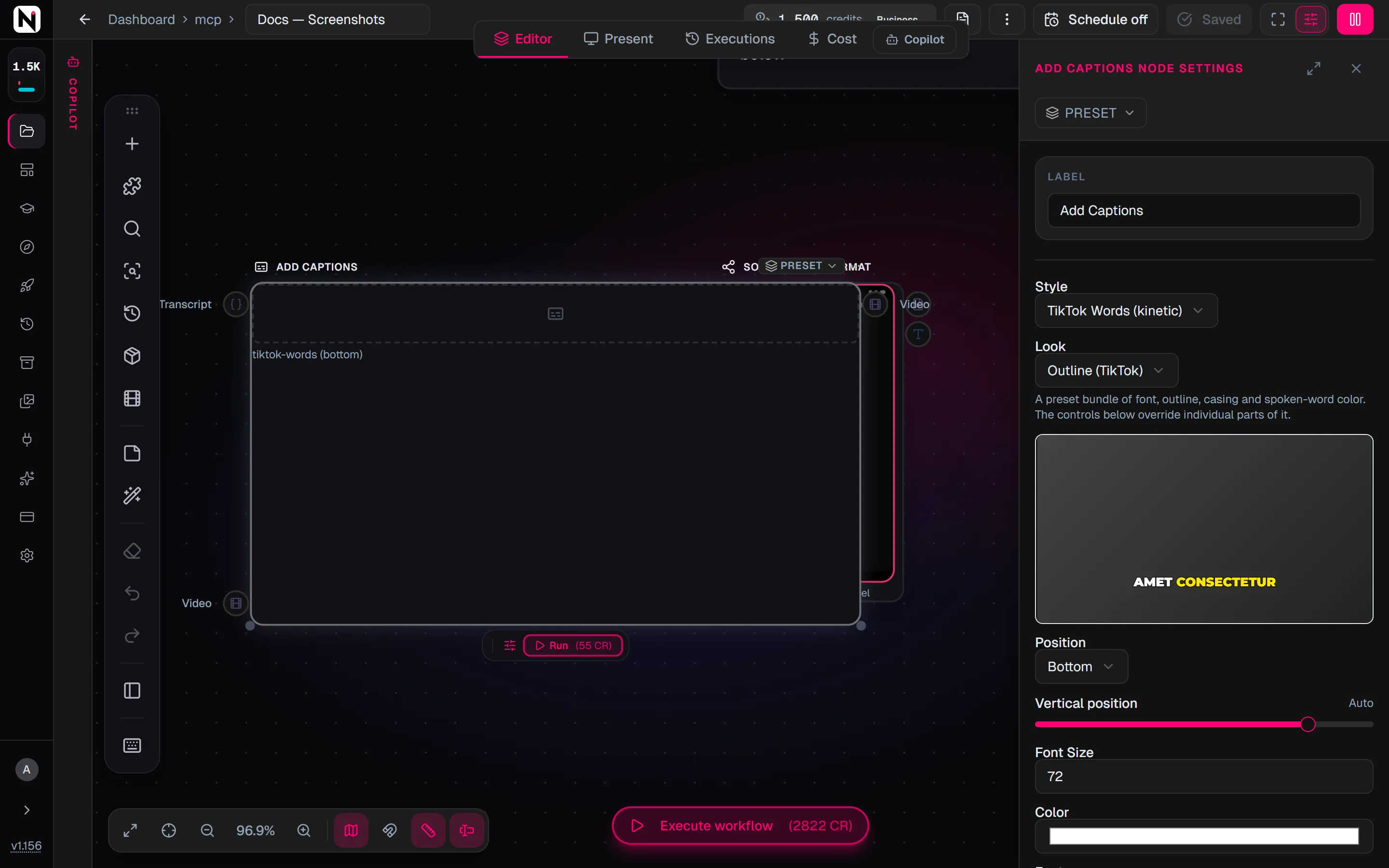
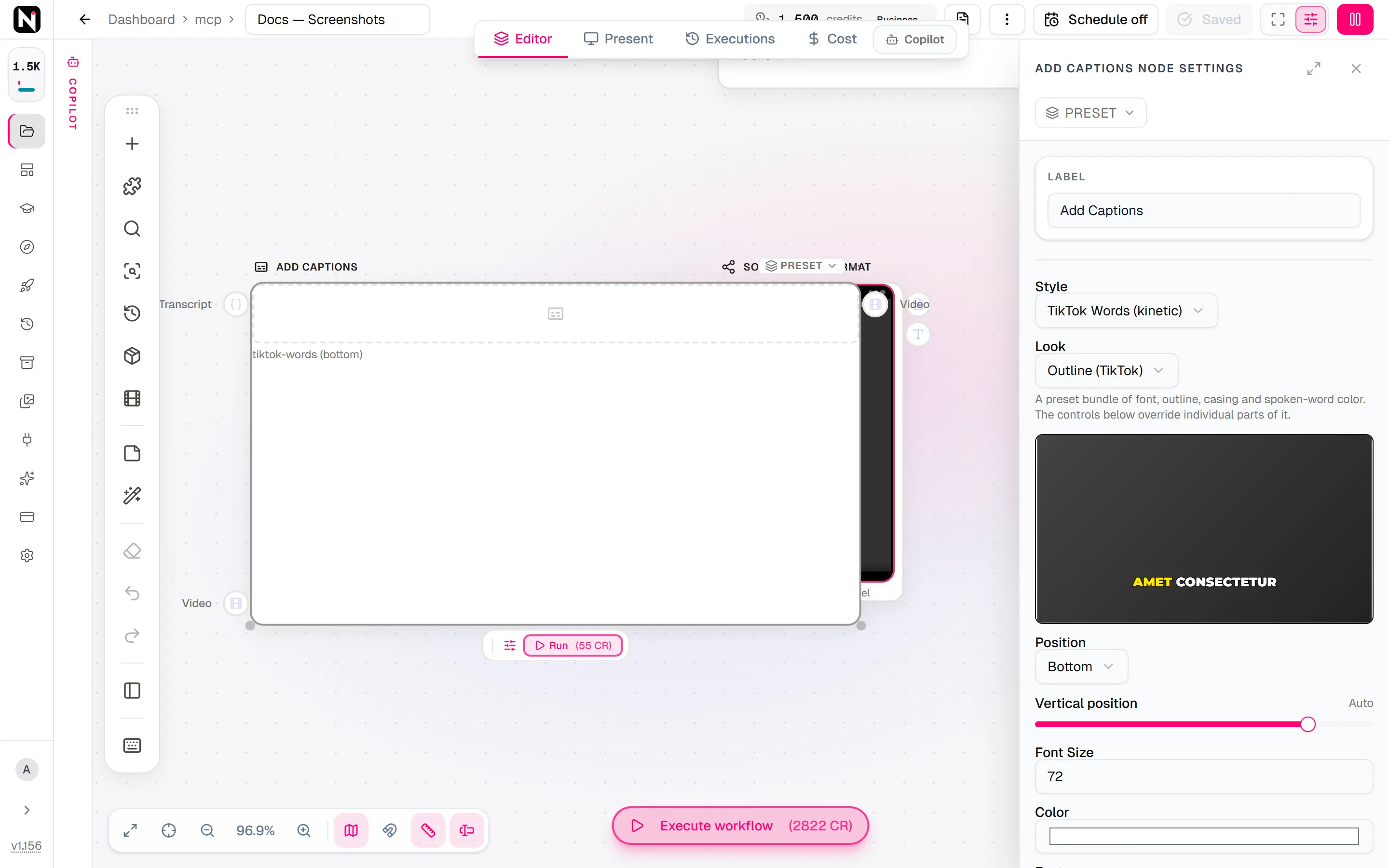
Open the settings panel and choose a Style, such as TikTok Words (kinetic), then a Look. The preview in the panel shows the result. You can also start from a factory preset, such as TikTok Bold.
Run it
Click Run. The captioned video appears on the node.
Inputs
| Input | Accepts | What it does |
|---|---|---|
| Video | Video nodes | The video to caption. Required. |
| Transcript | The transcript output of Transcribe or Apply EDL | Optional. The words and their timings. Without it, the node transcribes the video's speech. |
The output, Video, is the video with the captions burned in.
Settings
| Setting | What it does |
|---|---|
| Style | How the captions appear. Subtitle (static) is the default. The five other styles are animated. See Caption styles. |
| Look | A preset of font, outline, casing and spoken-word color: Outline (TikTok) or Clean. Subtitle also offers None (plain), its default. The controls below override single parts of the look. See Looks. |
| Position | Bottom (the default), Top or Center. See Position. |
| Vertical position | A slider from 0 to 100%: the height of the caption block's center. Once set, it overrides Position. Auto hands placement back to Position. |
| Font Size | From 12 to 200 pixels. The default is 32. When you switch to an animated style, a font size left at 32 changes to 64, and back again. |
| Color | The text color. The default is white (#FFFFFF). |
| Font | Auto (from look) or one of 24 fonts, such as Montserrat, Inter, Anton, Bebas Neue, Oswald and Poppins. |
| Font weight | Auto (look default), or a weight from 100 Thin to 900 Black. If the font does not have that weight, the nearest one is used. |
| Max words per line | From 1 to 20. Empty fits as many words as the frame width allows. Hidden on Word Pop, which always shows one word. See Max words per line. |
| Uppercase | Shows the captions in capital letters. |
| Outline color | The color of the outline around the text. An Auto button hands the color back to the look. |
| Outline width | From 0 to 40 pixels. Empty follows the look, and 0 means no outline. |
| Spoken word color | Animated styles only. The color of the word being spoken. Auto follows the look. |
| Animate | Animated styles only. On by default. Turn it off to freeze the per-word motion. See Animate. |
| Word-level captions | Animated styles only. On by default: one caption per word. Turn it off to group a connected transcript's words into lines. |
Fonts
The Font list has 24 fonts:
| Kind | Fonts |
|---|---|
| Sans serif | Inter, Roboto, Open Sans, Montserrat, Poppins, Raleway, Nunito, Lato, Rubik, Heebo, Cairo, Tajawal |
| Serif | Playfair Display, Merriweather, Lora, EB Garamond |
| Narrow display | Bebas Neue, Oswald, Anton |
| Handwriting | Dancing Script, Pacifico, Caveat |
| Monospace | Roboto Mono, Fira Code |
Rubik, Heebo, Cairo and Tajawal cover Hebrew and Arabic. Hebrew and Arabic captions run right to left. The direction follows the language of most of the captions, so a Latin brand name at the start of a Hebrew clip does not flip its lines.
Caption styles
| Style | What you see |
|---|---|
| Subtitle (static) | A standard subtitle. Transcribed speech shows one phrase line at a time, held on screen. |
| Word Highlight (kinetic) | One line at a time, with the spoken word highlighted. |
| Karaoke (kinetic) | One line at a time, filled word by word as it is spoken. |
| TikTok Words (kinetic) | Pages of 1 to 4 words that pop in. A page never spans the end of a sentence or a pause. |
| Word Pop (kinetic) | One word at a time, springing in. Each word stays until the next one starts. |
| Bouncy (kinetic) | One line at a time, and each word bounces as it is spoken. |
The five animated styles are called kinetic styles in the app.
Looks
A look bundles several visual choices, so a caption reads well from one setting.
| Look | What it renders |
|---|---|
| Outline (TikTok) | Montserrat Black (weight 900) in uppercase, white text on a thick black outline, and a yellow spoken word. The default for the animated styles. |
| Clean | Inter, with no outline and no uppercase. |
| None (plain) | Subtitle only, and its default: a neutral Inter subtitle with no outline and no uppercase. |
- Controls override single parts of a look. With Outline (TikTok), changing only Spoken word color keeps the font, the capitals and the outline.
- The spoken-word color shows on three styles. Only TikTok Words, Karaoke and Word Highlight mark one word at a time. Subtitle and Word Pop use the look's font, outline and casing in one color.
- Font size depends on the look's font. Montserrat Black in uppercase is about 30% wider per character than Inter in mixed case. So the same Font Size fits fewer words per line under Outline (TikTok). Choose Clean, a narrow font such as Bebas Neue, Anton or Oswald, or a smaller size.
- The outline grows with the text. When the look draws the outline, its width is 10% of the font size, rounded, and at least 2 pixels. Half of it sits outside the letters, so the visible rim is about 5% of the font size: a 6-pixel outline at size 64, a 3-pixel outline at size 32. Set Outline width to choose your own, or
0for none.
How captions are grouped into lines
Word Highlight, Karaoke, Bouncy and a transcribed Subtitle show one line at a time: not one word at a time, and not the whole transcript as one block.
- A line takes as many words as fit in about 85% of the frame width, at the chosen font size and font.
- A line ends early at the end of a sentence, marked by
.,!,?or…, or at a pause of 0.5 seconds or more between two words. - A phrase too long for one line is split into balanced lines, so its last word is never left alone. For example,
OK SO I BUILT/A WORLD IN/NODARO STUDIO.instead of ending on a loneSTUDIO.. - A line stays on screen for up to 1.5 seconds after its last word, and the next line replaces it the moment the next line starts. Pauses inside a line and short pauses between lines never leave a blank frame. A silence longer than 1.5 seconds clears the caption.
- Inside the line, the effect moves from word to word: the highlight, the fill or the bounce. During a pause, the last spoken word stays active. A subtitle line has no per-word effect.
The two styles that do not draw lines follow the same rules:
- Word Pop keeps each word on screen until the next word starts, for at most 1.5 seconds after the word ends.
- TikTok Words never runs a page across a sentence end or a pause of 0.5 seconds or more. Each page stays until the next page starts, for at most 1.5 seconds after its last word.
Max words per line
Max words per line caps the number of words on one line, or on one TikTok Words page. It works on top of the rules above: a line still ends at 85% of the frame width, at a sentence end and at a pause. The cap can only make lines shorter. Use 1 or 2 for short, punchy captions, or leave it empty to fill the width.
| Style | Effect |
|---|---|
| Word Highlight, Karaoke, Bouncy | No line holds more than the set number of words. |
| TikTok Words | No page holds more than the set number of words. |
| Subtitle | No phrase line holds more than the set number of words. |
| Word Pop | None. The style always shows one word. |
For example, with no cap, Word Highlight shows the lines OK SO I BUILT, A WORLD IN and NODARO STUDIO. With Max words per line set to 2, it shows OK SO, I BUILT, A WORLD and so on, each held until the next one starts. A phrase with an odd number of words ends with a one-word line.
The cap counts words, not caption entries. A phrase-level caption with more words than the cap is split into shorter parts, and its time is divided between them by the length of their text.
Animate
Animate switches the per-word motion of the animated styles. Turning it off freezes the movement but keeps the line grouping, the line holding and the spoken-word color.
| Style | What stops moving |
|---|---|
| Word Highlight | The size change of the active word |
| Karaoke | The progressive sweep |
| TikTok Words | The page's spring-in |
| Word Pop | The word's spring-in. The word appears at once, and still stays until the next one. |
| Bouncy | Each word's bounce |
For a fully static caption with no color change either, also set Spoken word color to the same value as Color.
Position
Every position anchors the caption block by the edge nearest to the frame edge, so a caption that wraps to more lines grows inward and is never cut off. The placement is the same for every style.
| Setting | Where the block sits |
|---|---|
| Top | The block's top edge at 12% of the frame height. Extra lines grow downward. |
| Bottom (the default) | The block's bottom edge 18% above the bottom of the frame, clear of the TikTok and Reels buttons. Extra lines grow upward. |
| Center | The block's center at 50% of the frame height. |
| Vertical position | The block's center at the percentage you set, measured from the top. It overrides Position. |
Vertical position sets the center, not an edge. At 85%, the block's center is at 85% of the height and its bottom hangs lower. On a 1920-pixel-tall frame, 83.5% puts the center at about 1,603 pixels. A value around 65% sits below a face and above an app's bottom buttons.
Where the words come from
In the editor, Add Captions gets its words in one of two ways:
- It transcribes the video. With nothing connected to Transcript, the node transcribes the video's speech with Incredibly Fast Whisper. Make sure the speech is clear.
- It reads a connected transcript. Connect the transcript output of Transcribe or Apply EDL to the Transcript input. Apply EDL moves every word through the cut, so the captions stay aligned with a re-cut video, to within about 80 milliseconds across a crossfade.
A transcript needs word timings
A connected transcript must carry the timing of each word. A transcript without words is refused before any credits are reserved.
The Whisper engine of Transcribe returns phrases, not word timings. If a Transcribe node on Whisper feeds this node, directly or through Apply EDL, the workflow stops before anything runs or is charged. The message names the Transcribe node. Switch that Transcribe node to an engine with word timings, such as Incredibly Fast Whisper or ElevenLabs STT. The same check covers chains inside a sub-workflow. Only a chain that crosses a sub-workflow boundary is refused at this node, after the transcription has run.
Word-level captions
With a transcript connected and an animated style chosen, Word-level captions decides how the transcript's words become captions:
- On (the default) makes one caption per word, which the per-word styles need.
- Off groups the words into lines first. A line ends at a change of speaker, the end of a sentence, a silence or a maximum number of words. Use it for calmer, line-at-a-time captions.
Max words per line applies either way.
Transcription engines
| Engine | Word timings | Where you can choose it |
|---|---|---|
| Incredibly Fast Whisper | Yes | The default everywhere |
| ElevenLabs STT | Yes | API, MCP, SDK and CLI |
| Whisper | No, phrases only | API, MCP, SDK and CLI |
The engine does not change the price of Add Captions. The animated styles need word timings, so they need Incredibly Fast Whisper or ElevenLabs STT. Subtitle needs only phrase timings, so it works with every engine.
Frame rate of the result
An animated caption render keeps the source video's frame rate. The rate is rounded to a whole number, such as 24 for 23.976 or 30 for 29.97, and kept between 15 and 60 fps. Three cases render at 30 fps instead:
- The source frame rate cannot be read.
- The source has a variable frame rate.
- The clip is longer than the render's frame limit of 108,000 frames. At 60 fps, that is a clip longer than 30 minutes.
A plain static subtitle always keeps the source frame rate.
Factory presets
Add Captions ships seven presets in the Caption Styles folder. Each one sets the style, the position, the font size and the color, and transcribes the video.
| Preset | Style | Position | Font Size | Color |
|---|---|---|---|---|
| Clean Subtitles | Subtitle | Bottom | 32 | White |
| TikTok Bold | TikTok Words | Center | 72 | White |
| Karaoke Highlight | Karaoke | Bottom | 56 | White |
| Word Pop | Word Pop | Center | 64 | Yellow (#FFE600) |
| Bouncy Captions | Bouncy | Bottom | 64 | White |
| Word Highlight | Word Highlight | Bottom | 48 | Cyan (#00E5FF) |
| Top Banner | Subtitle | Top | 36 | White |
See Presets for how to apply, save and share presets.
Credits
Add Captions has two prices:
| Render | Credits |
|---|---|
| A plain static subtitle with your own fixed text and no styling control set | 30 |
| Everything else: every animated style, a transcribed or transcript-fed subtitle, a subtitle with any styling control, and per-segment captions | 50 |
The settings panel has no text field, so a node set up in the editor always captions the speech or a transcript, and each run costs 50 credits. The 30-credit subtitle is a fixed text sent through the API, MCP, SDK or CLI. The transcription engine and the styling controls do not change the price of an animated style.
Tips
- Match the style to the content. Use Subtitle for professional content and Word Highlight or TikTok Words for social media.
- Mind the platform's buttons. The default Bottom position already clears the TikTok and Reels buttons. For vertical social video, Center also works well.
- Keep text readable. White text over a dark picture reads best. Use colored text on a light picture.
- Correct the words first. For the most accurate captions, transcribe with Transcribe, correct the text, then time it with Forced Alignment.
- Caption last. Put Add Captions after Video Overlay, so logos and cards stay under the captions.
Troubleshooting
The workflow stops before it runs and names a Transcribe node. That Transcribe node uses the Whisper engine, which returns no word timings. Switch it to Incredibly Fast Whisper or ElevenLabs STT.
Lines hold fewer words than expected. The Outline (TikTok) look uses a wide font. Choose Clean, a narrow font such as Bebas Neue, or a smaller Font Size.
A caption is cut off at the frame edge. Use a named Position instead of a Vertical position near the edge. Named positions anchor the edge of the block, so extra lines grow inward.
From the API and MCP
Code and AI assistants can do more than the editor. POST /v1/add-captions, the add_captions MCP tool, the SDK's client.media.addCaptions(...) and the CLI all accept the same controls as the settings panel, plus the following:
- Your own text. On Subtitle,
textis burned in as one fixed block for the whole video and is never transcribed over. A line break in the text forces a new line. On an animated style,textis only a fallback: it is used when the transcription finds no words, and is spread evenly over the video. - Your own word timings.
captionsis a list of caption entries, each withtext,startMsandendMs. For the animated styles, give one entry per word. - The transcription engine.
transcribe_providerchoosesincredibly-fast-whisper(the default),elevenlabs-sttorwhisper. An animated style with Whisper and no other source of words is refused before any credits are reserved. Setauto_transcribetofalseto turn transcription off; a request with no source of words at all is refused. - Different treatments per time range.
segmentsapplies a different style and look to each time range of the same video, in one call. See Per-segment captions.
When a request carries several sources of words, the node uses the first of: captions, a transcript, text on Subtitle, then transcription.
Field names differ by surface. The REST body and the SDK use maxWordsPerLine, the MCP tool uses max_words_per_line, and the CLI uses --max-words-per-line.
Per-segment captions
Each segment has a start and an end in milliseconds, must not overlap another segment, and can set its own style and look controls. A segment without its own words uses the shared captions or the transcription, limited to its time range. Caption times are always measured from the start of the video, not from the start of the segment. Per-segment captions always use the animated render, so they cost 50 credits.
For example, these arguments to the add_captions MCP tool show a large outlined phrase at the top for 3 seconds, then one word at a time at the bottom:
{
  "video_url": "https://example.com/clip.mp4",
  "look": "outline",
  "segments": [
    { "start_ms": 0, "end_ms": 3000, "style": "subtitle", "position": "top", "font_size": 96, "text": "Same face, every shot. No re-prompting." },
    { "start_ms": 3000, "end_ms": 20000, "style": "word-pop", "position": "bottom", "font_size": 48 }
  ]
}- Words at a boundary. A single word belongs to the segment that contains its start, so it never appears twice. A phrase that crosses a boundary is split there, and each part shows in its own segment's style. A part shorter than 250 milliseconds is dropped, unless that would lose the whole phrase.
- What a segment inherits. Color, background color, position, vertical position, Animate and Max words per line come from the top level when the segment does not set them. A segment that sets its own position does not inherit the top-level vertical position. The look controls, such as font, weight, outline, spoken-word color and uppercase, are inherited only by a segment without its own
look. A segment that names a look starts fresh from that preset.
Frequently asked questions
Related
Transcribe
Apply EDL
Forced Alignment
Video Overlay
Social Media Format
Last updated on
Lottie Overlay
Describe the overlays and an AI model places and times Lottie animations, such as confetti, hearts or arrows, or your own Motion Graphics, over a video.
Render Video
Render the plan of Motion Graphics, 3D Title, After Effects, Lottie Overlay, Compose Video or a 3D scene into an MP4, or arrange connected media without a plan.