
 Nodaro Docs
Style
Set the visual style of an AI image or video, such as Cinematic, Anime, Oil Painting or Pixel Art. Pick one of 49 styles and Nodaro adds it to the prompt.
The Style picker sets the overall visual treatment of an image or a video: photographic, painted, drawn or rendered. You choose a style from its catalog, such as Cinematic, Anime, Oil Painting, Pixel Art or Ukiyo-e. Nodaro adds tested wording for that style to the prompt of every node you connect it to. The picker never calls a model, so it costs no credits.
When to use it
- Keep one visual language across a batch of images, for example every frame of a storyboard in Comic Book style.
- Try the same prompt in different styles: change the picker and run the image node again.
- Turn a photographic prompt into art: Watercolor, Charcoal Drawing, Stained Glass or Claymation.
- Set the style of a whole video workflow once, and connect the same picker to every image and video node.
How to use it
Add the picker
Open the node picker and choose Creative Controls › Light & Look › Style.
Choose a style
Click the node and choose a style from the grid. A new node starts with Cinematic.
Connect it
Drag from the picker's output to the Look input of a Generate Image or Generate Video node. You can also connect it to a Text or Prompt node to use the wording in a longer text.
Run the image or video node
The style's wording is added to the end of the prompt when the connected node runs.
Settings
| Setting | What it does |
|---|---|
| Style | The style to add. The default is Cinematic. |
| Custom text (before) | Your own words, added before the style's wording, for example wet-plate aesthetic. |
| Custom text (after) | Your own words, added after the style's wording, for example with hand-printed edges. |
| Prompt hint | Full (default) adds a longer description of the style. Compact adds only the short term. See Full or Compact. |
To see the exact words the picker will add, switch the node to the Prompt or Both display mode. The settings panel shows the same text under Will inject into prompt.
Style picker or the Style setting of Generate Image
Generate Image has its own Style setting with a short list of styles. When a Style picker is connected, the picker wins: the node's own setting is turned off and shows Bypassed — using connected Style node. This way the style is never added twice. Use the picker when you want the larger catalog, or one style for many nodes.
Every style
Search by name. The words under each name are the term the picker adds in Compact mode.
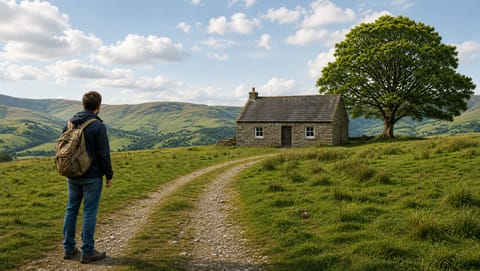 3D Render
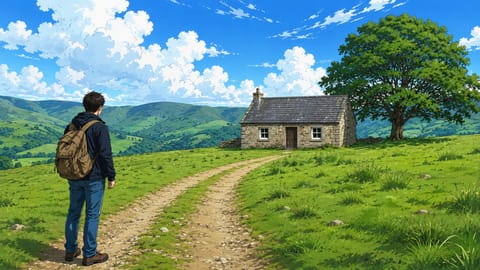 Anime
Anime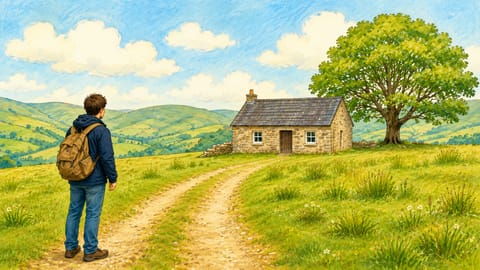 Children's Bookchildren's book illustration
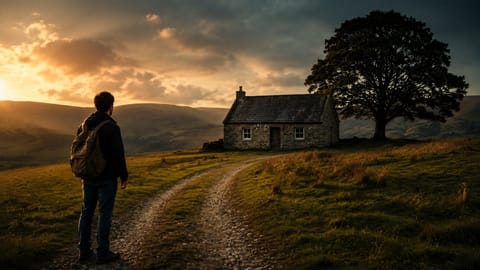 Cinematic
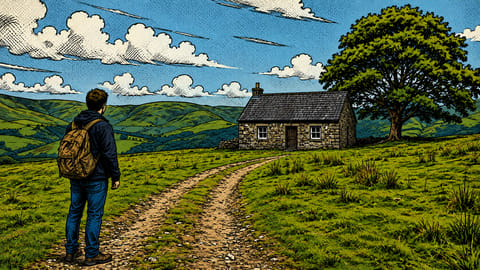 Comic Bookcomic book art
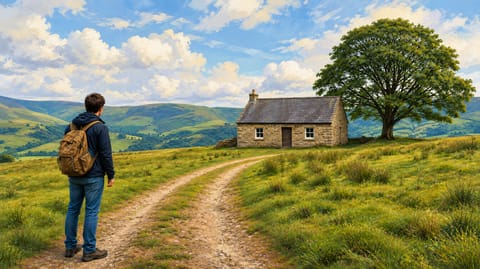 Digital Art
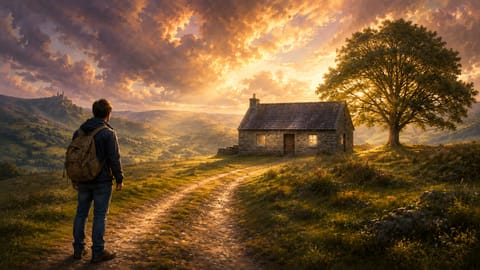 Fantasyfantasy art
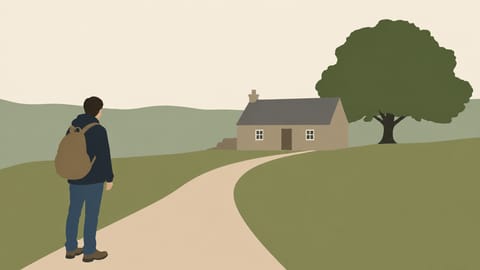 Minimalist
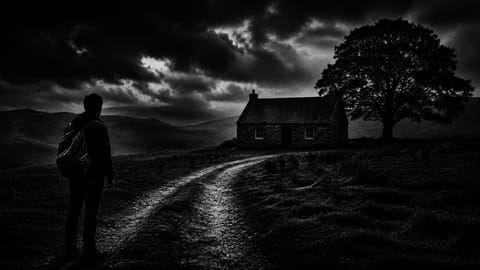 Noirfilm noir
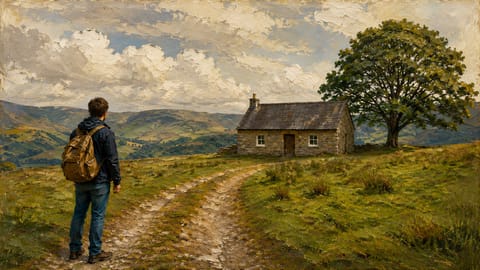 Oil Painting
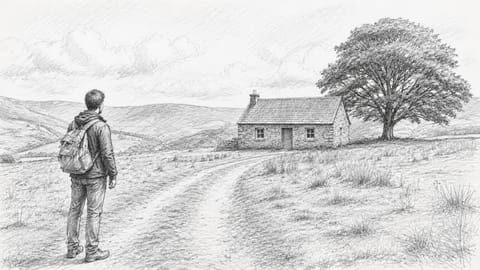 Pencil Sketch
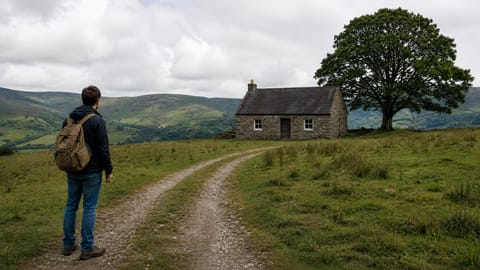 Photorealistic
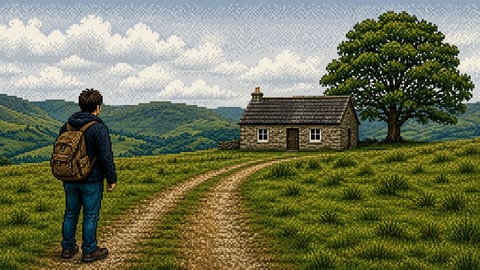 Pixel Art
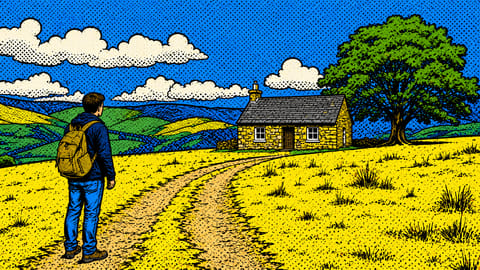 Pop Art
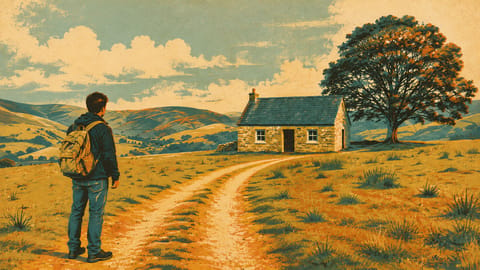 Retro / Vintageretro vintage film look
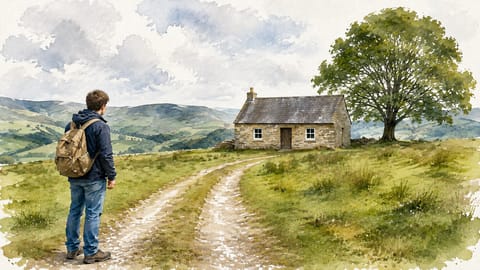 Watercolor
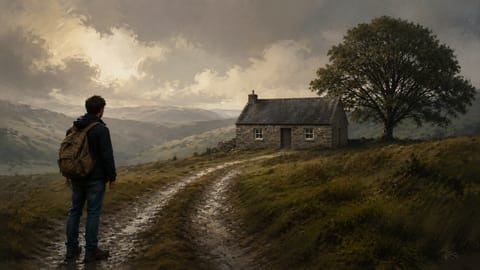 Concept Art
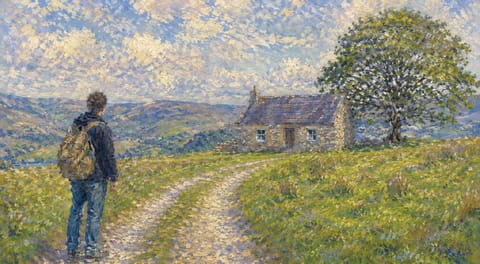 Impressionismimpressionist painting
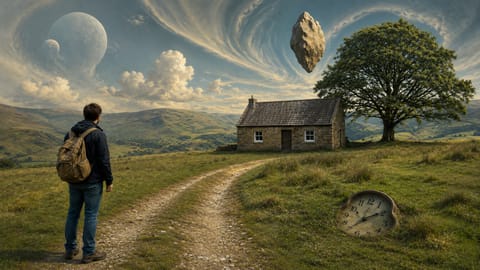 Surrealismsurrealist painting
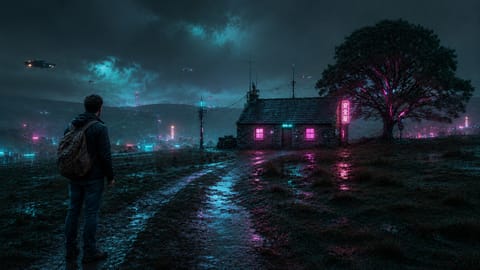 Cyberpunk
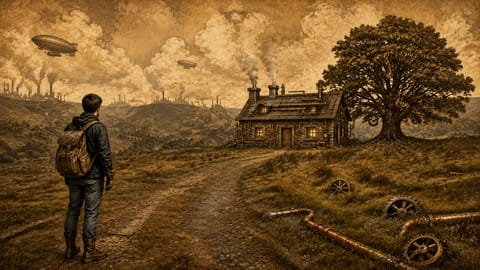 Steampunk
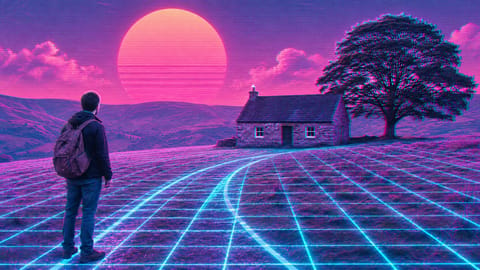 Vaporwave
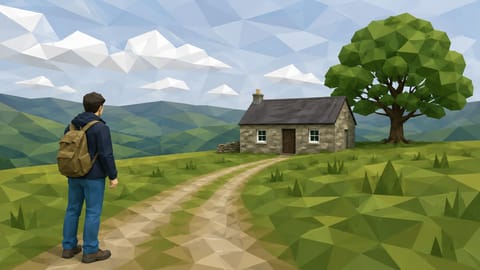 Low Poly
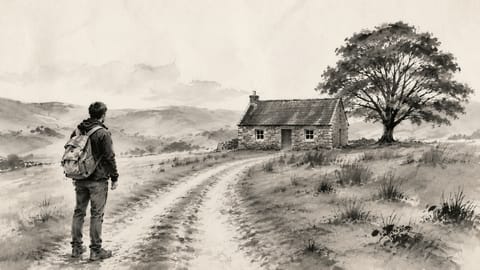 Ink Washsumi-e ink wash painting
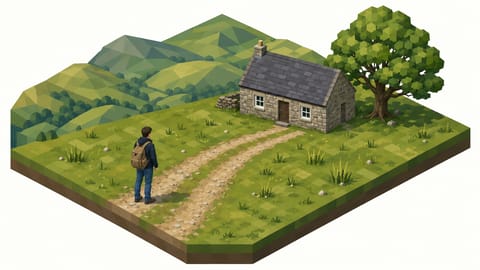
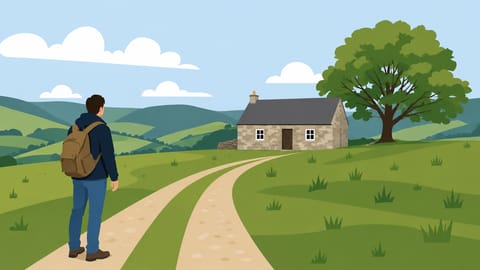
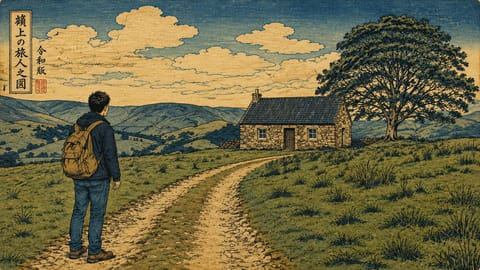
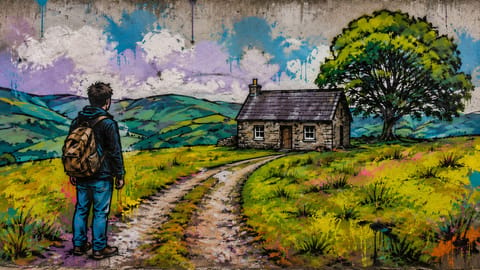
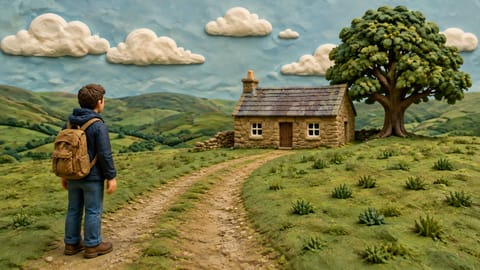
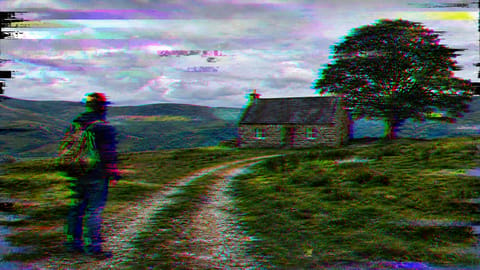
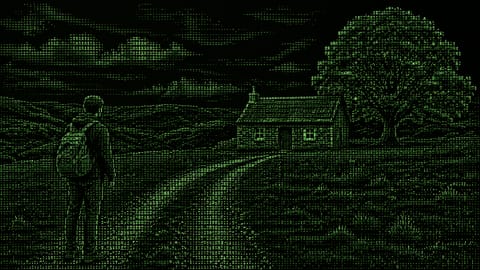
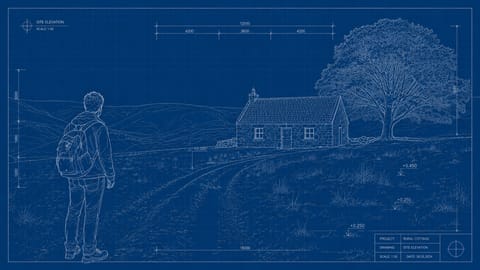
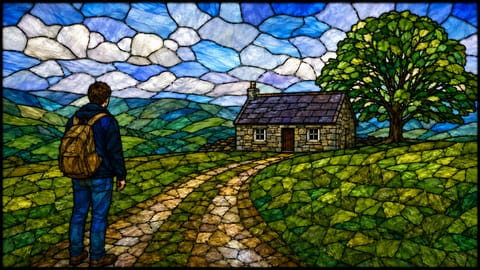
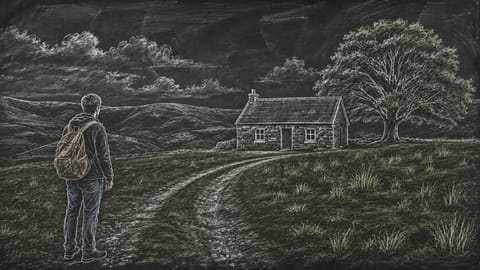
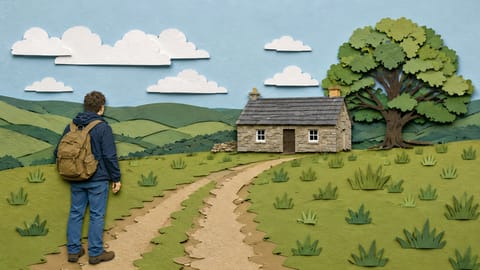
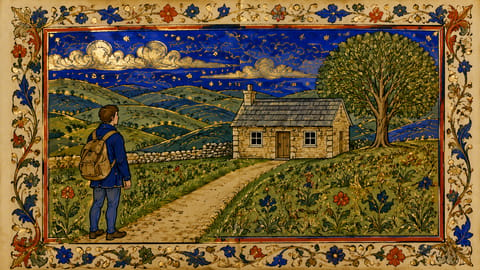
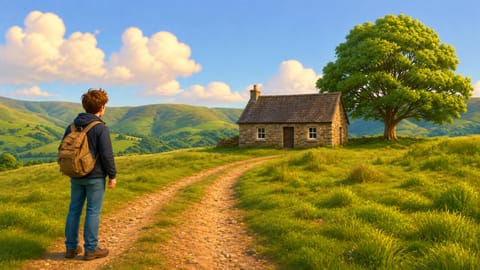
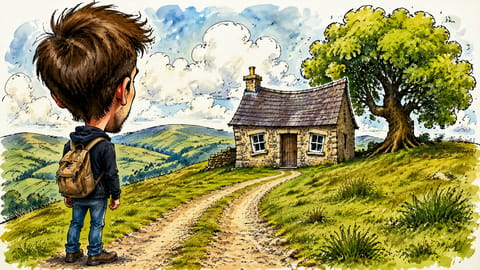
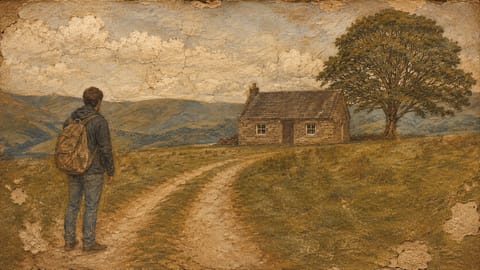
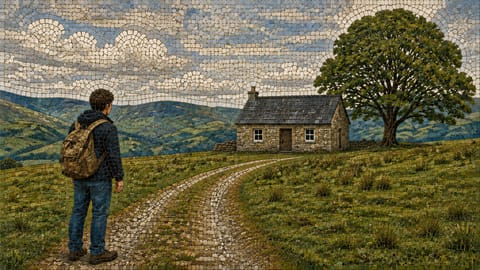
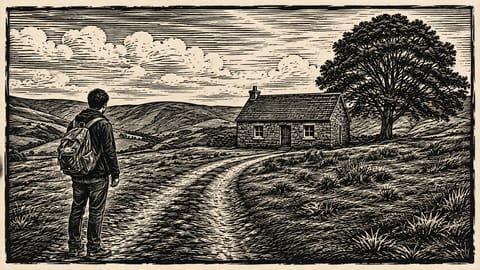
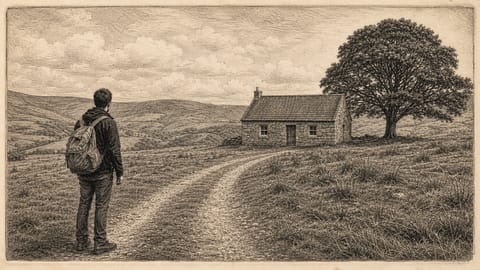
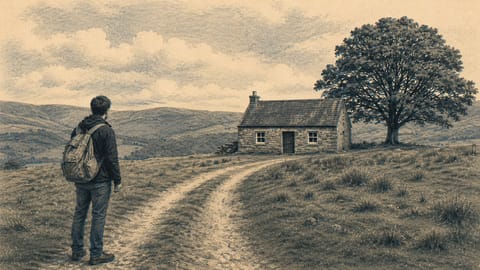
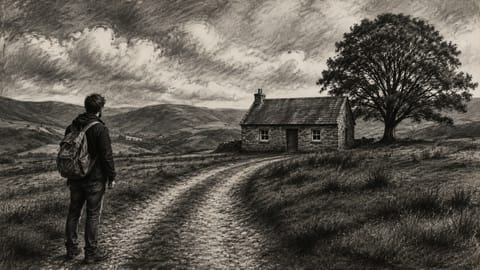
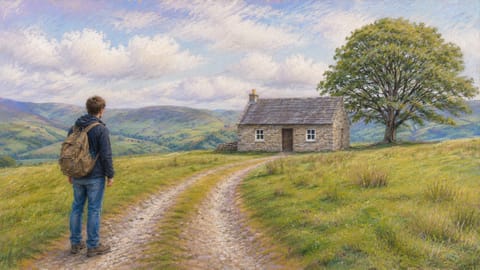
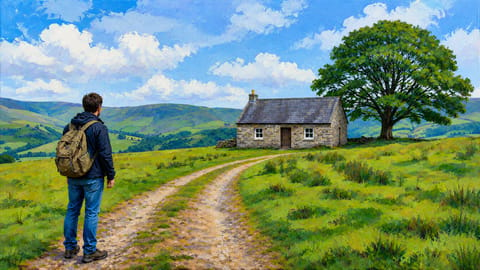
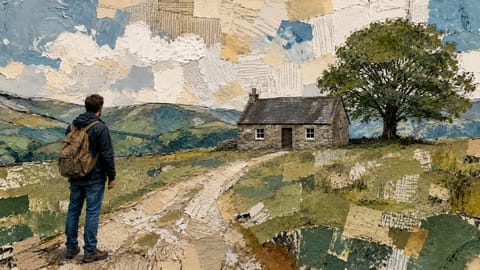
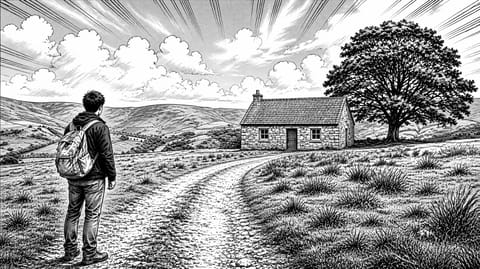
On Nodaro Cloud, each tile shows the same base image in that style. A switch beside the picker's heading changes the tiles to drawn illustrations. Self-hosted installs show the illustrations only.
Tips
- Add a signature. Stack Style with Photographer / Artist Style or Aesthetic / Microtrend for finer direction.
- Use the render picker for 3D. For a CG look, pair 3D Render or Pixar 3D with Render Quality.
- Compare styles fast. Duplicate the image node, connect a different Style picker to each copy, and run them side by side.
Frequently asked questions
Related
Creative Controls
Photographer / Artist Style
Aesthetic / Microtrend
Render Quality
Generate Image
Last updated on
Atmosphere
Add weather and particles to an AI image or video. Pick up to 2 of 40 conditions, such as Fog, Light Rain, Snow, Smoke or God Rays, from one picker.
Photo Genre
Make an AI image read as a specific kind of photo, such as a fashion editorial, a street photo, a mirror selfie or a movie poster. Pick one of 46 genres.