
 Nodaro Docs
Composition Effects
Give an AI image or video a bold frame effect, such as Bursting Through Frame, Pixel Disintegration or Double Exposure. Pick one of 18 composition effects.
The Composition Effects picker applies a dramatic visual transform to the subject or the frame. You choose an effect from its catalog, such as Bursting Through Frame, Pixel Disintegration, Smoke Sculpture, Double Exposure or Prism Flares. Nodaro adds tested wording for it to the prompt of every node you connect it to. The picker never calls a model, so it costs no credits.
When to use it
- Make a subject leave the frame: Bursting Through Frame, Breaking Out of Frame or Emerging From Background.
- Dissolve or sculpt a subject: Pixel Disintegration, Smoke Sculpture, Liquid Sculpture or Exploding Particles.
- Layer images in one frame: Double Exposure, Multiple Exposure or Doubled Mirror.
- Fracture the frame: Shattering Glass, Fragmented Mosaic, Glitch Distortion or Floating Fragments.
How to use it
Add the picker
Open the node picker and choose Creative Controls › Effects › Composition Effects.
Choose an effect
Click the node and choose an effect from the grid. A new node starts at None, which adds nothing.
Connect it
Drag from the picker's output to the Look input of a Generate Image or Generate Video node. You can also connect it to a Text or Prompt node to use the wording in a longer text.
Run the image or video node
The effect's wording is added to the end of the prompt when the connected node runs.
Settings
| Setting | What it does |
|---|---|
| Composition Effect | The effect to add. The default is None, which adds nothing. |
| Custom text (before) | Your own words, added before the effect's wording, for example subtle. |
| Custom text (after) | Your own words, added after the effect's wording, for example layered. |
| Prompt hint | Full (default) adds a longer description of the effect. Compact adds only the short term. See Full or Compact. |
To see the exact words the picker will add, switch the node to the Prompt or Both display mode. The settings panel shows the same text under Will inject into prompt.
Every composition effect
Search by name. The words under each name are the term the picker adds in Compact mode.
 None
None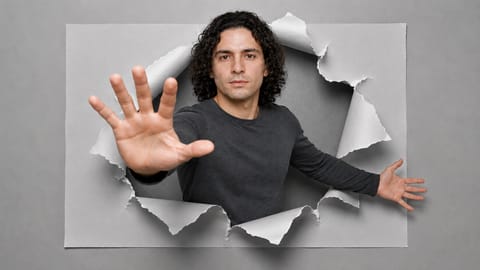 Bursting Through Frame3d pop-out through a torn paper frame
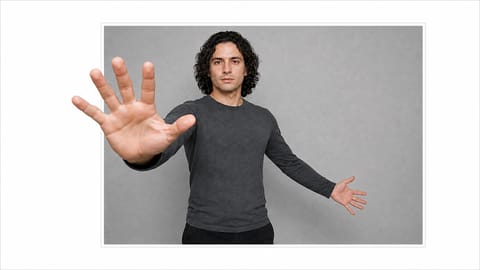 Breaking Out of Frameout-of-bounds effect, limb past the frame
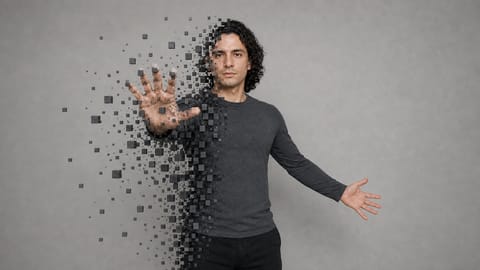 Pixel Disintegration
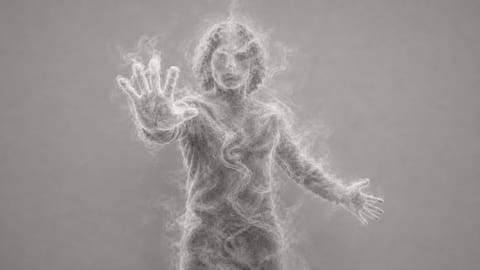 Smoke Sculpture
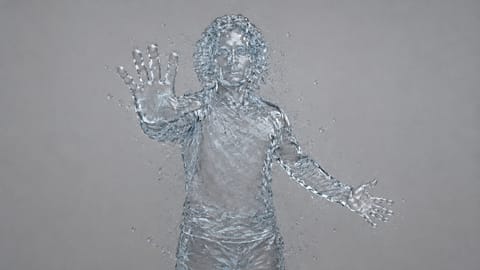 Liquid Sculpture
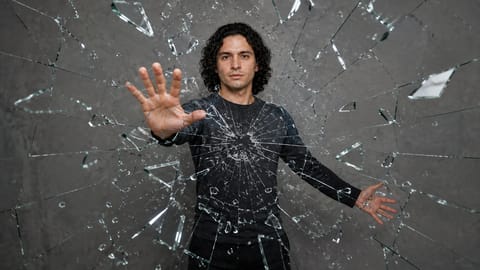 Shattering Glass
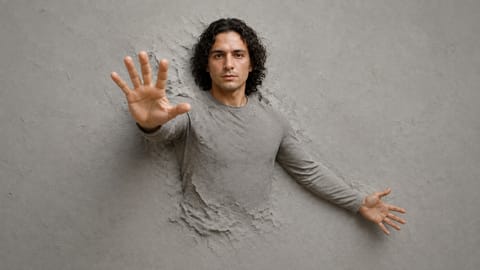 Emerging From Backgroundsubject emerging from a textured surface
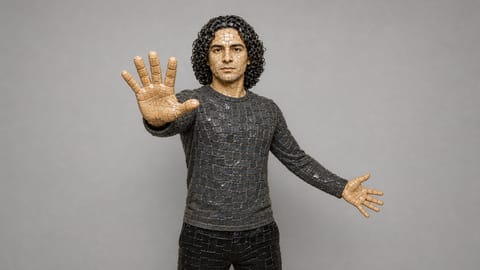 Fragmented Mosaic
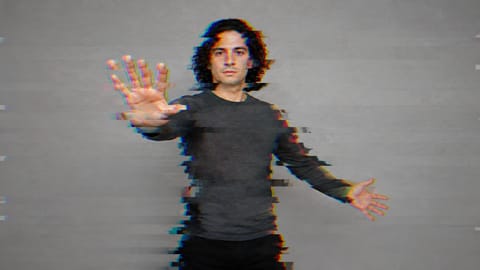 Glitch Distortionrgb-shift glitch distortion, scanline tearing
 Doubled Mirrormirrored duplication of the subject
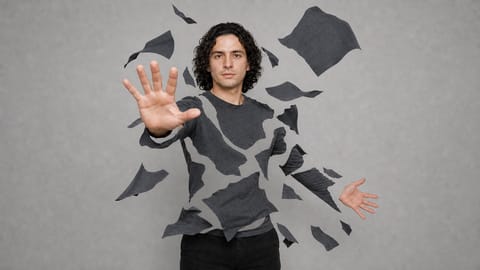 Floating Fragmentsbody fragmenting into drifting pieces
 Silhouette Outlineflat black silhouette on a solid background
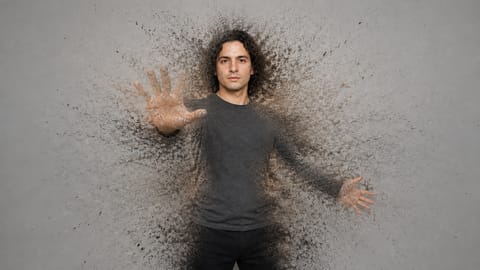 Exploding Particles
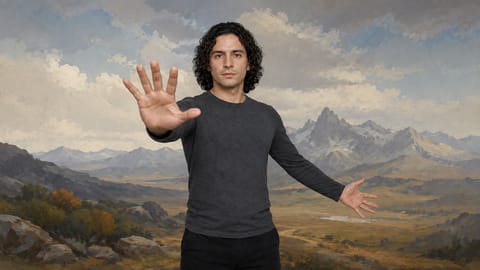 Matte Painting
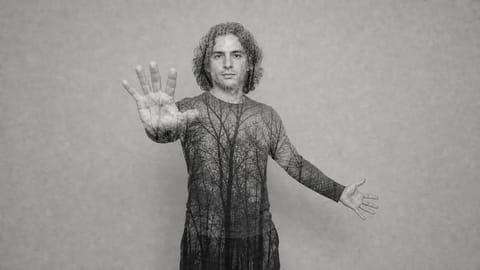 Double Exposure
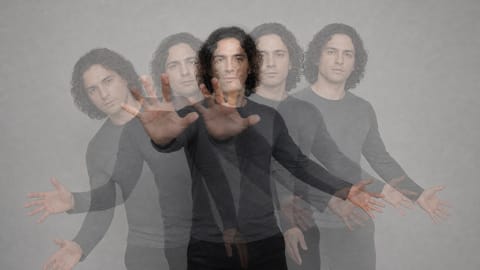 Multiple Exposure
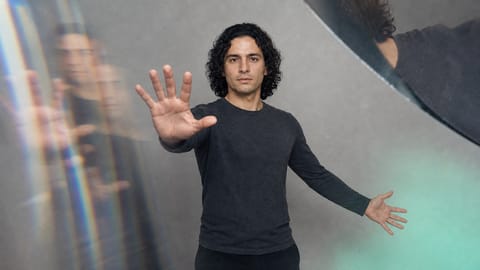 In-Camera Effects
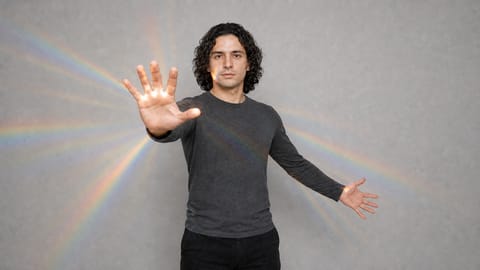 Prism Flares
On Nodaro Cloud, each tile shows the same base image with that effect. This picker has no drawn illustrations, so it always shows the renders.
Tips
- Control the frame first. Pair an effect with Framing to set the shot size and angle the effect works in.
- Vary a series. Keep the same prompt and change only the effect to make a set of related images.
- Add texture. Add Post-Process Effects, such as Fine Film Grain or Light Leak, for a finished look.
- Make a grid elsewhere. For a 3 by 3 grid of shots in one image, use Framing.
Frequently asked questions
Related
Creative Controls
Framing
Post-Process Effects
Style
Generate Image
Last updated on
Character FX
Transform a character or give it a power in an AI video: werewolf, fire breathing, wings, glowing eyes and more. Pick up to 2 of 55 character effects.
Post-Process Effects
Add finishing effects to an AI image or video, such as Fine Film Grain, Soft Vignette, Halation Glow or Light Leak. Pick up to 2 of 18 post-process effects.