
 Nodaro Docs
Camera / Film Stock
Pick one of 31 cameras and film stocks, from 35mm film and Arri Alexa to VHS, Polaroid and daguerreotype, and Nodaro adds that medium's look to your prompt.
The Camera / Film Stock picker sets the camera or film that an image or a video is shot on. You choose one medium from its catalog, such as 35mm film, IMAX 70mm, an Arri Alexa, a Polaroid or a VHS tape. Nodaro adds the look of that medium — its grain, color and texture — to the prompt of every node you connect it to. The picker never calls a model, so it costs no credits.
When to use it
- Emulate a film stock, such as 35mm or 16mm film.
- Place an image in a time: Super 8 for home movies, VHS or Camcorder for the 1990s.
- A documentary or point-of-view look with a GoPro, a drone or a security camera.
- The signature of a cinema camera, such as an Arri Alexa or a RED Komodo.
How to use it
Add the picker
Open the node picker and choose Creative Controls › Camera › Camera / Film Stock.
Choose a camera or film
Select the node and choose a medium under Camera / Film in the settings panel. On Nodaro Cloud, each tile shows the same base frame shot on that medium.
Connect it
Drag from the picker's output to the Look input of a Generate Image or Generate Video node. You can also connect it to a Text or Prompt node to include the wording in a longer text.
Run the image or video node
The medium's wording is added to the end of the prompt when the connected node runs.
Settings
| Setting | What it does |
|---|---|
| Camera / Film | The camera or film to add. The default is 35mm Film. |
| Custom text (before) | Your own words, added before the medium's wording. |
| Custom text (after) | Your own words, added after the medium's wording. |
| Prompt hint | Full adds a description of the medium's look. Compact adds only its short term. See Creative Controls. |
To see the exact words the picker will add, switch the node to the Prompt or Both display mode. The settings panel shows the same text under Will inject into prompt.
For example, 35mm Film adds shot on 35mm film, classic cinematic grain texture and color science in Full mode, and 35mm film in Compact mode.
Which medium to choose
| Kind | Options |
|---|---|
| Cinema film | 35mm Film, 16mm Film, Super 8, IMAX 70mm, Anamorphic Scope, B&W Film |
| Digital cinema cameras | Arri Alexa, ARRI Alexa 65, Sony Venice, Blackmagic Pocket 6K, RED Komodo |
| Photo cameras | DSLR, Sony A7III, Canon EOS R5, Hasselblad Medium Format, Leica M Rangefinder, Voigtlander, Fujifilm X-T4 |
| Everyday and surveillance video | iPhone, Webcam / FaceTime, Camcorder, VHS, GoPro Action Cam, Drone (Aerial), Security Cam (CCTV) |
| Instant and toy cameras | Polaroid, Fujifilm Instax, Disposable Camera, Toy Camera (Holga) |
| Early photography | Tintype / Wet Plate, Daguerreotype |
Every camera and film stock
Search the catalog. The words under each name are the term the picker adds in Compact mode.
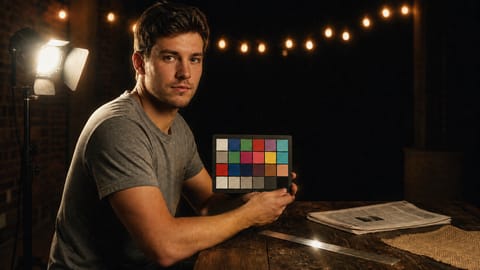 35mm Film
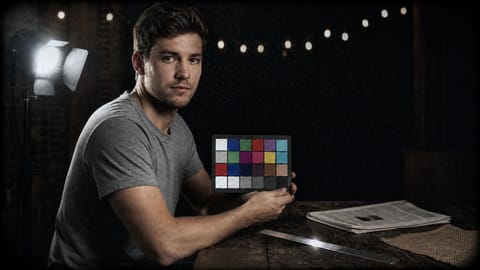 16mm Film
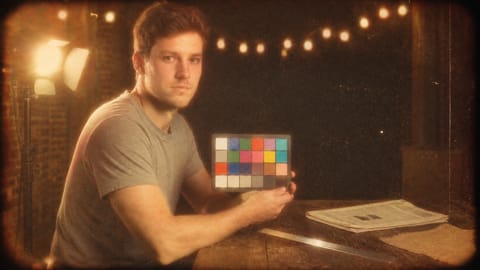 Super 8super 8mm film
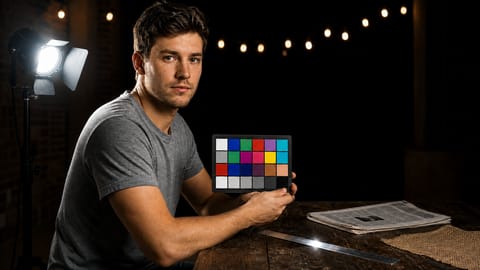 IMAX 70mm
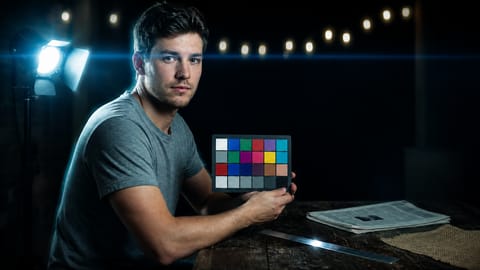 Anamorphic Scope
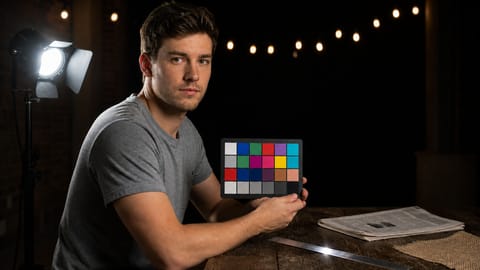 Arri Alexa
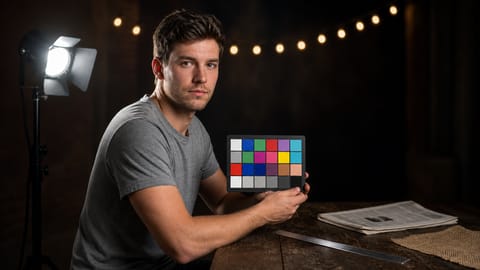 ARRI Alexa 65
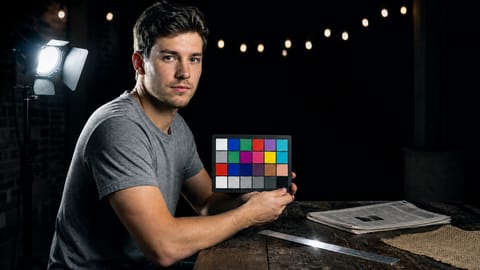 Sony Venice
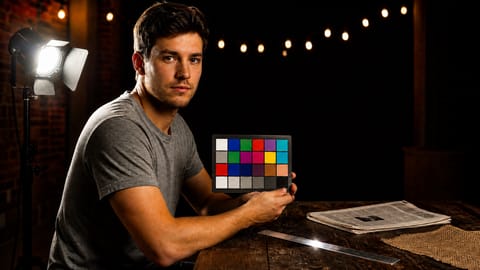 Blackmagic Pocket 6K
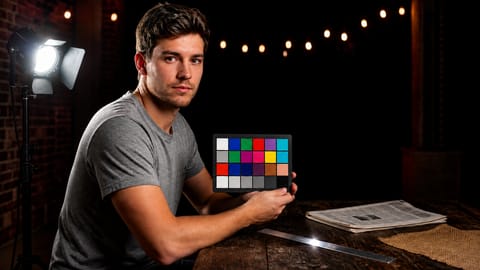 RED Komodored komodo cinema camera
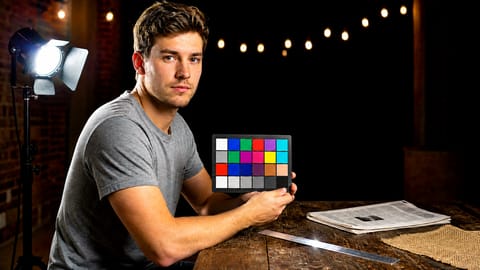 DSLR
DSLR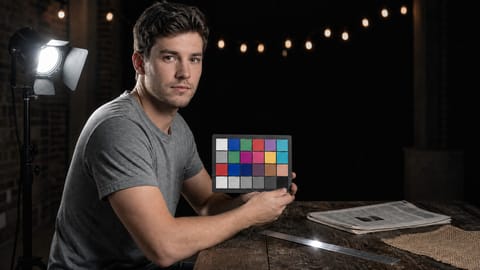 Sony A7III
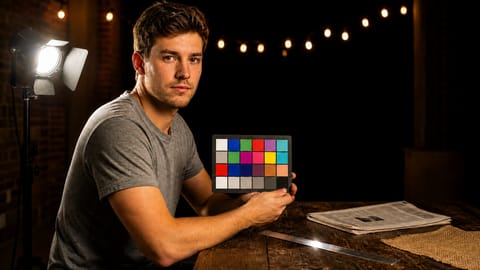 Canon EOS R5
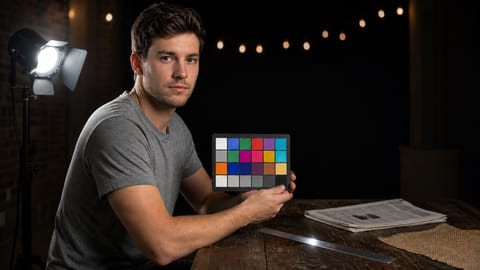 Hasselblad Medium Format
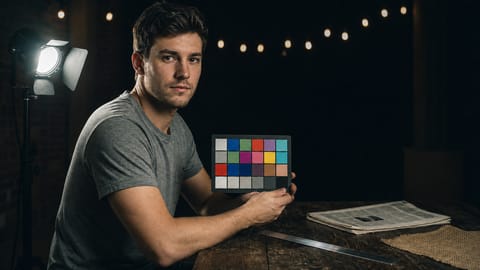 Leica M Rangefinder
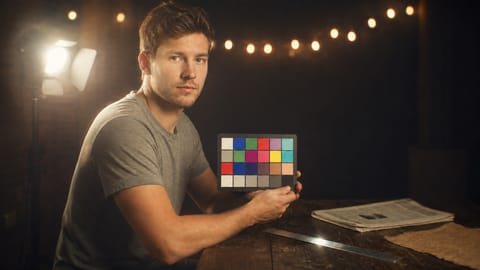 Voigtlandervoigtlander rangefinder
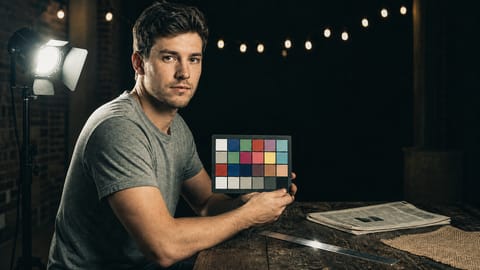 Fujifilm X-T4
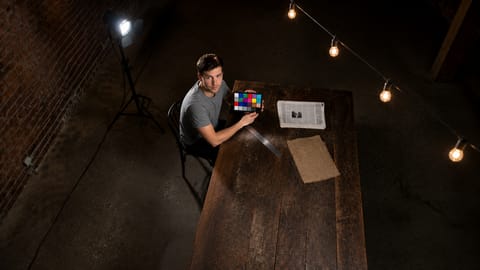 Drone (Aerial)aerial drone footage
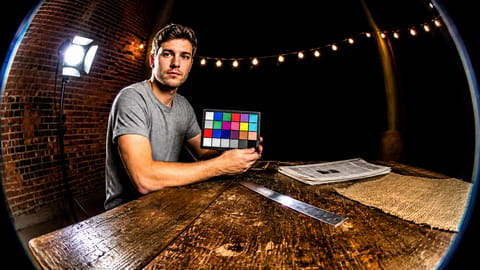 GoPro Action Cam
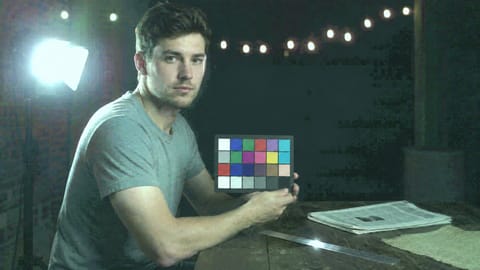 Webcam / FaceTimewebcam video call footage
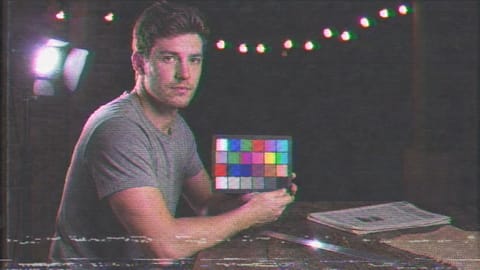 VHS
VHS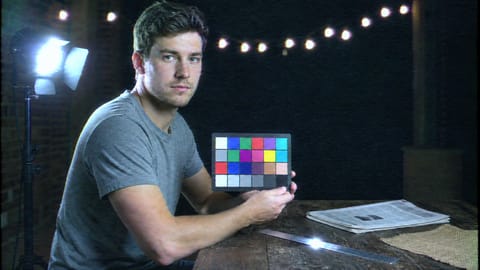 Camcorder90s consumer camcorder
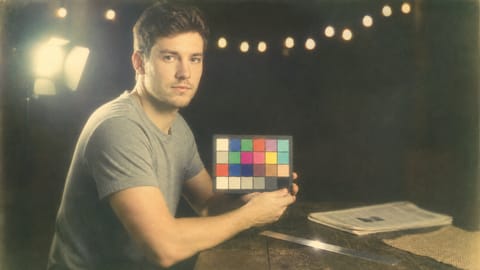 Polaroid
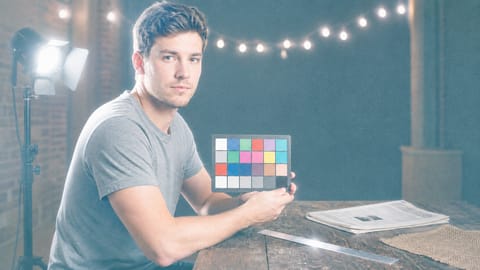 Fujifilm Instax
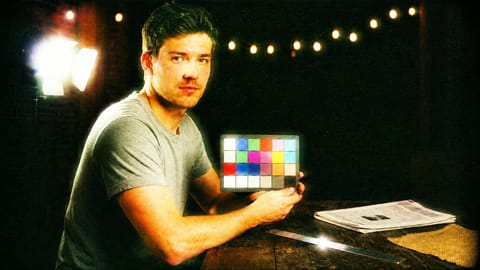
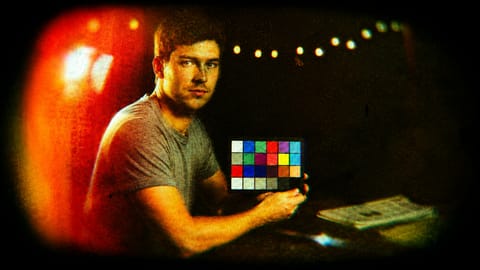
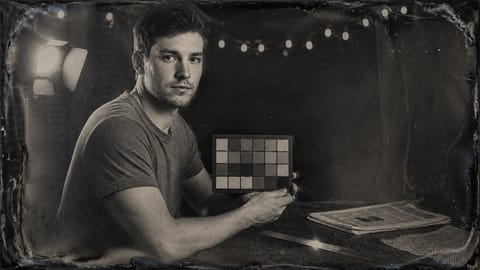
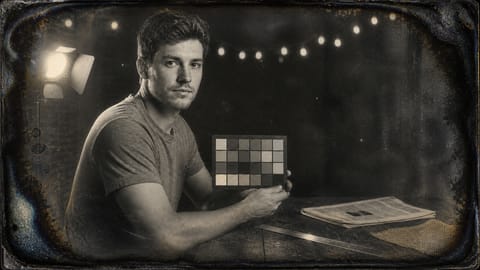
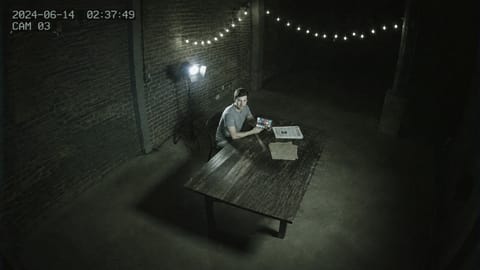
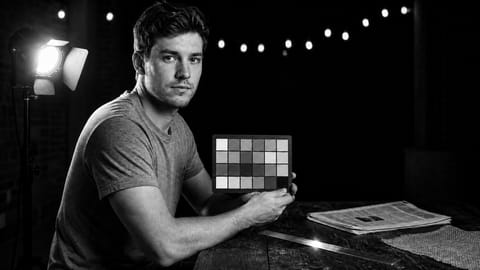
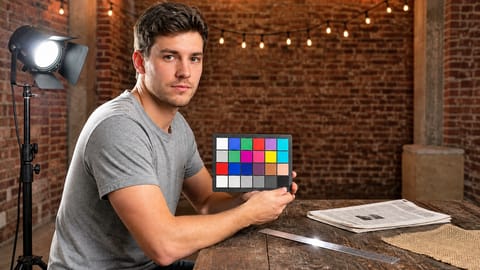
Real renders or illustrations
On Nodaro Cloud, each option is pictured with a real render: the same base frame shot on that medium. Each option also has a drawn illustration. A two-icon switch chooses which one the node shows: a film icon for the render, a pen icon for the illustration. The switch sits next to the Camera / Film heading in the settings panel, and next to the selected option on the node card.
The pictures never change the prompt. Your last choice is remembered in this browser for the next picker of this kind you add. On a self-hosted install, every option shows its illustration and there is no switch.
Fill it from a photo
The Camera / Film Stock picker has a Picker JSON input. Connect a Describe to Picker node to it and run that node on a reference photo. Describe to Picker costs 10 credits per analysis. The picker itself stays free.
When a new value arrives, the node shows an Update from injected button. Click it to apply the detected medium. The button reads Up to date when nothing new is waiting.
Tips
- Grade the color too. Pair the picker with Color / Look for a full film emulation.
- Date the scene. Pair it with Era / Period, for example Polaroid with 1970s Disco, or Daguerreotype with Victorian.
- Choose the lens as well. A Lens picker, such as Anamorphic, completes the camera.
- Push the medium. Use Custom text (before), for example
push-processed, or Custom text (after), for examplewith grain bloom.
Frequently asked questions
Related
Creative controls
Lens
Color / Look
Era / Period
Generate Video
Last updated on
Lens
Pick one of 18 lenses, from a 14mm ultra-wide and an 85mm portrait lens to fisheye, anamorphic and vintage primes, and Nodaro adds its look to your prompt.
Exposure Settings
Set the aperture, shutter speed and ISO of an AI image or video from 20 options, for a soft background, frozen action, light trails or film grain.