
 Nodaro Docs
Suno Create Music
Make full songs with Suno V6 and earlier Suno versions. Write lyrics with metatags, set the style and the vocals, or create an instrumental track.
The Suno Create Music node turns a text description, or your own lyrics, into a complete song made by Suno. You choose a Suno version, the style and the vocals, and every run returns two versions of the song as audio. You can send the song to any other node, for example to lengthen it with Suno Extend or to turn it into a Music Video.
When to use it
- You need an original song from a short description: a jingle, a theme song or a birthday song.
- You have lyrics and want Suno to sing them word for word.
- You need music without vocals, for example under a video or a podcast. Turn on Instrumental (no vocals).
- You want to keep working on the song. The other Suno nodes extend it, replace a section, add vocals or split it into stems.
Quick start
Add the node
Press Tab on the canvas, or open the node picker in the sidebar, and choose Audio › Music › Suno Create Music.
Describe the song
Type a description in Prompt, for example An upbeat indie pop song about a summer road trip with friends. You can also connect a Text node to the Prompt input.
Choose the version and the vocals
In the strip under the node, choose a Model. The default is Suno V6. Then choose With vocals or Instrumental — no vocals, and a Vocal gender, or leave it on Auto.
Run it
Click Run. Suno returns two versions of the song, and both appear in the node's results. The selected version is the one that the next node receives.
Inputs
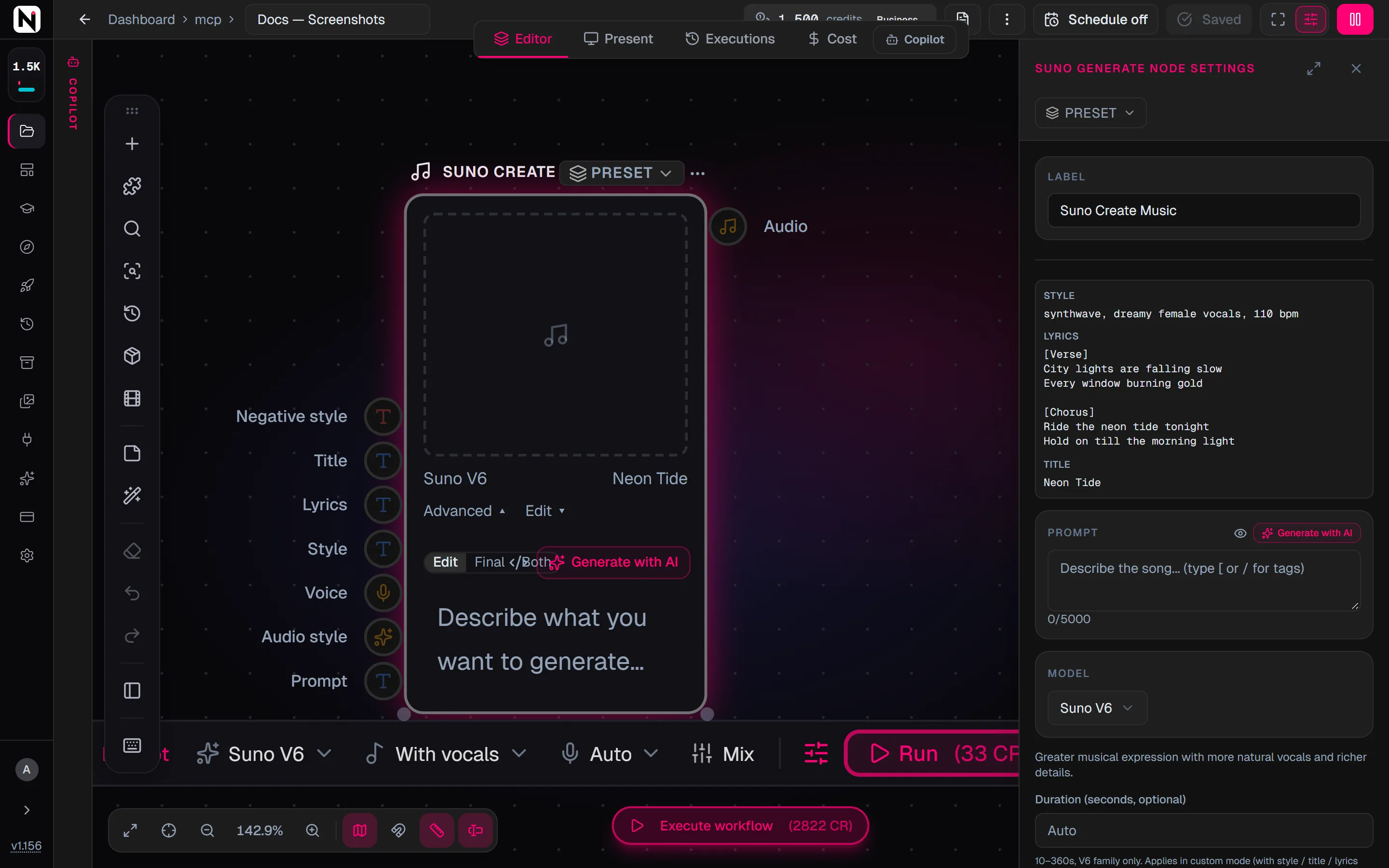
Suno Create Music has three inputs on its left edge. Four more appear when you click Advanced on the node.
| Input | Accepts | What it does |
|---|---|---|
| Prompt | Text nodes, such as Text, Prompt and Combine Text, and pickers | The description of the song. See Simple mode and custom mode. |
| Audio style | Music Genre, Music Mood and Instrumentation pickers | Each picker adds its choice to Style in custom mode, or to Prompt in simple mode. |
| Voice | A Suno Voice node | Suno sings the song in your custom voice persona. |
| Style, Lyrics, Title and Negative style | Text nodes, such as Text, Suno Lyrics and Suno Style Boost | Fill that field from another node. Connecting any of them switches the node to custom mode. |
The output, Audio, is the selected version of the song.
Settings
| Setting | What it does |
|---|---|
| Prompt | The description of the song, up to 3,000 characters. In custom mode it holds up to 5,000 characters (3,000 on Suno V4). The editor shows the limit of the selected version, and a longer text is shortened to fit when the node runs. Type [ or / for tag suggestions. |
| Model | The Suno version. The default is Suno V6. See Which Suno version to choose. |
| Duration (seconds, optional) | The length of the song, from 10 to 360 seconds. It appears only for the V6 family and works only in custom mode. Leave it empty and Suno chooses the length. |
| Title (optional) | The song title, up to 80 characters. |
| Lyrics (optional) | The words Suno sings, with metatags such as [Verse] and [Chorus]. It has the same length limit as Prompt in custom mode. |
| Style (optional) | Genre and style tags, such as pop rock, upbeat, energetic. Up to 1,000 characters (200 on Suno V4). |
| Negative Style (optional) | Styles to avoid, such as metal, screaming. Up to 500 characters. |
| Vocal Gender (optional) | Auto (the default), Male or Female. |
| Style Weight | How literally Suno follows your Style tags, from 0 to 1. The default is 0.5. |
| Weirdness | How far Suno strays from genre norms, from 0 to 1. The default is 0. |
| Audio Weight | How strongly a connected voice persona or reference steers the song, from 0 to 1. The default is 0.5. |
| Instrumental (no vocals) | Makes a track without vocals. It is off by default. |
| Pre & post text | Text that is always added before and after the prompt. It is hidden from people who use your workflow as an app. See Prompt pre and post text. |
The most-used controls are also in the strip under the node:
- Model — the Suno version.
- With vocals or Instrumental — no vocals.
- Vocal — Auto, Male or Female. It is hidden when the track is instrumental.
- Mix — the Style Weight, Weirdness and Audio Weight sliders.
Simple mode and custom mode
The node works in one of two modes. There is no switch for the mode: the node chooses it from the fields you fill in.
| Simple mode | Custom mode | |
|---|---|---|
| When | Style, Title and Lyrics are empty | Style, Title or Lyrics has content or a connection |
| What is sung | Words that Suno writes to match your Prompt | Your Lyrics, word for word, or the Prompt when Lyrics is empty |
| Prompt limit | 3,000 characters | 5,000 characters (3,000 on Suno V4) |
| Duration | Ignored | Used on Suno V6, Suno V6 Wild and Suno V6 Mini |
| Music pickers | Added to Prompt | Added to Style |
With Instrumental (no vocals) on, nothing is sung in either mode.
Write lyrics with metatags
Metatags are short labels in square brackets that guide Suno. The most important ones mark the parts of the song. Put a section tag, such as [Verse], [Chorus], [Bridge] or [Outro], on its own line before each part of the lyrics.
Type [ or / in a field to see tag suggestions. Each field suggests what fits it:
| Field | What the suggestions insert |
|---|---|
| Prompt | Tags in square brackets for structure, genre, vocal style, vocal gender, vocal effects, vocal emotion, sound effects, instruments, mood and production, such as [Tempo: 120 BPM] |
| Lyrics | The same tags, without the mood and production tags |
| Style and Negative Style | Plain words without brackets: genres, moods, instruments, production terms, vocal styles and vocal genders |
You can also let AI write a field. The Prompt, Style, Lyrics and Negative Style fields each have a Generate with AI button in the settings panel. For Style and Negative Style it writes a comma-separated list of Suno style tags. For Lyrics it writes complete lyrics with [Verse], [Chorus] and [Bridge] tags. The button is hidden when the field is connected to another node.
To write the lyrics in a separate step, connect a Suno Lyrics node to the Lyrics input.
Which Suno version to choose
Suno Create Music can run every Suno version below. Click a version for its page.
| Model | Maker | Modes | Credits | Details |
|---|---|---|---|---|
| Suno V6 | Suno | Music | 30 | Suno V6 — greater musical expression with more natural vocals and richer details. The flagship and the default. |
| Suno V6 Wild | Suno | Music | 30 | Suno V6 Wild — pushes creative boundaries for bolder, more distinctive musical expression; more varied, less predictable results. |
| Suno V6 Mini | Suno | Music | 30 | Suno V6 Mini — lightweight and fast, balancing quality and speed for effortless creation. |
| Suno v5.5 | Suno | Music | 30 | Suno v5.5 — improved audio quality and expressiveness over v5. |
| Suno v5 | Suno | Music | 30 | Suno v5 — better vocal quality than v4, more genres. Same price. |
| Suno v4 | Suno | Music | 30 | Suno v4 music generation — full songs with vocals, multiple genres. |
- Suno V6 — the default and the flagship. It has greater musical expression, more natural vocals and richer details.
- Suno V6 Wild — bolder, more distinctive and less predictable. Use it to explore.
- Suno V6 Mini — lightweight and fast. Use it when a quick result matters more than the last bit of detail.
- Suno V5.5, Suno V5, Suno V4.5 Plus, Suno V4.5 All, Suno V4.5 and Suno V4 — the earlier versions. They are still available, and each keeps its own character.
Only the V6 family uses Duration. Suno V4 has shorter limits: 3,000 characters for lyrics and 200 for Style. Every version costs the same. For a comparison of all models, read Choosing a model.
Fill the fields from other nodes
Each text field — Prompt, Style, Lyrics, Title and Negative style — can be filled in three ways:
- Type it, with tag suggestions.
- Connect a node to the field's input. The node's output fills the field when the workflow runs. A connected field is read-only; disconnect it to type again.
- Write a variable, such as
{Chorus}, in the text. It is replaced with the output of the node with that label when the workflow runs. See Prompt variables.
The inputs for Style, Lyrics, Title and Negative style appear when you click Advanced on the node. Advanced opens by itself when one of those fields has content or a connection. A connected input stays visible even when you close Advanced. With Advanced open, Edit opens any field, including Prompt, in a larger editor.
The top of the settings panel shows every field as it will be sent, with the picker wording already added. This preview appears as soon as a field has content or a picker is connected.
Two versions per run, and their IDs
Every run returns two versions of the song. Click the results counter on the node to switch between them. The selected version is the one that the Audio output sends and that other Suno nodes work on.
Under the player, the node shows two IDs, Task and Track. Click an ID to copy it. The settings panel lists the same values under Output IDs.
These nodes read the IDs by themselves when you connect them, and they follow the selected version:
- Suno Extend and Suno Replace Section
- Suno Add Vocals and Suno Add Instrumental
- Suno Separate and Suno Convert WAV
- Music Video
In those nodes, the track ID is called Audio ID. To work on a song from an earlier session, paste the two IDs into those nodes.
Credits
A run costs 30 credits on every Suno version and returns two versions of the song. See Credits for how credits work.
Tips
- Structure the song. A descriptive prompt together with lyrics that use metatags gives the most coherent songs.
- Keep Style Weight near 0.5. Move it toward 1 only when the song must follow the genre strictly.
- Raise Weirdness step by step. At 0 the output is predictable. Raise it slowly for more experimental results.
- Exclude with Negative Style. List what you do not want, such as
metal, screaming, instead of describing it in the prompt. - Make a backing track first. Create an instrumental, then add vocals later with Suno Add Vocals.
- Draft fast, finish on V6. Try ideas on Suno V6 Mini, then run the idea you like on Suno V6.
- Try variations. Run the same song again with other Style Weight and Weirdness values.
From the API
AI assistants and scripts can create songs with the MCP tool suno_generate, which accepts the same Suno versions. The other Suno nodes have matching tools, such as suno_extend and suno_cover. See the MCP tools.
Frequently asked questions
Related
Suno Lyrics
Suno Extend
Suno Voice
Music Video
Choosing a model
Last updated on
Dubbing
Translate spoken audio or a whole video into another language and keep each speaker's own voice. Dub a file or a YouTube link, from 40 credits per minute.
Generate Music
Create original music with MiniMax Music from a reference song, voice or instrumental plus a text prompt, with optional lyrics, genre and mood.