
 Nodaro Docs
Transition
Make an AI video model perform a transition inside one clip, such as a Whip Pan, a Match Cut or a Liquid Morph. Choose from more than 80 transitions.
The Transition picker tells a video model to perform a transition inside one clip: how the picture moves from its start to its end. You choose up to two transitions from its catalog — Cross-Dissolve, Whip Pan, Match Cut, Liquid Morph, Zoom Into Eye, Fast-Forward (Day → Night) and more. Nodaro adds each one to the prompt of the video node you connect it to, with a full description of how it plays out. The picker never calls a model, so it costs no credits.
When to use it
- Add a deliberate cinematic transition to an AI reel or short.
- Show time passing in one shot: day to night, a change of season, or a person aging.
- Morph one subject into another, or teleport a subject through smoke, water or sparks.
- Stack two effects for a music-video beat, such as Smash Cut with White Flash.
This picker is different from the transition setting of Combine Videos. Combine Videos joins two finished clips with an edit. The Transition picker makes the video model generate the transition itself, frame by frame, inside a single clip.
How to use it
Add the picker
Open the node picker and choose Creative Controls › Effects › Transition.
Choose up to two transitions
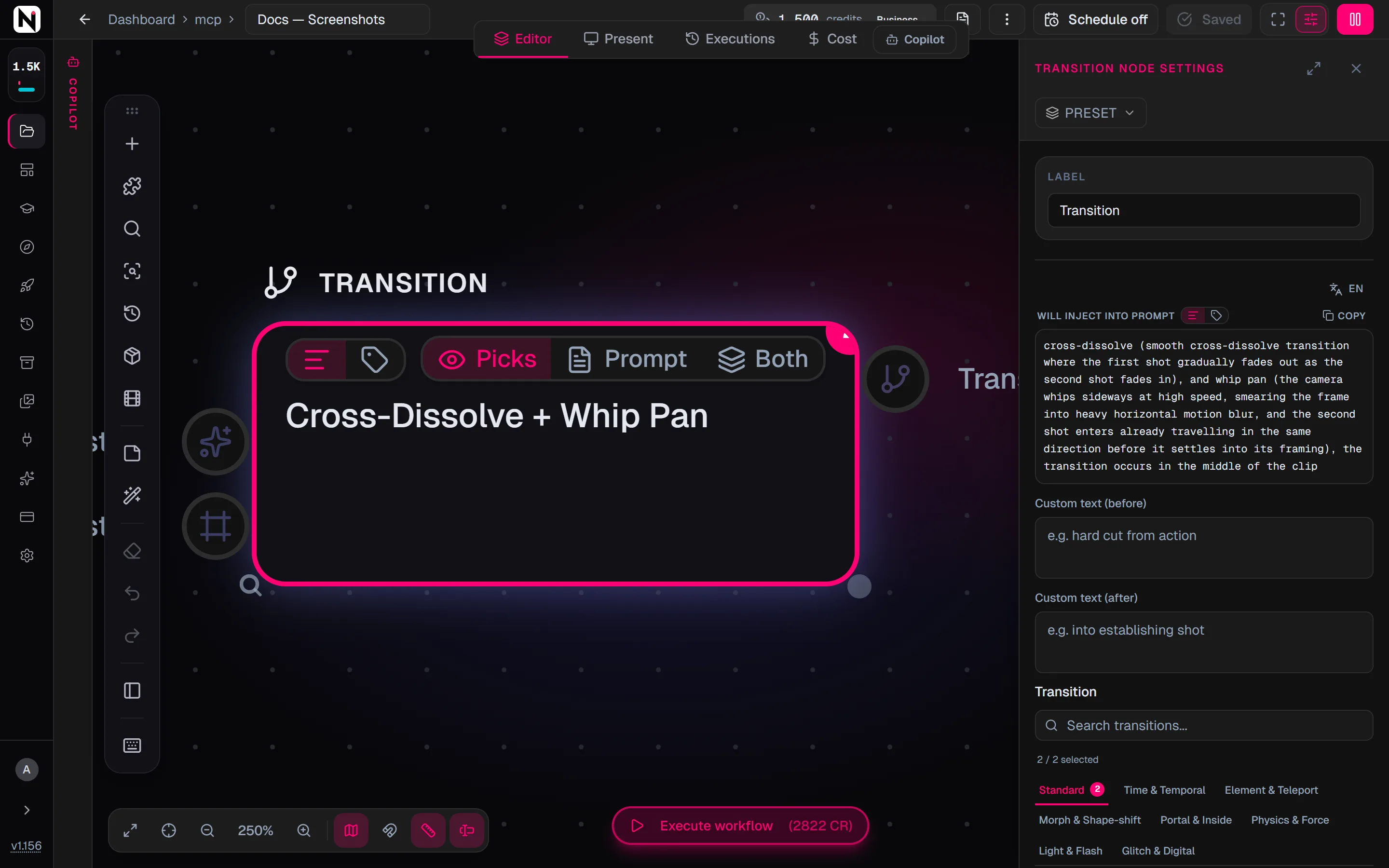
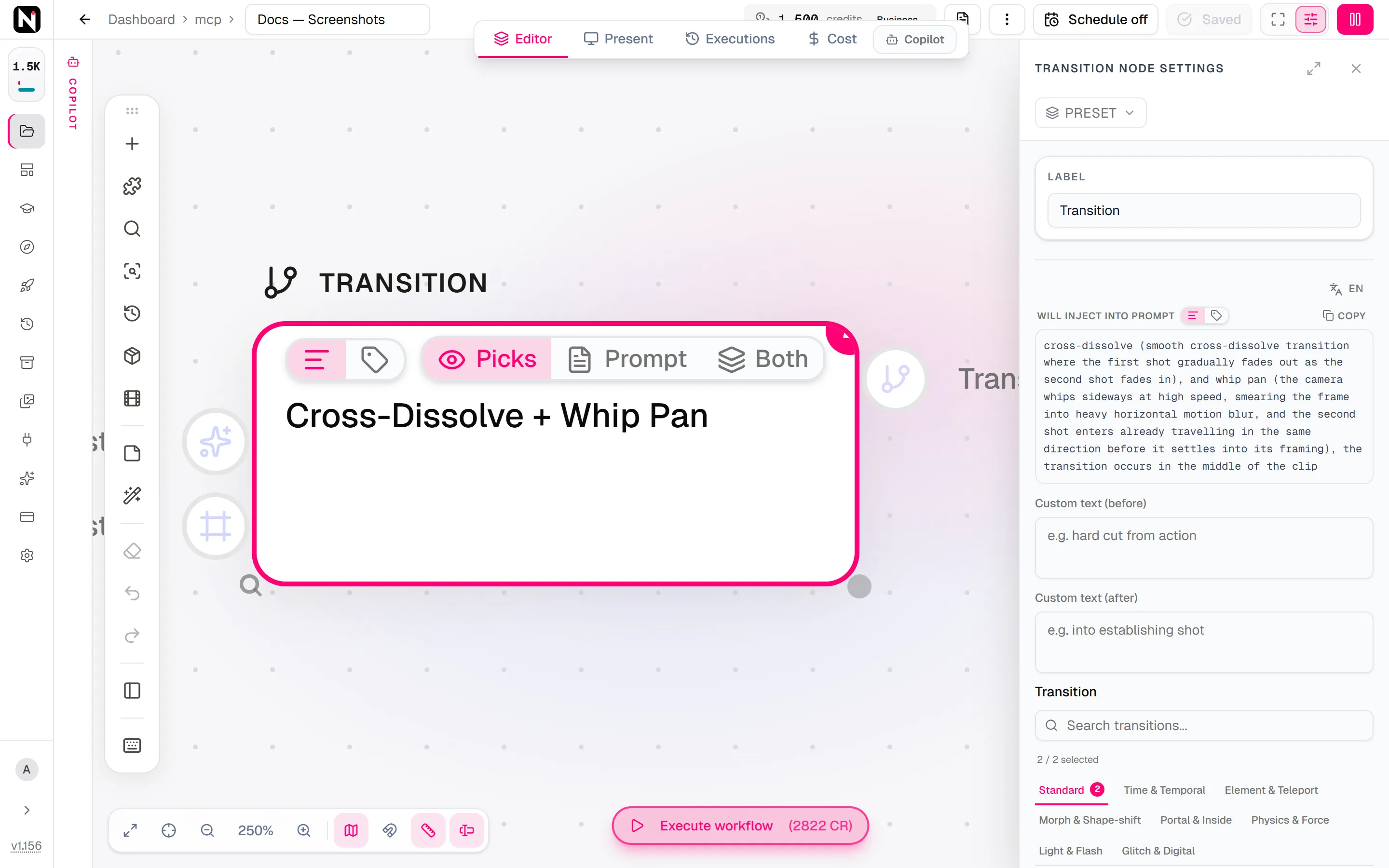
Click the node and choose a transition. A new node starts at Auto, which adds nothing and lets the model choose. To add a second transition, click the + badge on your pick; click the numbered badge to go back to one.
Set the timing
Choose a Position, a Duration and an Intensity. All three start at Auto, which adds nothing.
Describe the start and the end
Optionally, connect pickers to the Start state and End state inputs to describe the first and last look of the clip.
Connect and run
Drag from the picker's output to the Look input of a Generate Video node, then run the video node.
Settings
| Setting | What it does |
|---|---|
| Transition | The transitions to add. Pick up to 2. Auto (the default) adds nothing and lets the model choose. None / Hard Cut asks for a hard cut. |
| Position | Where in the clip the transition happens. See the table below. |
| Duration | How long the transition lasts. See the table below. |
| Intensity | The energy of the transition. See the table below. |
| Custom text (before) | Your own words, added before the transition, for example hard cut from the action. |
| Custom text (after) | Your own words, added after the transition, for example into an establishing shot. |
| Prompt hint | Does not change how the transition itself is written. It sets the detail level of the pickers on Start state and End state. See Full or Compact. |
| Position | Meaning |
|---|---|
| Auto | Let the model place it |
| Start | At the opening of the clip |
| Middle | In the middle of the clip |
| End | At the end of the clip |
| Full | Spans the entire clip |
| Duration | Meaning |
|---|---|
| Auto | Let the model time it |
| Instant | No perceptible duration |
| Short (~1s) | Approximately 1 second |
| Medium (~2s) | Approximately 2 seconds |
| Long (~3s) | Approximately 3 seconds |
| Intensity | Meaning |
|---|---|
| Auto | Let the model judge it |
| Subtle | Restrained, minimal flourish |
| Natural | Unhurried, unforced timing |
| Dynamic | Assertive, energetic |
| Crazy | Extreme, wild, distorted |
To see the exact words the picker will add, switch the node to the Prompt or Both display mode. The settings panel shows the same text under Will inject into prompt.
How a transition is written
Each transition is written as its short name, followed by a full description of how it plays out, in parentheses. Video models did not perform a transition from its name alone. This is the same in Full and Compact mode. For example, Whip Pan adds:
whip pan (the camera whips sideways at high speed, smearing the frame into heavy horizontal motion blur, and the second shot enters already travelling in the same direction before it settles into its framing)Position, Duration and Intensity follow the parentheses, for example lasting approximately 1 second, with natural timing. With two transitions, both are written this way and joined with "and".
When the transition sits in one shot of a multi-shot prompt, Position refers to that shot, not to the whole clip. For example, Middle then reads "in the middle of this shot".
Cuts are hard cuts
Eight transitions are cuts. In a cut, the change happens between two frames. The cuts are None / Hard Cut, Snap to Black, Match Cut, Smash Cut, Seamless Match, Jump Cut, Jump Match and Action Match. Video models often render a cut as a short dissolve, so when every transition you pick is a cut:
- An anti-blend instruction is added. It appears once, inside the first cut's parentheses.
- Duration and Intensity are left out. Both describe a change over time, and on a cut they make models blend the two images.
- Position still applies, except Full: a single-frame cut cannot span the whole clip, so Full adds nothing. Start, Middle and End still place the cut.
For example, Match Cut adds:
match cut (the final composition of the first shot matches the opening composition of the second shot in shape, color, and motion, so the cut feels like a visual rhyme; an abrupt single-frame hard cut, no dissolve, crossfade or superimposition; the two images never blend)When you pick two transitions and only one of them is a cut, no anti-blend instruction is added, and Duration and Intensity are kept.
Describe the start and the end
The Start state and End state inputs accept any picker, such as Tone, Framing, Lighting, Color / Look or Camera Motion. Their wording is added as "starting from …" and "ending at …", which gives the model concrete looks to travel between.
With Fast-Forward (Day → Night), Position at End, Duration at Medium (~2s), Intensity at Dynamic, and two Tone nodes on the inputs, the picker adds:
day-to-night time-lapse (the sun visibly arcs across the sky, shadows sweep, clouds streak, sky shifts from daylight blue through golden hour to deep night, stars emerge, all while framing and camera position remain locked on the same scene), the transition occurs at the end of the clip, lasting approximately 2 seconds, with dynamic energy and assertive flourish, starting from warm golden morning light, ending at deep blue moonlit nightThe Transition node has no camera setting of its own. To move the camera during the transition, connect a Camera Motion picker to Start state or End state.
Every transition
Filter by group or search by name. The words under each name are the short name the picker writes before the description.
Standard · 14 options
- Auto
- None / Hard Cuthard cut
- Cross-Dissolve
- Fade to Black
- Fade to White
- Snap to Black
- Match Cut
- Smash Cut
- Irisiris wipe
- Wipelinear wipe
- Rollcamera roll transition
- Seamless Matchinvisible cut
- Whip Pan
- Jump Cut
Time & Temporal · 8 options
- Fast-Forward (Day → Night)day-to-night time-lapse
- Fast-Forward (Night → Day)night-to-day time-lapse
- Seasonal Shiftseasonal time-lapse
- Agingaccelerated aging
- Rewindreverse-motion rewind
- Freeze-Frame Jumpfreeze-frame time jump
- Weather Shiftweather time-lapse
- Flashback
Element & Teleport · 14 options
- Dissolve to Mist
- Water Splash
- Sand Scatter
- Burn-Upburn to embers and reform
- Smoke Puff
- Magic Sparkles
- Lightning Strike
- Ink Splash
- Sand Storm
- Paint Splash
- Aurora Sweep
- Sakura Stormcherry blossom petal storm
- Garden Bloom
- Powder Burst
Morph & Shape-shift · 9 options
- Liquid Morph
- Pixelate & Reformpixelate and reform
- Shatter & Reformshatter like glass and reform
- Origami Fold
- Vortex Swirl
- Dream Ripple
- Wireframe Morph
- Polygon Shatter
- Melt Downmelt into a puddle and reform
Portal & Inside · 12 options
- Zoom Into Eye
- Zoom Into Mirror
- Zoom Into Screen
- Zoom Into Book
- Walk Through Doorway
- Fall Into Hole
- Pull-Out Revealpull-back reveal
- Zoom Into Mouth
- Push Through Glass
- Soul Jumpsoul leaves body and enters another
- Mask Transition
- Zoom Throughzoom-through transition
Physics & Force · 10 options
- Explosion Blast
- Shockwave
- Punch Into Camera
- Debris Shower
- Gravity Flip
- Building Explosion
- Vehicle Explosion
- Jump Matchmatch cut on a jump
- Hand Swipe
- Action Matchmatch cut on action
Light & Flash · 8 options
- White Flash
- Lens Flare Swipe
- Light Streak
- Color Invert Flash
- Sun Glare
- Lens Crack
- Dirty Lens Wipe
- Eye Light Burst
Glitch & Digital · 7 options
- Digital Glitch
- VHS Rewind
- Datamosh
- Channel Fliptv channel flip with static
- Hologram Flicker
- Display Wipecompress into a screen and expand out
- Double Exposure
Tips
- Leave it on Auto when you want the model to choose a transition that fits the prompt.
- Place a quick exit. Set Position to End and Duration to Short (~1s) for a fast transition out of the shot.
- Stack complementary effects, such as Smash Cut with White Flash, or Match Cut with Light Streak.
- Chain more than two. For three or more effects, connect a second Transition picker to the same video node. Both add their wording.
- Give the model both ends. On models that accept a start frame and an end frame, connect both, so the transition runs between two images you chose.
Frequently asked questions
Related
Generate Video
Camera Motion
Character FX
Combine Videos
Tone
Last updated on
Post-Process Effects
Add finishing effects to an AI image or video, such as Fine Film Grain, Soft Vignette, Halation Glow or Light Leak. Pick up to 2 of 18 post-process effects.
Music Genre
Set the genre of AI music: up to 3 of 29 genres for a fusion, or one genre with a subgenre, plus an era. Works with Suno, Generate Music and Text to Audio.