
 Nodaro Docs
Generate Video
Make a video clip from a prompt, a start frame or references with Seedance, VEO, Kling, Wan and more, with sound, end frames and per-model credit rules.
The Generate Video node turns a prompt, an image or a set of references into a video clip. It is the main video node in Nodaro: the same node makes text-to-video, image-to-video, first-and-last-frame and reference-driven clips, and it chooses the mode from what you connect. You choose one of the video models, and the result can feed any other video node, for example Combine Videos.
When to use it
- You need a short clip from a description: B-roll, an establishing shot, a product spin, a social post.
- You have a still image and want it to move. Connect it to Start Frame, for example a result of Generate Image.
- You want a clip that starts on one picture and ends on another. Connect both Start Frame and End Frame.
- You want the same character, product or place in many clips. Connect asset nodes or reference images.
- You want to change an existing clip by instruction. Seedance 2.5 and Gemini Omni can edit a connected video.
For a clip longer than one model run allows, use Generate Video Pro. To continue a clip you already have, use Extend Video.
Quick start
Add the node
Press Tab on the canvas, or open the node picker in the sidebar, and choose Video › Create › Generate Video.
Write the prompt
Type the prompt in the node, or connect a Text node to the Prompt input. Describe what moves, how it moves and what the camera does.
Connect a start frame, if you have one
Connect an image node to Start Frame to animate that image. Leave it empty to make the clip from the prompt alone.
Choose the model and the clip
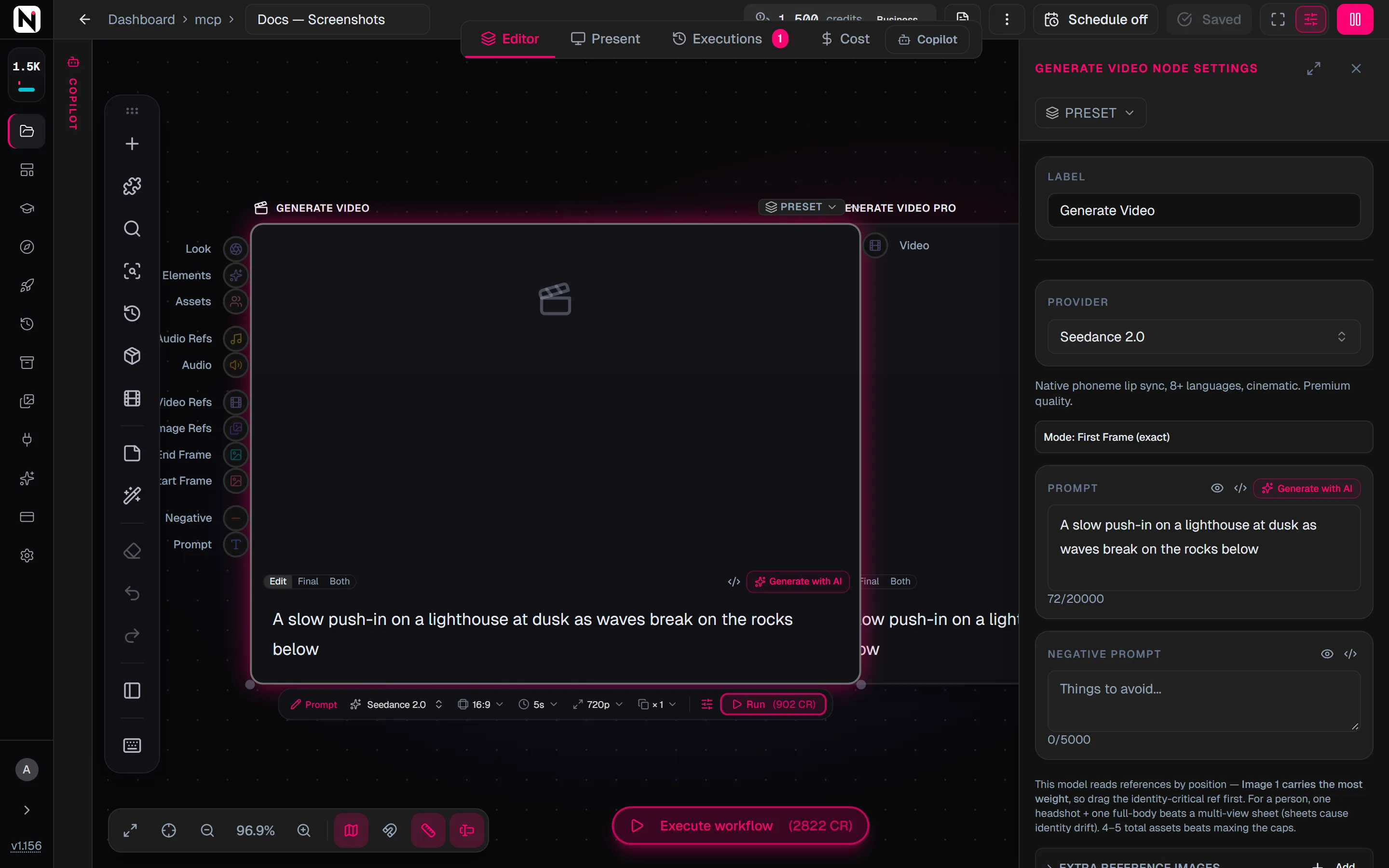
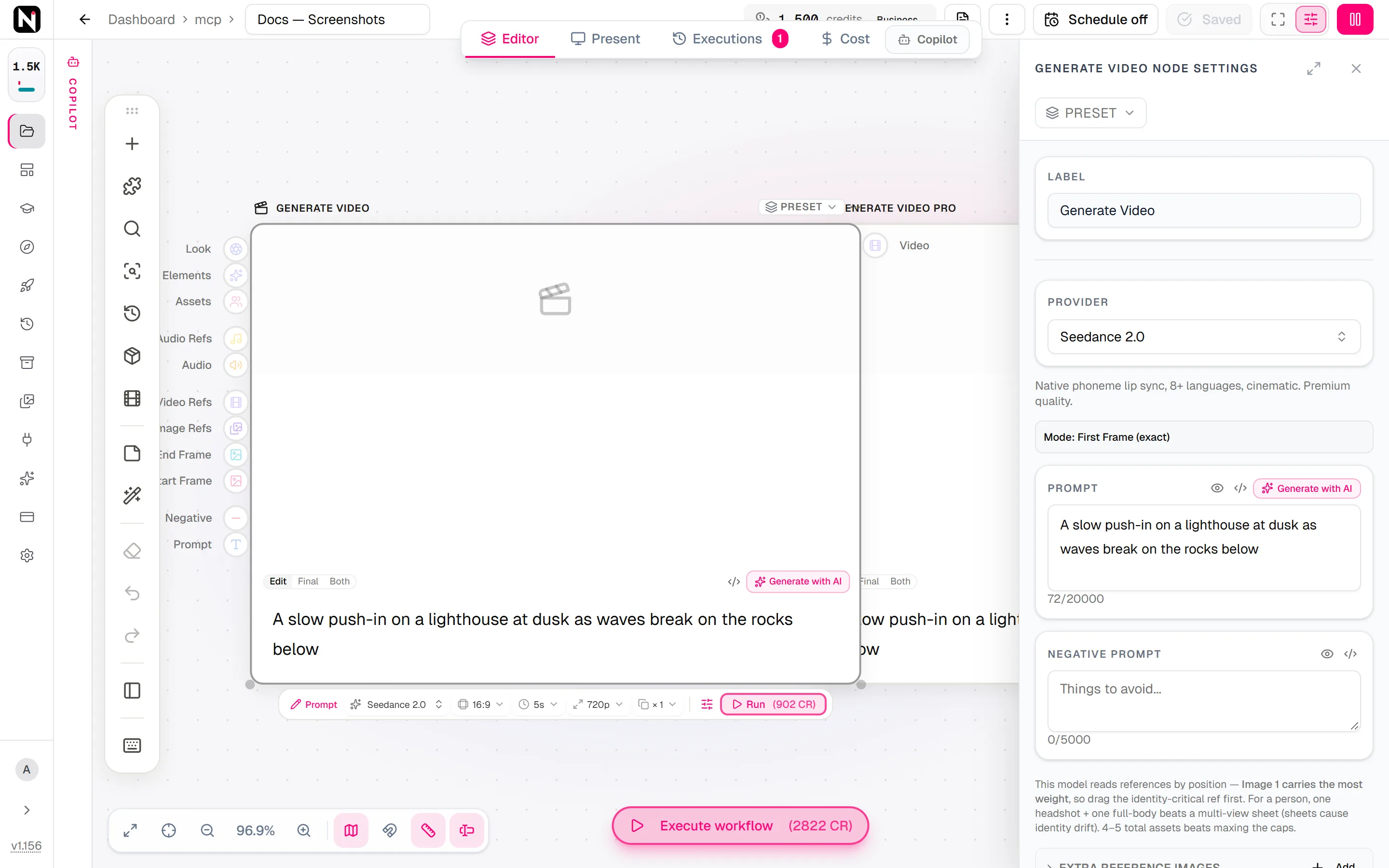
Open the settings panel. Choose a model under Provider, then the Duration (seconds), Resolution and Aspect Ratio. The choices change with the model. The same controls also appear in the strip under the node when you point at it.
Run it
Click Run. The clip appears on the node, and every earlier result stays in its result strip.
How the node chooses a mode
There is no mode switch. When the node runs, it looks at what is connected and picks the mode:
| What is connected | What the node makes |
|---|---|
| A prompt only | A text-to-video clip. |
| Start Frame | An image-to-video clip that opens on your image. |
| Start Frame and End Frame | A clip that moves from the first image to the last one, on models that support an end frame. |
| Image Refs, Video Refs or Audio Refs | A reference-driven clip. The model uses the references to shape the result, on models that accept them. |
| A clip in Video Refs, on Seedance 2.5 or Gemini Omni | An edit of that clip: always on Gemini Omni, and on Seedance 2.5 when the prompt asks for a change. See Edit a clip. |
Every model in the list can be chosen in every mode. A few things work differently on some models:
- Some models need a start image. Kling 2.1 Master, Kling 3 Omni, Hailuo 2.3, Hailuo 2.3 Pro, Bytedance Pro Fast, HappyHorse 1.1 Ref2V and Grok Imagine Video 1.5 have no text-to-video mode. Run stays disabled until an image is connected to Start Frame or End Frame, and the button's tooltip names the model. Reference images alone do not count as a start frame.
- An end frame alone becomes the start image. If you connect End Frame without Start Frame, the node sends that image as the image to animate.
- One entry, two versions. Grok Imagine, Wan 2.6, Wan 2.7 and HappyHorse 1.1 each appear once in the model list. The node uses the text-to-video or the image-to-video version of the model, depending on whether an image is connected.
Inputs
Generate Video has eleven inputs on its left edge. Each input accepts only the kinds of nodes listed, and the editor rejects a connection that does not fit. An input that the chosen model cannot use is shown disabled. Click an input to see what is connected to it, jump to a connected node, disconnect it, or add a new compatible node.
| Input | Accepts | What it does |
|---|---|---|
| Prompt | Text nodes, such as Text, Prompt, Generate Script and Combine Text, and pickers | The description of the clip. |
| Negative | Text nodes | What the model should avoid. Some models receive it as a real negative prompt; for the others, Nodaro adds it to the prompt as an "Avoid:" line. |
| Start Frame | Image nodes, such as Upload Image, Generate Image and Modify Image | The first frame of the clip. |
| End Frame | Image nodes | The last frame of the clip, on models that support one. |
| Image Refs | Image nodes, several at once | Reference images for models that accept them. The order matters: drag them in the settings panel to reorder. |
| Video Refs | Video nodes, several at once | Reference clips for Seedance 2, Seedance 2.5, Hailuo 3, Wan 3.0 and Gemini Omni. On Seedance 2.5 and Gemini Omni, a clip here can also be edited. |
| Audio | Audio nodes | A soundtrack for the finished clip. On LTX 2.3 Pro without a start frame, the audio drives an audio-to-video clip instead. |
| Audio Refs | Audio nodes, several at once | Audio that shapes the generation itself, on the Seedance 2 family, Hailuo 3 and Wan 3.0. With a voice line, Seedance 2 and Hailuo 3 sync the speaker's lips to it. |
| Assets | Character, Location, Object, Animal/Creature and Create Face nodes | Locked identities. Their approved pictures and descriptions go with the prompt, and you can mention them with @ in the prompt. |
| Look | Camera and look pickers, such as Camera Motion, Lens, Lighting, Framing, Mood, Style, Temporal and Transition | Each picker adds its wording to the prompt. |
| Elements | Subject pickers, such as Person, Pose, Animal, Vehicle, Styling and Held Prop | Each picker adds its wording to the prompt. |
The output, Video, is the URL of the generated clip. It can feed any number of nodes at once.
Audio and Audio Refs do different jobs. Audio is laid over the finished clip as its soundtrack. Audio Refs goes into the model and changes what it generates.
Settings
These settings appear for most models. The settings panel shows only the controls the chosen model supports.
| Setting | What it does |
|---|---|
| Provider | The video model. New nodes start on Seedance 2.0 Fast for 5 seconds. Point at a model in the list to see what it supports. |
| Prompt | The text of the prompt, when nothing is connected to the Prompt input. Each model has its own limit, from 1,000 characters on Kling 2.6 to 30,000 on Seedance 2.5. The editor counts down to your model's limit, and text past the limit is cut off. |
| Negative Prompt | What to avoid. |
| Duration (seconds) | The length of the clip. The choices depend on the model. On the Seedance 2 family, Auto lets the model choose the length. |
| Resolution | The output resolution, on models that offer a choice. |
| Aspect Ratio | The shape of the clip. Adaptive or Auto (from image) matches the connected image. |
| Generate Audio | Whether the model makes a soundtrack, on models where sound can be switched. |
| Frame fit | How a connected start or end frame is reshaped before the model sees it. See Start and end frames. |
| Send frames as | Whether a connected frame is sent as a real frame or as a reference image. See Start and end frames. |
| Loop trim | Cuts the finished clip at its best loop point. See Make a clean loop. |
| Motion hint (injected into prompt) | Adds a motion level to the prompt: Subtle, Moderate or Dynamic. |
| Save clip to "…" as reference video | Appears when a Character is connected. Saves the finished clip to that character's reference videos, under the Variant label you type, so you can reuse it as a video reference. |
| Pre & post text | Text that is always added before and after the prompt. It is hidden from people who use your workflow as an app. See Prompt pre and post text. |
Settings for specific models
| Model | Extra settings |
|---|---|
| VEO 3.1 Quality, Fast and Lite | Generation Mode: Frame-to-Frame (the default) or Reference Mode, which uses 1 to 3 reference images instead of frames. Seed (optional), from 10000 to 99999. Generate Audio, on by default. Auto-translate prompt to English, on by default; turn it off to keep the prompt word for word. |
| Seedance 2, Seedance 2 Fast, Seedance 2 Mini and Seedance 2.5 | Generate Audio (default on), Enable Web Search and NSFW Content Filter. A note at the top of the panel shows the mode the connected inputs produce. |
| Hailuo 3 (minimax-h3) | Resolution: 2K (the default) or 768P, which costs less per second. Audio is always generated. |
| Wan 3.0 and Wan 3.0 Prime | Generate Audio (default on) for ambient sound. New settings start at 5 seconds, 720p and Adaptive. |
| Kling 2.6 | Enable Sound. A clip with sound costs more. |
| Kling 2.5 Turbo Pro and Kling 2.1 Master | CFG Scale, from 0 (creative) to 1 (strict prompt adherence). |
| Kling 3 Omni | Quality: Standard (720p) or Pro (1080p), and Generate Audio. |
| Grok Imagine | Resolution (480p or 720p) and Mode: Normal, Fun or Spicy. |
| Bytedance Lite and Bytedance Pro | Camera Fixed and Seed (-1 for random). |
| Hailuo 2.3 and Hailuo 2.3 Pro | Resolution: 768P or 1080P. At 1080P the clip can be 6 seconds only. |
| Gemini Omni and Gemini Omni Flash | Source clip trim (seconds, ≤10s window) when a video is connected to Video Refs. |
Kling 3.0 settings
When you choose Kling 3.0, the settings panel changes to three tabs: Scene, Shots and Elements.
- Scene holds the model, the Mode (Pro (1080p), Standard (720p) or 4K (Ultra HD)), the Aspect Ratio, Sound Effects for lip-synced dialogue and sound, and the duration from 3 to 15 seconds.
- Shots has Multi-Shot Mode, which splits the clip into 2 to 6 shots, each with its own prompt and length, up to 15 seconds in total. Sound is required in multi-shot mode, and an end frame is not supported.
- Elements lets you define named characters or objects with a description and 2 to 4 reference images, then mention them in the prompt as
@name.
Which model to choose
Generate Video can run every model below. Click a model for its settings, credit prices and prompt tips.
| Model | Maker | Modes | Credits | Details |
|---|---|---|---|---|
| Hailuo 02 I2V Pro | MiniMax | Image to video, Text to video | 143 | Hailuo 02 Pro — strong photoreal motion, fixed 5-second clips. Supports end frame. |
| minimax-h3 | MiniMax | Image to video, Text to video | from 230 | MiniMax Hailuo 3 — premium multimodal tier: first/last frame + image/video/audio references, native audio, 2K (default) or 768P output, 4-15s per-second pricing. |
| Hailuo 2.3 Pro | MiniMax | Image to video | from 130 | Hailuo 2.3 Pro — newer Hailuo with 768P / 1080P resolutions. |
| Hailuo 2.3 Standard | MiniMax | Image to video | from 75 | Cheaper Hailuo 2.3 tier — good baseline quality. |
| Hailuo 02 Standard | MiniMax | Image to video, Text to video | from 75 | Hailuo 02 Standard — economical option with end-frame support. |
| VEO 3.1 Quality | Image to video, Text to video | from 930 | Google VEO 3.1 Quality — premium cinematic video. 4/6/8s clips, optional end frame, native audio. No reference-to-video mode (Fast/Lite only). Flat per-generation pricing across durations. | |
| VEO 3.1 Fast | Image to video, Text to video | from 150 | VEO 3.1 Fast — cheaper VEO 3.1 tier, 4/6/8s with audio. Good balance for most uses. Flat per-generation pricing across durations. | |
| VEO 3.1 Lite | Image to video, Text to video | from 75 | VEO 3.1 Lite — most cost-effective VEO tier for high-volume generation. 4/6/8s with audio, supports first+last frame. | |
| Gemini Omni | Image to video, Text to video | from 230 | Google multimodal video with native audio; text/image-to-video + video-edit. | |
| Gemini Omni Flash | Image to video, Text to video | from 160 | Google Gemini Omni Flash — faster/cheaper Omni tier: multimodal video with native audio, text/image-to-video + video-edit. | |
| Kling 2.6 | Kuaishou | Image to video, Text to video | from 138 | Kling 2.6 I2V — strong motion realism. 5s/10s, optional native audio. |
| Kling 2.5 Turbo Pro | Kuaishou | Image to video, Text to video | from 110 | Faster Kling — good quality at lower cost. Supports end frame. |
| Kling 3.0 | Kuaishou | Image to video, Text to video | from 270 | Premium Kling 3.0 — variable 3-15s duration, native audio, 720P/1080P. |
| Kling 2.1 Master | Kuaishou | Image to video | from 400 | Master tier I2V — strong cinematic quality. |
| Kling 3 Omni | Kuaishou | Image to video | from 250 | Kling 3 Omni — 3-15s, 720p/1080p, end frame + reference images, native audio. |
| Grok Imagine (I2V) | xAI | Image to video | from 50 | Grok image-to-video — stylized motion. Up to 15s. |
| Grok Imagine Video 1.5 | xAI | Image to video | from 295 | Grok Imagine 1.5 image-to-video — 1–15s, 480p/720p, per-second pricing. Requires an input image. |
| Seedance 2 | Bytedance | Image to video, Text to video | from 230 | Seedance 2 — premium tier with native audio. Per-second pricing by resolution. |
| Seedance 2 Fast | Bytedance | Image to video, Text to video | from 180 | Cheaper / quicker Seedance 2 tier. |
| Seedance 2 Mini | Bytedance | Image to video, Text to video | from 120 | Budget Seedance 2 tier — 480p/720p only, per-second pricing by resolution. |
| Seedance 2.5 | Bytedance | Image to video, Text to video | from 340 | Seedance 2.5 — up to 30s in one shot, native audio, wide multimodal references. 480p/720p/1080p. |
| Bytedance Lite I2V | Bytedance | Image to video, Text to video | 57 | Cheapest Bytedance video tier with end-frame support. |
| Bytedance Pro I2V | Bytedance | Image to video, Text to video | 175 | Pro Bytedance video tier — better quality. |
| Bytedance Pro Fast I2V | Bytedance | Image to video | 90 | Faster Bytedance Pro variant. |
| Wan 3.0 | Alibaba | Image to video, Text to video | from 160 | Wan 3.0 — multimodal: first/last frame or image/video/audio references, native audio, 2-30s at 480p/720p/1080p. |
| Wan 3.0 Prime | Alibaba | Image to video, Text to video | from 250 | Wan 3.0 Prime — Alibaba's high-speed Wan 3.0 tier: same multimodal surface and 2-30s range, faster turnaround at a higher per-second rate. |
| Wan 2.6 I2V | Alibaba | Image to video | from 175 | Wan 2.6 image-to-video — 5/10/15s at 720p/1080p. |
| Wan 2.2 Turbo | Alibaba | Image to video, Text to video | from 100 | Cheap, fast Wan turbo — 5s. Serves both i2v and t2v under one id. |
| Wan 2.6 | Alibaba | Video to video, Text to video | from 175 | Wan 2.6 — text-to-video and video-to-video under a single id. |
| Wan 2.7 I2V | Alibaba | Image to video | 188 | Wan 2.7 image-to-video — 2–15s at 720p/1080p, supports start+end frame. |
| Wan 2.7 T2V | Alibaba | Text to video | 188 | Wan 2.7 text-to-video — 2–15s at 720p/1080p. |
| LTX 2.3 Pro | Lightricks | Image to video, Text to video | from 40 | Lightricks LTX 2.3 Pro — text/image/audio→video up to 4K, 6/8/10s, end-frame interpolation. |
| LTX 2.3 Fast | Lightricks | Image to video, Text to video | from 180 | Lightricks LTX 2.3 Fast — text/image→video up to 20s at 1080p (6/8/10s at 2K and 4K). No audio input, no extend. |
| HappyHorse 1.1 | HappyHorse | Text to video | 282 | HappyHorse 1.1 text-to-video — 3–15s at 720p/1080p, 9 aspect ratios incl. 21:9/9:21, per-second pricing. |
| HappyHorse 1.1 I2V | HappyHorse | Image to video | 282 | HappyHorse 1.1 image-to-video — 3–15s at 720p/1080p, aspect ratio inferred from input image, per-second pricing. |
| HappyHorse 1.1 Ref2V | HappyHorse | Image to video | 282 | HappyHorse 1.1 reference-to-video — 1–9 reference images, 3–15s at 720p/1080p, per-second pricing. |
| Runway Gen-3 | Runway | Image to video, Text to video | 30 | Runway Gen-3. 5/10s at 720p/1080p. |
- Seedance 2.0 Fast — the default. Low cost, sound on, references supported. Use it to iterate.
- VEO 3.1 Fast — a good balance of price and quality, with native audio and the same price for 4, 6 or 8 seconds.
- VEO 3.1 Quality and Kling 3.0 — premium cinematic shots. Kling 3.0 adds multi-shot clips and lengths from 3 to 15 seconds.
- Seedance 2 and Seedance 2.5 — the widest reference support: images, videos and audio together. Seedance 2.5 makes up to 30 seconds in one run and can edit a clip.
- Wan 3.0 — 2 to 30 seconds at any whole second, with references and ambient audio.
- Hailuo 3 (minimax-h3) — premium multimodal clips at 2K, with references and audio always on.
- VEO 3.1 Lite, Wan 2.2 Turbo and Bytedance Lite — the cheapest clips, for batches and drafts.
For a comparison of every model, read Choosing a model.
One start frame, three models
The three clips below start from the same image, which Generate Image made, and use the same prompt with sound on. Only the model changes.
- VEO 3.1 Fast kept the golden light of the start frame, pushed in slowly and added the gulls from the prompt.
- Seedance 2.5 stayed closest to the start frame, with the gentlest motion. At 480p it is also the softest picture, which is fine for a draft.
- Gemini Omni Flash left the start frame after about a second and a half: the light turned cooler and the mountains changed.
When a clip has to continue its start frame exactly, watch the first seconds of each take before you build on it, and try a second model when the first one drifts.
Lengths and resolutions by model
The length and the resolution you can choose depend on the model. The model pages list every value, and the aspect ratios too.
| Model | Lengths | Resolutions | End frame | References |
|---|---|---|---|---|
| Seedance 2 | 4–15 s, or Auto | 480p, 720p, 1080p, 4K | Yes | 9 images, 3 videos, 3 audio |
| Seedance 2 Fast | 4–15 s, or Auto | 480p, 720p | Yes | 9 images, 3 videos, 3 audio |
| Seedance 2 Mini | 4–15 s, or Auto | 480p, 720p | Yes | 9 images, 3 videos, 3 audio |
| Seedance 2.5 | 4–30 s, or Auto | 480p, 720p, 1080p | Yes | 30 images, 10 videos, 10 audio |
| Hailuo 3 (minimax-h3) | 4–15 s | 2K, 768P | Yes | 9 images, 3 videos, 3 audio |
| VEO 3.1 Quality | 4, 6, 8 s | 720p, 1080p, 4K | Yes | None |
| VEO 3.1 Fast | 4, 6, 8 s | 720p, 1080p, 4K | Yes | Up to 3 images |
| VEO 3.1 Lite | 4, 6, 8 s | 720p, 1080p, 4K | Yes | Up to 3 images |
| Gemini Omni | 4, 6, 8, 10 s | 720p, 1080p, 4K | No | 7 inputs; a video counts as 2 |
| Gemini Omni Flash | 4, 6, 8, 10 s | 720p, 1080p, 4K | No | 7 inputs; a video counts as 2 |
| Kling 3.0 | 3–15 s | 720p, 1080p, 4K | Yes | Elements |
| Kling 3 Omni | 3–15 s | 720p, 1080p | Yes | Up to 7 images |
| Kling 2.6 | 5, 10 s | — | No | None |
| Kling 2.5 Turbo Pro | 5, 10 s | — | Yes | None |
| Kling 2.1 Master | 5, 10 s | — | No | None |
| Wan 3.0 and Wan 3.0 Prime | 2–30 s | 480p, 720p, 1080p | Yes | 10 images, 5 videos, 5 audio |
| Wan 2.7 | 2–15 s | 720p, 1080p | Yes | None |
| Wan 2.6 | 5, 10, 15 s | 720p, 1080p | No | None |
| Wan 2.2 Turbo | 5 s | 480p, 720p | No | None |
| HappyHorse 1.1 | 3–15 s | 720p, 1080p | No | None |
| HappyHorse 1.1 Ref2V | 3–15 s | 720p, 1080p | No | 1 to 9 images |
| Hailuo 2.3 Pro and Hailuo 2.3 Standard | 6, 10 s | 768P, 1080P | No | None |
| Hailuo 02 Standard | 6, 10 s | 512P, 768P | Yes | None |
| Hailuo 02 I2V Pro | 5 s | — | Yes | None |
| Bytedance Lite I2V | 5, 10 s | 480p, 720p, 1080p | Yes | None |
| Bytedance Pro I2V | 5, 10 s | 480p, 720p, 1080p | No | None |
| Bytedance Pro Fast I2V | 5, 10 s | 720p, 1080p | No | None |
| Grok Imagine (I2V) | 6, 10 s | 480p, 720p | No | Reference images |
| Grok Imagine Video 1.5 | 1–15 s | 480p, 720p | No | None |
| LTX 2.3 Pro | 6, 8, 10 s | 1080p, 2K, 4K | Yes | None |
| LTX 2.3 Fast | 6–20 s at 1080p; 6, 8, 10 s at 2K and 4K | 1080p, 2K, 4K | Yes | None |
| Runway Gen-3 | 5, 10 s | 720p, 1080p | No | None |
A dash means the model offers no choice of resolution.
Aspect ratios. VEO 3.1, Gemini Omni and LTX 2.3 make 16:9 or 9:16 clips. The Seedance 2 family adds 1:1, 4:3, 3:4, 21:9 and Adaptive, which is its default and matches the connected image. Hailuo 3 and Wan 3.0 also offer Adaptive as their default. A pure text-to-video clip on Hailuo 3 or Wan 3.0 renders 16:9 unless you choose a ratio. HappyHorse 1.1 offers nine ratios for text-to-video and Ref2V clips, including 4:5, 5:4, 21:9 and 9:21; for image-to-video it follows the input image.
4K on VEO 3.1. VEO makes the clip at 1080p, then upscales it to 4K in the same run, billed at the 4K price. 4K on Gemini Omni is not available on the free tier.
Start and end frames
Connect an image to Start Frame to open the clip on it. Connect a second image to End Frame to end the clip on it. These models accept an end frame:
- VEO 3.1 Quality, Fast and Lite.
- The Seedance 2 family and Seedance 2.5.
- Hailuo 3, Hailuo 02 Standard and Hailuo 02 I2V Pro.
- Kling 3.0, Kling 3 Omni and Kling 2.5 Turbo Pro.
- Wan 2.7, Wan 3.0 and Wan 3.0 Prime.
- Bytedance Lite.
- LTX 2.3 Pro and LTX 2.3 Fast.
Other models ignore the end frame.
Frame fit
A frame that is not the exact size the model renders gets reshaped by the model, and some models do it one frame into the clip. The first frame is your image, and the rest of the clip is slightly taller or wider. Frame fit fixes the size before the frame is sent:
| Value | What it does |
|---|---|
| Match output size (default) | Resizes the frame to the exact pixel size the model renders for your resolution and aspect ratio. |
| Match aspect ratio | Corrects only the aspect ratio, with the smallest possible change. |
| Keep original | Sends the frame untouched. |
When Nodaro knows the size for your model, resolution and ratio, the panel names it under the setting, for example 720×1280. When your image is more than 5% away from the target shape, for example a square photo in a 9:16 clip, the image is first cropped at the center to the target ratio, then resized. The subject is never squashed. For a combination Nodaro has not measured, the frame is left as it is.
Send frames as
| Value | What it does |
|---|---|
| Auto (default) | Picks the best way for the model. The option shows what it resolves to: Auto (as frame) or Auto (as reference image). |
| Frame | Always sends a real start frame. |
| Reference image | Always sends the image as a reference, and the prompt names it as the opening frame. |
The Seedance 2.0 family (Fast, standard and Mini) zooms a real start frame by about 2% and loses brightness within six frames. Sent as a reference image, the same models keep the look from the first frame. Every other model Nodaro measured reproduces the opening frame more faithfully as a real frame, so Auto keeps them in frame mode. On a model that takes no reference images, this setting is hidden.
Two limits apply. First, a frame never pushes out one of your own reference images: if the frames would exceed the model's image limit, the frame stays a frame. Second, when your request already has reference images, several models cannot keep a real start frame. Seedance and Wan move the frame into the reference list, Hailuo 3 switches to its reference mode, and VEO 3.1 drops the end frame.
References: images, videos and audio
References tell a model what to include without pinning an exact frame. Connect them to Image Refs, Video Refs and Audio Refs. The limits per model are in the table above. Models that do not support references ignore them.
- Seedance 2 family and Hailuo 3. Frames and references can be connected together. With no reference, the frames are exact first and last frames. With any reference connected, the frames join the reference set and the prompt names them as the opening or closing frame. The panel shows the resolved mode and warns you when an input will be dropped.
- Seedance 2.5. Up to 30 images, 10 videos and 10 audio clips. Each reference video must be 2 to 30 seconds long, and all of them together 30 seconds at most. Reference audio can be up to 30 seconds per clip.
- Seedance 2 Fast. Each reference audio clip must be 15.2 seconds or shorter.
- Hailuo 3. Each reference video must be 2 to 15 seconds, and 15 seconds in total. Reference audio is up to 15 seconds per clip, and it must come with an image or video reference; audio alone is not accepted.
- Wan 3.0. Up to 10 images, 5 videos and 5 audio clips. Each video and audio clip is 1 to 15 seconds, with 15 seconds in total per kind. With a reference video, the reference and the output together must stay at 30 seconds or less. A start or end frame joins the reference list, after your own images.
- VEO 3.1 Fast and Lite. Connecting reference images switches VEO to reference mode, with or without a start frame. Reference mode always makes an 8-second clip; VEO's price is the same for 4, 6 and 8 seconds, so the cost does not change. VEO takes at most three images: a start frame takes the first place, and references fill the rest. A connected end frame is dropped in this mode. VEO 3.1 Quality has no reference mode, so its reference inputs are disabled.
- Gemini Omni and Gemini Omni Flash. Up to seven inputs: the start frame and each reference image count as one, a video counts as two. With a start frame, references act as identity references, not frames. Inputs over the limit are dropped, and the node says how many.
- HappyHorse 1.1 Ref2V takes 1 to 9 reference images. Kling 3 Omni takes up to 7.
Most of these length limits are checked before the run starts, so a clip that breaks them costs no credits. Wan 3.0 checks its reference video limits during the run instead, and refunds the reserved credits when a clip is too long. Trim long clips first with Trim Video.
Point the prompt at a reference
On reference-capable models, you can tie a phrase in the prompt to one reference, so that it drives the result. Type a token where the phrase belongs. The @ autocomplete in the prompt editor offers them.
| Token | Becomes | Use |
|---|---|---|
{image:1:person} | the person from @image_1 | Tie a subject to reference image 1 |
{image:2:jacket} | the jacket from @image_2 | Tie an item to reference image 2 |
{image:1} | the subject in @image_1 | Tie without a noun |
{video:1:clip} | the clip from @video_1 | Tie to reference video 1 |
{audio:1:voice} | the voice from @audio_1 | Tie to reference audio 1 |
For example, with two reference images connected, the prompt circle {image:1:person} wearing {image:2:jacket} for a 360 spin becomes "circle the person from @image_1 wearing the jacket from @image_2 for a 360 spin".
- Numbering. Image numbers count Image Refs first, in order, then the assets on the Assets input. With one reference image and a connected Object, the object is
{image:2}. Videos and audio have their own numbers. - Frames are numbered for you. Start and end frames come after your images, and the prompt names them as the opening or closing frame. You never write a token for a frame.
- A number out of range becomes plain text.
{image:5:ghost}on a node with two references becomes "ghost". - Models without references turn every token into its plain label, so the prompt still reads naturally.
Sound
Many models make an audio track together with the picture. The way you control it depends on the model:
- VEO 3.1 makes sound from the prompt, on by default. Turn off Generate Audio for a silent clip.
- The Seedance 2 family and Wan 3.0 make sound by default. Turn it off with Generate Audio (default on).
- Hailuo 3 always makes sound. With reference audio connected, it syncs the lips to it.
- Gemini Omni makes a soundtrack on every run and takes its direction from the prompt, for example "Sound design: gentle breeze, distant bird chirps". It cannot be switched off, and it does not speak dialogue.
- Kling 2.6 makes sound only when Enable Sound is on. Kling 3.0 has Sound Effects. Kling speaks scripted dialogue when you quote the line in the prompt, for example
[Anna: warm calm voice]: "good morning". Kling 2.6 speaks English and Chinese; other languages are translated to English by the model. - Kling 3 Omni includes audio in its price, with a Generate Audio switch.
To use your own soundtrack, connect it to the Audio input. To make the model react to a voice or music, connect it to Audio Refs instead.
Edit a clip
Seedance 2.5 and Gemini Omni can change a clip you connect to Video Refs.
With Seedance 2.5, the model decides from your prompt whether the run is a normal generation that uses the clip as a reference, or an edit of the clip, for example "remove the sign" or "make it black and white". An edit keeps the source clip's aspect ratio and length. If the model reads your prompt as an edit and your settings ask for another ratio or length, Nodaro submits the run once more with the values the edit needs, and you get the edited clip instead of an error. To ask for an edit from the start, set Aspect Ratio to Adaptive and Duration to Auto. The source clip must be 4 to 30 seconds long. The factory preset Edit Video sets all of this for you.
With Gemini Omni and Gemini Omni Flash, a connected clip switches the node to video edit. The clip is trimmed to a window of at most 10 seconds, which you set under Source clip trim. The duration follows the clip, and a video edit has a flat price per run.
Make a clean loop
Loop trim finds the frame where the clip loops back most cleanly and cuts the clip there. Turn it on in the settings panel:
- Frames to test sets how many frames Nodaro compares, from 4 to 64. The default is 16.
- Quality: Precise cuts at the exact frame with a slight quality loss. Lossless cuts on a keyframe and keeps the file byte for byte.
For a perfect loop, connect the same image to Start Frame and End Frame. Without an end frame, Nodaro still picks the best loop point it finds, but the loop may show a jump. Loop trim also removes the fade that VEO 3.1 adds at the end of a loop.
Loop trim adds a small charge: one credit per 5 seconds of clip, plus one credit per 24 frames tested, each rounded up. For example, an 8-second clip with 16 frames tested adds 3 credits. If the trim fails, you keep the untrimmed clip and the loop trim credits are refunded.
Keep a character consistent
- Connect assets. Connect a Character Asset, Location Asset, Object/Props Asset or Animal/Creature Asset node to Assets. Nodaro sends their approved pictures and descriptions with the prompt.
- Mention them. Write
@mayain the prompt to place the character exactly where the sentence needs it. Give a mention a role, such as@maya:1:clothes, to say what to take from the reference. See Reference roles. - Check what is sent. The Injected references list in the settings panel shows every reference the model will receive. Drag to reorder, or click × to remove one.
- Use a board. A reference board or a consistency grid from Generate Image keeps a face stable across clips. The Scene Recipes presets are built to read these boards. See Reference boards.
Read Consistent characters for the full method.
Presets
Open Presets on the node for ready-made setups. Each preset chooses a fitting model, aspect ratio and duration, fills the prompt with {placeholder || default} slots, and adds a tuned negative prompt against warping, flicker and morphing. You can run a preset unedited: every slot falls back to its default.
| Folder | Examples |
|---|---|
| Camera Moves | Slow Push-In, Dolly Out, 360° Orbit, Crane Up, Tracking Follow, Whip Pan, Dolly Zoom (Vertigo) |
| Shot Types & Angles | Establishing Wide, Close-Up, Macro, Low-Angle Hero, Overhead Top-Down, FPV Drone |
| Cinematic & Specialty | Handheld Doc, Slow Motion, Timelapse, Hyperlapse, Bullet Time, Rack Focus |
| Social & Reels | Vertical Hero, Talking Head, Product Reveal, Trend Quick-Cut, POV Walk, all at 9:16 |
| Product & Ads | Product Hero, 360 Spin, Liquid Splash, Unboxing, Lifestyle Ad |
| Motion Graphics & Logo | Logo Sting, Title Reveal, Particle Background, Loop Background |
| B-Roll & Nature | Clouds Timelapse, Water Slow-Mo, Forest Drift, Aerial Landscape, Ocean Loop |
| Animation & Style | Anime Motion, 3D Cartoon, Claymation, Living Watercolor |
| Looping & Backgrounds | Subtle Motion, Living Wallpaper |
| Viral & Effects | Frozen in Ice, Superhero Transformation, Elevator Doors Reveal, POV Skydive, Underwater POV. These work best with an input image. |
| Scene Recipes | Viral Meteor Scene, Cartoon Short (Opening, Chase, Resolution), Two-Character Dialogue, Disaster Reveal, Chase Scene. Seedance 2 scenes with native audio and lip-synced quoted lines. Connect your reference boards or cast grids as reference images. |
| Video Editing | Edit Video: edits a clip in Video Refs by instruction on Seedance 2.5. Type the change you want as the prompt. |
To chain several Scene Recipes into one short, join the clips with the Seamless Join (One-Shot) preset of Combine Videos. Read Presets to save and share your own.
Credits
The cost badge on the node shows the price before you run. The price depends on the model, the duration and the resolution. On some models it also depends on sound and references.
- Flat price per clip. VEO 3.1 costs the same for 4, 6 or 8 seconds. VEO 3.1 Lite costs 75 credits at 720p and 90 at 1080p. VEO 3.1 Fast costs 150 at 720p and 170 at 1080p. VEO 3.1 Quality costs 1,000 for a 1080p clip.
- Price per duration. Gemini Omni and Gemini Omni Flash have a price per length and resolution. Gemini Omni Flash costs 160 credits for 4 seconds and 320 for 10 seconds at 720p or 1080p. A video edit has one flat price per run: 420 credits on Gemini Omni Flash and 600 on Gemini Omni, at 720p or 1080p.
- Price per second. The Seedance 2 family, Seedance 2.5, Hailuo 3, Wan 3.0, Grok Imagine Video 1.5 and HappyHorse 1.1 are priced by the second. For example, Wan 3.0 costs 200 credits for 5 seconds at 720p and 640 for 8 seconds at 1080p.
- References make Seedance cheaper. On the Seedance 2 family and Seedance 2.5, connecting any reference switches to a lower price per second. Seedance 2 at 1080p costs 2,040 credits for 8 seconds, or 1,240 with a reference.
- Sound can cost more. Kling 3.0 costs 680 credits for 10 seconds without sound and 1,000 with sound. On Kling 3.0, sound is on unless you turn it off.
- Reference videos count their own length. On the Seedance 2 family and Hailuo 3, the price covers the seconds of each reference video plus the seconds of output. Hailuo 3 at 2K with 8 seconds of output and a 5-second reference video costs 1,187 credits. On Wan 3.0, a reference video adds nothing.
- Extra images on Hailuo 3. Each input image beyond the first five adds a small charge. Six seconds at 2K with eight images costs 630 credits instead of 550.
- Auto length is settled after the run. With Duration set to Auto, Nodaro reserves the price of the model's longest clip: 30 seconds on Seedance 2.5 and 15 seconds on the other Seedance 2 models. When the clip is ready, you pay for the length you got and the rest is refunded. Your balance must cover the reservation for the run to start.
- Edits are settled after the run too. A Seedance 2.5 run with a reference video is reserved for the longer of your duration and the clip, then settled to the length delivered.
Every model's page lists its exact prices. See Credits for how reservations and refunds work.
When a setting is not supported
A saved workflow can carry a resolution, aspect ratio or duration that the current model does not offer, for example after you switch models. Nodaro does not fail the run. It corrects the value to one the model accepts, and you pay for the corrected value, because that is also what the model makes.
- The nearest value wins. A 4K request on a model that stops at 1080p renders 1080p. A portrait 9:21 becomes 9:16, never landscape.
- An empty resolution is sent at the resolution it is priced at. The value used is recorded on the run.
- Adaptive and Auto stay as they are. They tell the model to match the input.
- Duration stays as you set it, except on LTX 2.3, which moves to its nearest length. A 7-second request on LTX 2.3 renders and bills 6 seconds.
- Hailuo 3 and Wan 3.0 render a fixed default for an unsupported resolution: 2K on Hailuo 3 and 720p on Wan 3.0. The price follows what they render.
When a model blocks the prompt
Some models check a finished clip against their content policies, for example for resemblance to protected film and TV content, and reject it. When that happens, Nodaro rewrites the prompt once. The rewrite keeps the same subjects, camera language and mood, and softens what triggered the rejection. Nodaro then runs the clip again at no extra credit cost. If the second run is also rejected, the run fails with the model's own reason.
Older Text to Video and Image to Video nodes
Generate Video replaces the older Text to Video and Image to Video nodes. A saved workflow that contains them opens with Generate Video nodes in their place. The connections move to the matching inputs, and the models, settings and prices stay the same. You do not need to change anything.
Tips
- Put the important words first. Text past your model's prompt limit is cut off, and Kling 2.6 allows only 1,000 characters.
- Draft cheap, finish sharp. Iterate on Seedance 2.0 Fast or VEO 3.1 Lite at a low resolution, then switch the model or the resolution for the final clip.
- Describe motion, not the picture. With a start frame, the image already shows the scene. Spend the prompt on what moves and on the camera.
- Put the look in pickers. Pickers such as Camera Motion and Lighting add tested wording, and you can change them without rewriting the prompt.
- Drive many shots from one node. Wire a List of shot prompts into one Generate Video node instead of copying the node, so the model is set once for every shot.
- Connect only what the model uses. The settings panel hides controls the model does not support, but values you set for another model stay in the node.
Troubleshooting
Run is disabled and the tooltip names the model. The model has no text-to-video mode. Connect an image to Start Frame, or choose a model that makes clips from text.
The clip jumps slightly after the first frame. The model reshaped your start frame. Set Frame fit back to Match output size.
On Seedance 2.0, the first frames look zoomed or darker. Set Send frames as to Reference image, or leave it on Auto, which does this on the Seedance 2.0 family.
The node says an input will be dropped. You connected more references than the model accepts, or you combined inputs the model cannot use together, such as a VEO end frame with reference images. Remove inputs, or choose a model with a higher limit.
A reference clip is rejected before the run. A reference video or audio clip is outside the model's length limits. Trim it with Trim Video or Trim Audio, then run again. No credits are spent.
A Wan 3.0 run fails after it starts. Wan 3.0 checks its reference video limits while the run is in progress. The reserved credits are refunded. Shorten the reference videos and run again.
The Seedance 2.5 result has a different length or shape than you set. The model treated your prompt as an edit of the reference video, which keeps the clip's own ratio and length. See Edit a clip.
4K is rejected on Gemini Omni. 4K is not available on the free tier. Choose 720p or 1080p, or upgrade your plan.
From the API
Every setting above is also available to code and to AI assistants through POST /v1/generate-video. The older route POST /v1/text-to-video still works and behaves the same way.
- Direction by id. Send a
directionobject of picker ids, for example{ "cameraMotion": "dolly-in", "timeOfDay": "dawn" }, and Nodaro writes the matching wording into the prompt. Valid ids come fromGET /v1/picker-catalogs. See Picker catalogs. - Frames.
frameFitandframeDeliveryset Frame fit and Send frames as. - Corrections. Corrected values come back in an
adjustmentsarray. - Defaults. A request without
providerruns on Seedance 2 Fast. Ifdurationis also missing, it makes a 4-second clip. - Character voice. On models that can speak dialogue, such as VEO 3.1, Kling 2.6, Kling 3.0, Kling 3 Omni, the Seedance 2 family and Hailuo 3, you can pass
characterVoicesanddialogue. The clip then speaks in the character's saved voice, for an extra 40 credits on VEO and Kling, or 25 credits per 1,000 characters on Seedance and Hailuo 3. On other models the voice is ignored, the clip still generates and no extra credits are charged.
See Run a single node and the MCP tools.
Frequently asked questions
Related
Generate Video Pro
Generate Image
Extend Video
Reference roles
Video models
Last updated on
Upload Video
Bring your own video into a workflow. Upload an MP4, MOV or WebM file or paste a URL, crop, trim or convert it, and send it to any video node.
Generate Video Pro
Make one long AI video from a prompt or a script. Generate Video Pro splits it into model-sized segments, renders them in order and stitches one clip.