
 Nodaro Docs
Lighting
Set how an AI image or video is lit. Combine the time of day, lighting style, direction, lighting ratio and color temperature from 72 tested options.
The Lighting picker sets how a shot is lit. You combine up to five parts: the time of day, the lighting style, the direction of the light, the lighting ratio and the color temperature. Nodaro adds tested wording for that setup to the prompt of every node you connect it to. The picker never calls a model, so it costs no credits.
When to use it
- Give a portrait a classic studio setup, such as Rembrandt, Butterfly, Clamshell or Split light.
- Set the hour of an outdoor scene: Dawn, Golden Hour, Blue Hour, Moonlight or Neon Night.
- Keep one light across every shot of a scene: connect one Lighting picker to several image or video nodes.
- Relight the same scene: change the picker and run the image node again.
How to use it
Add the picker
Open the node picker and choose Creative Controls › Light & Look › Lighting.
Turn on the parts you need
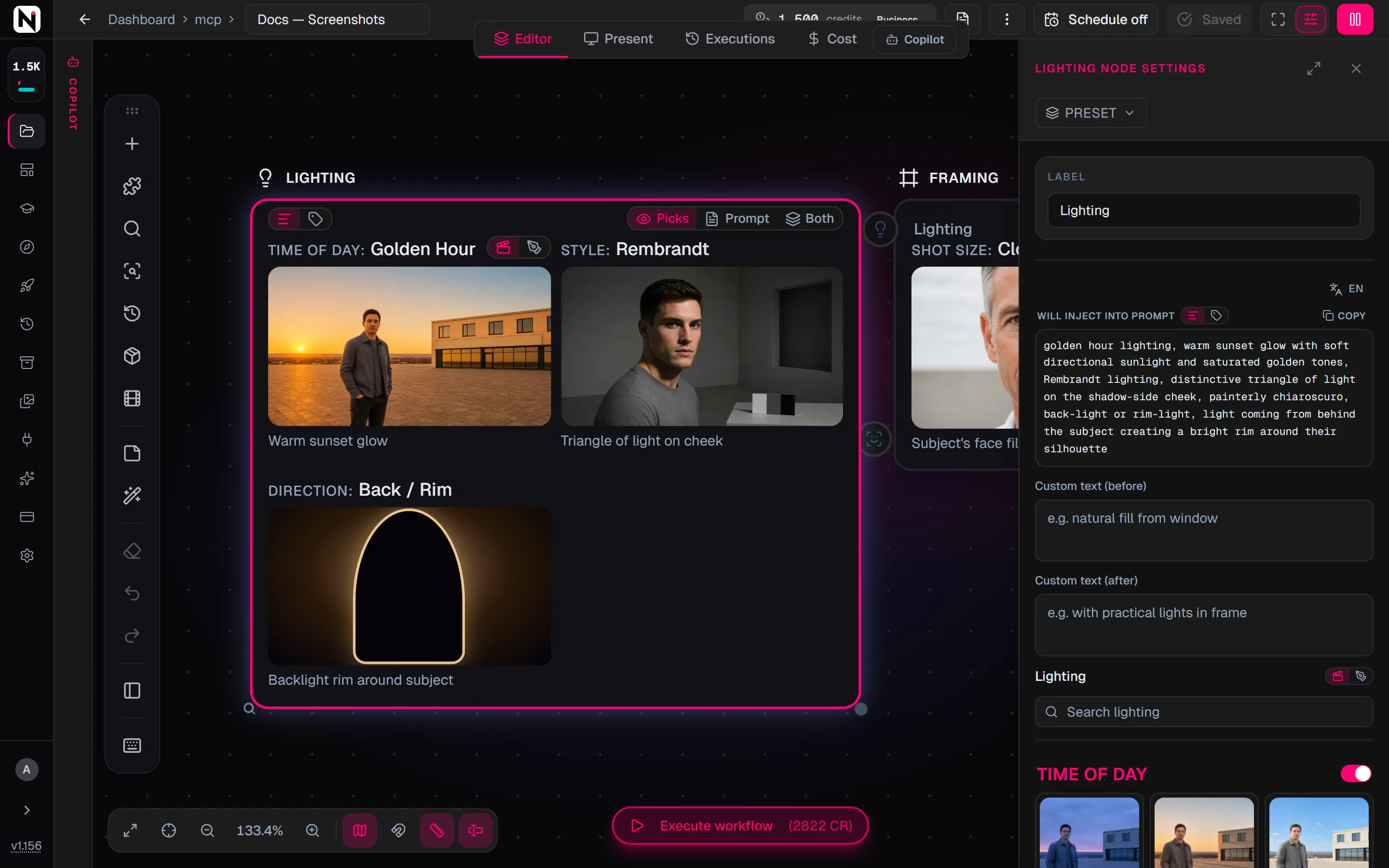
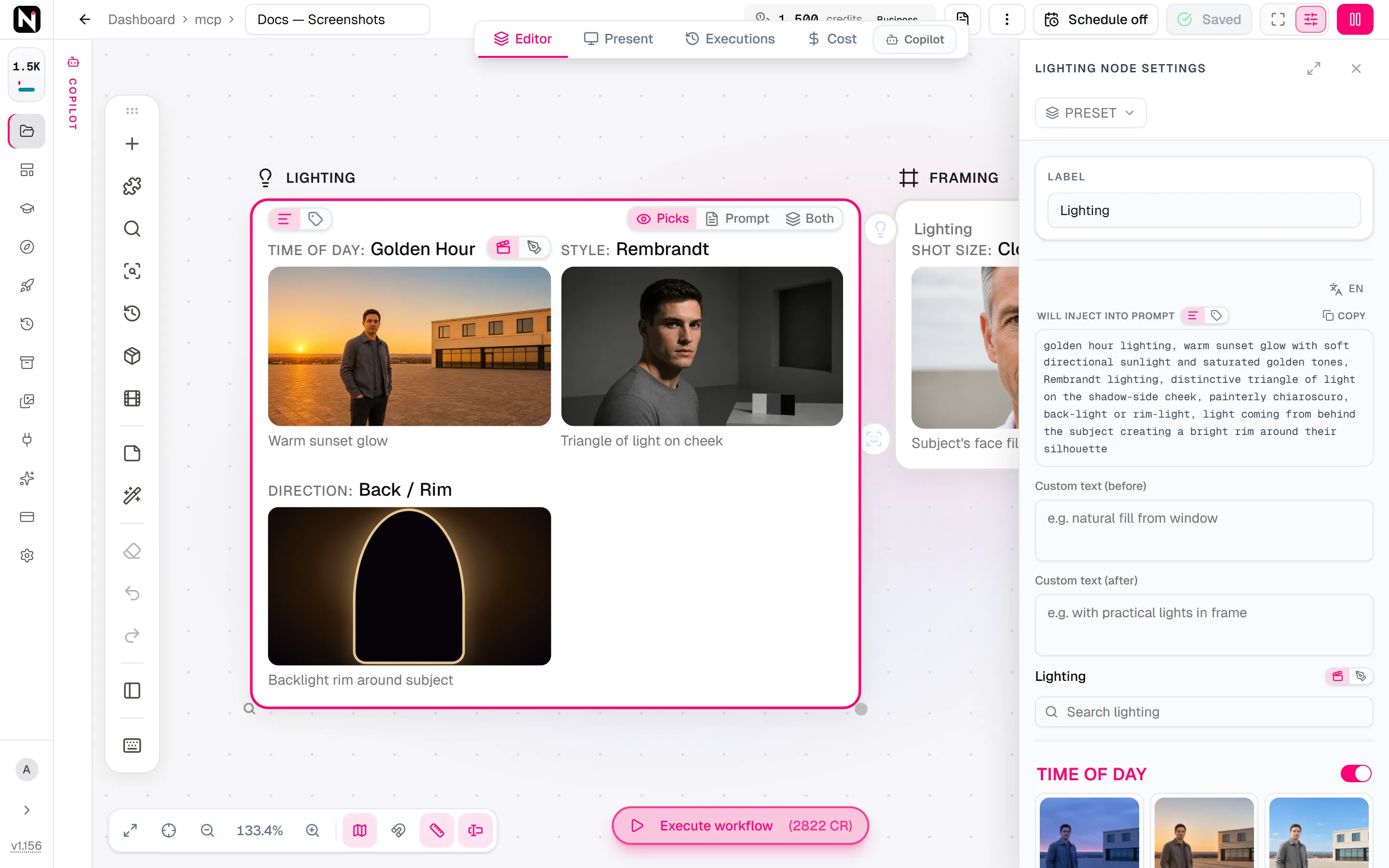
Click the node. In the settings panel, each part of the light is a section with a switch: Time of Day, Style, Direction, Lighting Ratio and Color Temperature. Turn a section on and choose an option. A single-choice section starts on its first option. A new node starts with Time of Day set to Noon.
Connect it
Drag from the picker's output to the Look input of a Generate Image or Generate Video node. You can also connect it to a Text or Prompt node to use the wording in a longer text.
Run the image or video node
The lighting description is added to the end of the prompt when the connected node runs.
Settings
| Setting | What it does |
|---|---|
| Time of Day | When the scene happens, such as Dawn, Golden Hour, Blue Hour, Night or Neon Night. A new node starts at Noon. |
| Style | The quality and setup of the light, such as Rembrandt, Chiaroscuro, High-Key, Softbox Key or Candlelight. Pick up to 2. |
| Direction | Where the light comes from: Front, 3/4 Light, Side, Back / Rim, Silhouette Backlight, Top / Overhead, Under / Uplight or Window. |
| Lighting Ratio | The balance between the key light and the fill light, from 1:1 to 1:16. A higher ratio gives deeper shadows. |
| Color Temperature | The color of the light, from 2700K Candle to 9000K Shade. |
| Custom text (before) | Your own words, added before the lighting description. |
| Custom text (after) | Your own words, added after the lighting description, for example with practical lights in the background. |
| Prompt hint | Full (default) adds a longer description of each part. Compact adds only the short terms. See Full or Compact. |
| Items per row (node card) | How many picks the node card shows per row, from 1 to 3. The default is 2. It changes only the card, not the prompt. |
The parts you turn on are joined into one description. A part that is off adds nothing, and a node with every part off adds nothing at all.
To see the exact words the picker will add, switch the node to the Prompt or Both display mode. The settings panel shows the same text under Will inject into prompt.
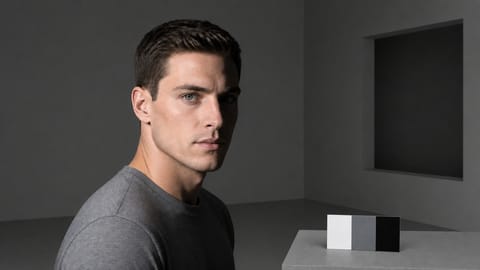
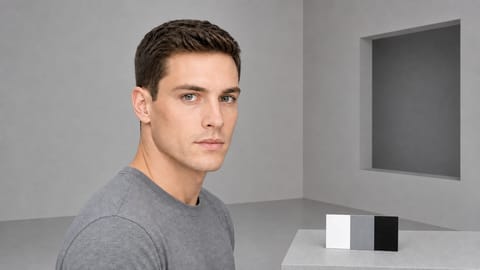
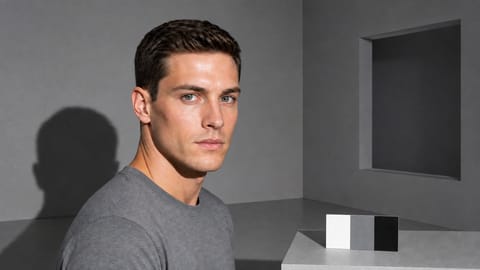
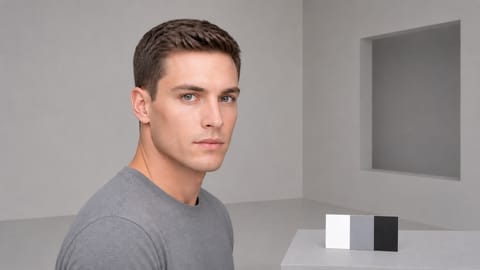
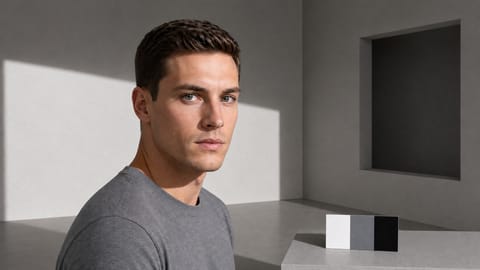
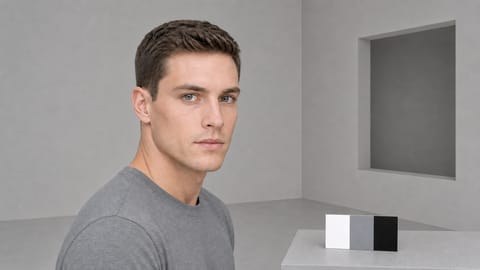
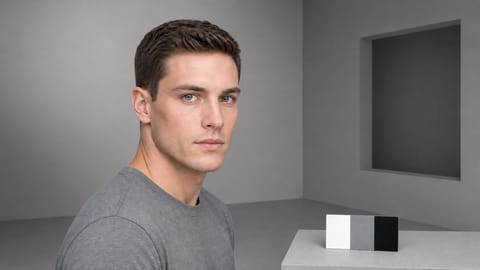
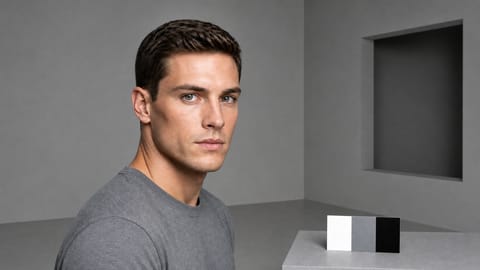
Four styles, one portrait
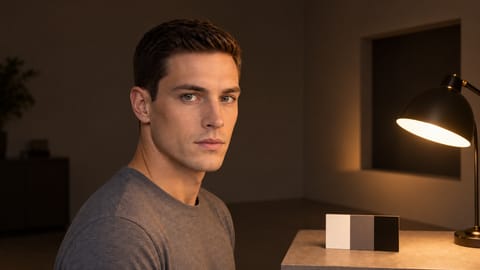
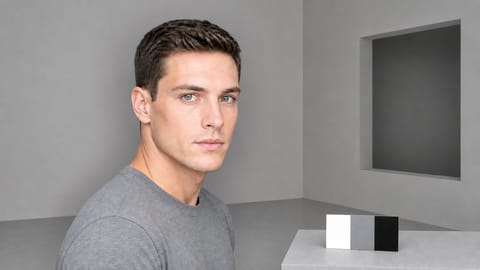
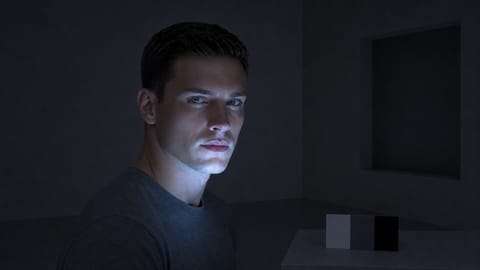
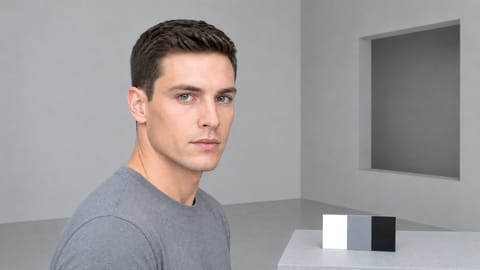
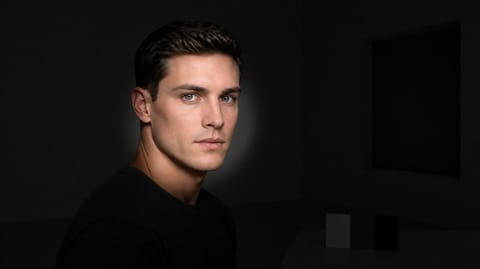
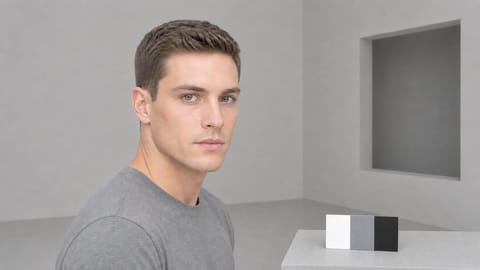
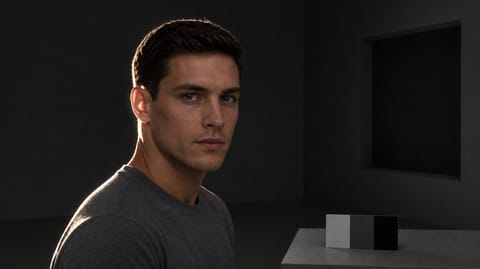
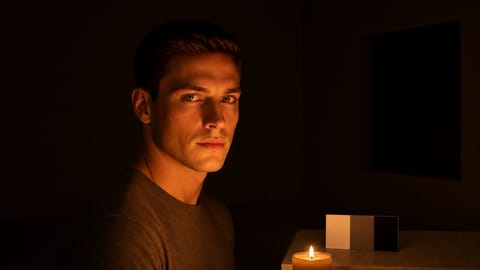
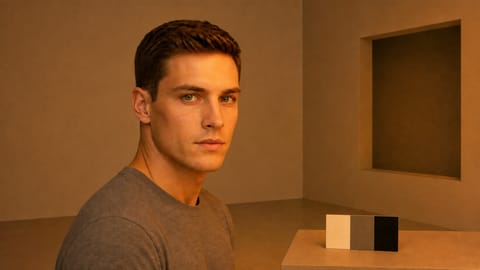
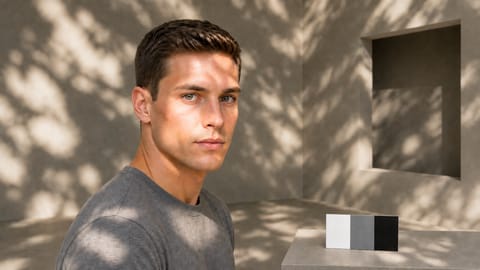
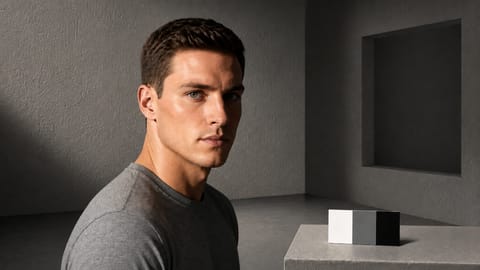
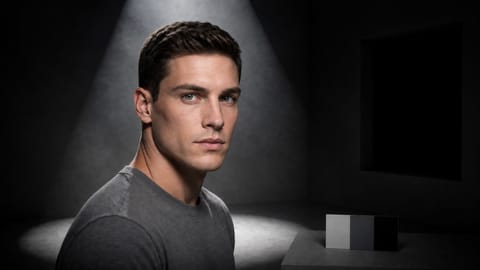
Each portrait below comes from the same workflow: one prompt, one character board connected to References, and GPT Image 2 in Generate Image. Only the Style of the Lighting picker changes, with the prompt hint on Full. Under each image is the exact text the picker added to the end of the prompt.
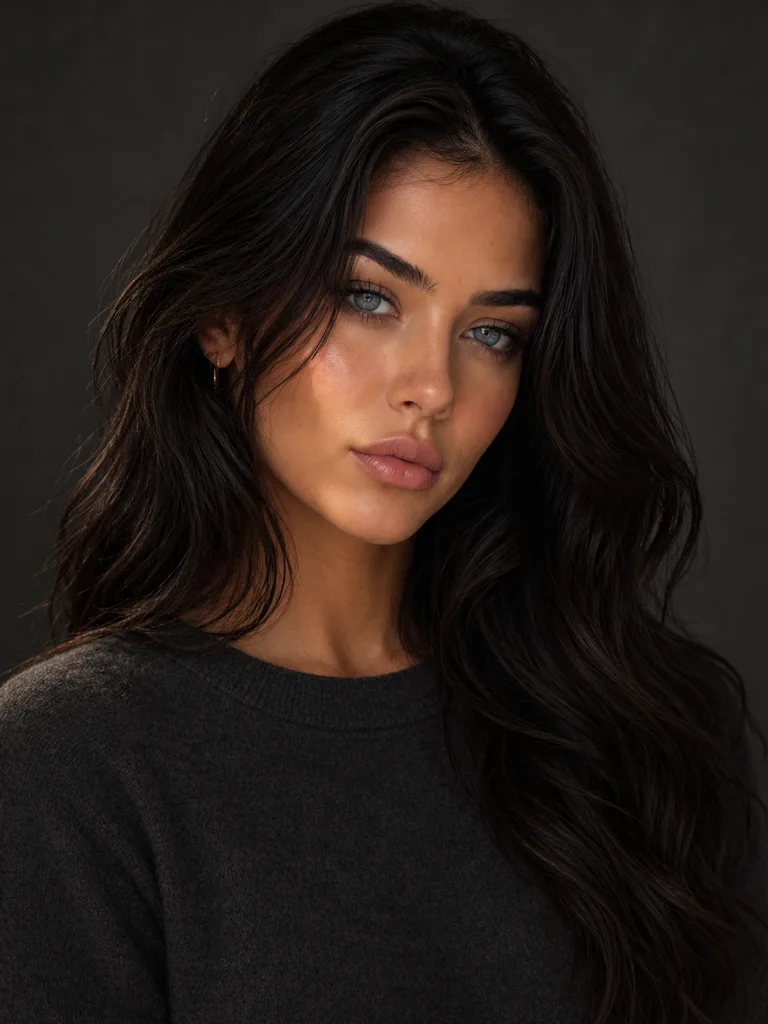
Rembrandt lighting, distinctive triangle of light on the shadow-side cheek, painterly chiaroscuro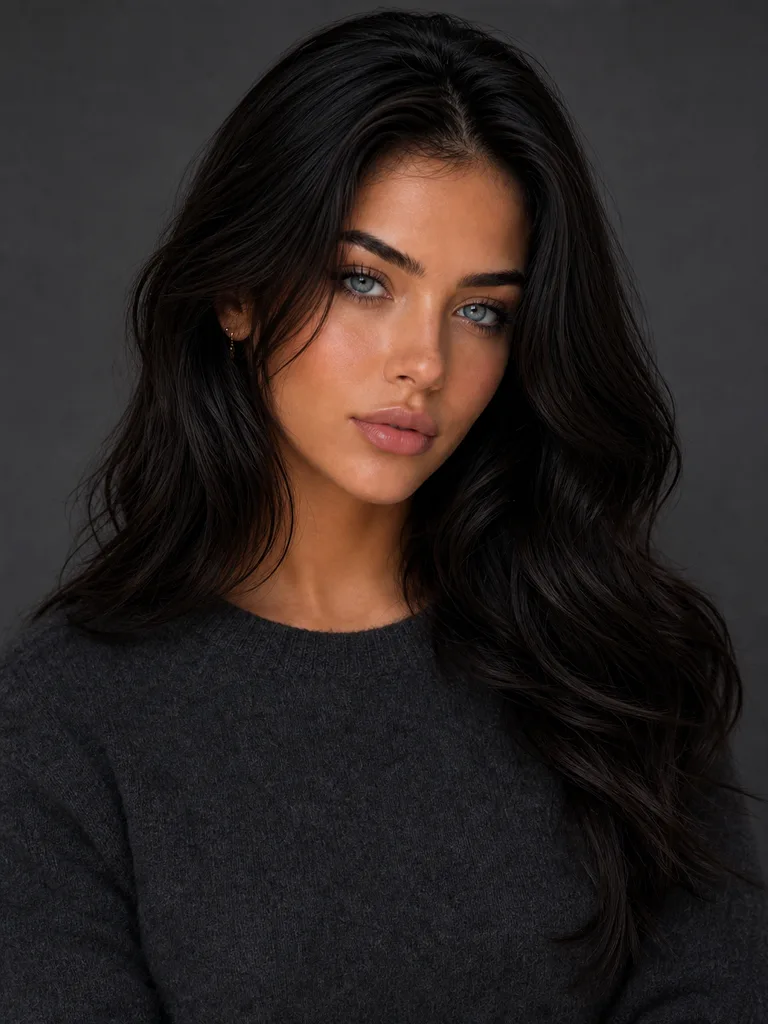
butterfly portrait lighting, key light placed directly above and slightly in front of the subject casting a small symmetrical butterfly-shaped shadow under the nose, classic Hollywood glamour with even illumination across both cheeks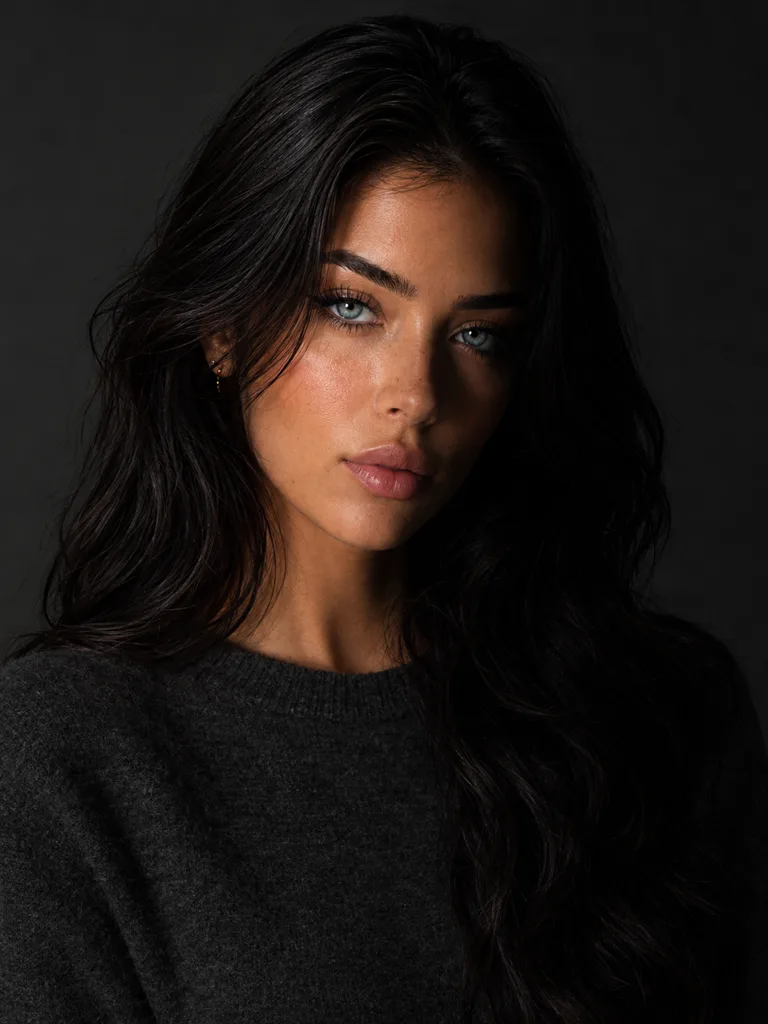
split lighting, light hitting only one half of the face with the other half in deep shadow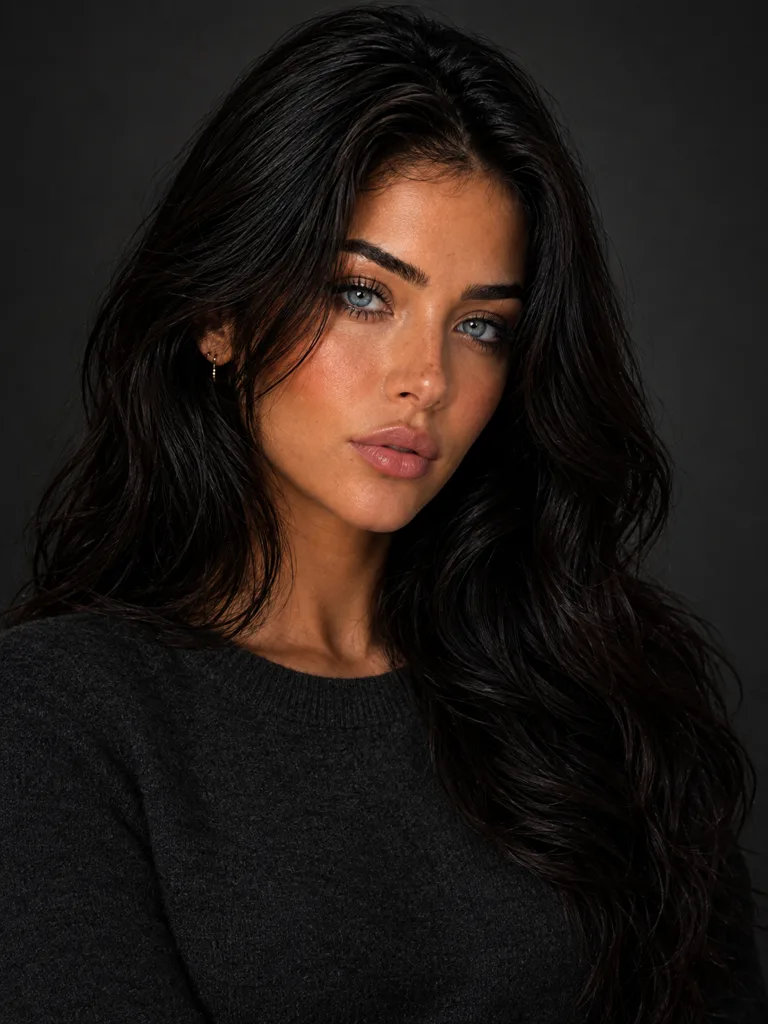
chiaroscuro lighting, dramatic strong contrast between deep shadows and bright highlightsThe character board keeps the face the same in all four, so the light is the only thing that changes. Split gives the clearest change, while Rembrandt and Chiaroscuro come out close to each other. For deeper shadows with any style, also turn on Lighting Ratio and choose a higher ratio.
Every lighting option
Filter by part of the light, or search by name. The words under each name are the term the picker adds in Compact mode.
Time of Day · 15 options
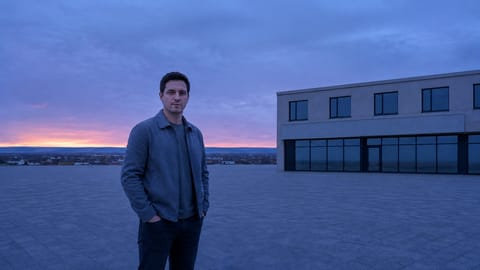 Dawndawn lighting
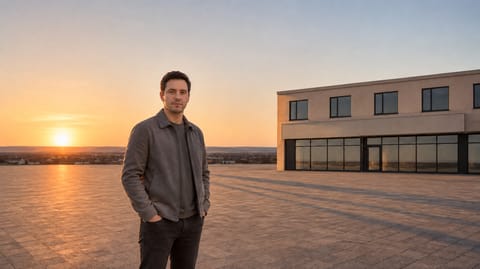 Sunrisesunrise lighting
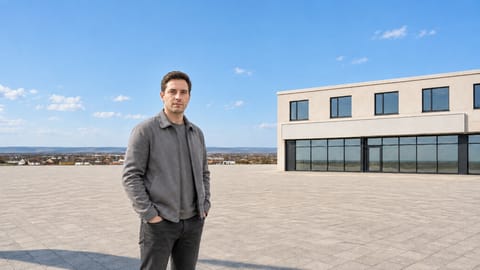 Morningmorning lighting
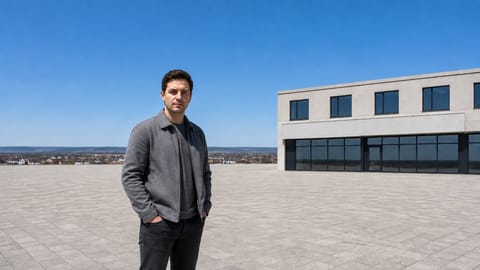 Noonoverhead noon sun
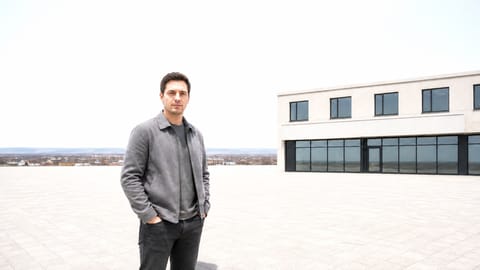 Harsh Middayharsh midday sun
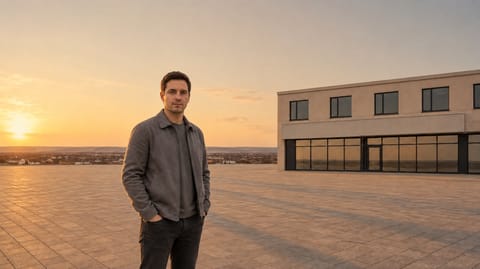 Afternoonafternoon lighting
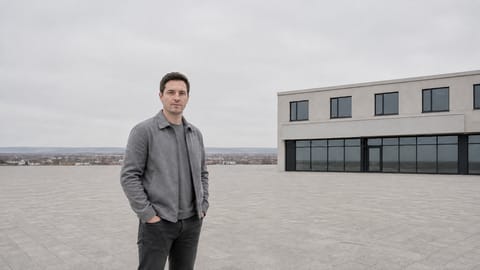 Overcastovercast daylight
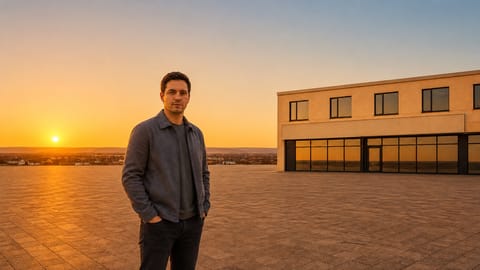 Golden Hour
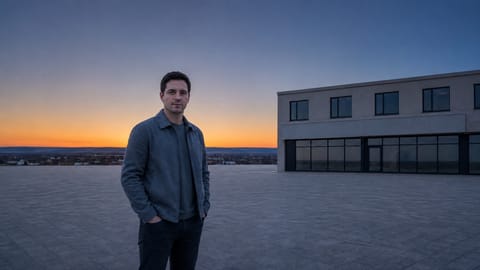 Duskdusk lighting
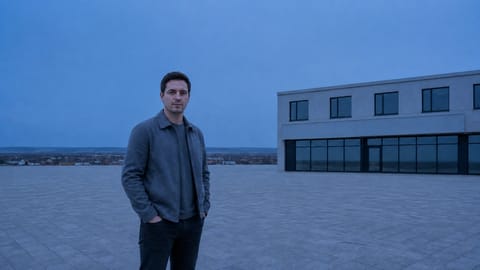 Blue Hour
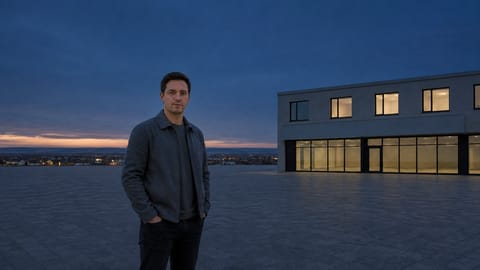 Twilighttwilight lighting
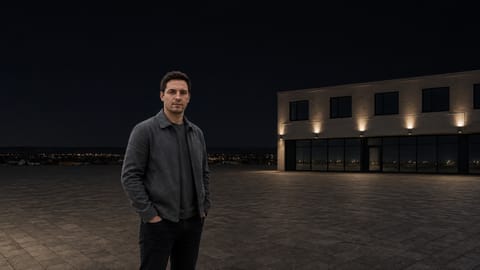 Nightnight lighting
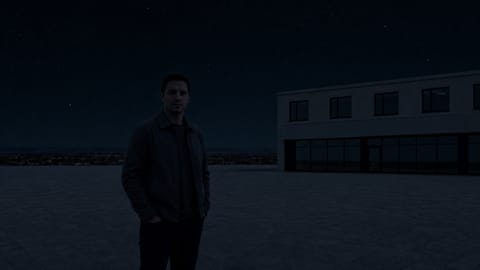 Midnightmidnight lighting
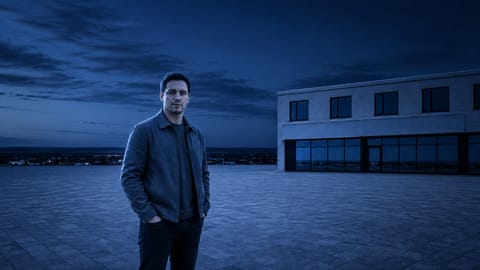 Moonlightcool blue moonlight
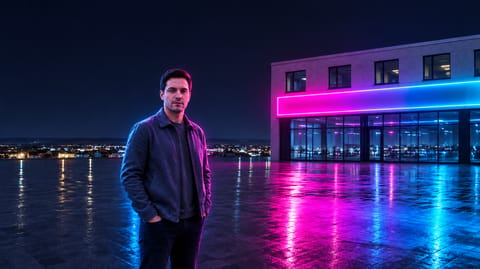 Neon Nightneon night lighting
Style · 37 options
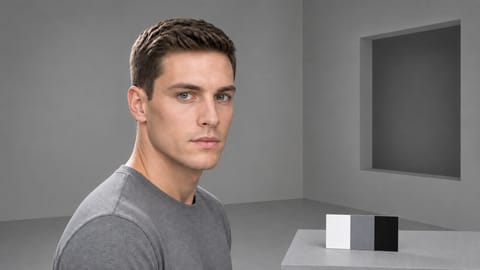 Three-Pointthree-point lighting
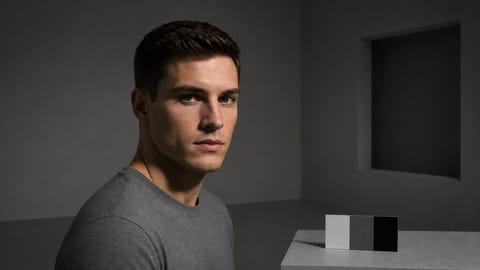 Rembrandtrembrandt lighting
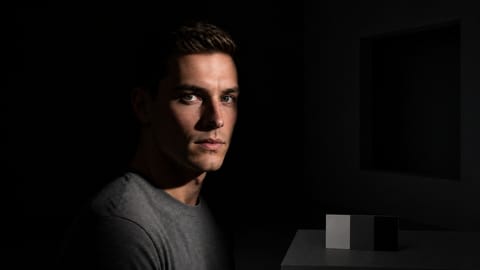 Chiaroscurochiaroscuro lighting
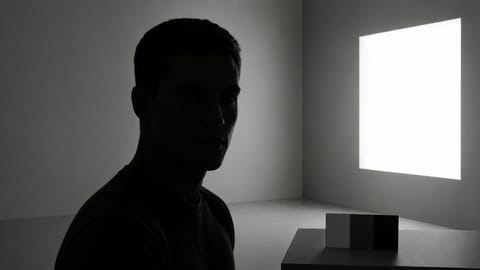 Silhouettesilhouette lighting
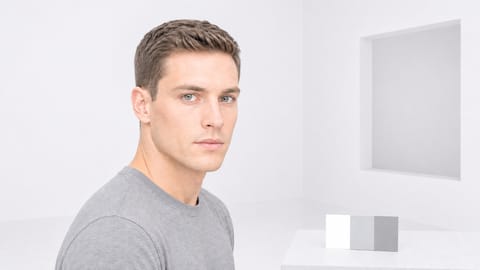 High-Keyhigh-key lighting
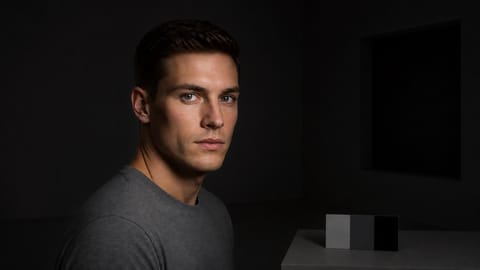 Low-Keylow-key lighting
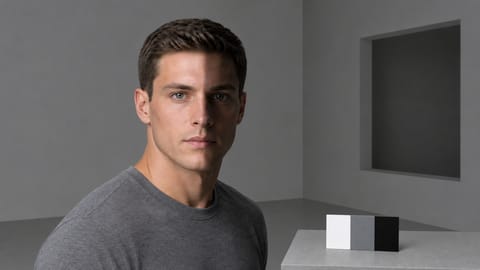 Splitsplit lighting
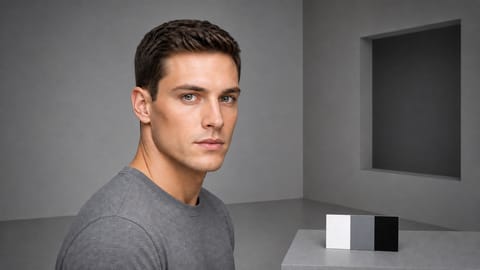 Butterflybutterfly lighting
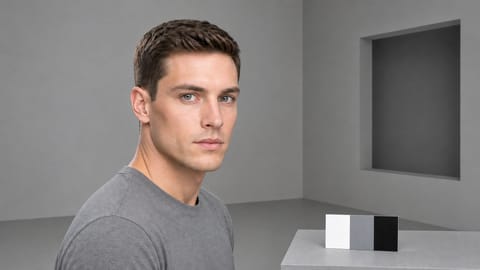 Looploop lighting
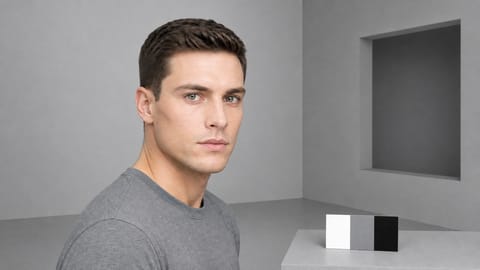 Broadbroad lighting
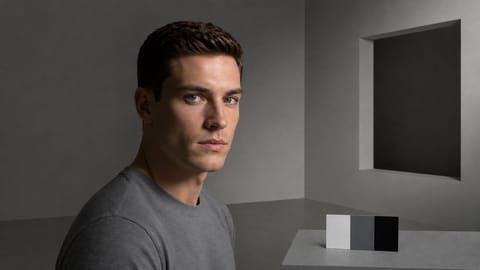 Shortshort lighting
 Hatchethatchet lighting
 Clamshellclamshell lighting
 Hardhard light
 Softsoft diffused light
 Practicalpractical lighting
 Ring Light
 Phone Screen Glow
 Selfie Naturalnatural window-light selfie
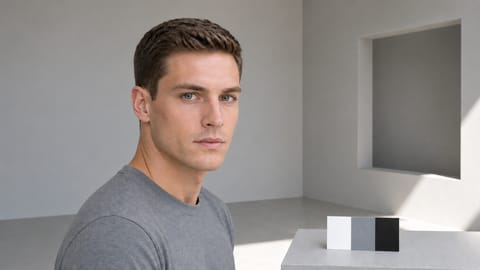 Naturalnatural available light
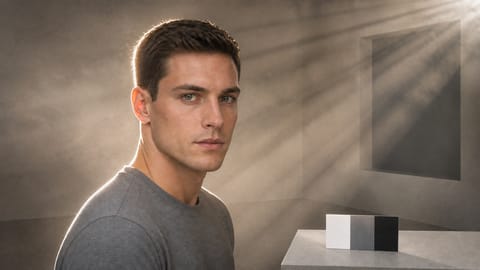 Volumetricvolumetric lighting
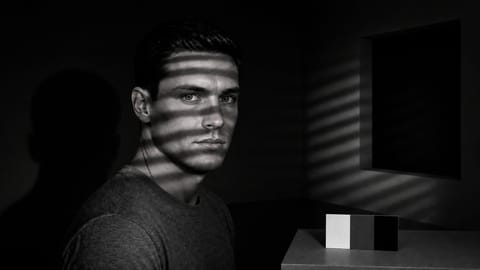 Noirfilm noir lighting
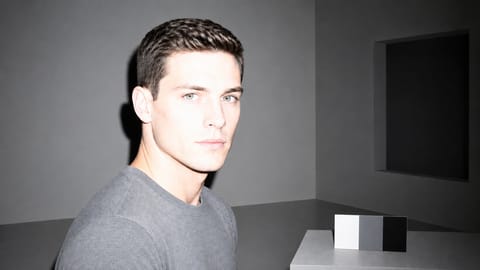 On-Camera Flash
 Mirror-Bounce Flashmirror-selfie flash
Direction · 8 options
- Frontfront lighting
- 3/4 Lightthree-quarter key light
- Sideside lighting
- Back / Rimrim backlight
- Silhouette Backlight
- Top / Overheadoverhead top light
- Under / Uplightuplighting from below
- Windowwindow light
Lighting Ratio · 6 options
- 1:11:1 lighting ratio
- 1:21:2 lighting ratio
- 1:31:3 lighting ratio
- 1:41:4 lighting ratio
- 1:81:8 lighting ratio
- 1:161:16 lighting ratio
Color Temperature · 6 options
- 2700K Candle2700k candlelight color temperature
- 3200K Tungsten3200k tungsten color temperature
- 4000K Mixed4000k neutral white color temperature
- 5600K Daylight5600k daylight color temperature
- 6500K Overcast6500k overcast color temperature
- 9000K Shade9000k open-shade color temperature
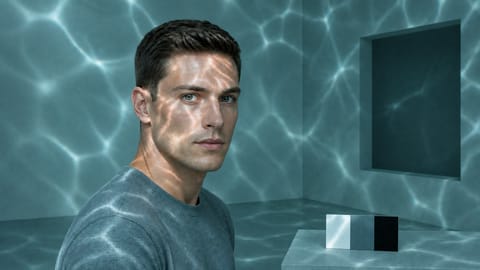
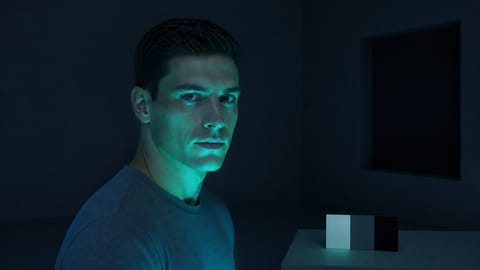
On Nodaro Cloud, the Time of Day and Style tiles show the same base image under that light. A switch beside the picker's heading changes them to drawn illustrations. Self-hosted installs show the illustrations only.
Tips
- Classic portrait setups. Rembrandt, Split, Loop, Butterfly and Clamshell are the classic studio portrait styles.
- A classic hero look. Combine Golden Hour with the Kicker / Rim Accent style.
- A noir feel. Combine the Low-Key and Practical styles, or choose Noir.
- Light the air, too. Atmosphere adds Fog, Mist or God Rays. Fog with a Back / Rim direction turns the subject into a silhouette.
- Finish the look. Add Color / Look for the grade and Mood for the emotion.
Frequently asked questions
Related
Creative Controls
Color / Look
Atmosphere
Mood
Generate Image
Last updated on
Exposure Settings
Set the aperture, shutter speed and ISO of an AI image or video from 20 options, for a soft background, frozen action, light trails or film grain.
Color / Look
Pick one of 41 color grades, such as Teal & Orange, Kodak Portra or Bleach Bypass, and Nodaro adds that grade to the prompt of your image and video nodes.