
 Nodaro Docs
Prompt
Generate, rewrite or summarize text with Gemini, Claude, GPT or Grok. Add instructions, images, video or audio, and split the answer into items.
The Prompt node sends your text to an AI language model and returns the model's answer as text. Use it to write, rewrite, summarize, translate or describe. Choose a model, write instructions and a request, and wire the answer into any node that accepts text. The node was called Generate Text before September 2026. Workflows that contain the older AI Agent node (type ai-writer) open with a Prompt node in its place.
When to use it
- Write or rewrite text: captions, scripts, product descriptions, headlines, translations.
- Turn one idea into several image prompts, and generate one image per prompt.
- Describe or summarize a connected image, video or audio clip.
- Summarize or rewrite content from Web Scrape, Telegram Channel Feed or Transcribe.
- Return structured data, such as JSON, for Extract Field.
Quick start
Add the node
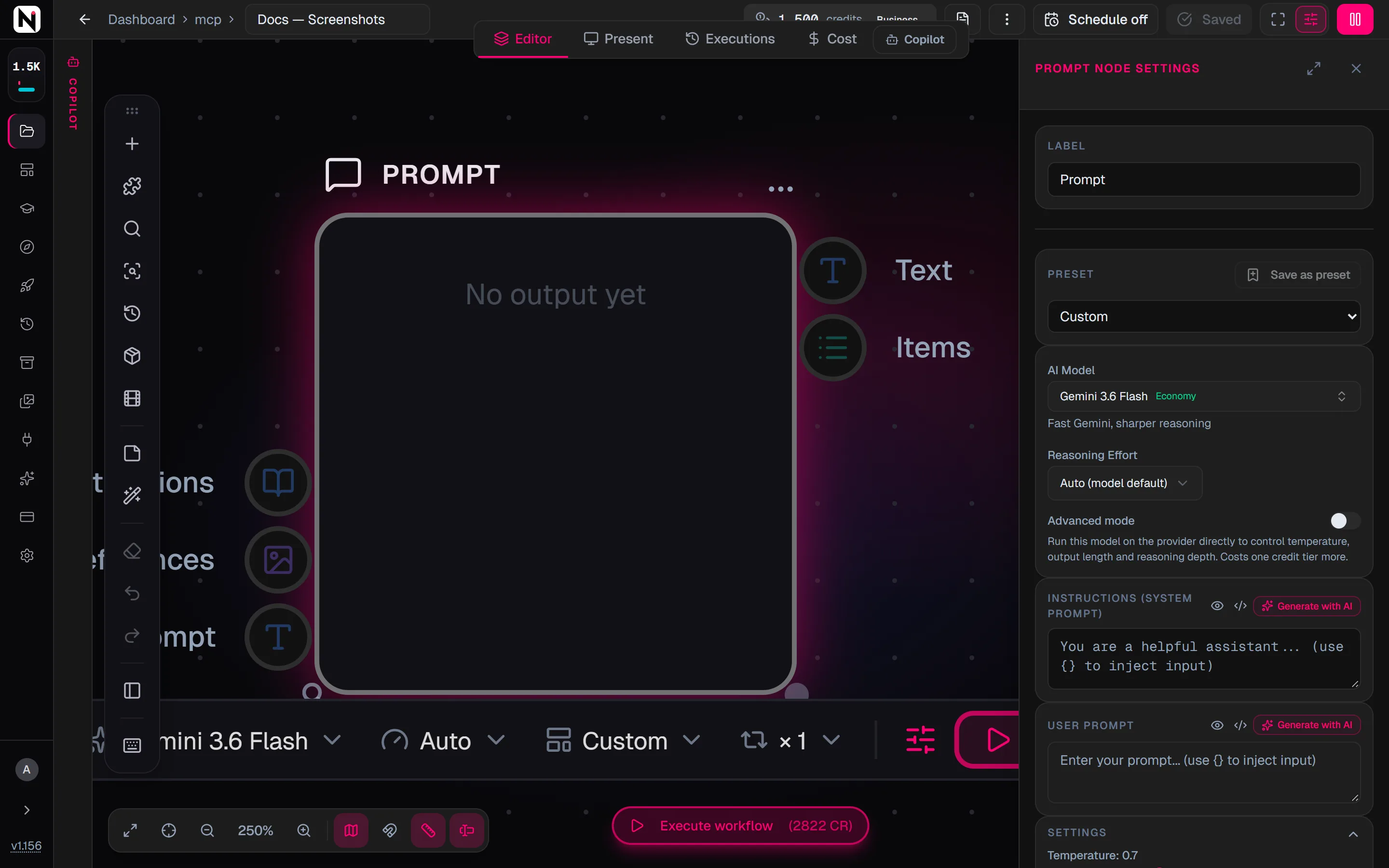
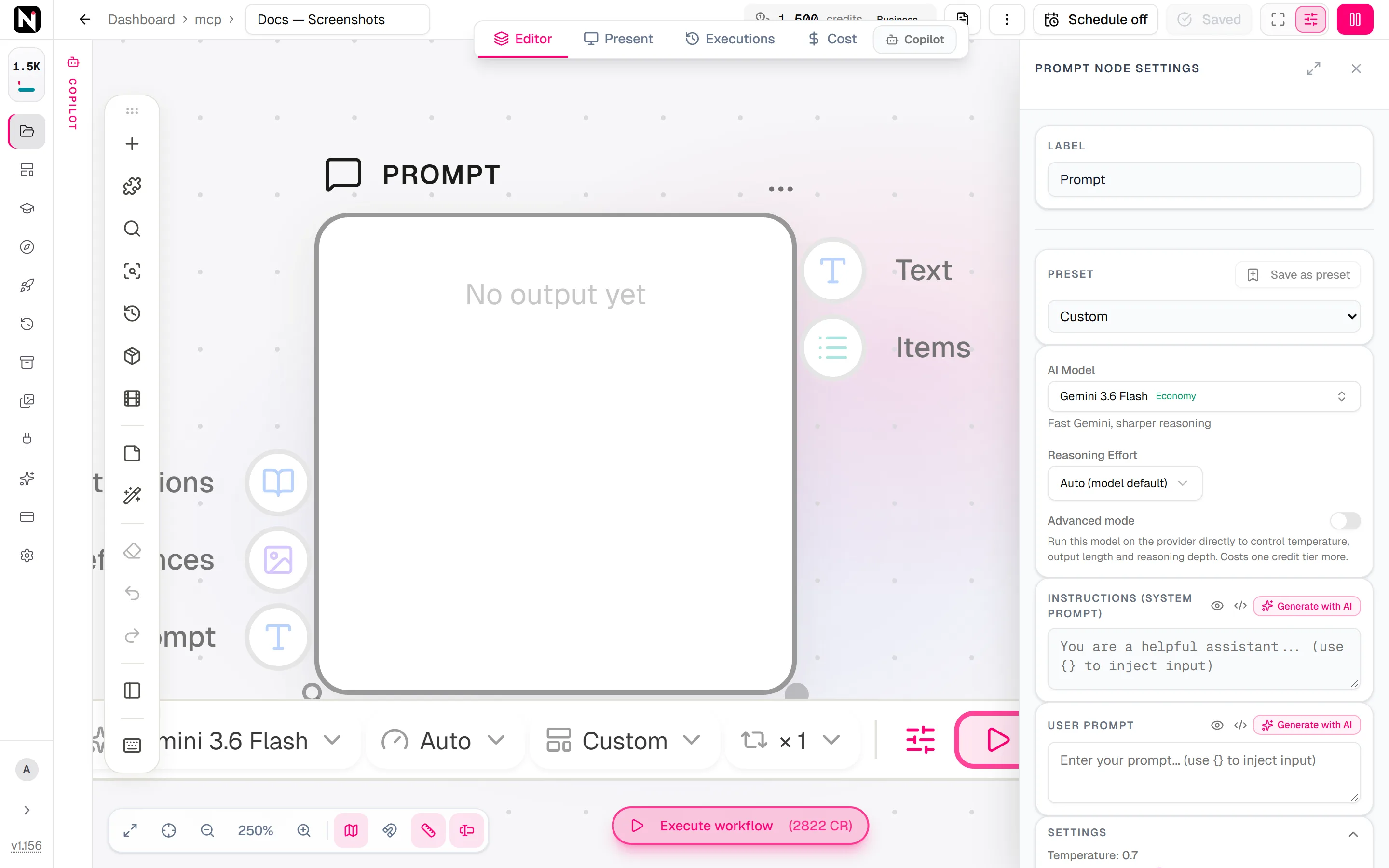
Press Tab on the canvas and choose Automate › Text › Prompt. The Prompt node is also on the Common tab.
Choose a model
Open the settings panel and choose a model under AI Model. The default, Gemini 3.6 Flash, costs 1 credit per run and suits most rewriting and captioning.
Write the instructions and the request
Under Instructions (System Prompt), say how the model should answer: its role, the tone, the length, the format. Under User Prompt, write the request itself. You can also wire a Text node into the Prompt input instead.
Run it
Click Run on the node. The answer appears on the node while the model writes it, and every earlier answer stays available on the node.
Inputs
The Prompt node has three inputs on its left edge.
| Input | Accepts | What it does |
|---|---|---|
| Prompt | Text nodes, such as Text, Combine Text and Split Text, pickers, and the JSON of Web Scrape | The request. It is used when User Prompt is empty. |
| References | Image, video, audio and text nodes | Media for the model to look at or listen to, for example "describe this image". A connected text is added to the prompt as extra context. Video and audio need a model that accepts them, see Models. |
| Instructions | Text nodes | The instructions. They are used when Instructions (System Prompt) is empty. |
When a field has typed text and its input is also connected, the typed text wins. To use both, write {} in the typed text where the text of the Prompt input should go.
The node has two outputs:
| Output | Carries | Use it to |
|---|---|---|
| Text | The whole answer as one text. Any ===NEXT=== markers stay in it. | Feed the whole answer to Combine Text, a publishing node or a second Prompt node. |
| Items | The answer split at every ===NEXT=== marker, one item per part. With no marker, it holds one item. | Run the next node once per item, for example one image per prompt. |
Settings
| Setting | What it does |
|---|---|
| Preset | Custom (the default) for your own instructions, a built-in preset, or one of your saved presets. See Presets. |
| AI Model | The language model. The default is Gemini 3.6 Flash. Search the list by name, company or tier. |
| Reasoning Effort | How much the model reasons before it answers: Auto (model default), None — no reasoning, Low, Medium, High, Very high (may bill one tier up) or Max (may bill one tier up). Each model offers its own levels, and the control is hidden for models that have none. |
| Advanced mode | Gemini models only. Runs the model directly with its maker, so that Temperature, Max Tokens and every reasoning level take effect. Costs one credit tier more. |
| Instructions (System Prompt) | Optional instructions that guide the answer: role, tone, length, format and rules. |
| User Prompt | The request. It can contain variables, such as {Product}. |
| Temperature | From 0 to 2. The default is 0.7. Lower values give steadier, more factual answers, and higher values give more varied ones. Some models ignore it, see Models. |
| Max Tokens | The longest answer the model may write, in tokens. The default is 8,192. See When the answer is cut off. |
| References | Media you add by public URL instead of by connection: up to 5 images, and on models that accept them up to 3 videos and 3 audio clips. |
| Number of runs | How many answers one click of Run produces, from 1 to 4, in the toolbar under the node. Each answer is charged. |
| Pre & post text | Text that is always added before and after the request, never to the instructions. It is hidden from people who use your workflow as an app. See Prompt pre and post text. |
The toolbar under the node repeats the most used settings: the model, the reasoning effort, the preset and the number of runs.
Models
The Prompt node can run the language models below. The AI Model picker in the settings panel always shows the current list.
| Model | Maker | Tier | Credits per run | References it reads |
|---|---|---|---|---|
| Gemini 3 Flash | Economy | 1 | Image, video, audio | |
| Gemini 3.6 Flash (default) | Economy | 1 | Image, video, audio | |
| Gemini 3.7 Flash | Economy | 1 | Image | |
| Gemini 3.8 Flash | Economy | 1 | Image | |
| Claude Haiku 4.5 | Anthropic | Economy | 1 | Image |
| GPT-5.6 Luna | OpenAI | Economy | 1 | Image |
| Claude Sonnet 4.6 | Anthropic | Standard | 2 | Image |
| Claude Sonnet 5 | Anthropic | Standard | 2 | Image |
| GPT-5.2 | OpenAI | Standard | 2 | Image |
| GPT-5.6 Terra | OpenAI | Standard | 2 | Image |
| Grok 4.6 | xAI | Standard | 2 | Image |
| Gemini 3.1 Pro | Premium | 6 | Image, video, audio | |
| Claude Opus 4.7 | Anthropic | Premium | 6 | Image |
| Claude Opus 4.8 | Anthropic | Premium | 6 | Image |
| Claude Opus 5 | Anthropic | Premium | 6 | Image |
| Claude Fable 5 | Anthropic | Premium | 6 | Image |
| GPT-5.4 | OpenAI | Premium | 6 | Image |
| GPT-5.5 | OpenAI | Premium | 6 | Image |
| GPT-5.6 Sol | OpenAI | Premium | 6 | Image |
| GPT-6 Astra | OpenAI | Premium | 6 | Image |
- Video and audio. Only Gemini 3 Flash, Gemini 3.6 Flash and Gemini 3.1 Pro read video and audio references. With any other model, a connected video or audio reference is ignored.
- Temperature. These models ignore Temperature: Claude Opus 4.7, Claude Opus 4.8, Claude Opus 5, Claude Sonnet 5, Claude Fable 5, GPT-5.5, GPT-5.6 Luna, GPT-5.6 Terra, GPT-5.6 Sol, GPT-6 Astra and Grok 4.6.
- Reasoning Effort. Gemini 3 Flash, Gemini 3.1 Pro, Claude Haiku 4.5 and GPT-5.2 have no effort levels. The two Gemini models gain levels in Advanced mode. Gemini 3.6 Flash, Gemini 3.7 Flash and Gemini 3.8 Flash offer Low and High, and more levels in Advanced mode.
Which model to choose
- Economy models are plenty for rewriting, captions, translations and image descriptions. Start with the default, Gemini 3.6 Flash.
- Standard and premium models are worth their price for long, complex writing and for reasoning over many rules.
- For a video or audio clip, choose Gemini 3 Flash, Gemini 3.6 Flash or Gemini 3.1 Pro.
Choose the cheapest model that meets your quality bar, and compare two models on the same request before a large batch.
Credits
The price of a run depends on the tier of the model:
| Tier | Credits per run |
|---|---|
| Economy | 1 |
| Standard | 2 |
| Premium | 6 |
- Very high and Max bill one tier up. An economy model bills 2 credits, and a standard model bills 6. A premium model stays at 6. High and the lower levels never change the price.
- Advanced mode bills one tier up. A Gemini Flash model bills 2 credits in Advanced mode. Gemini 3.1 Pro stays at 6.
- Number of runs multiplies the price. Four runs of a standard model cost 8 credits, and the Run button shows the total.
- A failed run is refunded, including an answer that was cut off.
For example, GPT-5.6 Luna at Max costs 2 credits, GPT-5.6 Terra at Very high costs 6 credits, and Claude Sonnet 5 at High costs 2 credits.
Split the answer into items
The Prompt node can turn one request into many downstream runs. Ask the model to separate the parts of its answer with a line that reads ===NEXT===, for example: "Write 4 image prompts for this product. Separate them with ===NEXT===." The Items output splits the answer at each marker, and a node connected to Items runs once per item.
After a run, the settings panel also lists the items under Generated Prompts, with two buttons for working on the canvas by hand:
- Create N Image Nodes adds one Generate Image node per item, already connected and filled with its prompt.
- Generate All N Images runs every node that the first button created.
Use these buttons while you explore. For a workflow that runs on its own, connect the Items output instead.
Presets
A preset sets the instructions and the output format.
| Preset | What it writes | Needs a reference image |
|---|---|---|
| Custom | Anything: you write the instructions yourself | No |
| Photo Shoot Planner | A series of image prompts for a photo shoot, with scenes, poses, lighting and wardrobe | Yes |
| Product Catalog Writer | Image prompts for e-commerce product photos | Yes |
| Storyboard Writer | Scene-by-scene image prompts for a video | Yes |
The three writers separate their prompts with ===NEXT===, ready for the Items output. They need a reference image, such as an Upload Image or a Generate Image node, connected to References. Without one, the panel shows a warning and the node refuses to run.
To keep your own instructions, click Save as preset. When one of your presets is selected, Update saves your changes into it, and the delete button removes it. Your presets also appear in Settings. Read more in Presets.
Use variables in the prompt
You can put the value of another node in User Prompt or Instructions (System Prompt) by writing its label in curly braces. {Product} becomes the text of a node labeled Product, and {Mood} becomes whatever the Mood picker is set to.
- A default value.
{tone || friendly}uses the connected node labeled tone when there is one, and the word "friendly" when there is not. - The connected input.
{}inserts the text that arrives on the Prompt input at that point. - One run per item. When a list, such as the output of Split Text, arrives on the Prompt input, the node runs once per item. Each item replaces User Prompt. Put the task in Instructions (System Prompt), which applies to every item. Pre & post text also wraps every item.
- Highlighting. A variable is cyan when a matching node exists and amber when nothing provides it yet. Amber is only a warning: a variable with a default still works.
- A missing node stops the run. If a variable names a node that does not exist anywhere in the workflow, the run is refused before any credits are spent.
Read more in Prompt variables.
Ask for structured output
To use the answer as data, ask for a format in the instructions. For example, write "Answer only with a JSON object with the keys title, caption and hashtags". A low Temperature keeps the format steadier on the models that accept it.
On the node, the view button switches the answer between raw text and a rendered view. View as JSON shows valid JSON as a colored object, and View as Markdown renders any other answer. Connect the Text output to Extract Field to pull one field, such as caption, out of the JSON.
Read and reuse the result
The toolbar at the top of the result on the node has:
- The view button, to switch between raw text and the rendered view.
- Copy text and Download.
- Open log, the full log of every run, with the model and the preset of each.
- Show outputs, when the node has more than one result: a strip of numbered results to page through. The selected result is the one that the outputs pass on.
Each result names the model and the preset that produced it. Drag the magnifier at the bottom-left corner of the node to enlarge it for reading.
When the answer is cut off
If the model reaches Max Tokens before it finishes, the run fails with a "cut off" error and the credits are refunded. A partial answer is never saved or passed on. To fix it, ask for a shorter answer in the instructions, lower Reasoning Effort, or raise Max Tokens.
Some models always reason before they answer, and their reasoning counts toward Max Tokens. On these models, Nodaro raises a small Max Tokens value to a minimum, so that the answer keeps room:
| Models | Minimum Max Tokens |
|---|---|
| Claude Opus 5, Grok 4.6, GPT-6 Astra | 32,768 |
| Gemini 3.8 Flash, Gemini 3.1 Pro | 16,384 |
| Gemini 3 Flash, Gemini 3.6 Flash, Gemini 3.7 Flash | 8,192 |
Nodaro also raises a small Max Tokens value on any model set to Very high or Max.
Tips
- Put the rules in the instructions. Format, tone, length and "never" rules belong in Instructions (System Prompt), and the request belongs in User Prompt. Good instructions give more consistent answers.
- Adjust Temperature to the task. Keep 0.7 for most text, lower it for facts and structured output, and raise it for brainstorming.
- Compare answers side by side. Set Number of runs to 2 or more, then page through the results with Show outputs.
- Write reusable prompts once. Save instructions you use often with Save as preset, or keep a house style in Pre & post text.
Frequently asked questions
Related
Text
Split Text
Generate Image
Prompt variables
Extract Field
Last updated on
Split Text
Cut one text into a list of items at each new line, comma or custom separator, so the next node runs once for every item, such as one image per line.
List
Type or paste a list of prompts, or build a table with several columns, and every connected node runs once per row. The List node itself is free.