
 Nodaro Docs
Generate Video Pro
Make one long AI video from a prompt or a script. Generate Video Pro splits it into model-sized segments, renders them in order and stitches one clip.
Available on Nodaro Cloud
The Generate Video Pro node makes one long video from a prompt or a script. When you ask for more seconds than one model run can make, the node splits the request into model-sized segments, renders them one after the other and stitches them into a single clip. You choose the model, and each model brings its own segment lengths and resolutions.
Generate Video Pro runs on Nodaro Cloud. On a self-hosted install, the node shows a NODARO mark and runs through your Nodaro Cloud connection, billed to the connected account.
When to use it
- You need one continuous video longer than a single model run, for example a 60-second story or a full music clip.
- You have a long script, or the result of a Video Analysis, and want it split into shots that follow the text.
- You want to continue an existing clip for many more seconds. Connect it to Extend Source.
- You want to check how a long script will be split before you pay for video. Turn on Plan only.
For a single clip that fits in one run, use Generate Video. It costs less, because there is no stitching fee, and it has every mode, including video edits.
Quick start
Add the node
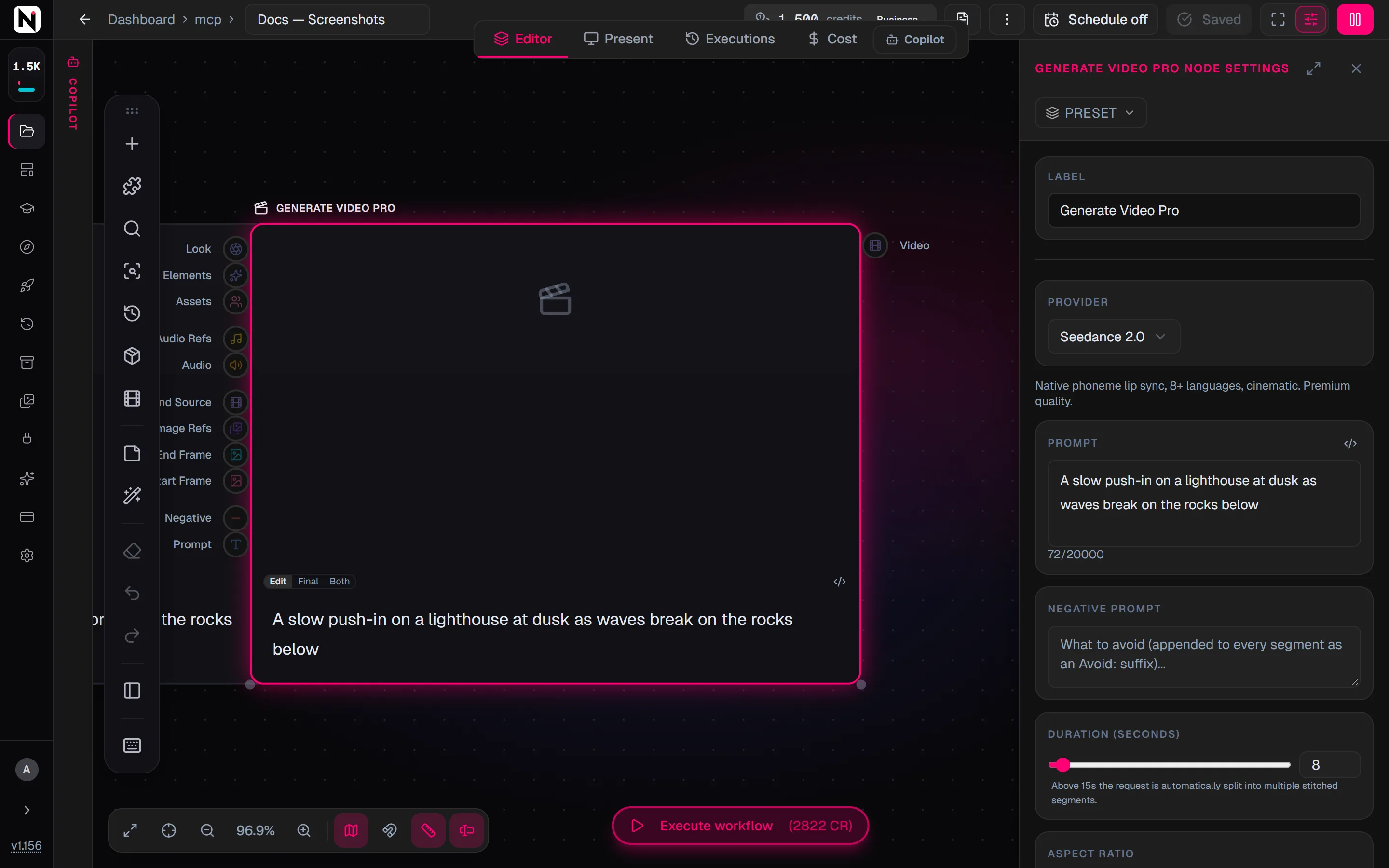
Press Tab on the canvas and choose Video › Create › Generate Video Pro.
Write the prompt or the script
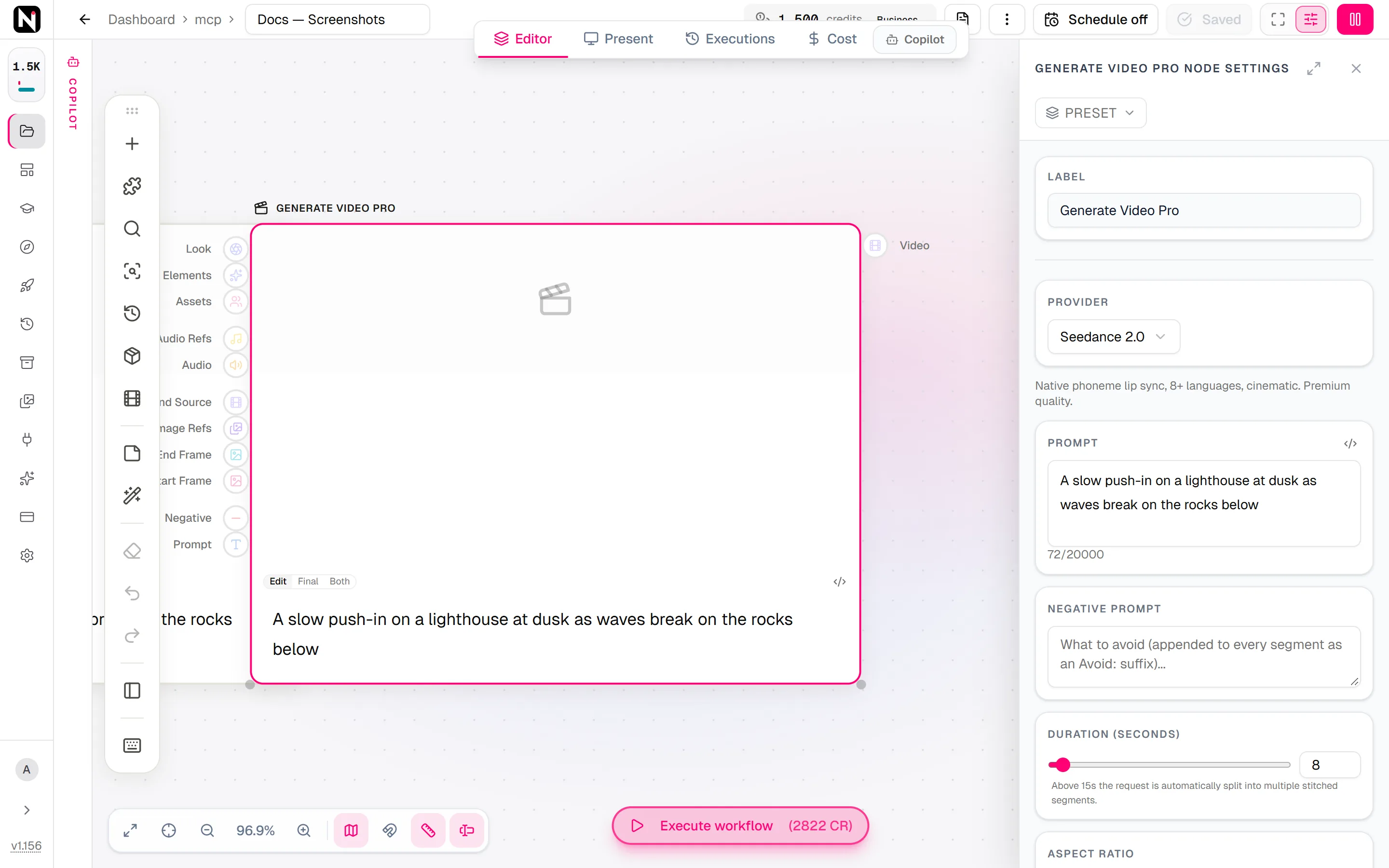
Type the prompt in the settings panel, or connect a Text or Generate Script node to Prompt. The prompt is used for the whole video, so describe everything that happens, in order.
Connect identities and an opening frame
Connect Character Asset and Location Asset nodes to Assets, so every segment keeps the same faces and places. Connect an image to Start Frame to fix the opening shot.
Set the model and the length
Choose a model under Provider and set Duration (seconds). The panel says above which length the video is split into segments for that model.
Run it
Click Run. The segments render one after the other, and the stitched video appears on the node when the last one is done.
How a long video is made
- One segment when it fits. Up to the model's single-clip limit, the node makes one normal clip, priced like one run of that model.
- A plan for longer videos. Above that limit, an AI planner splits your prompt into segments. It writes a prompt for each segment and decides, for each join, whether the shot continues or cuts to a new shot.
- Segments render in order. Each segment is generated after the previous one. A continuous join reuses the previous segment's last frame or its final seconds; a planned cut can open on a new shot.
- One stitched clip. The segments are joined into a single video. Each join loses about 0.3 seconds, so the finished video can be slightly shorter than the sum of the segments.
A continuation frame does not guarantee an invisible join. The video model can still change the framing, the pose or the motion. The prompt is used for every segment, so keep it true for the whole video, not only for the opening.
Segments chooses how the planner packs the video:
| Choice | What it does |
|---|---|
| Long | Longer segments that keep complete actions and scene changes together. |
| Short | Shorter segments, each ending at a complete action or a scene change. |
| Max (default) | The fewest segments the model allows. A segment may end in the middle of an action. |
With Long and Short, the cost first shows a reservation limit, because the planner has not chosen the lengths yet. The final charge follows the segments that are rendered.
Some models allow only a few lengths, for example 4, 6 or 8 seconds on VEO 3.1 and 6 or 10 seconds on Grok. On these models, the total snaps to the nearest length the model can produce, and the node tells you what you will get. A run can have at most 24 segments.
Inputs
Generate Video Pro has the same inputs as Generate Video. A few of them behave differently, because the video is made in several parts.
| Input | Accepts | What it does |
|---|---|---|
| Prompt | Text nodes and pickers | The prompt or script for the whole video. |
| Negative | Text nodes | What to avoid. It is added to every segment's prompt as an "Avoid:" line. |
| Start Frame | Image nodes | The opening frame of the first segment. It is ignored when a clip is connected to Extend Source. |
| End Frame | One image node | The closing frame of the last segment. |
| Image Refs | Image nodes, several at once | Reference images, used in every segment. |
| Extend Source | One video node | A clip to continue. The run starts from the end of this clip, the same way later segments continue from earlier ones. |
| Audio | One audio node | A soundtrack laid over the finished video at full volume. Generated sound is lowered to the background. |
| Audio Refs | Up to 3 audio nodes | Reference audio for the Seedance 2 family, used in every segment so that voice and music stay consistent. |
| Assets | Character, Location, Object, Animal/Creature and Create Face nodes | Identities used in every segment. @ mentions work as in Generate Video. A single mentioned asset stays a reference; it does not become the start frame. |
| Look | Camera and look pickers | Each picker adds its wording to the prompt. |
| Elements | Subject pickers | Each picker adds its wording to the prompt. |
The output, Video, is the URL of the stitched video.
Settings
| Setting | What it does |
|---|---|
| Provider | The video model. New nodes start on Seedance 2.0. |
| Prompt | The prompt or script, when nothing is connected to the Prompt input. |
| Negative Prompt | What to avoid, added to every segment. |
| Duration (seconds) | The total length, from 4 to 120 seconds. The default is 8 seconds. |
| Aspect Ratio | The shape of the video. Adaptive (the default) matches the connected input. The choices depend on the model. |
| Resolution | The output resolution. New nodes use 720p. |
| Generate Audio (default on) | Whether the model makes sound. |
| No background music (add later) | Asks the model for no music, so that you can add your own later. |
| Render method | Keyframes (scene anchors) or Extend (video chain). New nodes use Keyframes. See Render method. |
| Anchor frames | With Keyframes only: how much each shot is pinned to generated stills. New nodes use Start frame only. See Anchor frames. |
| Planner model | The AI model that plans the segments. New nodes use Claude Fable 5. You can choose any text model to trade speed against planning quality. |
| Planner style | How the planner treats your script. See Planner style. |
| Segments | Long, Short or Max. See How a long video is made. |
| Plan only | Returns the segment plan without generating video. See Plan only. |
| Pre & post text | Text always added before and after the prompt. See Prompt pre and post text. |
More settings appear for specific render methods. The panel marks some of them as experimental.
| Setting | What it does |
|---|---|
| Continuation context (seconds) | With Extend only. How much of the previous segment each continuation sees, 2 seconds by default. Raise it for slow camera moves or music-timed motion; each extra second adds a small cost per join. Values above 5 seconds can exceed the model's reference-video limit and fail a join. |
| Rolling references | With Extend only, experimental. When a character comes back after being off screen, its last-seen shot is added as a reference, so its look and position carry over. |
| Audio context tail | With Extend, generated audio and a model that accepts audio references. Experimental. Each continuation also hears about the last 8 seconds of the soundtrack, so music continues instead of drifting. It is hidden when Audio Refs is connected. |
| Overlap anchor | With Extend and Max only, experimental. Last frame (the default) continues from the very end of the previous segment. Last keyframe makes the model replay a short overlap first, and the stitch removes the repeat. Off turns it off. |
| Clean word cut | With Extend and Max only, experimental. Each segment is made one second longer, then cut at the nearest gap between sung or spoken words, so a join never cuts a word. Billing stays on the planned lengths. |
| Smart cut | How each join is cut. See Smart cut. |
| Best-pair search window (frames) | How many frames the join matcher compares: From previous end and From next start, 1 to 24 each. Blank means 8 × 8. |
| Shot timestamps | Adds each beat's time range to the segment prompts of the Hybrid and Condensed planner styles, which leave times out by default. |
| Auto-cast from analysis | Experimental, off by default. When the script is a Video Analysis result with reference frames for its characters, those frames are added as identity references, after your own images and within the model's limit. |
| Preferred segment length (s) | Kept for older nodes: segments are cut near this length, 4 to 15 seconds. Choosing Long, Short or Max replaces it. |
Models
Generate Video Pro offers every video model that accepts a start image together with reference images. VEO 3.1 Quality is not offered, because it has no reference mode; use VEO 3.1 Fast or Lite, or a single Generate Video run for a Quality clip.
| Model | Maker | Modes | Credits | Details |
|---|---|---|---|---|
| minimax-h3 | MiniMax | Image to video, Text to video | from 230 | MiniMax Hailuo 3 — premium multimodal tier: first/last frame + image/video/audio references, native audio, 2K (default) or 768P output, 4-15s per-second pricing. |
| VEO 3.1 Fast | Image to video, Text to video | from 150 | VEO 3.1 Fast — cheaper VEO 3.1 tier, 4/6/8s with audio. Good balance for most uses. Flat per-generation pricing across durations. | |
| VEO 3.1 Lite | Image to video, Text to video | from 75 | VEO 3.1 Lite — most cost-effective VEO tier for high-volume generation. 4/6/8s with audio, supports first+last frame. | |
| Gemini Omni | Image to video, Text to video | from 230 | Google multimodal video with native audio; text/image-to-video + video-edit. | |
| Gemini Omni Flash | Image to video, Text to video | from 160 | Google Gemini Omni Flash — faster/cheaper Omni tier: multimodal video with native audio, text/image-to-video + video-edit. | |
| Grok Imagine (I2V) | xAI | Image to video | from 50 | Grok image-to-video — stylized motion. Up to 15s. |
| Seedance 2 | Bytedance | Image to video, Text to video | from 230 | Seedance 2 — premium tier with native audio. Per-second pricing by resolution. |
| Seedance 2 Fast | Bytedance | Image to video, Text to video | from 180 | Cheaper / quicker Seedance 2 tier. |
| Seedance 2 Mini | Bytedance | Image to video, Text to video | from 120 | Budget Seedance 2 tier — 480p/720p only, per-second pricing by resolution. |
| Seedance 2.5 | Bytedance | Image to video, Text to video | from 340 | Seedance 2.5 — up to 30s in one shot, native audio, wide multimodal references. 480p/720p/1080p. |
| Wan 3.0 | Alibaba | Image to video, Text to video | from 160 | Wan 3.0 — multimodal: first/last frame or image/video/audio references, native audio, 2-30s at 480p/720p/1080p. |
| Wan 3.0 Prime | Alibaba | Image to video, Text to video | from 250 | Wan 3.0 Prime — Alibaba's high-speed Wan 3.0 tier: same multimodal surface and 2-30s range, faster turnaround at a higher per-second rate. |
| HappyHorse 1.1 Ref2V | HappyHorse | Image to video | 282 | HappyHorse 1.1 reference-to-video — 1–9 reference images, 3–15s at 720p/1080p, per-second pricing. |
| Model | Segment lengths | Resolutions | Render methods |
|---|---|---|---|
| Seedance 2 | 4–15 s | 480p, 720p, 1080p, 4K | Keyframes, Extend |
| Seedance 2 Fast | 4–15 s | 480p, 720p | Keyframes, Extend |
| Seedance 2 Mini | 4–15 s | 480p, 720p | Keyframes, Extend |
| Seedance 2.5 | 4–30 s | 480p, 720p, 1080p | Keyframes, Extend |
| Hailuo 3 (minimax-h3) | 4–15 s | 2K, 768P | Keyframes, Extend |
| VEO 3.1 Fast and VEO 3.1 Lite | 4, 6, 8 s | 720p, 1080p, 4K | Keyframes |
| Gemini Omni and Gemini Omni Flash | 4, 6, 8, 10 s | 720p, 1080p, 4K | Keyframes |
| Grok Imagine (I2V) | 6, 10 s | 480p, 720p | Keyframes |
| Wan 3.0 and Wan 3.0 Prime | 2–30 s | 480p, 720p, 1080p | Keyframes |
| HappyHorse 1.1 Ref2V | 3–15 s | 720p, 1080p | Keyframes |
For exact scene timing, choose a model with a continuous range of lengths: the Seedance 2 family, Hailuo 3 or Wan 3.0. A workflow saved with a model that is no longer offered keeps running, and the panel switches it to Seedance 2.0 the next time you open it.
Render method
Render method decides how the segments are produced. It does not change the split itself.
Keyframes (scene anchors)
Each segment is rendered from anchor frames instead of from the previous segment's video. This is the default for new nodes, and the only method on models without a reference-video mode.
- Continuous shots reuse their boundary frame. The last frame of the delivered segment becomes the next segment's opening anchor, without being redrawn.
- Planned cuts stay cuts. A new camera setup, scene or time of day gets its own anchor.
- Scenes are independent. You can render one scene again without touching the others.
- Consistency comes from the anchors and from your identity references, not from a video chain.
- Voices and sound effects only. The model is not asked for music under this method. Add music afterwards with Merge Video & Audio.
Anchors are generated at 2K with GPT Image 2.5, including 21:9. Ratios GPT Image 2.5 cannot render, 4:5 and 5:4, use Nano Banana Pro.
Extend (video chain)
Each segment continues from the final seconds of the previous one, sent to the model as a reference video. Light, color, subject and setting carry forward from segment to segment. Use it for continuous action and unbroken camera movement. It is available on the Seedance 2 family and Hailuo 3; on other models the control is disabled with a reason.
Because each segment depends on the one before it, changing one scene means every later scene is made again.
Anchor frames
With Keyframes, Anchor frames controls how much each shot is pinned to generated stills:
| Setting | What happens | Use it when |
|---|---|---|
| Auto (engine decides) | A generated opening still for each scene, plus a closing still on longer scenes where the model supports one. | You have no reason to choose. |
| Start + end frames | Every scene renders between a generated opening still and a generated closing still. | A shot must land on a specific image: a held pose, a product hero, a title frame. |
| Start frame only (default) | Continuous shots open on the previous shot's real last frame. Planned cuts open on a new still. No closing still is pinned. | The camera travels, or shots have been warping to reach their closing frame. |
| References only | No frames at all. Identity and location references plus the prompt carry each shot. | You want the model to compose freely. |
A closing still is generated before its shot, so it is a guess about where the world ends up. When the camera moves, the model can bend the scene to reach that guess: objects drift or slide in the last second. Start frame only avoids the guess. References only is not offered while something is connected to End Frame.
Planner style
| Style | What the planner does |
|---|---|
| Auto (default) | Condenses a Video Analysis result, and splits everything else faithfully. |
| Faithful split | Keeps your wording and timing. Timestamps are shifted so each segment starts at 0:00. |
| Condensed | Rewrites the script into short segment prompts without timestamps. Short prompts often work better for analysis scripts. |
| Slot-anchored | Keeps the faithful split and opens each segment with one definition line per character, then uses those names throughout. |
| Hybrid | Experimental. Compact beats that always name characters by their labels. Characters with reference images get no text description; the image carries their look. |
| Hybrid Plus | Experimental. Every segment opens with an identity list of the characters active in it, above beats that name them by label only. Needs Rolling references with Extend. |
| Hybrid Max | Experimental. Hybrid Plus without compression: every detail of the analysis is kept, for the most faithful and longest prompts. Needs Rolling references with Extend. |
Combine a style with Plan only to compare styles before you generate.
Smart cut
When a segment continues from the previous one, the same moment can exist at the end of one segment and the start of the next. Left alone, it plays twice and the join stutters. Smart cut removes the repeat:
- Best pair (default) compares the last frames of a segment with the first frames of the next, picture by picture. It ends the first segment on the closest match and starts the next one right after its twin, so the motion runs straight through the join.
- Pre-roll keep-next and Pre-roll keep-prev handle a continuation that starts early and replays part of the previous tail. Keep-next hides the join inside the overlap; keep-prev keeps the previous segment's frames. They work with Extend only, and not with the Last keyframe overlap anchor. Audio-assisted cut helps them place the cut by matching voices and sound effects.
With Keyframes, Best pair runs only on joins planned as continuous. Planned cuts are never trimmed, and if no close match is found, both segments stay whole. Widen the search window to 24 × 24 only if you see stutters at the joins; a wider window can pair two frames that only look alike.
Plan only
Turn on Plan only to run the planning step and stop there. The node returns a table instead of a video: each segment's prompt exactly as it would be sent, its length, and whether the join is a continuous shot or a cut, plus the model, resolution, aspect ratio and total length. Point at the table to copy it as JSON.
Plan only charges only the planning fee, never the video price. Turn it off and run again to generate the video.
Stop and continue a run
The node renders one segment at a time and saves its progress after each one.
- Stop and keep. While the node runs, open its Stop menu and choose Stop & keep what's rendered. The segment in progress is abandoned but still billed, because the model keeps rendering it. Everything finished so far is stitched into a shorter video. Stopping before the first segment finishes delivers nothing and charges only the fee plus that first segment.
- Continue. After a stop, or after a failure that delivered some segments, a Continue control appears in the node's run strip. Choose Resume to start at the first missing segment, or choose an earlier segment to make it again. Continue starts a new run that keeps the original plan and the segments before your choice, and bills only the segments it makes.
If the service restarts during a long run, the run resumes from its last saved segment. Finished segments are never made or billed twice.
Credits
The node shows its cost before you run. The reservation is the most the run can cost; the final charge follows the segments actually made, and the rest is refunded.
- One segment. A video that fits in one segment costs the same as one run of that model, always at the price without references.
- Several segments with Keyframes. A flat 100-credit fee per run, every segment at the model's price without references, and the anchor stills. Anchors are reserved at two per scene, at the anchor image model's price. Only the anchors actually generated are charged; frames reused from earlier segments are free.
- Several segments with Extend. A flat 100-credit fee per run, the first segment at the price without references, the later segments at the lower price with references, and the continuation context at each join. The first segment is reserved at the full 15 seconds, then settled to its real length.
- Models priced per clip. On VEO 3.1, Gemini Omni, Grok, HappyHorse and Wan 3.0, each segment costs what a single Generate Video run of that length and resolution costs, plus the fee and the anchors.
- Continue. A continued run pays the fee plus the segments it makes again, with nothing reserved for anchors it can reuse.
- Partial delivery. If a run stops early, the finished segments are kept and billed, and the rest of the reservation is refunded. A segment that is retried inside the run is billed once.
Reservations with the Extend method on Seedance 2 at 720p:
| Requested length | Segments | Reserved credits |
|---|---|---|
| 8 s | 1 | 820 |
| 15 s | 1 | 1,540 |
| 16 s | 2 | 1,888 |
| 43 s | 3 | 3,701 |
| 60 s | 5 | 5,076 |
| 120 s | 9 | 9,388 |
For example, a 60-second Extend run on Seedance 2 at 720p splits into five segments of 14, 12, 12, 12 and 12 seconds. It reserves 5,076 credits. If all five segments finish, the charge is 5,035 credits and 41 credits are refunded. On Gemini Omni Flash at 720p, segments of 10, 8 and 6 seconds cost 320 + 270 + 210 = 800 credits, plus the fee and anchors. On Wan 3.0 at 720p, segments of 30 and 15 seconds cost 1,200 + 600 = 1,800 credits, plus the fee and anchors.
See Credits for how reservations and refunds work.
Tips
- Stay under one segment when you can. Below the model's single-clip limit, Generate Video costs less and has every reference feature.
- Anchor the opening. Connect a Start Frame; without one, the first segment comes from the prompt alone.
- Plan before you pay. Run with Plan only to see where the cuts land and what each segment will say.
- Expect time, not only credits. Segments render one after the other, so a long video takes proportionally longer.
- Match cuts to real shots. For a script from Video Analysis, a model with a continuous range of lengths lets segment boundaries land on the real cuts.
Troubleshooting
References only is missing from Anchor frames. Something is connected to End Frame. A reference-only run has no closing frame, so disconnect the end frame to use it.
Render method is disabled. The model has no reference-video mode, so it always renders with Keyframes. Choose a Seedance 2 model or Hailuo 3 to use Extend.
The video is a little shorter than requested. Each join loses about 0.3 seconds, and models with only a few lengths snap to the nearest total they can make. The node shows the length you will get.
Joins stutter. A continuation replays part of the previous segment. Widen Best-pair search window, or with Extend try a Pre-roll smart cut.
From the API
The node runs through the same API as other nodes. A few features are only available to code:
- Exact segment lengths. Pass
segmentDurations, a list of 1 to 24 whole numbers of 4 to 15 seconds, to fix the split yourself. Their sum must equal the requested duration plus 0.3 seconds per join, rounded up. - Segment packing.
segmentModeacceptsshort,longormax. - Estimates.
POST /v1/credits/video-pro-estimatereturns the current estimate and says whether it is an upper limit. - Stop and continue.
POST /v1/generate-video-pro/:jobId/stopstops a run and keeps its segments.POST /v1/generate-video-pro/continuewithfromJobIdand an optionalfromSegmentcontinues it. The MCP toolsstop_video_proandcontinue_video_prodo the same.
See Run a single node and the MCP tools.
Frequently asked questions
Related
Generate Video
Video Analysis
Merge Video & Audio
Connect to Nodaro Cloud
Credits
Last updated on
Generate Video
Make a video clip from a prompt, a start frame or references with Seedance, VEO, Kling, Wan and more, with sound, end frames and per-model credit rules.
Music Video
Generate a music video for a song made with Suno. Connect a Suno music node, run Music Video, and get visuals made for that track, for 10 credits.