
 Nodaro Docs
Prompt pre and post text
Pre and post text is fixed text that Nodaro adds before and after a node's prompt at run time. It stays hidden from app users and travels with presets.
Pre and post text is fixed text that Nodaro adds before and after a node's prompt every time the node runs. You set it in the settings panel, it never appears on the node, and people who use your workflow as an app never see it. Use it for a house style or a standing instruction, so that the prompt field stays free for the subject.
How it works
| Field | Where the text goes |
|---|---|
| Before the prompt | Before the prompt |
| After the prompt | After the prompt |
With Before the prompt set to Cinematic 35mm still of and After the prompt set to , golden hour, the prompt a woman in Tokyo runs as:
Cinematic 35mm still of a woman in Tokyo, golden hour
The person who typed the prompt wrote only "a woman in Tokyo". The style comes from the settings of the node.
Set it
Open the settings panel
Double-click the node, such as Generate Image, to open its settings panel.
Open Pre & post text
Click the Pre & post text section. It is collapsed by default.
Write the text
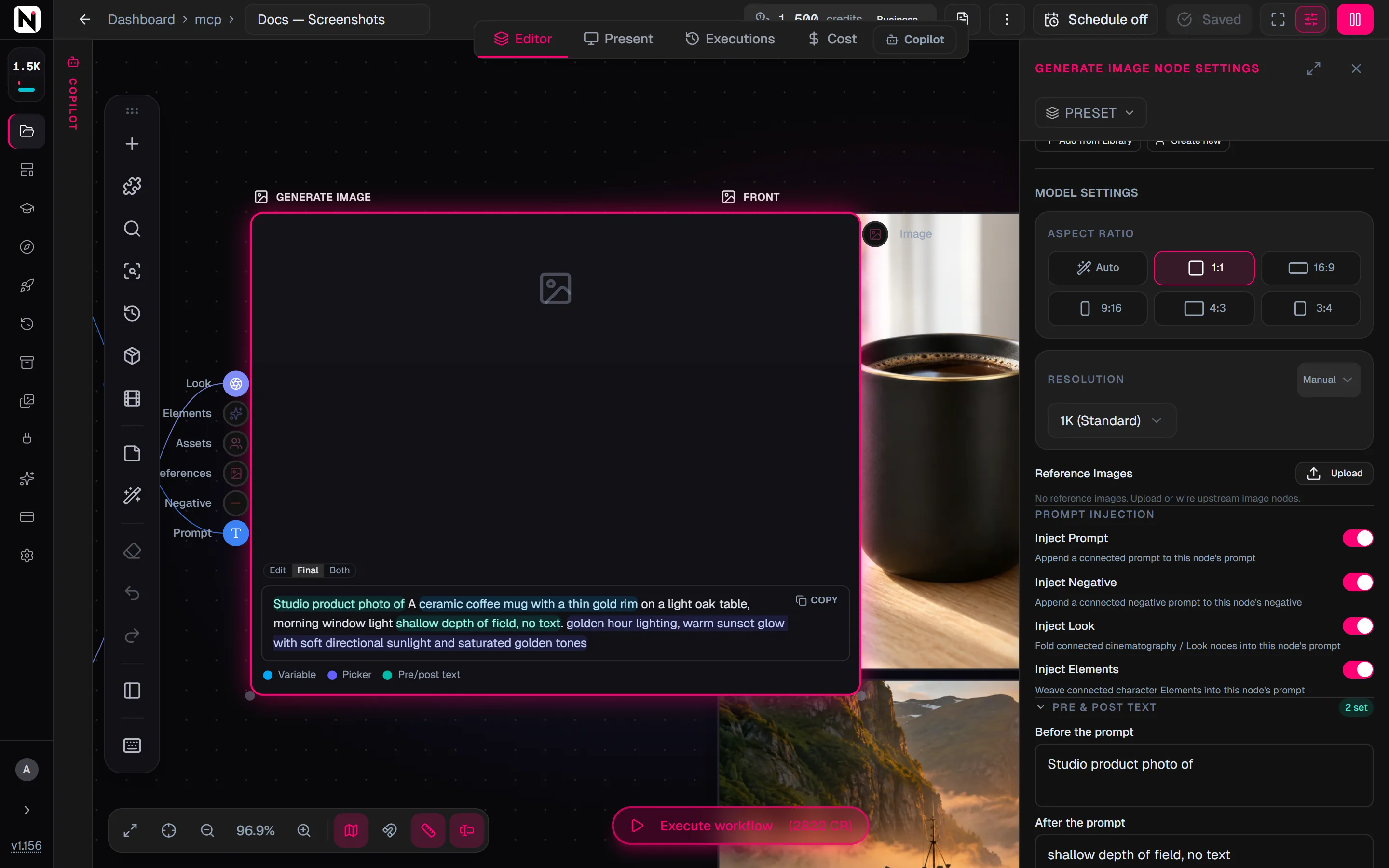
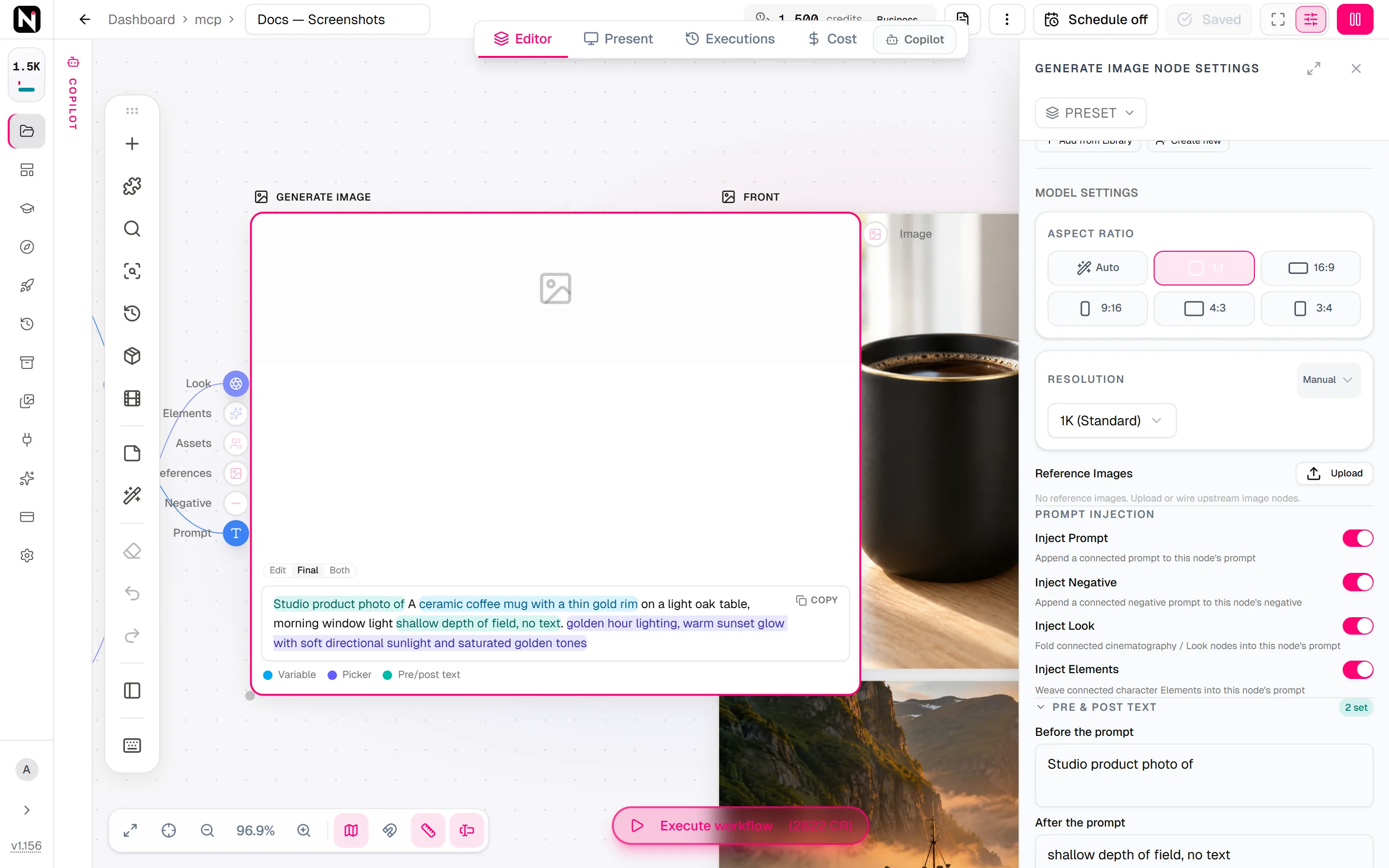
Type in Before the prompt, After the prompt, or both. These fields work like the prompt: they accept @ references, { variables and / snippets. When a field has text, the section shows a badge, such as 2 set, so the text is never hidden from you.
Run the node
The text is added to the prompt at run time. To check the result, switch the prompt area of the node to Final.
When to use it
- Apps. Your MiniApp shows a prompt field, and the pre and post text add your house style around whatever people type. They never see or change it.
- Presets. A preset that keeps its instruction in pre and post text leaves the prompt free: apply the preset, type your subject, and the preset's text still wraps it. A preset that puts its text in the prompt is overwritten as soon as you type.
- A standing instruction. Rules that every run needs, such as "no text in the image", belong in the pre text instead of in every prompt.
What gets wrapped
- Whatever prompt the run uses. The text typed in the node, a prompt connected from another node, or each item of a list.
- Before Nodaro adds its own parts. Nodaro adds picker wording, character references and the Style and "Avoid:" lines after the wrap. Pre and post text therefore behaves exactly like text you typed into the prompt.
- Only the positive prompt. The negative prompt is not changed.
- Variables and mentions work. A
{Label}variable in the pre or post text is resolved at run time, and a snippet is inserted as plain text. - Generate Script is the exception. On Generate Script, the text wraps the topic that arrives on its prompt input, not the Style Guide field.
How the pieces are joined
Nodaro drops the parts that are empty and puts a single space between the others. It adds no space when there is already one on either side, or when the next part starts with a comma, a period, a semicolon, a colon, an exclamation mark, a question mark or a closing parenthesis. Nodaro never trims your text, so you control the formatting.
| Before the prompt | Prompt | After the prompt | Result |
|---|---|---|---|
Cinematic 35mm still of | a woman in Tokyo | , golden hour | Cinematic 35mm still of a woman in Tokyo, golden hour |
RULES: no text, then two line breaks | a red shoe | Empty | The rules, an empty line, then a red shoe |
| Empty | a red shoe | Avoid clutter. | a red shoe Avoid clutter. |
Portrait of {Character} | Empty | Empty | Portrait of Mira, when the node labeled Character holds "Mira" |
An empty prompt. When the prompt is empty, the pre and post text alone are the prompt. A preset can therefore carry its whole prompt in Before the prompt. This also replaces a node's built-in default for an empty prompt, such as the default question of Describe Image.
See the final prompt
Switch the prompt area of the node from Edit to Final, or click Show final prompt in the settings panel. The final view shows the whole prompt as it will run, and colours the pre and post text teal, with Pre/post text in the legend.
Pre and post text in presets
- Presets save it. A preset stores the pre and post text with every other setting of the node.
- Prompt presets replace it. Applying a preset that ships prompt content, a prompt or pre and post text, replaces the node's pre and post text. No leftover text from an earlier preset wraps the new prompt.
- Settings presets keep it. A preset that only changes settings, such as the model and the aspect ratio, leaves your prompt and your pre and post text alone.
Many factory presets keep their instruction in pre and post text, so that your prompt stays yours:
- Generate Image and Modify Image: the Reference Sheet boards, the Character Reference Grid, Label Elements and Apply Named Edit, the Face Privacy edits, the Portrait Transformations, the Stylized Subject presets and the Edits folder.
- Relight & Switch: every operation preset.
- Video to Video: the Restyle Looks.
- Generate Video: Edit Video, which puts
edit {video:1} as follows:before your sentence and a "keep everything else unchanged" instruction after it.
Which nodes have it
Every AI node that has a prompt: the image, video, audio, music, speech, text, script, vision, analysis and Suno nodes. The plain Text node has no pre and post text, because its whole content is already text you type.
From the API
Pre and post text are ordinary node data, so every surface that reads or writes a workflow carries them.
- In workflow JSON, set
data.promptPrefixanddata.promptSuffixon the node. This works with the REST API, the SDK, the CLI and the MCP tools. - Per run of an app, without showing it to users, send
inputOverrideswith the node's id, for example{ "<nodeId>": { "promptPrefix": "Cinematic 35mm still of" } }, toPOST /v1/app/:slug/run. The SDK'sclient.apps.run, the MCPrun_apptool and the CLI's--overrideflag accept the same overrides. - Discovery.
GET /v1/nodeslistspromptPrefixandpromptSuffixfor every node that supports them. - Single generation calls, such as
POST /v1/generate-image, take oneprompt. Join your text to it yourself, or pass apresetIdto an MCP generation tool to wrap your prompt with the preset's pre and post text.
Frequently asked questions
Related
Presets
Prompt variables
Apps (MiniApps)
Prompt snippets
Generate Image
Last updated on
Prompt variables
Put another node's value into a prompt by writing its label in curly braces, set a default with two pipes, and use @ to attach characters and named images.
Presets
A preset saves a node's settings under a name. Use Nodaro's factory presets, save your own, find them with search and favorites, and share them as a JSON file.