
 Nodaro Docs
Running workflows
How Nodaro runs one node or a whole workflow, what runs when, how to follow progress, stop a run, handle failures and refunds, and find every result.
Running a workflow means asking Nodaro to execute its nodes and make their results. You can run one node, a node and every node after it, a selection of nodes, or the whole workflow. Each node runs when the nodes it depends on have results, costs the credits shown on its button, and keeps every result it makes as a version.
Ways to run
| Button | Where it is | What runs |
|---|---|---|
| Run | In the strip under a node, in the right-click menu, or Run This Node in the settings panel | Only this node, with the current results of the nodes before it. |
| Run from here | Under a Text node, in the right-click menu, or in the settings panel | This node and every node connected after it, in order. |
| Run selected | In the right-click menu, with several nodes selected | Only the selected nodes. |
| Execute workflow | At the bottom of the canvas | Every node of the workflow, in order, except skipped nodes. |
On Nodaro Cloud, every button shows its price in credits before you click it. Execute workflow shows the estimate for the whole workflow.
Several versions in one click. On generation nodes, Repeat in the settings panel runs the node up to 20 times, and the × 1 to × 4 menu in the strip under the node does the same for up to four versions. Each version is a full run and costs the full price.
What runs when
- A node waits for its inputs. A node starts when every node connected to its inputs has a result. Nodes that do not depend on each other can run at the same time.
- A single run reuses results. Run on one node does not run the nodes before it again. It uses their current, selected results. If a node before it has no result yet, run that node first.
- Text nodes update on their own. After a node runs, simple text nodes after it, such as Combine Text, Split Text and Extract Field, update without a separate run.
- The whole workflow runs on Nodaro's servers. Execute workflow saves the workflow first and runs the saved version. The run continues when you close the tab, and the results are on the canvas when you open the workflow again.
- One run at a time. When a workflow is already running, Execute workflow follows that run instead of starting a second one.
Skip a node
To keep a result and not pay for it again, right-click the node and choose Skip Node. A skipped node shows a SKIP badge, keeps its current result and does not run again. The nodes after it still run, with the skipped node's result. Choose Unskip Node to include it again. With several nodes selected, the menu offers Skip and Unskip for all of them.
Before a run starts
Nodaro checks a run before it spends any credits.
- Confirmation. Execute workflow always asks "Run the entire workflow?", with the number of nodes and the estimated credits. Other runs ask only when the estimate is more than 1,000 credits.
- Balance. On Nodaro Cloud, a run with an estimate higher than your balance does not start. The message shows the credits the run needs and the credits you have.
- Unknown variables. A prompt that names a node that does not exist, such as a mistyped
{Scene}, stops the run. See Prompt variables. - Wrong media. A media input that receives something that is not a file of the right kind, such as text in a video input, stops the run and names the node.
- Missing start frame. On Generate Video, a model that needs an image keeps Run disabled until an image is connected to Start Frame. The button's tooltip names the model.
Follow the progress
- On a node. A running node shows a progress bar with a percentage. The percentage is an estimate, based on how long the same model usually takes with similar settings. It moves fast at first, slows down near the end, and stays at 99% until the result arrives.
- On a list. A node that runs once per item shows a counter in its header, such as
3/10, and a Processing list... bar that reads Complete at the end. See Lists and batching. - For the whole workflow. During Execute workflow, the run bar at the bottom of the canvas shows the status, the finished nodes, such as
3/7 done, and the credits spent so far.
Stop a run
Stop one node
While a node runs, its Run button becomes Stop. Click it to open a menu:
| Choice | What happens |
|---|---|
| Run instead | The current run is discarded and a new run starts at once. |
| Stop & keep what's rendered | Only on Generate Video Pro. The node stops, joins the finished segments into its result, and refunds the segments that had not started. |
| Discard | The run leaves the canvas. |
Discard asks you to confirm, unless you chose Don't ask again. A job that has not reached the model yet is cancelled and refunded. A job that the model is already working on usually finishes in the background: its result is saved to My Library and does not appear on the canvas. If a job cannot be completed, its credits are refunded automatically.
Stop the whole workflow
During Execute workflow, click the stop button next to the run bar:
| Choice | What happens |
|---|---|
| Stop after current node | The nodes that are running finish, and no new node starts. The finished results stay on the canvas. |
| Discard (save to Library, off canvas) | The run leaves the canvas. Jobs already in progress cannot be cancelled: they finish and are saved to My Library. |
| Run instead | The current run is discarded and the workflow starts again. |
Failures and refunds
When a node fails, it shows Failed and an error message. The nodes after it do not run, because their input is missing. Fix what the message names, then click Run on the failed node, or Run from here to continue the workflow from that point.
- Credits come back. Nodaro reserves credits when a node starts. When the node fails, the reserved credits are refunded automatically. The only exception is a failure that happens after the model has delivered its result.
- Blocked requests are always refunded. When a model's safety filter or a content policy blocks a generation, the node shows the block and the credits come back.
- Some nodes retry for you. Generate Image retries some models once and can offer a button to run the same request on another model. Generate Video can rewrite a blocked prompt once and retry at no extra cost.
- Partial lists keep their results. When a node runs once per item and one item fails, the items that succeeded keep their results. See Lists and batching.
Results and versions
- Every run adds a version. A node keeps all of its results. When it has more than one, a counter appears on its result. Click the counter to show the versions and choose one.
- The selected version flows on. The next node receives the selected version, which is normally the newest one. A connection in Item or Each mode can pass other results. See Connection modes.
- Act on a result. Point at a result to download it, open it full screen, copy its link or delete it. A deleted version cannot be restored.
- Find every file. Generated files are also listed under My Files in the sidebar and in the Media Library of the editor.
Clear all results
Clear all results takes the canvas back to how it looked before anything ran, in one click. It is the eraser button in the canvas toolbar, above Undo. Use it before you change a workflow, so that fresh results are easy to tell from old ones.
It removes everything a run left on the canvas:
- Generated images, videos, audio, text and lists, including every node's earlier versions.
- The completed and failed marks, error messages and progress.
- The cells of a List column that is connected to another node, because runs fill those cells.
It never touches what you put on the canvas:
- Prompts, settings, connections, labels and sticky notes.
- Files you uploaded, and the video that a Video URL node downloaded.
- Character, object, creature, location, face and scene cards, because their images belong to your library.
- A generated script, because you edit it scene by scene.
- A trained character model, and composition and 3D scene plans.
- Nodes that belong to a Film Director pipeline.
If you edited a generated text by hand, such as a transcript or an AI answer, the edit is part of that result and is cleared with it.
Nothing leaves your account. Your files stay in My Files and the Media Library, and your past runs stay under Executions.
To get the results back, click Undo on the message that appears, click Undo in the canvas toolbar, or press Ctrl+Z. The undo history lasts while the editor is open. After you reload the page or leave the workflow, the clear is permanent for the canvas.
The button is dimmed when there is nothing to clear, and it does nothing while a run is in progress: wait for the run to finish, or stop it, first.
Executions
Every run is recorded as an execution.
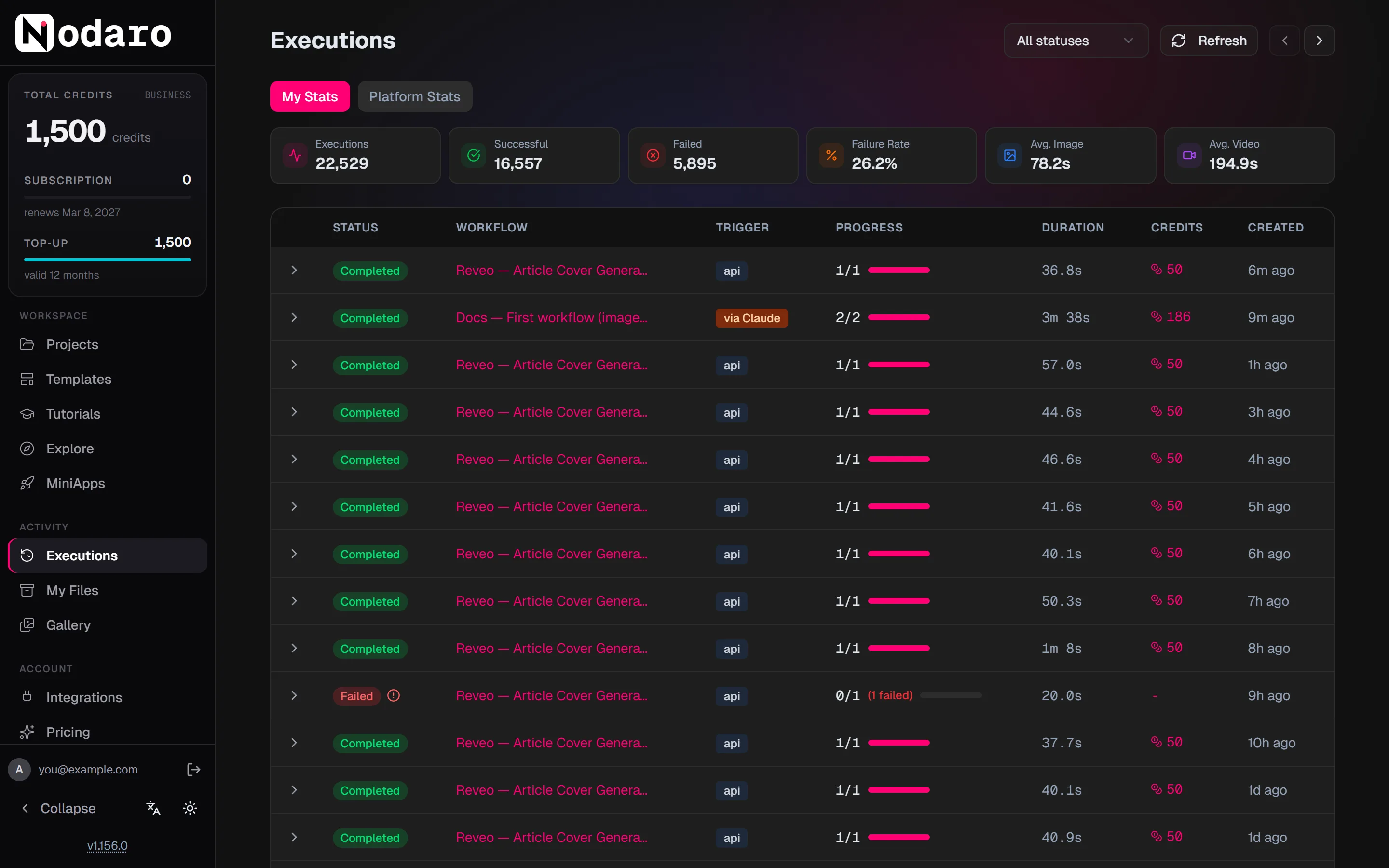
- In the editor, the Executions tab lists the runs of the open workflow. A badge on the tab shows how many jobs are running.
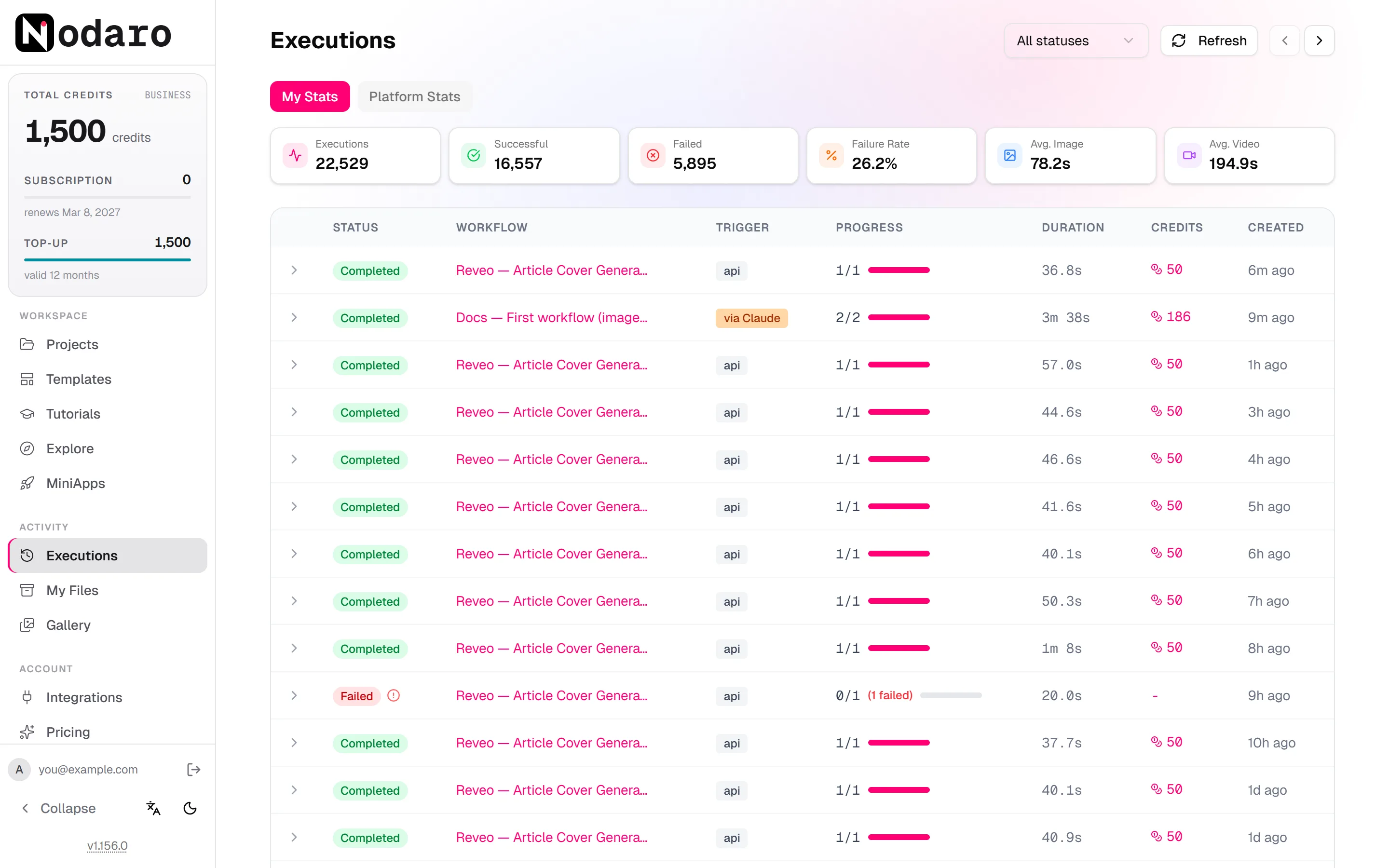
- In the sidebar, the Executions page lists the runs of all your workflows, newest first. Filter it by status, and expand a run to see every node with its own status. Click a node to see its input, its output and its error. At the top, My Stats counts your runs, the successful and failed ones, and the average time of an image and of a video.
| Status | Meaning |
|---|---|
| Pending | The run is waiting to start. |
| Running | The run is in progress. |
| Completed | Every node finished. |
| Failed | At least one node failed. |
| Cancelled | The run was stopped. |
| Discarded | The run was taken off the canvas. Jobs in progress finished in the background. |
For each run, the page also shows what started it, its progress, its duration and the credits it used.
Frequently asked questions
Related
Nodes and connections
Lists and batching
Credits
Build your first workflow
Tour of the editor
Last updated on
Nodes and connections
Learn what a node is, which kinds of inputs and outputs it has, how connections carry results between nodes, and how connection modes pass one result or a list.
Lists and batching
Process many prompts, images or rows in one workflow. A node runs once per list item, and Collect, Selector and Choose Best turn many results back into one.