
 Nodaro Docs
Build a workflow with the Copilot
The Copilot builds and edits Nodaro workflows from a description, proposes runs with a credit estimate, fixes failures and never spends credits without your OK.
Available on Nodaro Cloud
The Copilot is an assistant that builds workflows from a description. It reads the workflow you have open, adds and connects nodes while you watch, and proposes a run with its credit estimate. After a run, it reads what failed and fixes it. It never starts a run without your permission unless you allow it, and it never goes above the credit limit you set.
The Copilot is part of Nodaro Cloud. It is not available in the Community Edition: on a self-hosted install, build workflows in the editor or connect an AI assistant through MCP.
Two ways in
- From the home screen. Type what you want in the Copilot box and click Build it, or choose a suggestion such as Product shot workflow. A new workflow opens, and the Copilot is already building it. You can collapse the box, and it stays collapsed.
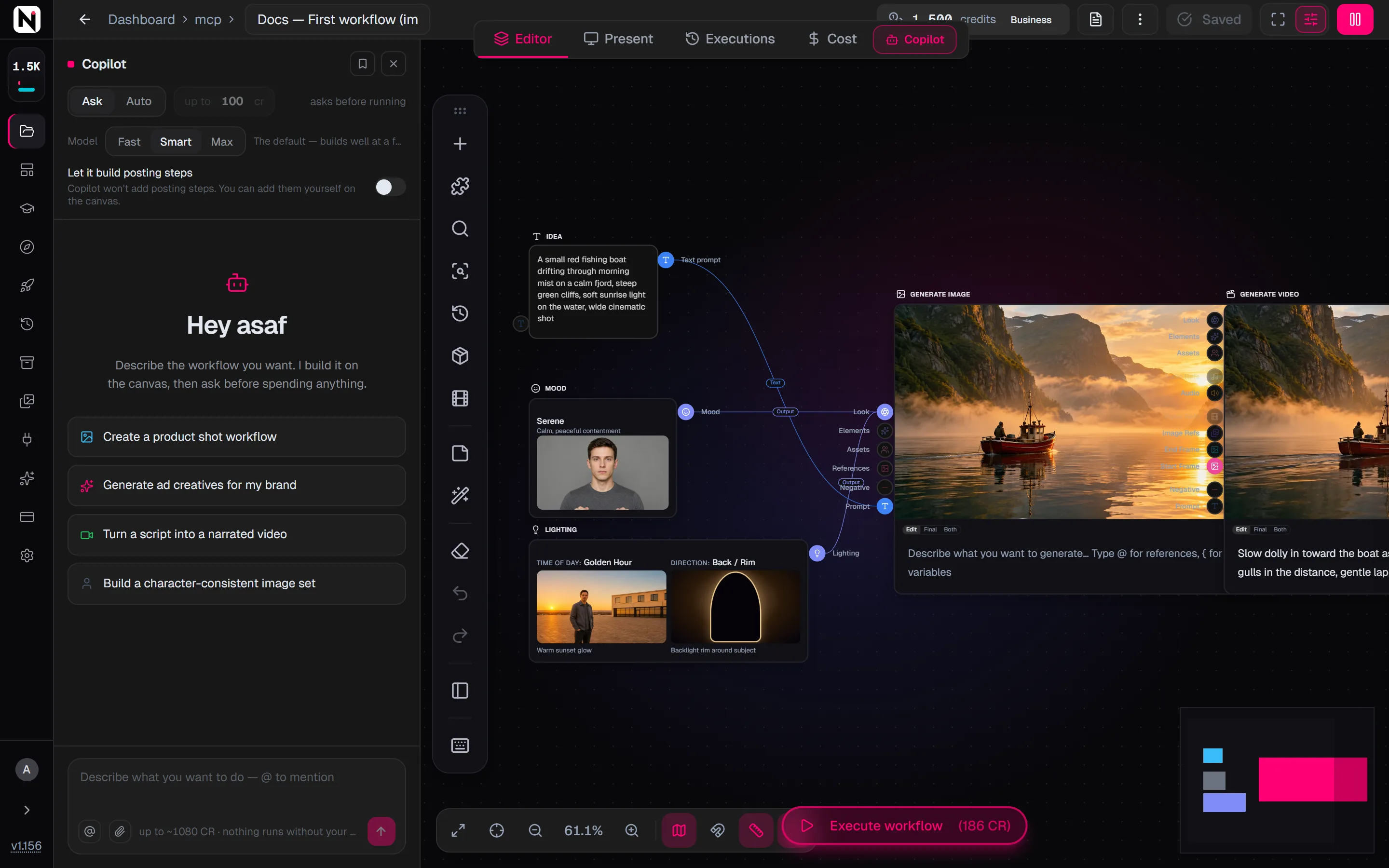
- From the editor. The Copilot panel opens on the left of the canvas. Open it with the Copilot button beside the editor tabs, the narrow COPILOT tab beside the canvas, or Ctrl+J. Closing the panel does not stop a message that is still being written.
In both places, Enter sends the message and Shift+Enter starts a new line. If a message from the home screen cannot start, for example because the connection drops, your text comes back into the box so that you can send it again.
What it can do
| Ask for | What the Copilot does |
|---|---|
| Build "A product shot workflow for a sneaker, three angles" | Reads the node catalog and each node's documentation, then adds the nodes. A large workflow arrives in stages, and the canvas is tidied when the Copilot is done. |
| Edit "Add a video step after the image" | Changes only what you asked for. Your other nodes stay as they are. |
| Run | Proposes a run with its credit estimate. You decide whether it runs. |
| Re-run one step | Proposes to run only the step it changed, priced for that step. If the canvas changed in the meantime, it asks you again instead of running something different. |
| Fix | After a run, reads the result of each node, finds why a node failed and changes the setting that caused it. |
| Borrow "Build it like my product one" | Reads another of your workflows in the same project and follows its shape. It never changes or runs that workflow. |
| Start a separate flow "Also make me an ads version" | Creates a new workflow in the same project and builds it. A line in the conversation links to it. Your open canvas stays as it is. |
The Copilot makes one new workflow per message, and the run it proposes is always the workflow you are looking at.
Mention your own things
Type @ in the message box, or click the @ button, to insert your own characters, objects, animals, locations and files. The list has one tab per kind, with its count. Typing narrows the current tab, and a match on another tab appears as a hint, so nothing you own stays hidden. Files searches your whole library, so you can find a file you uploaded long ago. Browse everything opens a larger browser with big previews.
The name goes into your sentence where you typed it, because its place is part of what you mean: "@Emma walks in while @George raises the bottle" says who does what. For a character with saved looks, open the arrow on its row to choose an angle, an expression, a pose or an outfit, such as @Iris (the "back" angle).
- Attach a file. Click the paperclip to upload a file from your computer. It goes into your library and into the message in one step.
- Show a picture. The Copilot sees attached images, not only their names. Attach a screenshot, a sketch or a reference photo and ask for "something like this". A message can carry up to four images in JPEG, PNG, GIF or WebP. A file in another format, such as AVIF or HEIC, is still uploaded and named, but the Copilot answers from your words alone.
- Paste a link. When you paste a YouTube link and ask for "a song similar to this", the Copilot can put that exact link into a node made to hold one, such as Reference Audio. It uses only links that you pasted, exactly as you pasted them.
Before a run starts, the run card lists every file that was attached to the workflow, by name, so you can check them before you spend credits.
Ask or Auto
Each conversation has a run mode, at the top of the panel:
| Mode | What happens |
|---|---|
| Ask (default) | A run appears as a card, "Run this workflow?", with its credit estimate and your balance. Nothing runs until you click Run. |
| Auto | A run starts on its own when its estimate is under the credit limit you set next to the mode. A more expensive run still asks, and so does a run whose price is not known yet. |
In Auto mode, the Copilot starts at most one run per message, and only when no other run is going. When a run fails, the Copilot reads the failure, changes what caused it and runs again. It does this twice, then stops and waits for you, so a failing run can never spend your balance unattended. Click Fix it to allow two more attempts.
In both modes, a run is a normal workflow run, with the same progress on the canvas, the same history and the same per-node credits. See Running workflows.
Choose a model
Each conversation runs on one of three models, chosen at the top of the panel:
| Model | Use it for |
|---|---|
| Fast | The cheapest and quickest. Good for small edits and questions, and weaker at building large workflows. |
| Smart | The default. Builds well at a fair price. |
| Max | The strongest model, for complex builds. It costs the most per message and can work longer in one message, so a large build can finish in one turn. |
You can switch the model at any time. The next message runs on the new model.
What it costs
- Messages. A message is billed for the assistant's actual model use. Before you send, the message box shows the most the message can cost, such as "up to ~1080 CR". The real charge appears under the reply and is usually well below it.
- Long turns. A turn that reaches its budget stops and says so. Send "continue" to go on.
- Runs. A run that the Copilot proposes is charged per node, like any other run, when it starts.
What it can see
- The workflow you have open: its nodes, their settings and connections, and the status of each node in the last run.
- The images you attach to a message.
- Nodaro's own documentation: the node catalog, each node's settings, the picker options and what each model can do.
- Your own building blocks: brand presets, characters, objects, animals and locations.
- Your own media, voices and saved components, and your other workflows by name and shape.
It sees only what is yours: not the public gallery and not anyone else's work. It does not browse the web.
What it will not do
- Add a Webhook Output node, or any node that fetches from a web address. Such a node sends to, or reads from, an address written inside it. You can always add one yourself, and no setting changes this rule.
- Type a web address into a node. Media reaches a node through a connection, a saved character or location, or one of your own files, which the Copilot names by its id. The only exception is a link that you pasted yourself.
- Use a file that is not yours. A file it cannot find in your library is refused, not guessed.
- Start a run on its own in Ask mode, or above your limit in Auto mode.
- Choose where a post goes. The account, the channel, the platform and the audience stay yours to set.
- Delete a workflow, or change a workflow other than the one you have open.
Let it build posting steps
By default, the Copilot does not add steps that post to TikTok, YouTube, Telegram, X, LinkedIn, Facebook or Instagram. Turn on Let it build posting steps in the panel to allow it for the current conversation. You can turn it off at any time.
With the switch on, the Copilot can add a posting step and connect it, so that a workflow that makes a video ends by publishing it. It still never chooses:
- The account. A posting step it builds names no account, so the run uses your default account for that platform.
- The channel, the platform or the audience. Posts start private, and only you change that.
If you connected more than one account on the same platform, mark the default one in Integrations. With several accounts and no default, the oldest account is used. See Publishing to social media.
What it remembers
Tell the Copilot a lasting preference, such as "always 9:16" or "never add background music", and it saves it for every future conversation.
- Every save shows. A Remembered line appears in the conversation, with an Undo button.
- You hold the list. The bookmark button at the top of the panel opens What the Copilot remembers, with a Forget button for each preference. A deleted preference no longer applies from your next message.
- Only yours. Preferences belong to your account and are never shared with a workspace.
- Short by design. A preference is one short statement of up to 400 characters, and you can have up to 50. It never contains a link, and the Copilot does not save secrets or one-off details.
In the studio editor
The same assistant also works in the studio editor, where the subject is a production, with its shots, takes, cast and soundtrack. There it changes nothing on its own: every change, generation, export or share comes back as a card that you apply. One message proposes one card, and each card shows its operations before you apply it. The studio has only the Ask mode.
Good to know
- The canvas is saved first. The Copilot saves your canvas before it sends a message. If it cannot save, it does not send, so that your edits are never at risk.
- Your edits win. If you edit the canvas while the Copilot works, your unsaved changes stay. The Copilot's edit is saved to the workflow, and the panel asks you to reload to see it.
- Closing the tab ends the message. You pay only for what was already used, and a run that has started keeps going.
- Stop at any time. The Stop button in the message box ends the current message, and the changes already on the canvas stay. Stop on a run card stops the run, and the results already made are saved to My Library.
- It speaks your language. The Copilot answers in the language of the interface. Node names and model names stay the same, so the workflow reads the same in every language.
Frequently asked questions
Related
Build your first workflow
Tour of the editor
Running workflows
Credits
Publish to social media
Last updated on
Build your first workflow
Build a workflow step by step in Nodaro, from a text prompt to an image, a video and a voiceover, and learn how to connect nodes, run them and change models.
Tutorials and templates
Learn Nodaro from video courses and guided workflow tutorials, and start faster from templates, ready-made workflows that you copy into your account for free.