
 Nodaro Docs
Tutorials and templates
Learn Nodaro from video courses and guided workflow tutorials, and start faster from templates, ready-made workflows that you copy into your account for free.
Tutorials and templates are the fastest ways to learn Nodaro and to start from something that works. A tutorial teaches one idea with a short video or a guided workflow. A template is a finished workflow that you copy into your account and change. Copying is free: you spend credits only when you run your copy.
Where to find them
| Where | What is there |
|---|---|
| Home screen › Explore › Start from a template | Templates grouped by use case, such as Product imagery, Static ads, Video ads and Automations. Filter them with For you, Trending and New this week. All use cases opens the Templates page. |
| Home screen › Explore › Level up | Tutorial cards marked Video or Tutorial, the All tutorials list, and the Release notes. |
| Sidebar › Templates | The Templates page, with every template, search, sorting, favorites and your own templates. |
| Sidebar › Tutorials | The Explore tab of the home screen. |
Tutorials
The Nodaro team writes the tutorials and sorts them into categories, such as Getting Started, Workflows and Advanced. New tutorials appear as the team publishes them.
| Card | What it opens |
|---|---|
| Video | A short video in a player. You watch it and go back to your work. |
| Tutorial | A complete workflow with the right nodes, models and settings already in place. Some open a guided walkthrough, and the others open a preview of the workflow. |
All tutorials opens the full list by category, with the filters All, Video Courses and Written Tutorials. A workflow tutorial card shows how complex the workflow is and an estimate of the credits one run costs.
Guided walkthroughs
A guided walkthrough is a full-screen page that explains a workflow before you run anything. Its header shows the number of steps, the time it takes and the cost of a run. The bar at the top switches between two views:
- Tutorial mode is the lesson: numbered steps on the left, and on the right the real run the tutorial was built from, with its prompts, images, videos and audio. Point at a step to focus it.
- Canvas mode shows the same workflow as a read-only canvas, with every node and connection as it is in the editor. Sticky notes are hidden, because the lesson already covers them.
Nothing on either view spends credits. Run tutorial copies the workflow into your default project, My Recent Flows, and opens the copy in the editor. That copy is what you run and change.
Every walkthrough has its own link on app.nodaro.ai, in the form /tutorials/<name>. Anyone can open the link without signing in, and is asked to sign in only when they click Run tutorial.
Tutorials without a walkthrough
A workflow tutorial without a guided walkthrough opens a preview of the workflow, with its nodes, models and tags. Choose a project in the list and click Clone to Project. The copy goes into that project.
Templates
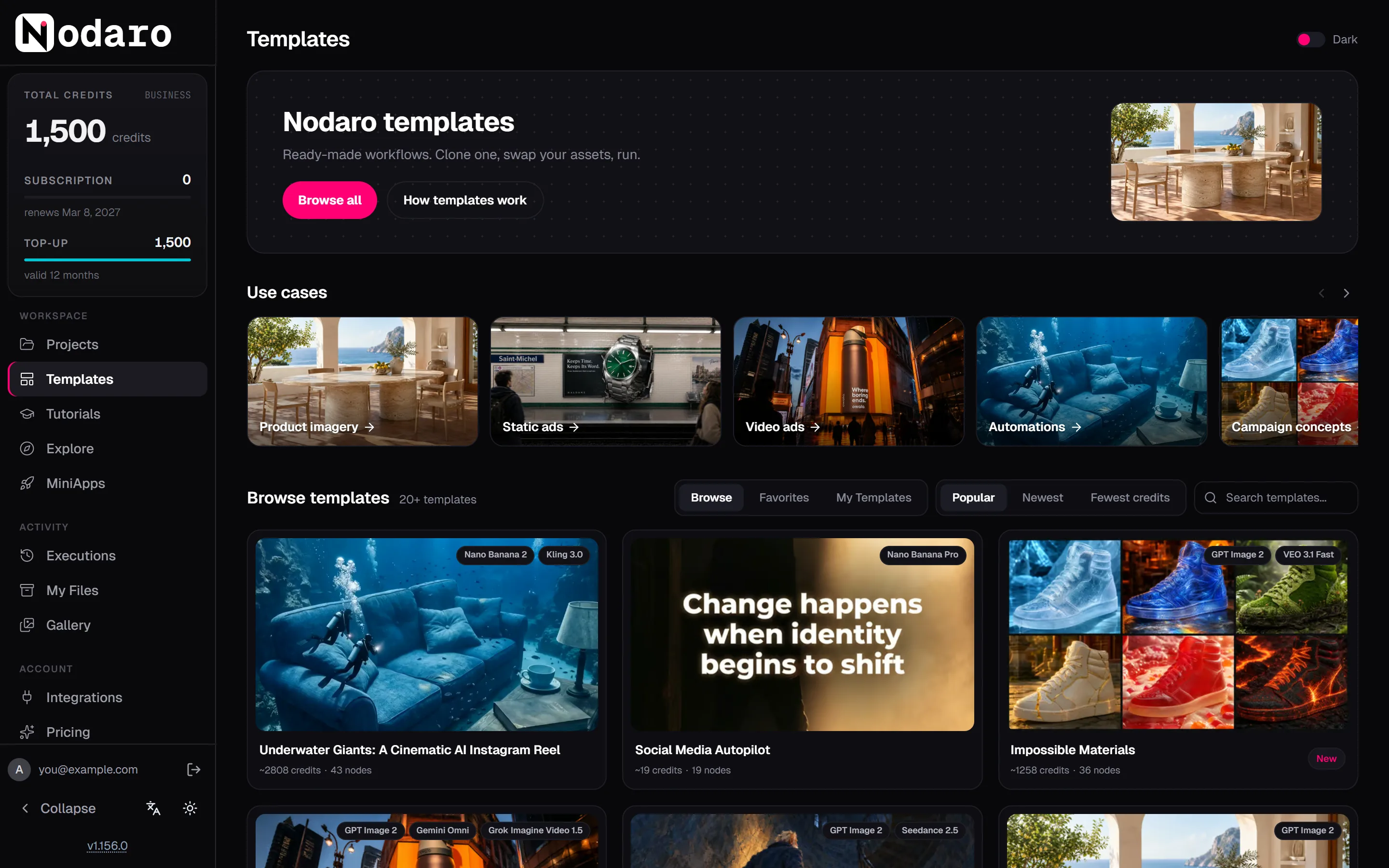
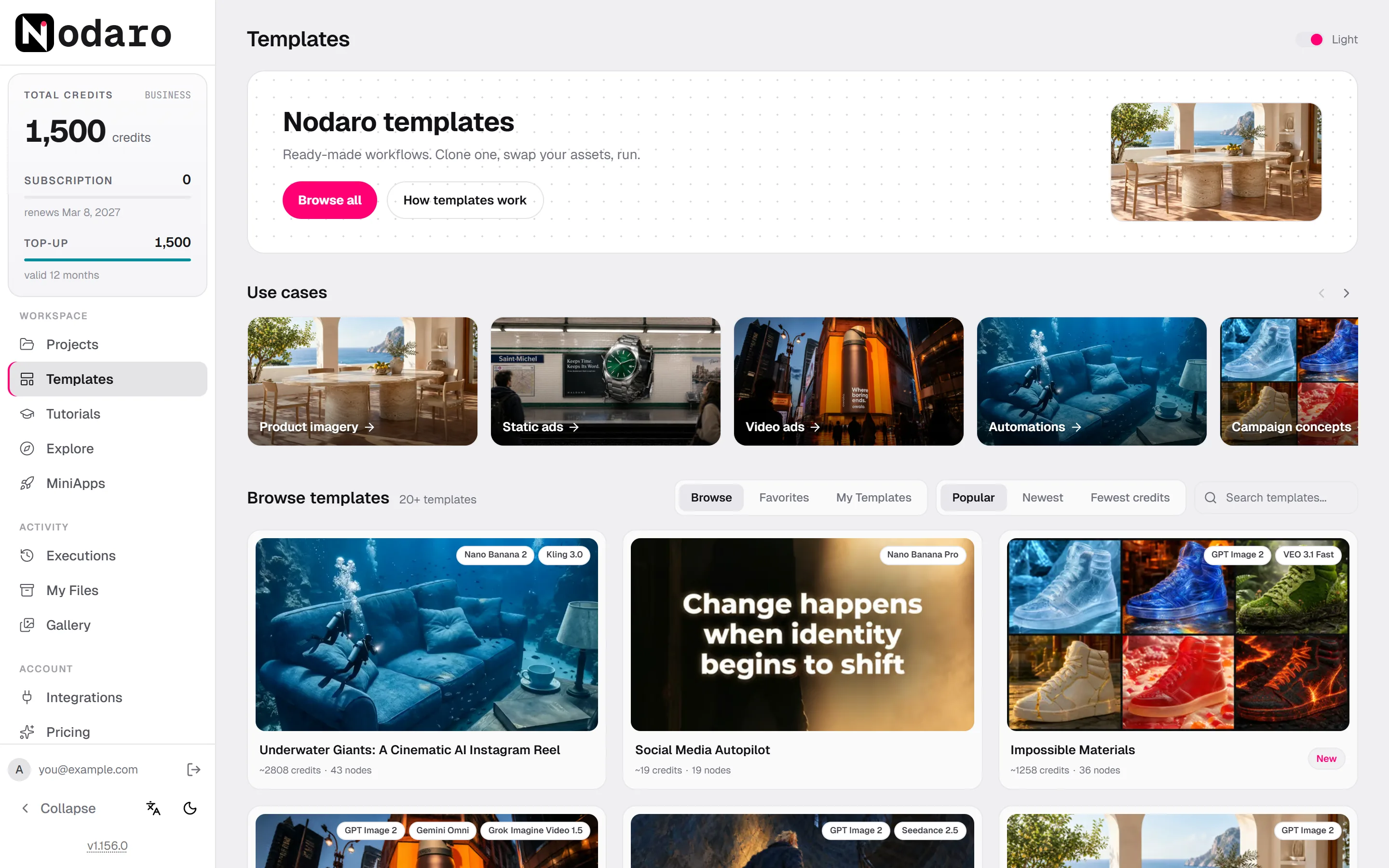
The Templates page holds ready-made workflows that other people built and tested: "Clone one, swap your assets, run."
- Use cases groups the templates by what they make.
- Browse templates has three tabs: Browse for every listed template, Favorites for the ones you marked with the heart, and My Templates for the ones you published.
- Sort the templates by Popular, Newest or Fewest credits, or type in Search templates....
- Each card shows the models the template uses, its estimated credits for one run, its number of nodes, and badges such as New or Popular.
Copy a template
Open a template
Click a template card. The details show its results, its description, the models it uses, the How it works steps and More like this.
Preview it on the canvas
Click Preview on canvas. The whole workflow opens on a read-only canvas that you can move and zoom. Click a node to read its full prompt, and play the finished results with sound.
Clone it
Click Clone & customize or Clone workflow. Nodaro copies the template into your default project, My Recent Flows, and opens the copy in the editor. The copy is free until you run it.
Make it yours and run it
Swap in your own prompts, photos and settings, then click Execute workflow. The cost depends on the models and settings that you keep, so check the estimate on the button.
The original template never changes: your copy is an ordinary workflow in your account. See Workflows and projects.
Publish your own template
- Open your workflow, go to the Present tab and click Template.
- In Publish as Template, enter a Name, a Short Description for the card and a Full Description, which accepts Markdown.
- Choose a Category, the Output types and up to 10 tags.
- Turn on List on marketplace to show the template on the Templates page. Leave it off to keep the template unlisted.
- Click Publish Template. Nodaro counts the nodes, detects the node types and models, and calculates the credits when you publish.
Your published templates appear under My Templates, where you can list or unlist them, edit their details or delete them. To change what a template contains, edit its workflow and publish it again from Present › Template.
On a self-hosted install
- A starter set comes with Nodaro. The first time a self-hosted install starts, it adds a set of guided walkthroughs, so the tutorials row is not empty. They are ordinary templates owned by a built-in "Nodaro" account: copy them, run them and take them apart.
- Your copies stay yours. New Nodaro releases can update the starter tutorials, and editing your own copy never changes them.
- Media needs the internet. The workflows come with Nodaro, but the images, videos and audio that a walkthrough shows load from Nodaro's servers.
- An empty row says "No tutorials yet" when no tutorials are published for your edition.
Business installs can also add their own tutorials. See Configuration.
Frequently asked questions
Related
Quickstart
Build your first workflow
Workflows and projects
Apps (MiniApps)
Import and export
Last updated on
Build a workflow with the Copilot
The Copilot builds and edits Nodaro workflows from a description, proposes runs with a credit estimate, fixes failures and never spends credits without your OK.
Free credits
Every new Nodaro Cloud account gets a one-time grant of 1,500 free credits. Learn when they arrive, when activation asks for a card, and what they cover.