
 Nodaro Docs
Prompt variables
Put another node's value into a prompt by writing its label in curly braces, set a default with two pipes, and use @ to attach characters and named images.
A prompt variable puts the value of another node into a prompt. You write the node's label in curly braces, such as {Mood}, and when the prompt runs Nodaro replaces it with that node's text or choice. Variables let you write a prompt once and change its parts from other nodes, pickers or list items. For characters, locations and images, an @ mention attaches the picture itself, not only words.
How it works
- Give the source node a label, such as "Subject". A picker already has one, such as "Mood".
- In the prompt of another node, write the label in curly braces:
A portrait of {Subject}, {Mood}, soft window light. - Connect the source node to the node with the prompt. A picker's value is available everywhere in the workflow, even without a connection.
- Run the node. Nodaro replaces each variable with the current value of its node.
Type { in a prompt editor to insert a variable. Variable names ignore case: {mood}, {Mood} and {MOOD} all name a node labeled "Mood". Give each source node a unique label, so that each variable has one source.
Default values
A variable can carry a fallback after two pipes. Nodaro uses the fallback when nothing provides the variable.
{person || man}uses the connected Person picker when there is one, and the word "man" when there is not. The promptgenerate a {person || man} runningbecomes "generate a man running" without a Person picker.{person || }, with nothing after the pipes, resolves to nothing when no node provides it.- Spaces around the fallback are removed.
Many factory presets use defaults, such as {brand || a modern tech startup}, so that a preset gives a sensible result even if you run it without changes. Replace the whole variable with your own words, or connect a node with a matching label to fill it at run time.
Highlighting
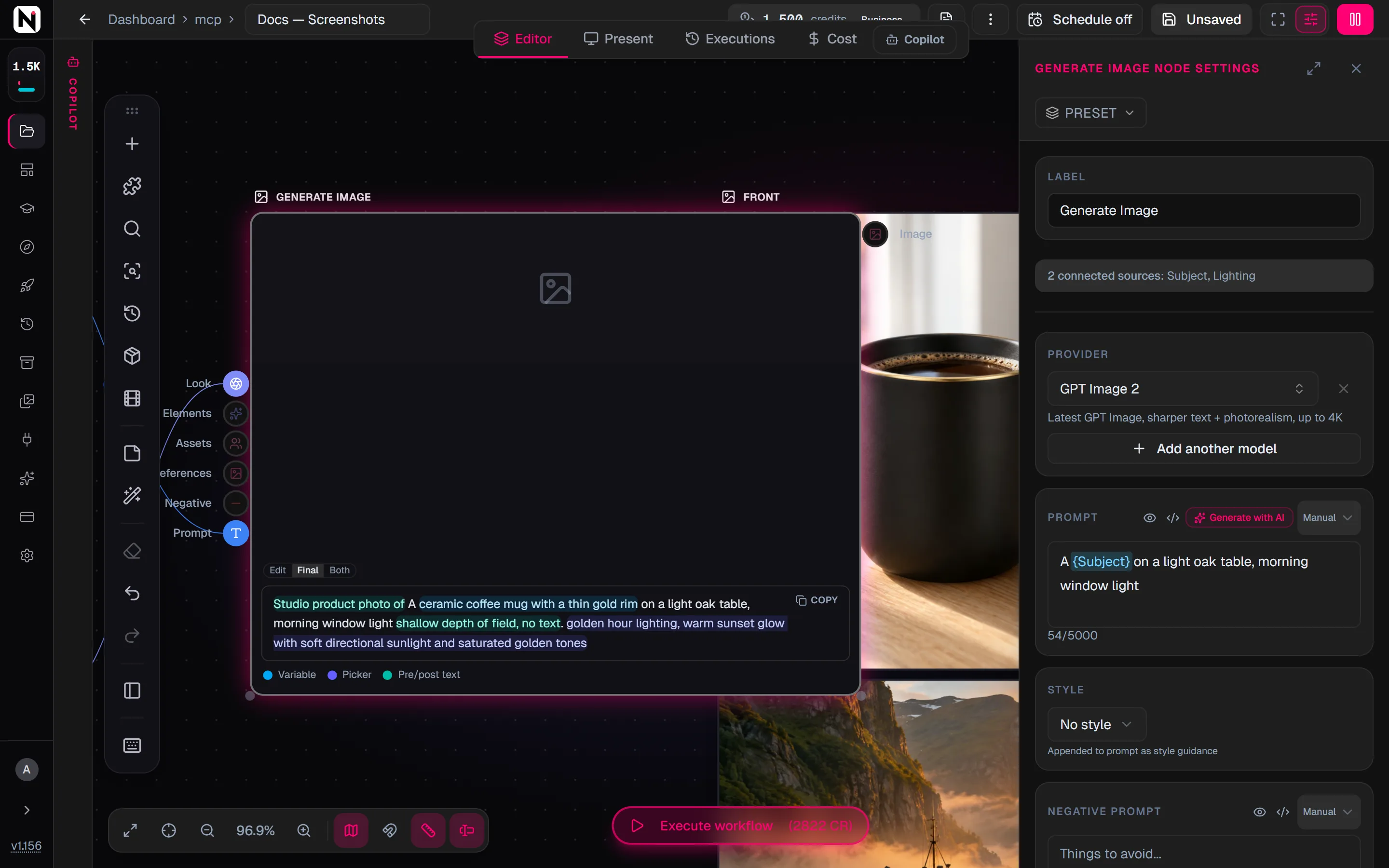
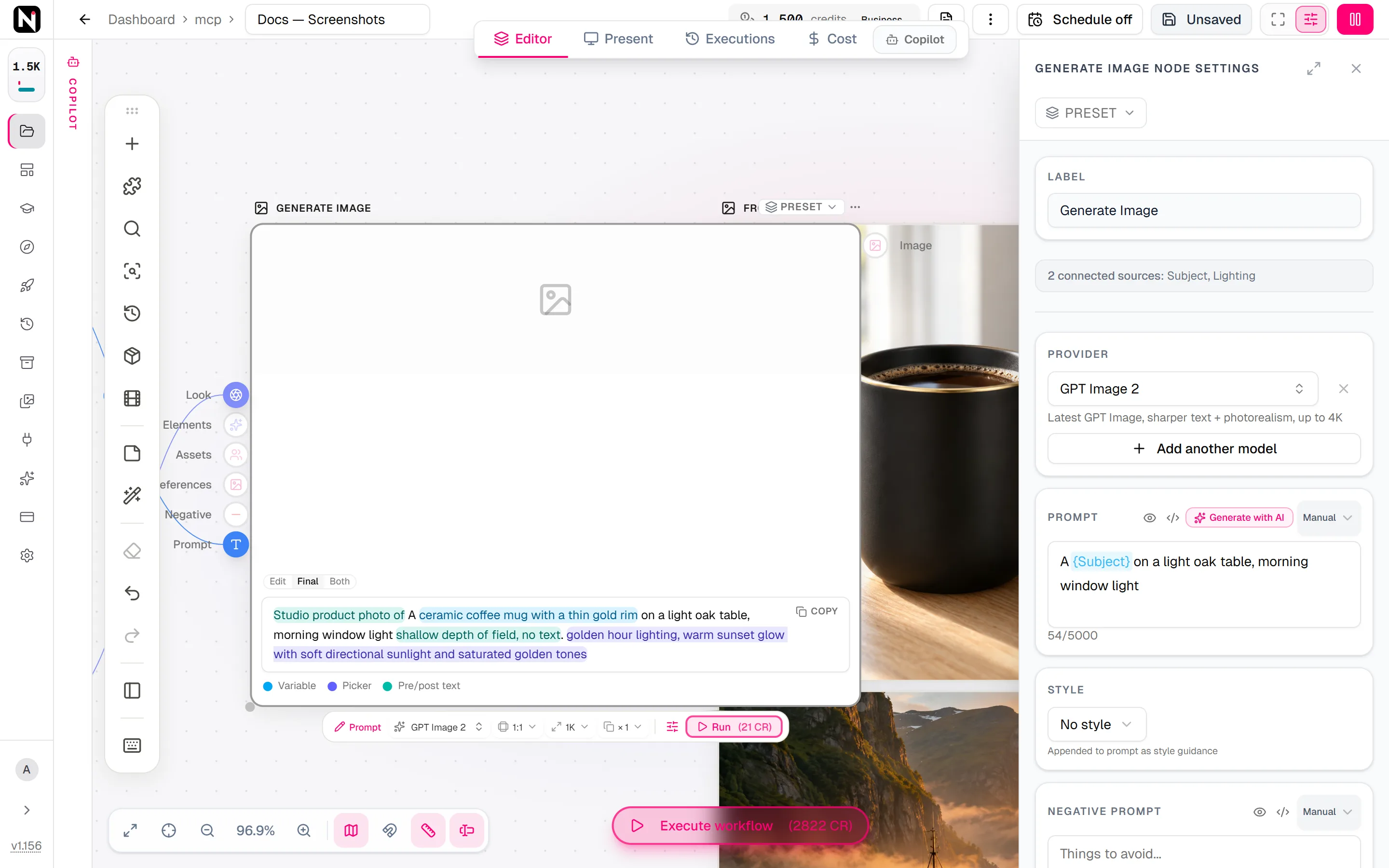
In the prompt editor of the settings panel and in the larger prompt editor that opens with Ctrl+E, variables are highlighted:
| Highlight | Meaning |
|---|---|
| Cyan | A connected node provides this name, or the name is a built-in template variable. |
| Amber | Nothing connected provides this name yet. This is a warning, not an error: a variable with a default still works. |
Inside a variable with a default, the default text is bright when it will be used, and grey with a line through it when a connected node's value replaces it.
To see the exact text that a node will send, switch the prompt area of the node from Edit to Final, or click Show final prompt on a prompt field of the settings panel. The final view colours each part of the prompt by where it comes from, with a legend: Variable, Picker, Snippet, Pre/post text, References, Style and Negative. Copy final prompt copies the result.
When a variable cannot be resolved
- A name that matches no node stops the run. If a variable without a default names a node that does not exist anywhere in the workflow, the run is refused before anything is sent or charged. A typing mistake therefore never produces a wrong image.
- A node without a value gives empty text. If the node exists but has produced nothing, a variable without a default becomes empty text.
- Connected text is never rewritten. Text that arrives through an input, and not through a variable, is used as it is. Curly braces inside it are not treated as variables.
- A few names are reserved. Prompt templates use some built-in names, such as
{userPrompt}. Those names are not node labels.
Missing a node? Select the node with the prompt and press Tab to add a node. With Auto Connect on, the connect dialog lists the Missing variables of the prompt. Choose one, and the new node gets that name and is connected for you.
Typed prompts and connected prompts
A node can have a typed prompt and a prompt connected to its Prompt input at the same time.
- On Generate Image and Generate Video, the connected prompt is added after the typed prompt. If the typed prompt already names the connected node as a variable, the text appears only where the variable is. Turn off Inject Prompt under Prompt Injection in the settings panel to stop adding connected prompts.
- On other nodes, the typed prompt wins. The connected prompt is used when the typed prompt is empty, or where the typed prompt names it as a variable.
- In a batch, each list item replaces the prompt of its run. See Lists and batching.
How pickers add text
A picker, such as Mood, Lighting or Framing, never runs a model. It adds tested wording to the prompt of the nodes it feeds, in one of two ways:
- Connected to Look or Elements. The picker's wording is added to the end of the prompt of Generate Image or Generate Video. Turn off Inject Look or Inject Elements in the settings panel to stop it.
- Named as a variable.
{Mood}places the picker's wording exactly where you write it. This works in any prompt, even without a connection.
Every catalog picker has a Prompt hint switch. Full adds a longer description of the choice, and Compact adds only the short term, which keeps a prompt short when many pickers feed one node. A picker's own Pre Text and Post Text are added around its wording in both modes. Switch the picker to the Prompt or Both display mode to read the exact words it adds.
Mention characters and images with @
An @ mention attaches a reference picture and writes a matching phrase where you typed it. Type @ in the prompt of an image or video node to choose from the options.
| Mention | What it attaches |
|---|---|
A character, such as @maya | The character's approved picture and description, from a connected Character Asset node |
A location, such as @old-library | The location's picture and description, from a connected Location Asset node |
A named image, such as @town:1 | A connected Upload Image node labeled "Town" |
A creature or an object, such as @nessie:1 | A connected Animal/Creature Asset or Object/Props Asset node. Type these by hand: they have no suggestion list. |
A mention can also say what to take from the reference. @town:1:background becomes "the background from reference image A", and @maya:1:clothes takes only the clothes. Characters and locations appear as pills in the prompt: click a pill's thumbnail to choose another picture of it, and its label to choose what to take from it. Reference roles lists every role and the identity lock.
A label that starts with a digit cannot form a mention, so rename it. When a character or a location has the same name as an image, the character or the location wins.
Point at a connected reference
On video models that accept several references, such as Seedance 2, a positional token points a phrase at one connected reference:
| Token | Becomes |
|---|---|
{image:1:person} | "the person from @image_1" |
{image:2:jacket} | "the jacket from @image_2" |
{image:1} | "the subject in @image_1" |
{video:1:clip} | "the clip from @video_1" |
{audio:1:voice} | "the voice from @audio_1" |
Images connected to Image Refs are numbered first, in their order, then the assets connected to Assets. A token with a number higher than the connected references becomes its plain label, and models without reference support read the plain label too.
Where variables work
- Prompts of image, video, audio, music, speech and text nodes, and the text of Text nodes.
- Pre and post text. See Prompt pre and post text.
- List items. Each item of a batch can contain variables.
- Some utility settings, such as the divisor, value and seed fields of the Selector node.
To insert reusable text instead of a value, type / in a prompt to open prompt snippets. A snippet is inserted as plain text.
Frequently asked questions
Related
Prompt pre and post text
Reference roles
Prompt snippets
Lists and batching
Text
Last updated on
Lists and batching
Process many prompts, images or rows in one workflow. A node runs once per list item, and Collect, Selector and Choose Best turn many results back into one.
Prompt pre and post text
Pre and post text is fixed text that Nodaro adds before and after a node's prompt at run time. It stays hidden from app users and travels with presets.