
 Nodaro Docs
Workflows and projects
A workflow is a canvas of connected nodes and a project is a folder of workflows. Learn how Nodaro creates, organizes, saves, shares, imports and exports them.
A workflow is one canvas of connected nodes that makes a result, such as a narrated video from a script. A project is a folder that holds workflows, so that the work of one client, one campaign or one idea stays together. Nodaro saves workflows automatically, and you can copy, share, publish, import and export them.
How it works
| Workflow | Project | |
|---|---|---|
| What it is | A canvas with nodes, connections, settings and results | A folder of workflows |
| What it holds | Everything on the canvas, including every result and its earlier versions | Its workflows, with tabs for Workflows, Assets and Jobs |
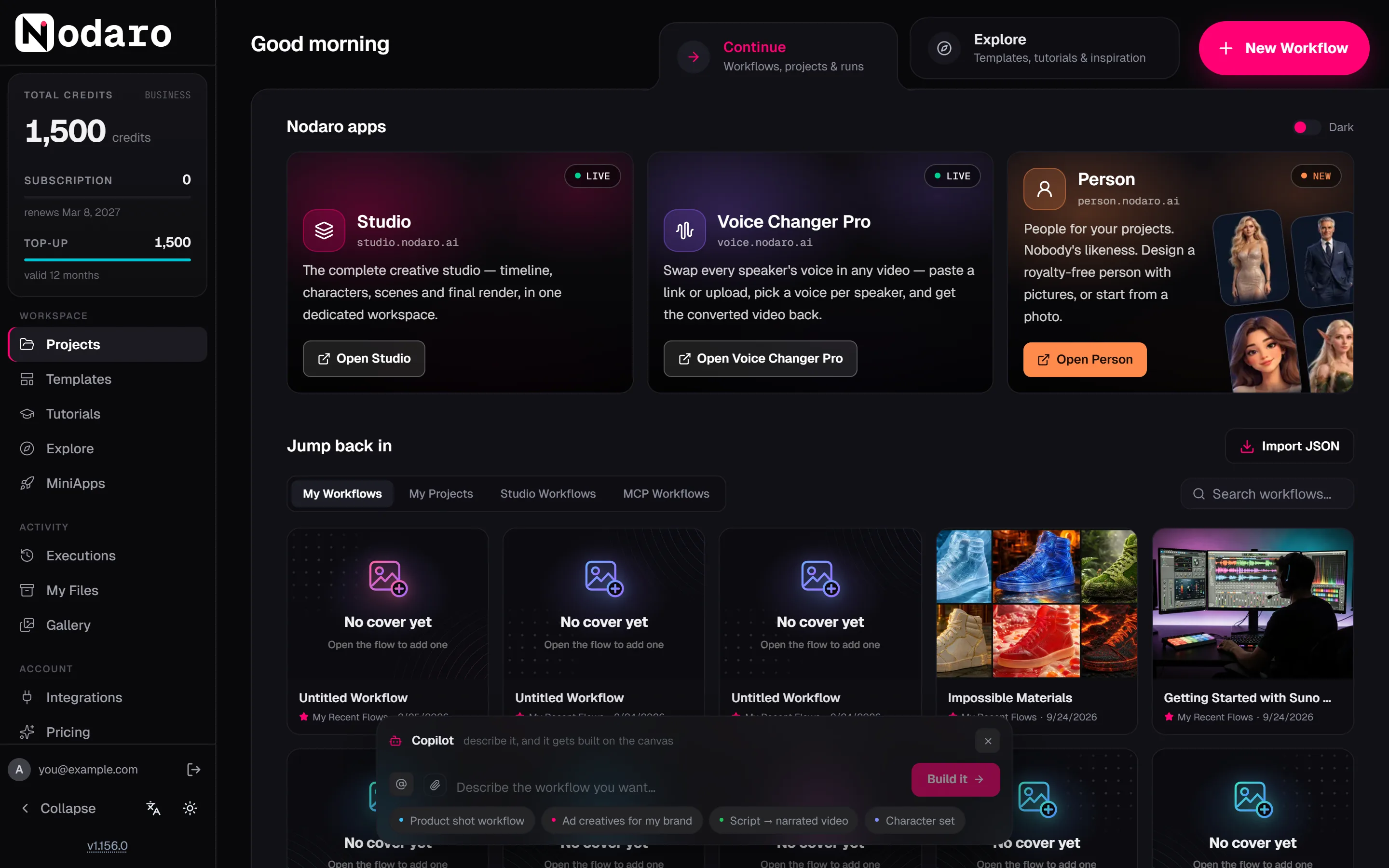
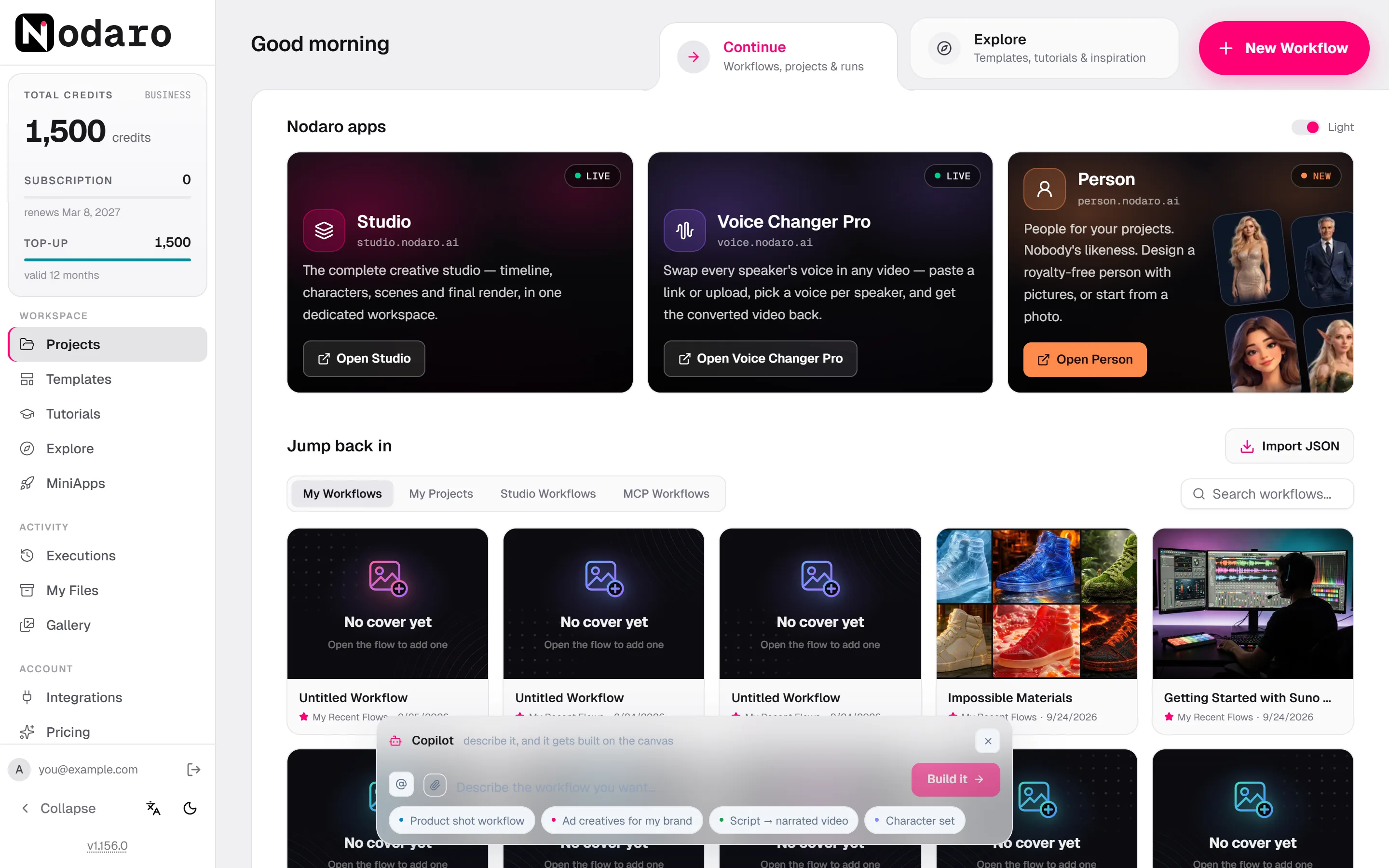
| Where to find it | Home screen › Continue › Jump back in › My Workflows | Home screen › Continue › Jump back in › My Projects |
| How to create it | New Workflow on the home screen, or from a template, the Copilot or an import | New project under My Projects |
Every workflow belongs to exactly one project. Your default project, My Recent Flows, is created for you the first time Nodaro needs it. New workflows, copies of templates and tutorials, and imported files go there.
Create a workflow
| Way | What you get |
|---|---|
| New Workflow on the home screen | An empty workflow in My Recent Flows, open in the editor |
| A template or a tutorial | A copy of a finished workflow, which you can change freely |
| The Copilot, on Nodaro Cloud | A workflow built from your description |
| Import JSON | A workflow from a file that someone exported. See Import and export. |
| An AI assistant through MCP, or the API | A workflow created from code or from a chat |
Workflows that an AI assistant creates through MCP go into a project named mcp, and the MCP Workflows filter of Jump back in lists them.
Organize workflows and projects
- Workflows. The menu of a workflow card has Duplicate, Move to project and Delete. To rename a workflow, change its name in the top bar of the editor.
- Projects. Create a project with New project under My Projects. A project's menu has Rename and Settings.
- Search. The search box of Jump back in finds workflows by name. In the editor, Ctrl+K searches all your projects and workflows.
- Covers. A workflow card shows a cover image. Right-click a node with a result and choose Set as Thumbnail to use that result as the cover.
On Nodaro Cloud, Studio Workflows lists the workflows made in Nodaro Studio. They open view-only in the editor: open them in Studio to edit them, or use Clone & Remix to make your own copy.
Saving
The editor saves your workflow automatically a few seconds after each change. The top bar shows the state:
| State | Meaning |
|---|---|
| Saved | Every change is stored. |
| Saving... | A save is in progress. |
| Unsaved | You changed something that is not stored yet. |
| Save failed | The save did not work. Click Retry. |
- Save at once with Ctrl+S. Running a node or the workflow also saves your changes first.
- Leaving with unsaved changes. The editor asks whether to save before you leave.
- Two tabs or two devices. When the same workflow changes somewhere else while you have unsaved edits, your edits stay, and a message asks you to reload to see the latest version.
- View-only workflows. When you open a workflow that you cannot change, the editor says that your changes cannot be saved. Use Clone & Remix to continue on your own copy.
Versions and history
- Undo and Redo work while the editor stays open. After you reload the page or leave the workflow, the undo history starts again.
- Every result keeps its versions. Each run of a node adds a result and keeps the earlier ones. See Running workflows.
- Keep a copy before a big change. Duplicate the workflow, or export it as a file. An exported file can be imported again at any time.
- Published apps have versions. When you publish a workflow as a MiniApp, each publication is a version that people can run.
Share a workflow
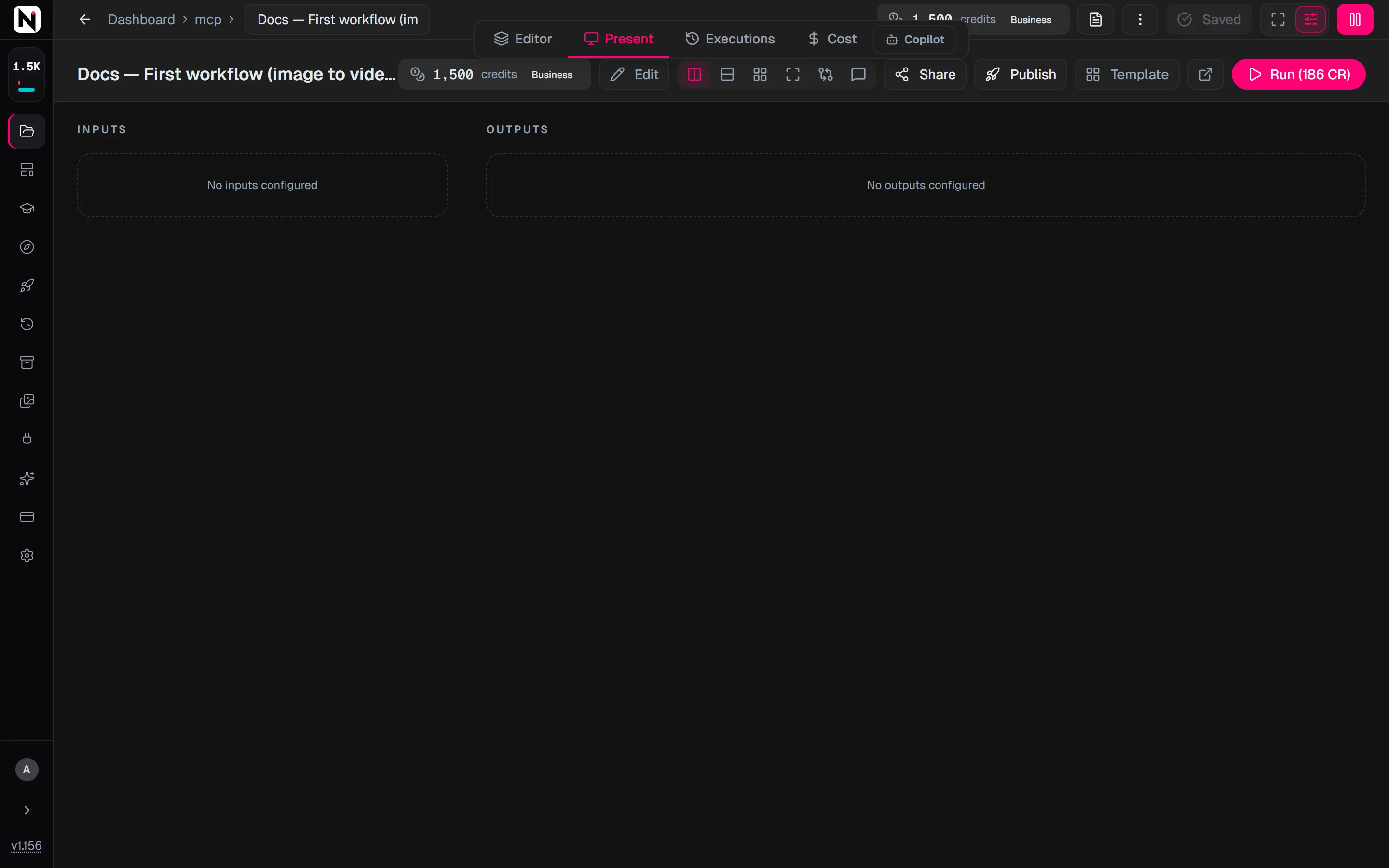
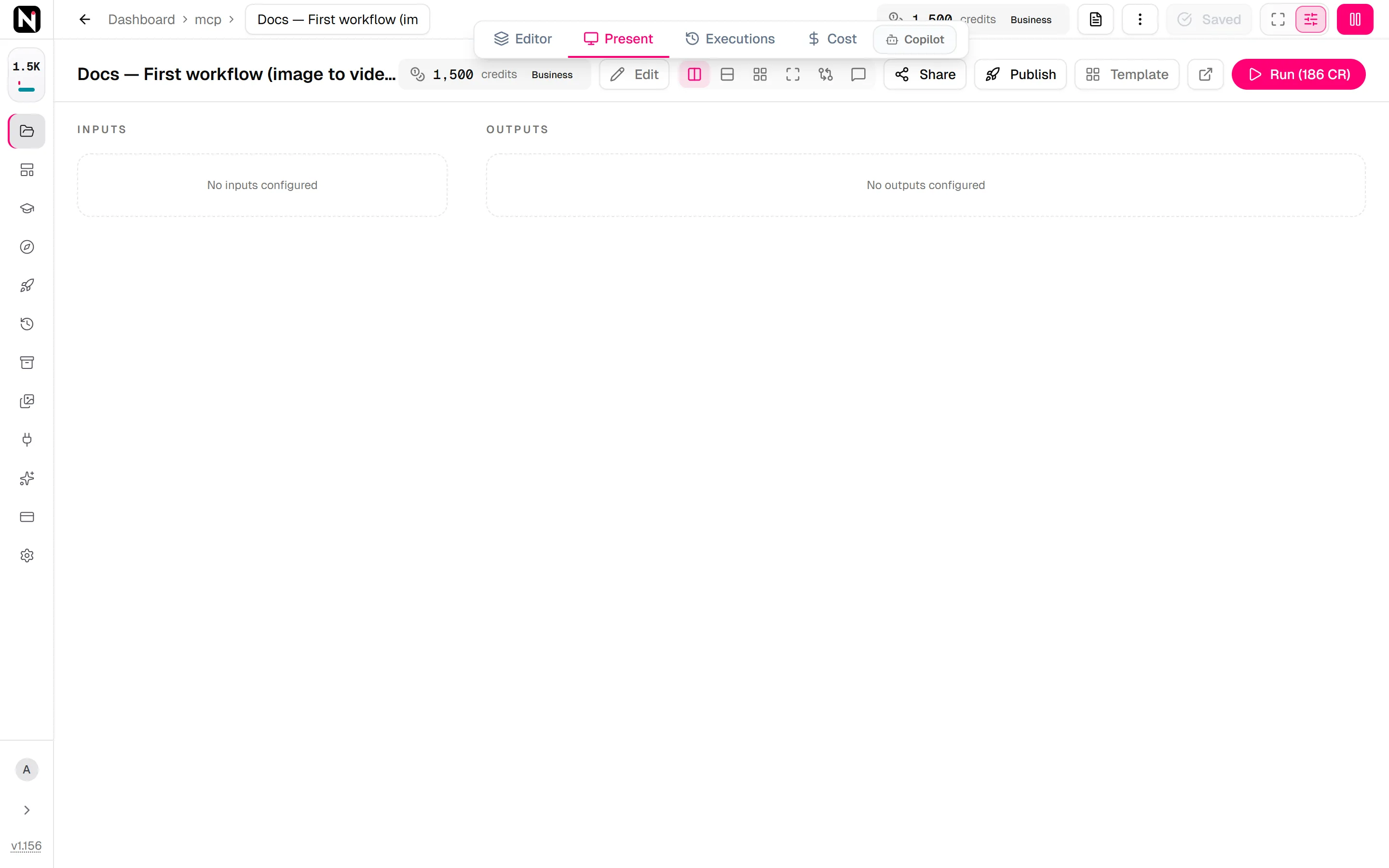
Open the Present tab of the editor. Its buttons share and publish the workflow:
| Button | What it does |
|---|---|
| Share | Opens the share dialog: add people by email, and create a share link. |
| Publish | Publishes the workflow as a MiniApp, a simple form with its own URL. |
| Template | Publishes the workflow as a template that other people can copy. |
In the share dialog:
- People with access adds one person by email, as Can view or Can edit. You can remove the access at any time. In a workspace, you can also share the workflow with Everyone in this workspace.
- Generate Share Link creates a link to the workflow as a presentation. Anyone with the link can run it, and they pay with their own credits. Viewer Settings set what viewers see, and Revoke Sharing turns the link off.
Import and export
- Export. In the editor, open the More options menu and choose Export. With Assets includes the characters, objects and locations the workflow uses. Template Only includes the workflow alone, without results. Save the workflow first, because export reads the saved version.
- Import. On the home screen, click Import JSON. In the editor, open Import and choose From File or From Clipboard, then Import as New or Add to Current. An imported workflow is named after the file, with "(Imported)" added.
Import and export explains what happens to characters and media when a workflow moves to another account or install.
Tips
- One project per client or campaign. Projects keep related workflows, assets and runs together.
- Name what you keep. Rename a workflow as soon as it is worth keeping. Many workflows start as "Untitled Workflow".
- Duplicate to experiment. Try a big change on a copy, and keep the original as it is.
- Clear before you change. Clear all results takes old results off the canvas, so that the new results are easy to see.
Frequently asked questions
Related
Nodes and connections
Running workflows
Apps (MiniApps)
Workspaces
Import and export
Last updated on
Core concepts
The ideas behind every Nodaro workflow, from nodes, connections and runs to lists, prompt variables, presets, credits, apps, workspaces and editions.
Nodes and connections
Learn what a node is, which kinds of inputs and outputs it has, how connections carry results between nodes, and how connection modes pass one result or a list.