
 Nodaro Docs
Quickstart
Sign in to Nodaro Cloud with Google, use your free credits, copy a template or tutorial into your account, run it and download the finished result.
This quickstart takes you from sign-in to a finished result on Nodaro Cloud. You sign in with Google, copy a ready-made workflow into your account, run it and download what it makes. You need no setup and no credit card: the free credits of a new account pay for the run.
This page uses Nodaro Cloud at app.nodaro.ai. To run Nodaro on your own server, start with the self-hosting quickstart instead.
What you do
| Step | Where | Cost |
|---|---|---|
| Sign in | app.nodaro.ai | Free |
| Choose a template or a tutorial | The Explore tab of the home screen | Free |
| Copy it into your account | Clone & customize or Run tutorial | Free |
| Run it | Execute workflow in the editor | The credits of each node, shown before you run |
| Download the result | The last node, or My Files | Free |
Make your first result
Sign in
Open app.nodaro.ai and click Continue with Google. Your first sign-in creates your Nodaro Cloud account.
Check your free credits
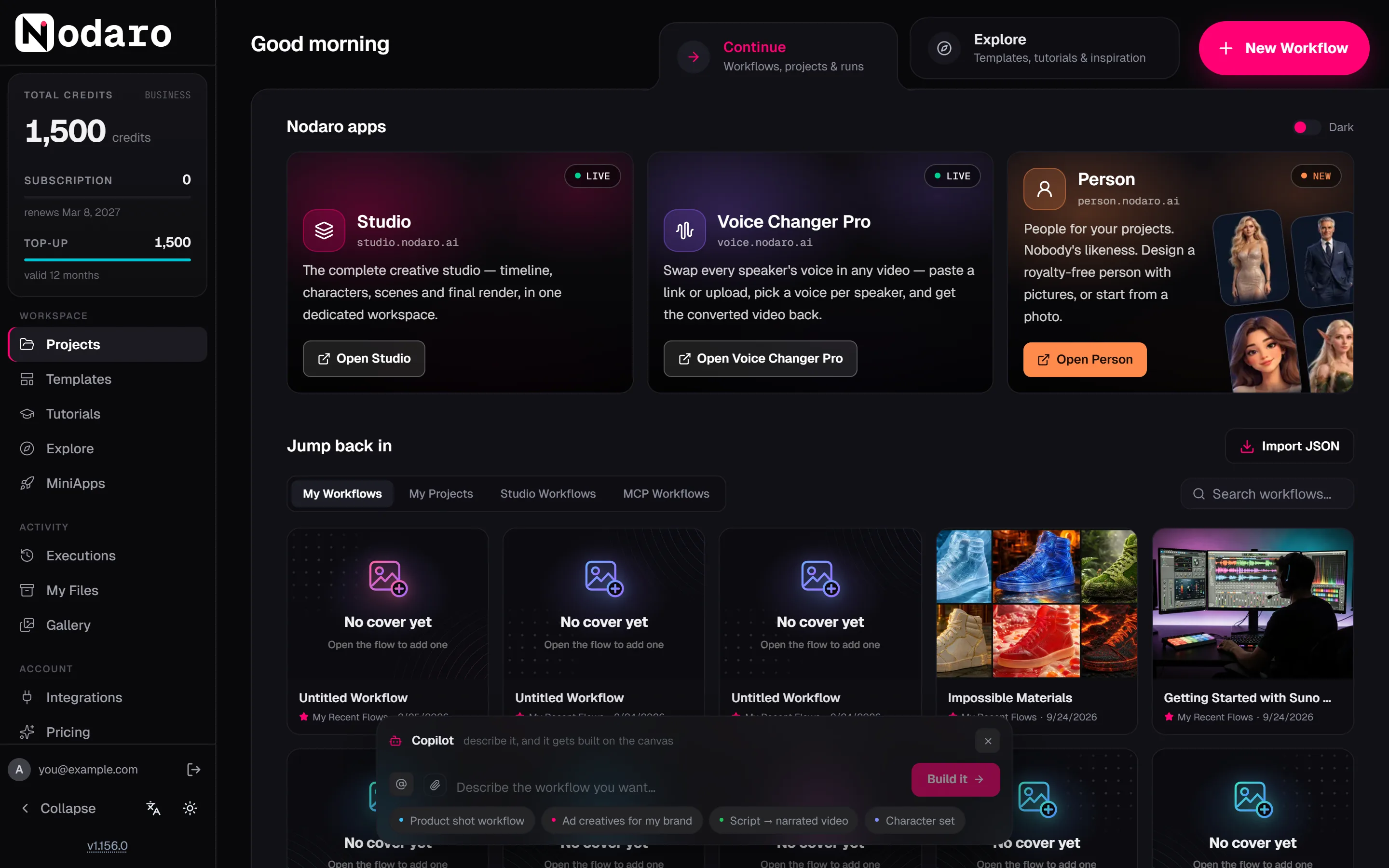
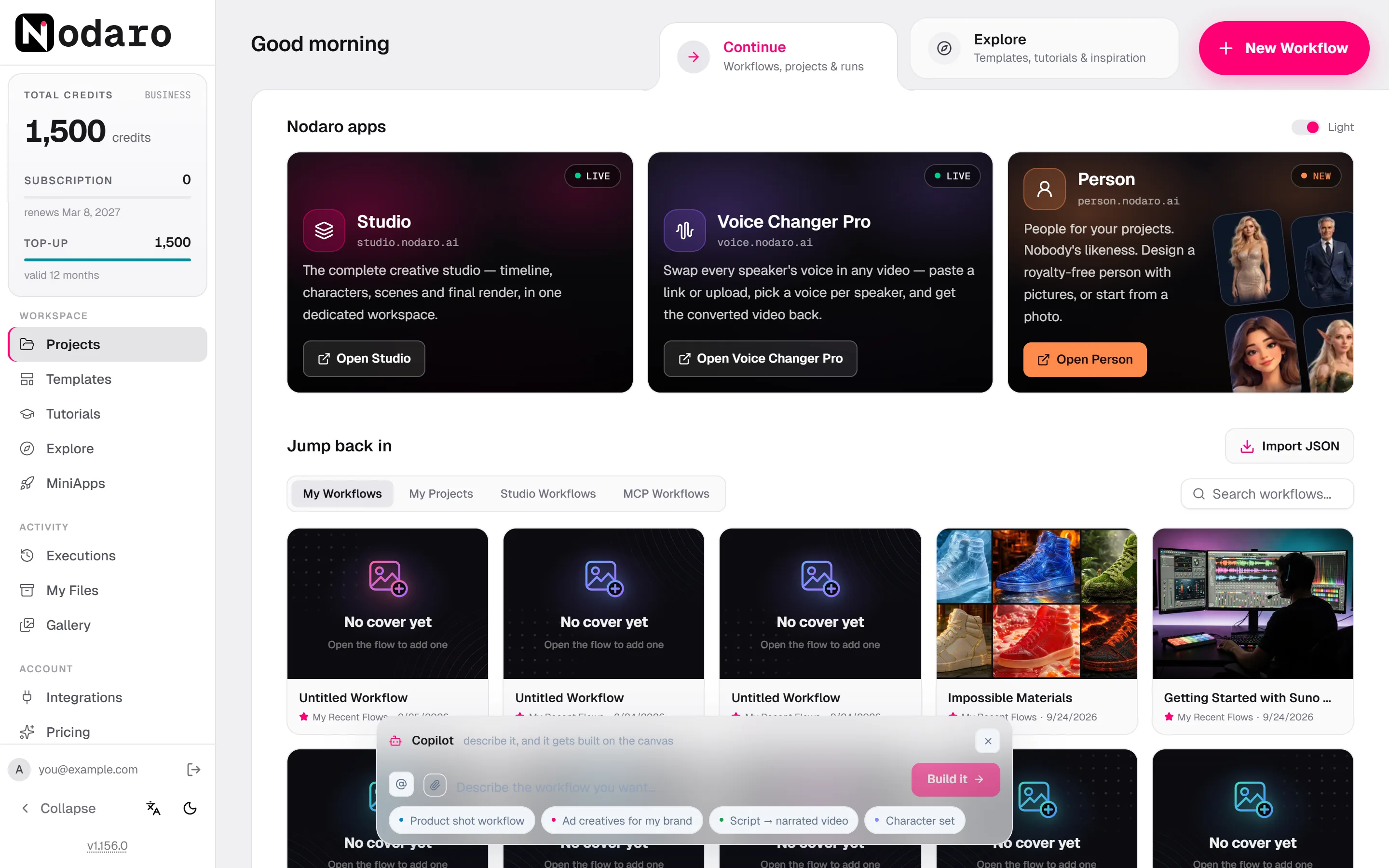
A new account gets a one-time grant of 1,500 credits, and your balance shows in the sidebar. In most cases the credits are added the first time you open the app. If a banner at the top of the home screen asks you to activate them, follow it. Free credits explains every case.
Open the Explore tab
The home screen has two tabs. Continue holds your own workflows, projects and runs. Explore holds templates, tutorials and ideas. Click Explore.
The Tutorials entry in the sidebar opens the same tab. The Explore entry in the sidebar is a different page: the community library of characters, locations, objects and creatures.
Choose a template or a tutorial
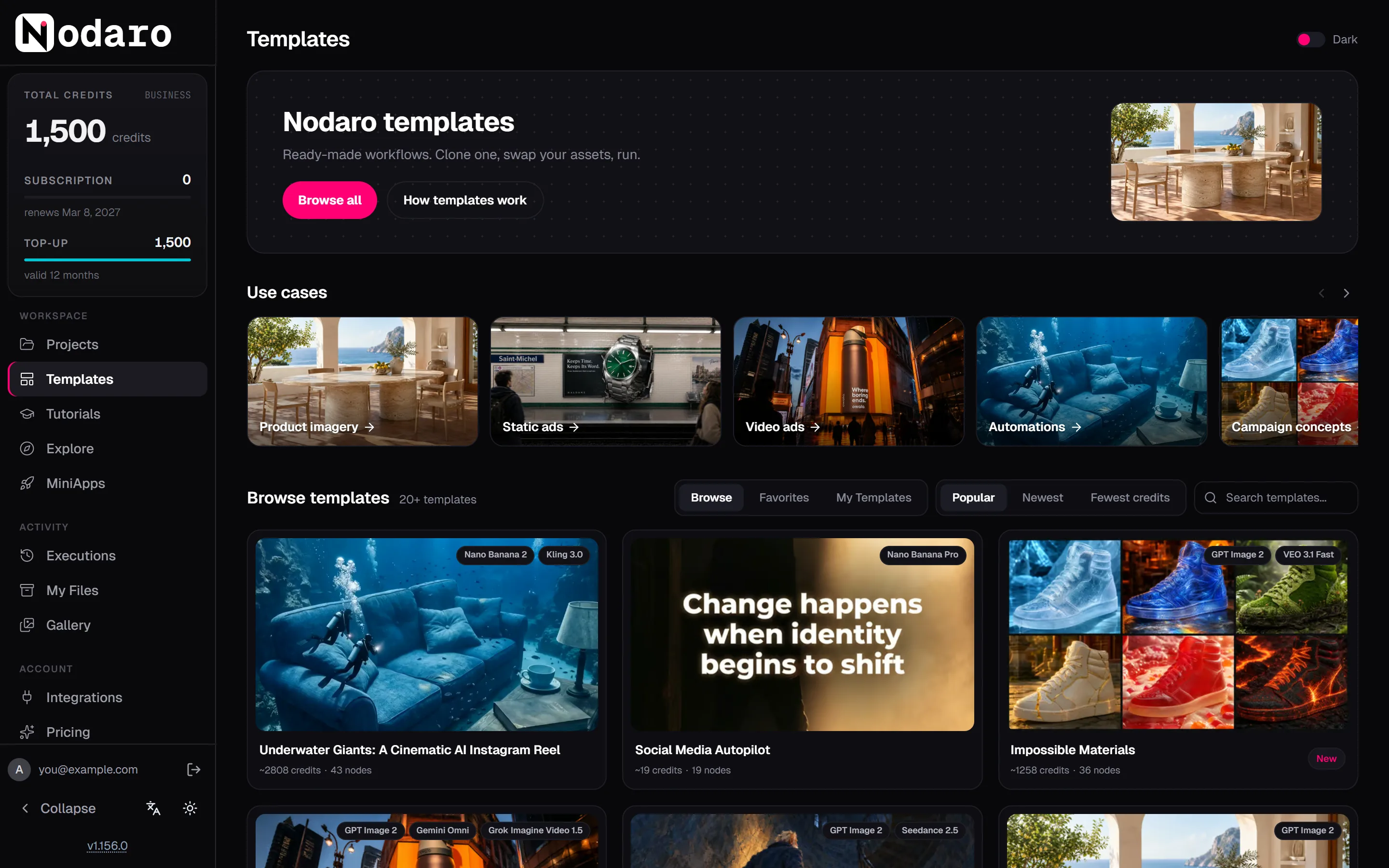
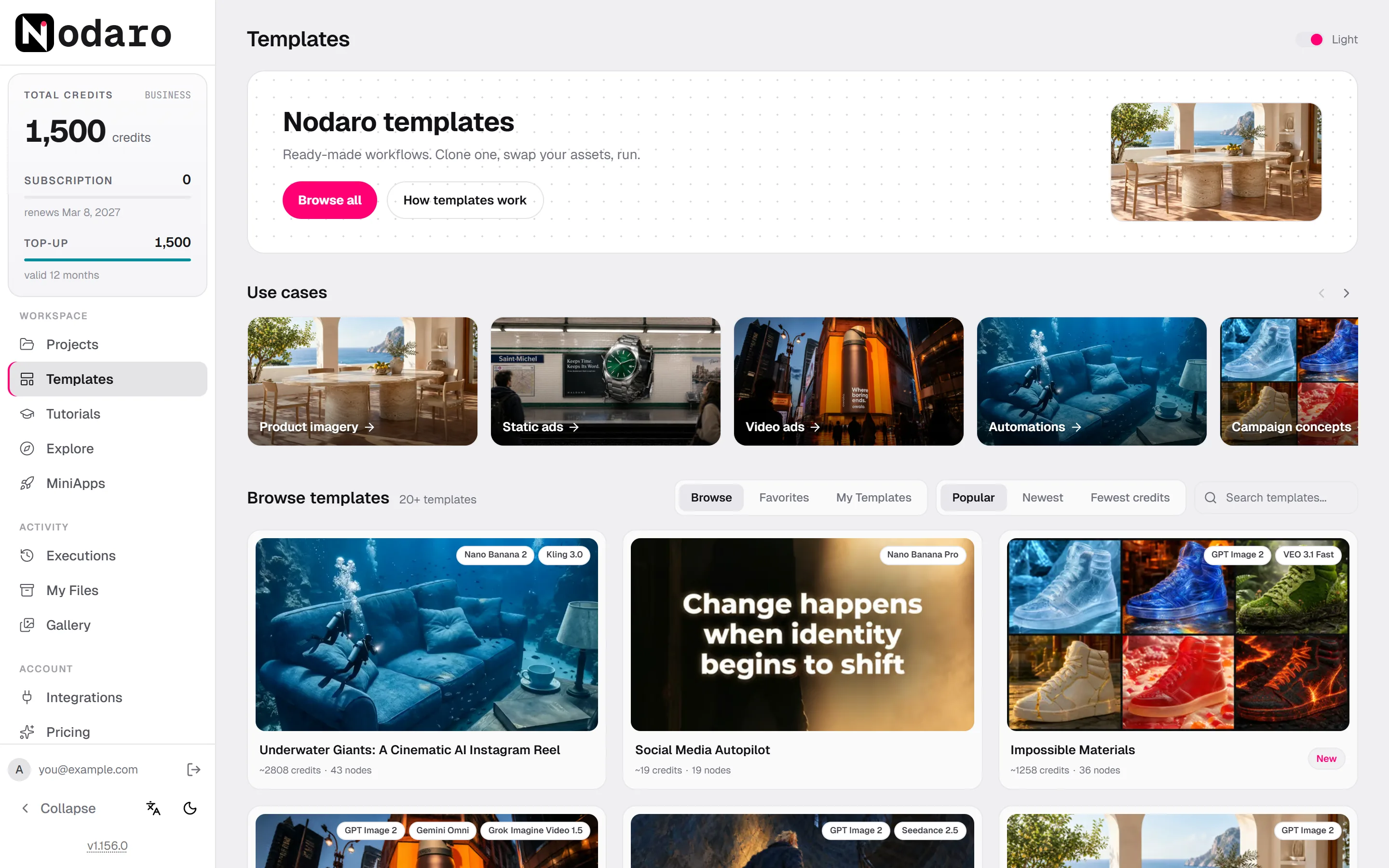
A template is a finished workflow that someone built and tested. A tutorial teaches one idea with a workflow or a short video.
- A template. Under Start from a template, click a use case, such as Video ads or Product imagery. Then click a template to see its results, the models it uses and how it works.
- A tutorial. Under Level up, click a card marked Tutorial. A tutorial with a guided walkthrough opens a page that explains each step and shows the real results of the workflow.
Copy it into your account
- For a template, click Preview on canvas to see every node, then click Clone & customize.
- For a guided tutorial, click Run tutorial.
Nodaro copies the workflow into your default project, My Recent Flows, and opens the copy in the editor. Copying is free. The original stays unchanged, so you can edit your copy freely.
Fill in your inputs
Many templates start from your own material. Look for nodes on the left of the canvas, such as a Text node with a prompt or an Upload Image node that waits for your photo. Change the text or add the file. Double-click a node to open its settings panel if you want to change a model or a setting.
Run it
Click Execute workflow at the bottom of the canvas. The button shows the estimated credits for the whole workflow. Nodaro asks you to confirm how many nodes will run and what the run will cost. Click Run.
Watch it work
Each node shows its progress while it runs, and the bar at the bottom of the canvas counts the finished nodes. When a node finishes, its result appears on the node and the next node starts. The run continues on Nodaro's servers, so you can close the tab and come back.
Download the result
Point at the result on the last node and click the download button. Every file the run made is also listed under My Files in the sidebar, and the run itself is listed under Executions.
If something goes wrong
| What you see | What to do |
|---|---|
| The run does not start because you do not have enough credits | The message shows the credits the run needs and the credits you have. Choose a cheaper model in the expensive nodes, or remove nodes you do not need. |
| A node shows Failed | Point at the node to read the error. Fix the input or the setting it names, then click Run on that node to run it again. |
| A node shows Prohibited | The model's safety filter blocked the request, and the credits come back. Change the prompt or choose another model. |
| Execute workflow is missing | The workflow is view-only. Use Clone & Remix to make your own copy. |
Next steps
- Build your first workflow from an empty canvas: a prompt, an image, a video and a voiceover.
- Take the tour of the editor to learn the canvas, the node picker and the settings panel.
- Build a workflow with the Copilot by describing what you want.
- Read Running workflows to learn what runs when, what it costs and how to stop a run.
Frequently asked questions
Related
Build your first workflow
Tour of the editor
Tutorials and templates
Free credits
Running workflows
Last updated on
Get started
Where to begin with Nodaro, by goal. Make videos in the editor, build with the Copilot, drive Nodaro from an AI assistant, build on the API, or self-host it.
Tour of the editor
A tour of the Nodaro editor, from the home screen and sidebar to the canvas, node picker, settings panel, runs, results, the Copilot and keyboard shortcuts.