Core Concepts
Import & Export Workflows
Save, share, and reuse workflows using export and import.
You can save, share, and reuse workflows using export and import.
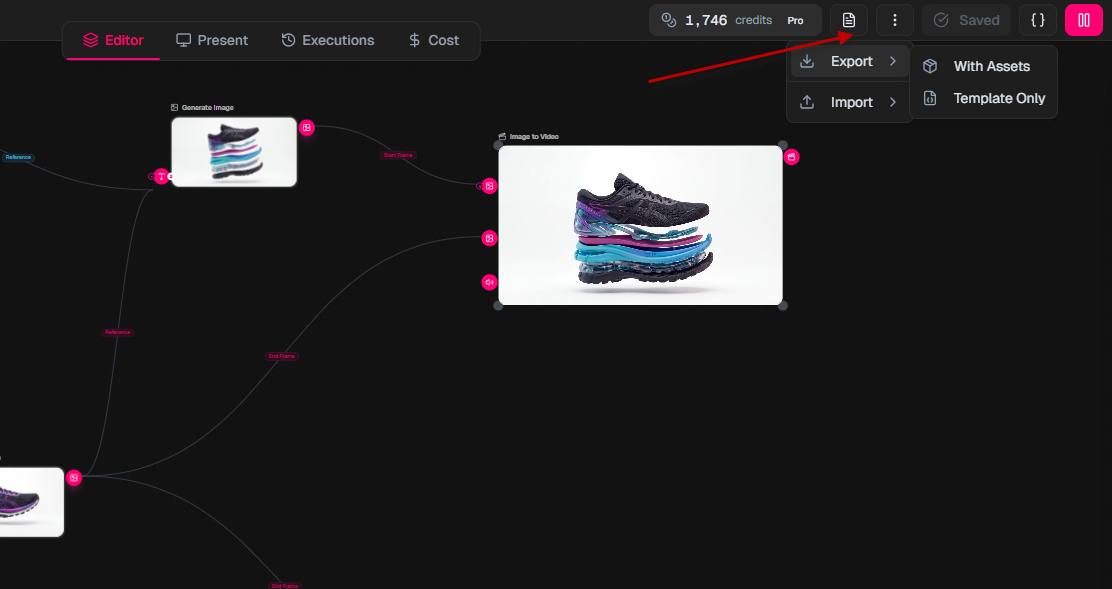
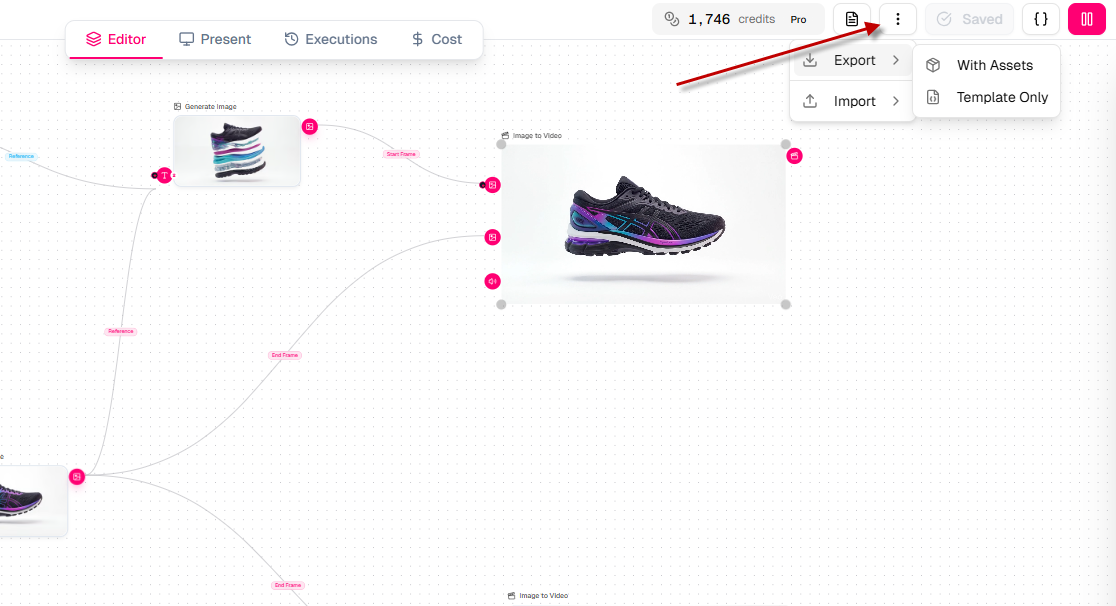
Export a workflow
Exporting creates a file that contains your workflow.
- Click Export
- Choose:
- With Assets — includes images, characters, and other linked assets
- Template Only — exports only the structure (nodes + connections)
A JSON file will be downloaded.
Import a workflow
Importing loads a saved workflow into the editor.
- Click Import
- Choose:
- From File — upload a JSON file
- From Clipboard — paste a copied workflow
The workflow will appear on your canvas.
What gets exported
A workflow export includes:
- Nodes
- Connections
- Node settings (prompts, parameters, etc.)
If you choose With Assets, it also includes linked assets.
When to use this
- Save a workflow as a backup
- Share workflows with others
- Move workflows between projects or environments
Template vs Full export
- Template Only → clean structure, no assets
- With Assets → complete workflow, ready to run
How to think about it
A workflow is just a structure.
Export = save the structure. Import = restore it.
Tip
Use Template Only when you want to reuse logic. Use With Assets when you want the exact same result.